Path Visualiser
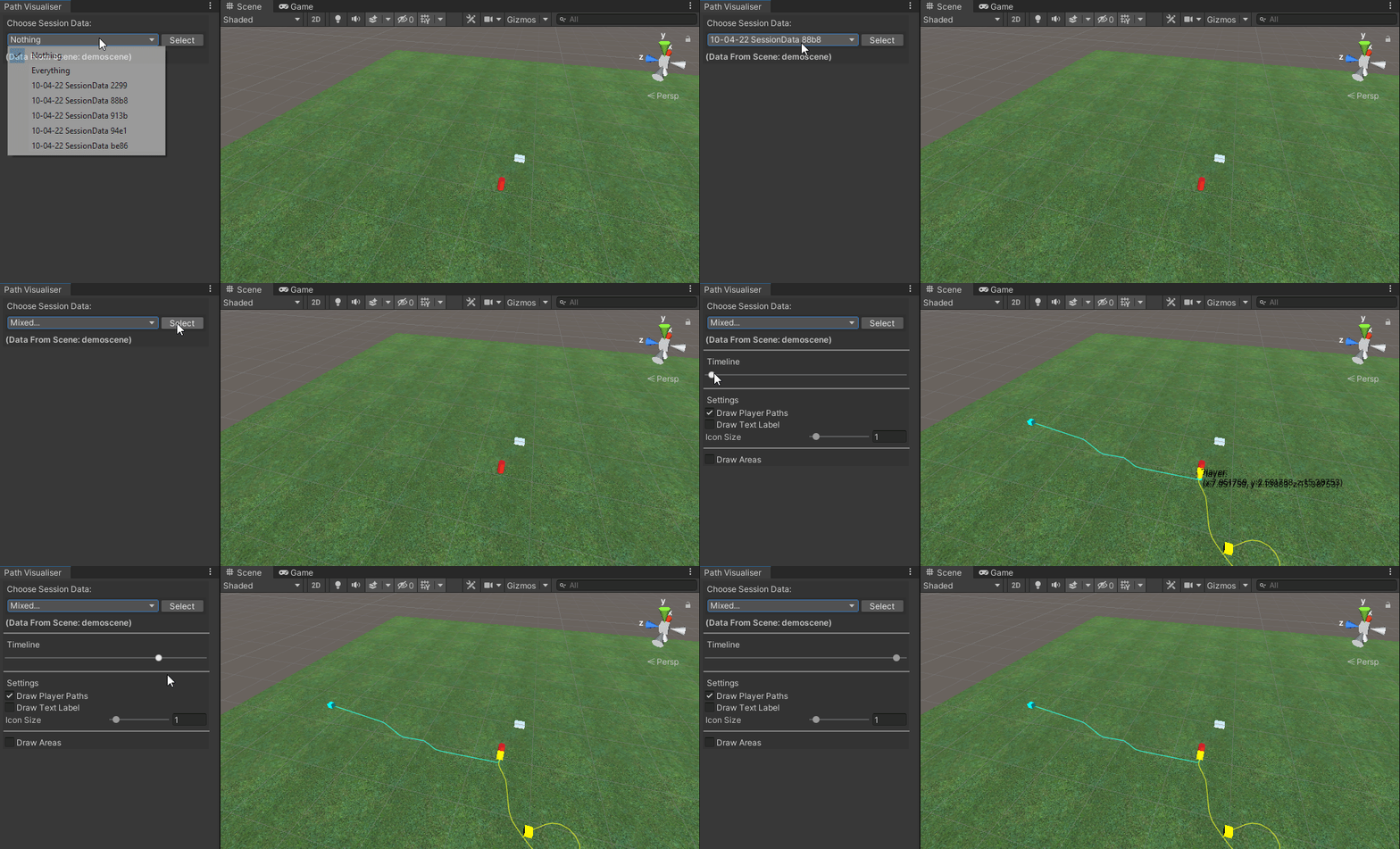
From the collected Position Data The tool can draw the path the object took through the play session.
The window is located from the taskbar Tools > Playtesting Tool > Visualisers > Path Visualiser
- Choose Session Data:
- A list of session data folders with tracked position data in them. Select the data you wish to visualise.
- TimeLine:
- Updates the position of each object along its drawn timeline.
- Draw Object's Paths:
- toggles displaying the path in the scene view.
- Draw Text Label:
- toggles displaying the text labels in the scene window with details on the object.
- Icon size:
- the size of the icons in the scene view.
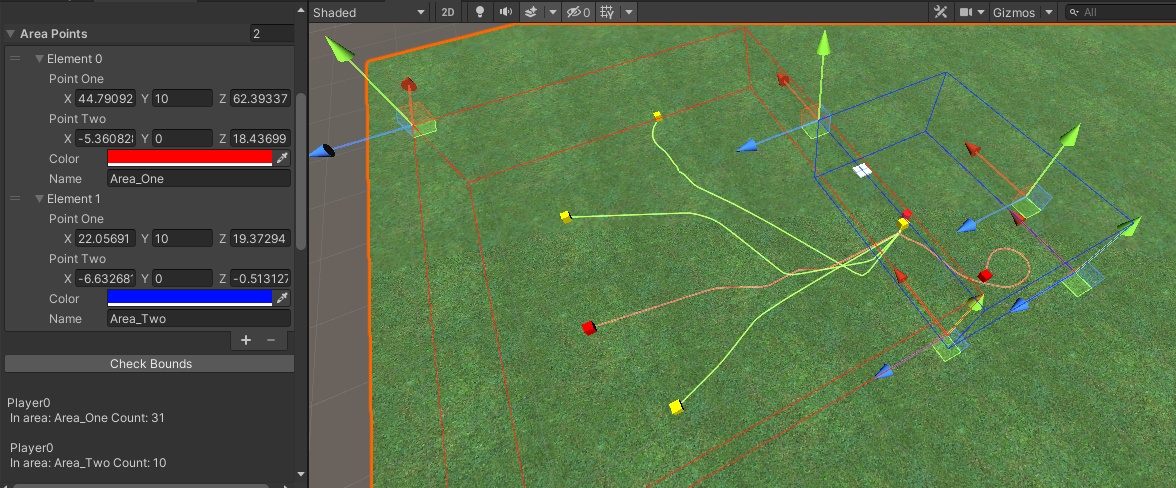
This is for drawing cuboid areas in the scene.
- you can create as many areas as needed giving them customs;
-
Namesandcolours.
-
- With areas declared You can then check what objects are within these bounds or not by pressing the Check Bounds button.
- Bound info is given at the end of the window.