Setup
Step by step guide for first-time use.
-
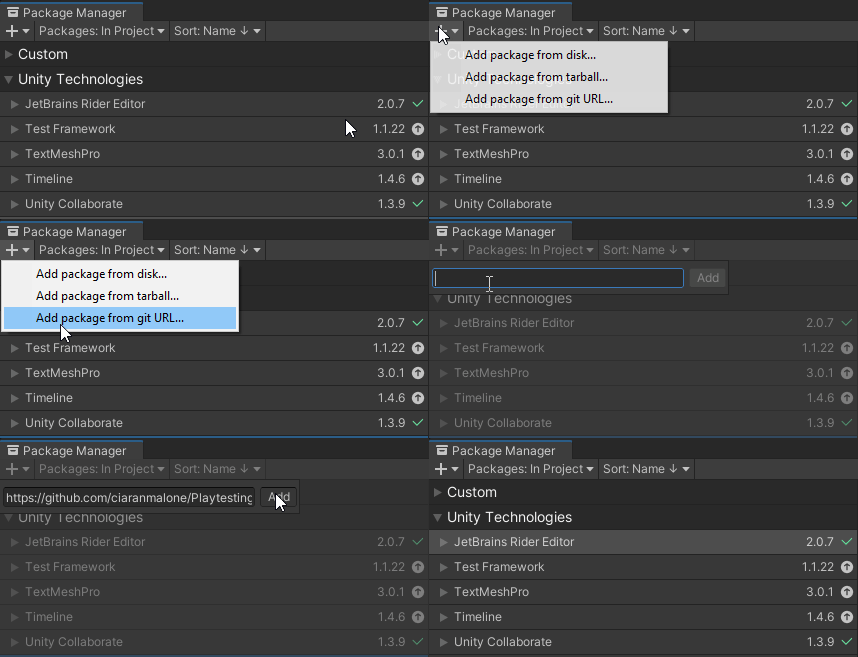
In the package Manager window press the + plus button, and it will bring up a dropdown. Selected Add package from git URL.
-
Paste the git URL in the input field provided.
-
make sure you have
.gitat the end of the URL. -
Press the Add button.
-
It should install on your project now.
-
If your Unity version does not support adding packages via git URL you can download the project from Github and manually add the project to your Package folder.
To collect data you will need to introduce:
- Tracker Components onto the gameobject you wish to track data on.
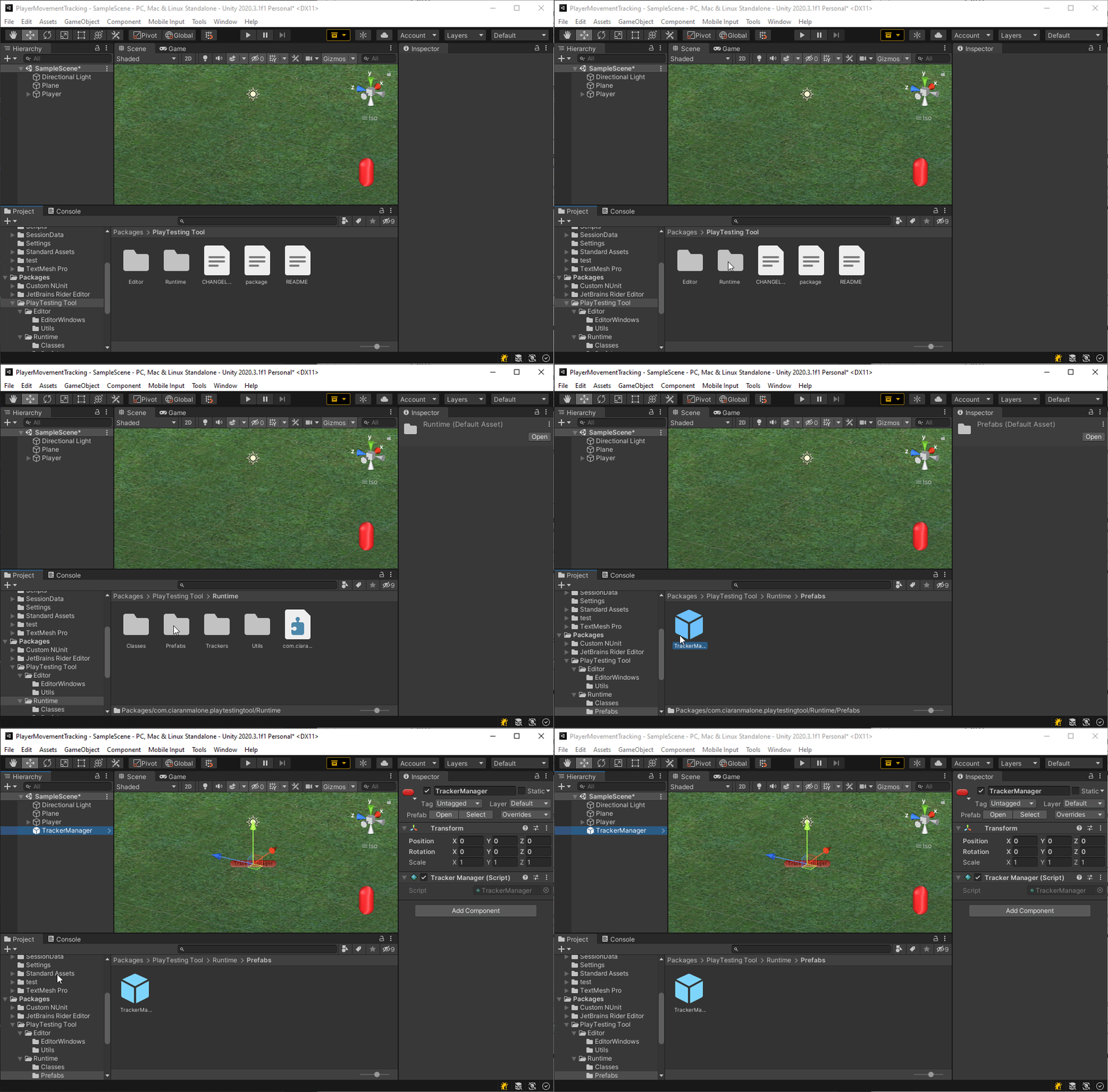
- Tracker Manager gameobject to handle all tracker components in the project.
- a prefab of the tracker manager can be brought into your project from the package manager.
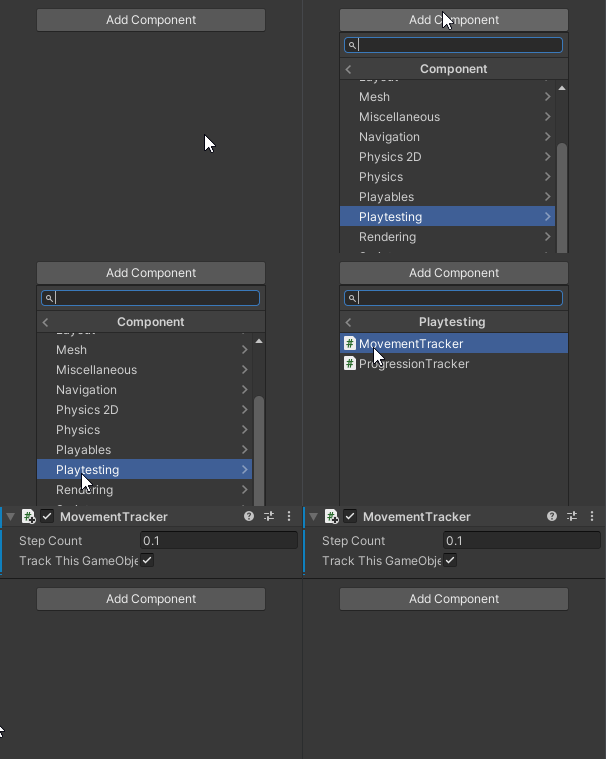
- tracker component needs to be either put on the gameobject it's tracking or pointed to the object it is being tracked.
- In this example, we are using the movement tracker. Add the component to the gameobject you with to track movement on.
- When the game starts it will track begin to track the player's movement.
- When the game Stops the data will be saved.
- The tool offers saving Session Data locally or remotely. In this example, we will set it to save locally.
- Set the local saving path in the Playtesting Tools Settings Window.
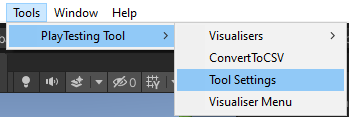
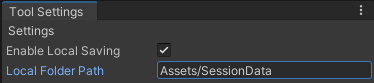
- Now when you play the game data will be tracked, When you stop it will be saved locally to the specified folder.
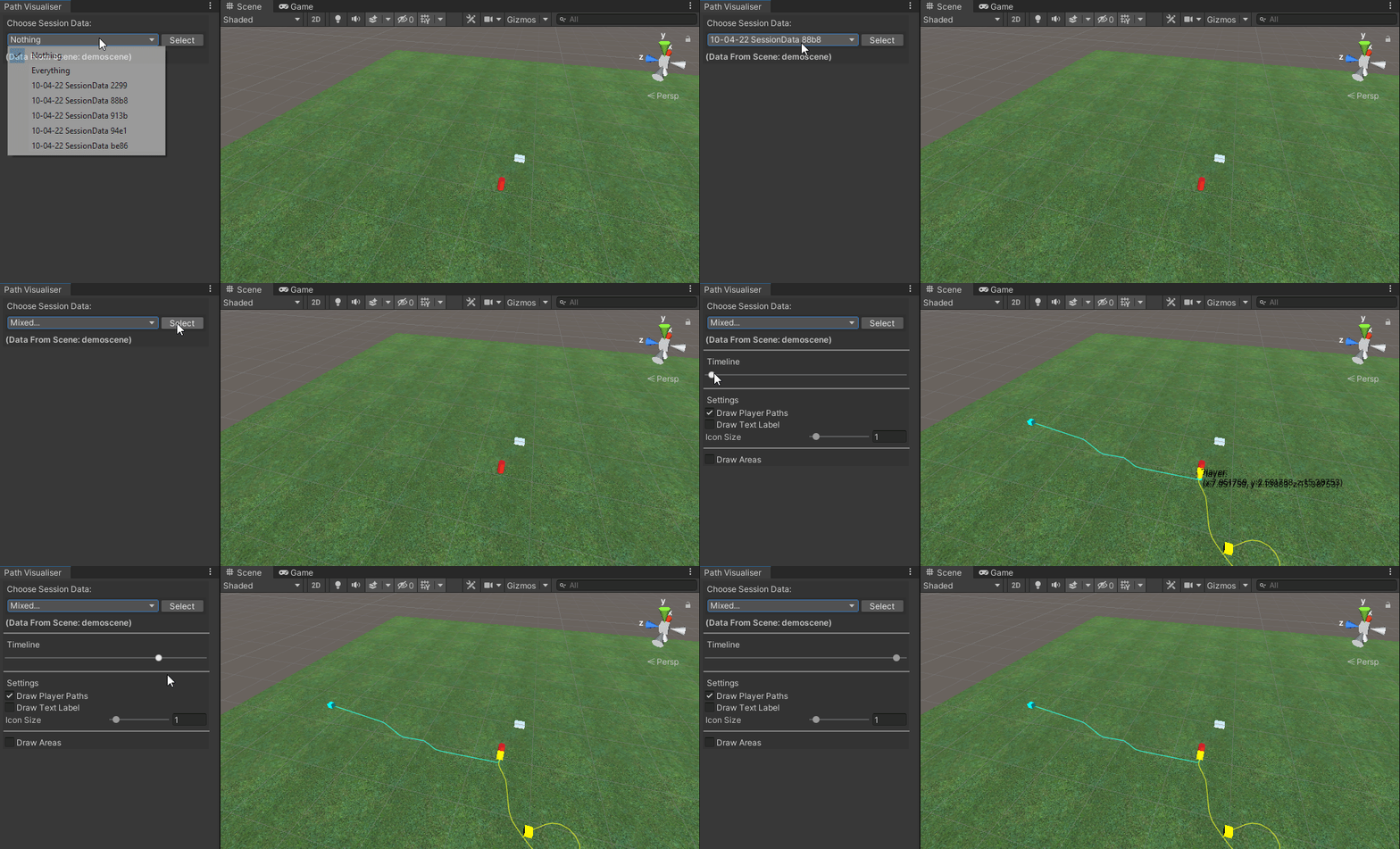
Open the Path Visualiser located from the taskbar Tools > Playtesting Tool > Visualisers > Path Visualiser
- In the Path Visualiser Window, you will be able to select the generated data. When selected it will display the path during the scene you played.
- The timeline updates the position of each object along its drawn timeline.