Playtesting Tool Settings Menu
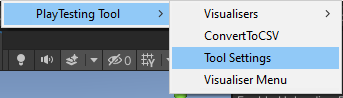
The Playtesting tool menu allows customisation for the entire tool. It can be opened from the taskbar
Tools > Playtesting Tool > Tools Setting. Settings are saved as a JSON file at Assets/Settings/settingsData.json.
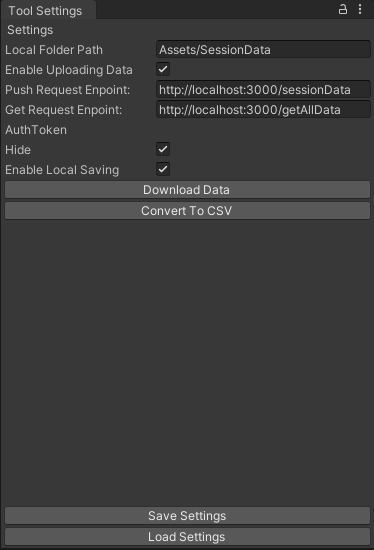
- Enable Local Saving:
- When enables the generated data will be saved locally in the specified folder.
- Default Value:
True
- Local Folder Path:
- Where the Session Data is saved locally.
- Default Value:
Assets/SessionData.
- Enable Uploading Data:
- When enabled the tool will try to post the SessionData to the specified Endpoint.
- Default Value:
False
- Post Request Endpoint:
- the endpoint to which the data is uploaded at the end of the play session.
- Default Value:
http://localhost:3000/sessionData
- Get Request Endpoint:
- the endpoint to get all data from the database. Is used by the Download Data Button.
- Default Value:
http://localhost:3000/getAllData
- Auth Token
- Auth token sent in the header of the Post and get requests for Authorisation.
- Default Value:
null
- Download Data Button
- Downloads all Session Data from the database with the specified get endpoint.
- Convert To CSV
- Converts tracked progression JSON file Data to a CSV file.
- Save Settings
- Save the settings set in the tool.
- Settings settings are saved as a JSON file at
Assets/Settings/settingsData.json
- Load Settings
- load settings from
Assets/Settings/settingsData.json
- load settings from