Repository navigation
Schedules
A job can back up by itself: every few minutes or hours, daily, on chosen weekdays or monthly. Either the system's task scheduler starts it – also while BorgStudio is closed – or BorgStudio runs it itself from the notification area.
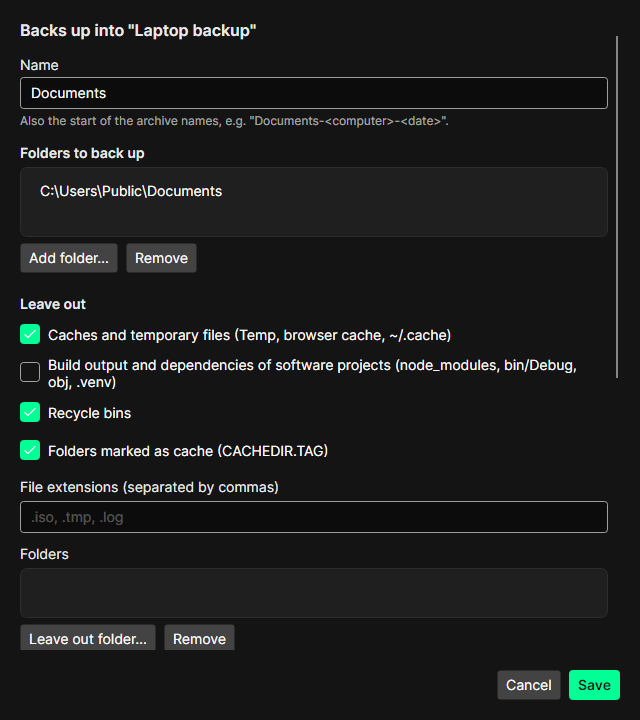
In the job editor, Schedule → Add schedule:
- Daily at a time,
- On weekdays – pick the days – at a time,
- Every 1–12 hours, starting at a time (e.g. every 4 hours from 08:00: 08:00, 12:00, 16:00, 20:00).
- Every few minutes – 1, 2, 3, 5, 10, 15, 20 or 30 – around the clock, aligned to the full hour (every 15 minutes: :00, :15, :30, :45).
- Monthly (weekday) – the 1st–4th or last weekday of the month, e.g. the first Sunday – and Monthly (date) – day 1–28 or the last day – at a time.
The same kinds plan the repositories' automatic checks.
A job can have several schedules (for example every evening and at noon on weekdays). Make up for missed times once at the next start runs the job once when the computer was off at its time – however many times were missed.
The job list shows each job's schedules and its next run.
Below the schedules, Scheduled runs start only:
- on mains power, not on battery,
- not over a metered connection (not available on macOS),
- over a cable, not Wi-Fi,
- when the target is there – the server answers, the folder exists; otherwise the run is skipped instead of failed.
The connection conditions apply to server repositories and to folders on network shares. A run held back is tried again every 15 minutes until the job's next time, then recorded as skipped with its reason. Runs by hand and through the webhook ignore the conditions. The job list shows them (Starts only on mains power).
Nobody is there to answer questions, so the first schedule of a job asks for what is missing:
- A repository that asks for its passphrase every time cannot run by itself. BorgStudio offers to store the passphrase (in the vault, or the system keychain without a PIN); otherwise the run is skipped.
- With a PIN, scheduled runs need the key for scheduled runs: BorgStudio keeps the vault's key in the system keychain (Windows Credential Manager, macOS keychain, Secret Service) – or, without a keychain, in a file only you can read. BorgStudio itself stays locked by the PIN. A new PIN takes the key along; resetting the vault removes it.
- An SSH server must have been confirmed once in the window.
A run that cannot start (disk not connected, server unknown, passphrase missing …) is recorded with the job as failed, with the reason – and can be reported.
Tools → Settings → Scheduled backups:
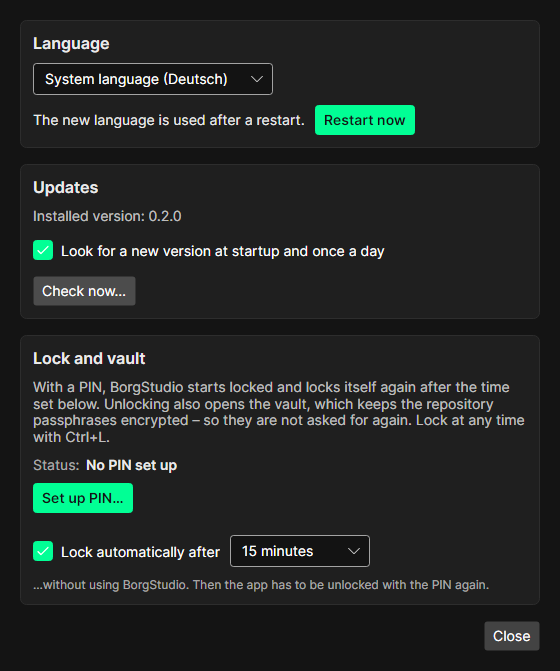
BorgStudio keeps one entry per scheduled job in the system's scheduler, updated whenever jobs are saved and at startup:
| System | Entry |
|---|---|
| Windows | Task Scheduler, folder \BorgStudio, one task per job (missed times: run as soon as possible) |
| macOS |
~/Library/LaunchAgents/net.cuban8io.borgstudio.<job>.plist, plus one that catches up at login |
| Linux |
~/.config/systemd/user/borgstudio-<job>.timer (Persistent=true) |
The scheduler starts BorgStudio --run-job <job> without window. The outcome shows in the app the next time you open
it, and a line goes to logs/scheduled.log. Runs only happen while you are logged in.
BorgStudio starts at login without window (Windows: a Run entry in the registry, macOS: a LaunchAgent, Linux:
~/.config/autostart/borgstudio.desktop) and stays as an icon in the notification area. Closing the window only hides
it (a hint says so the first time). Scheduled backups run in the app, one after the other, with their progress in the
window; missed times are made up for once at startup.
The icon shows a running backup, a failed one or paused schedules. Its menu opens the window, shows the next backup, starts a job right away, pauses the schedules and quits BorgStudio.
Only one BorgStudio runs at a time: starting it again brings the running one's window forward. Switching back to the task scheduler removes the start at login and restores the scheduler's entries.
On Linux the desktop needs a notification area (on GNOME: the AppIndicator extension).
The background mode can also be started from other programs: see Incoming webhook.