Repository navigation
Connecting to iBroadcast
Without an account, Tagcast opens a demo library so you can try browsing and preview metadata edits. Demo edits are never saved to iBroadcast. Playback, the play queue and favourites need a live connection.
Tagcast includes its public iBroadcast client ID. You do not need to create an app, copy a client ID or supply a client secret. You approve access on the iBroadcast website; your password stays on iBroadcast.
- Open Tagcast. Seeing the demo library before you connect is normal.
- Click Connect iBroadcast near the bottom of the left sidebar. You can also click Demo · Connect at the top right. On a small screen, open the navigation menu to reach the sidebar controls.
- If Use Tagcast sign-in appears, select it to use Tagcast's built-in app registration. Then choose Sign in with a code.
- Tagcast displays a short code. Click Open iBroadcast sign-in to open the iBroadcast website in your browser. Leave Tagcast open while you finish the next steps there.
- On the iBroadcast website, sign in to your account, or choose Continue as your account if you are already signed in. Enter the code shown in Tagcast if the website asks for it; the link may fill it in automatically.
- Allow Tagcast access to your iBroadcast account. The permission page asks to read and edit your music library and read your account information. Review the requested permissions, then click Allow to continue. Your password stays on the iBroadcast website.
- iBroadcast should display “Tagcast has been successfully authorized. You may now return to your device.” Switch back to the Tagcast window you started from. If you use the Python/browser version, return to its Tagcast browser tab. Here, “your device” means the computer running Tagcast; no second device or phone is required.
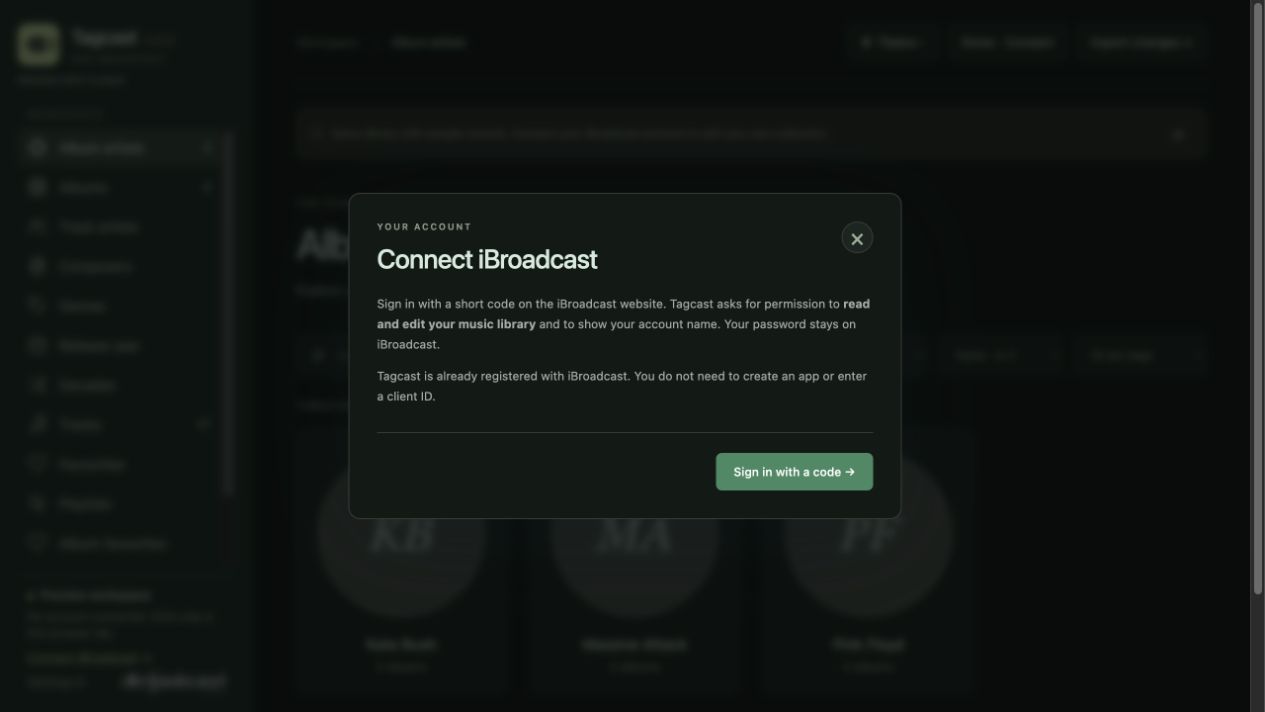
You should not need any further setup. Tagcast checks for the sign-in result automatically. The connection dialog should close, and the indicator at the top right should show Loading library… while Tagcast reads your collection.
When loading finishes:
- Your own artists and albums replace the demo library.
- The top-right indicator changes to Live.
- The bottom of the sidebar shows your account name and a green connection dot, with Reload library and Disconnect available.
The first download of a large library can take a little while. Leave Tagcast open while Loading library… is visible. Later starts reuse a local cache when iBroadcast reports no changes.
The authorization success page confirms that you granted permission. Tagcast still needs to retrieve the sign-in result and load your library; the success page itself does not display your collection.
- If the top-right indicator says Loading library…, allow the current download to finish first.
- If it still says Demo · Connect, click that button to open the connection dialog and check its message.
- If the dialog says Connected, click Reload library to request your collection again. You may also see Reload library in the sidebar.
- If it says Waiting for you to approve Tagcast…, check that you completed the permission step on the iBroadcast website, then return to Tagcast and leave its sign-in dialog open. If the code has expired, start again with a new code.
- If Tagcast shows an error, or still offers Sign in with a code after you approved access, note the exact message. If reloading returns to the demo, look for a Could not load your library: … message.
If it remains stuck, report the problem with the exact message, your operating system, and the version shown beside Settings at the bottom of the sidebar. Include whether the dialog says Connected, is waiting for approval, or offers sign-in again. This helps distinguish a sign-in problem from a library-loading problem.
Reload library checks for changes. Download everything again in the connected dialog forces a fresh download instead of using the local cache.
Existing connections are preserved. A previously saved client ID or
IBROADCAST_CLIENT_ID environment override still takes precedence, and tokens
continue to use the registration that issued them. No automatic migration or
reconnection takes place. If you want to switch an older saved configuration,
choose Disconnect, reopen Connect iBroadcast, choose Use Tagcast sign-in
and sign in with a code. An environment override must be removed before restarting
to switch to Tagcast's default registration.
Browser redirect remains available for an existing custom configuration. Its
registered redirect URI must match http://127.0.0.1:8912/callback, or the actual
port you use. The shared Tagcast registration uses code sign-in, which also works
with your configured local port.
Tokens, saved configuration and cache stay in ~/.tagcast/ (.tagcast in your user
folder on Windows). Set TAGCAST_HOME to use another folder. Settings from the
earlier ~/.library-studio/ folder are migrated on first start. Disconnect
revokes the token and removes the local library cache. The bundled client ID is
public; access and refresh tokens are private and stay in the local server.
iBroadcast Support confirmed that Tagcast may distribute its public client ID while review is pending. The review determines listing on iBroadcast's Apps page; Tagcast does not claim that listing or endorsement.
Concurrent library/API requests, artwork uploads and audio streams now share one token refresh for their connection. A delayed rejection of an older token reuses the newer token instead of starting another refresh. Normal requests still run in parallel; waiting requests share the outcome if refreshing fails.
New credentials stay on the local server and are saved only for the active connection. Delayed saves cannot overwrite newer credentials or bring back a disconnected account. The sign-in steps and stored settings are unchanged.
Loading the library now shows a visible message and a moving progress bar beneath the header, on every page. This appears during startup and Reload library, even when the library information banner is hidden. It clears when loading finishes or fails. The bar is indeterminate: the current whole-response library request does not provide reliable intermediate percentages. An ordinary reload keeps audio playing.