Repository navigation
Playback and queue
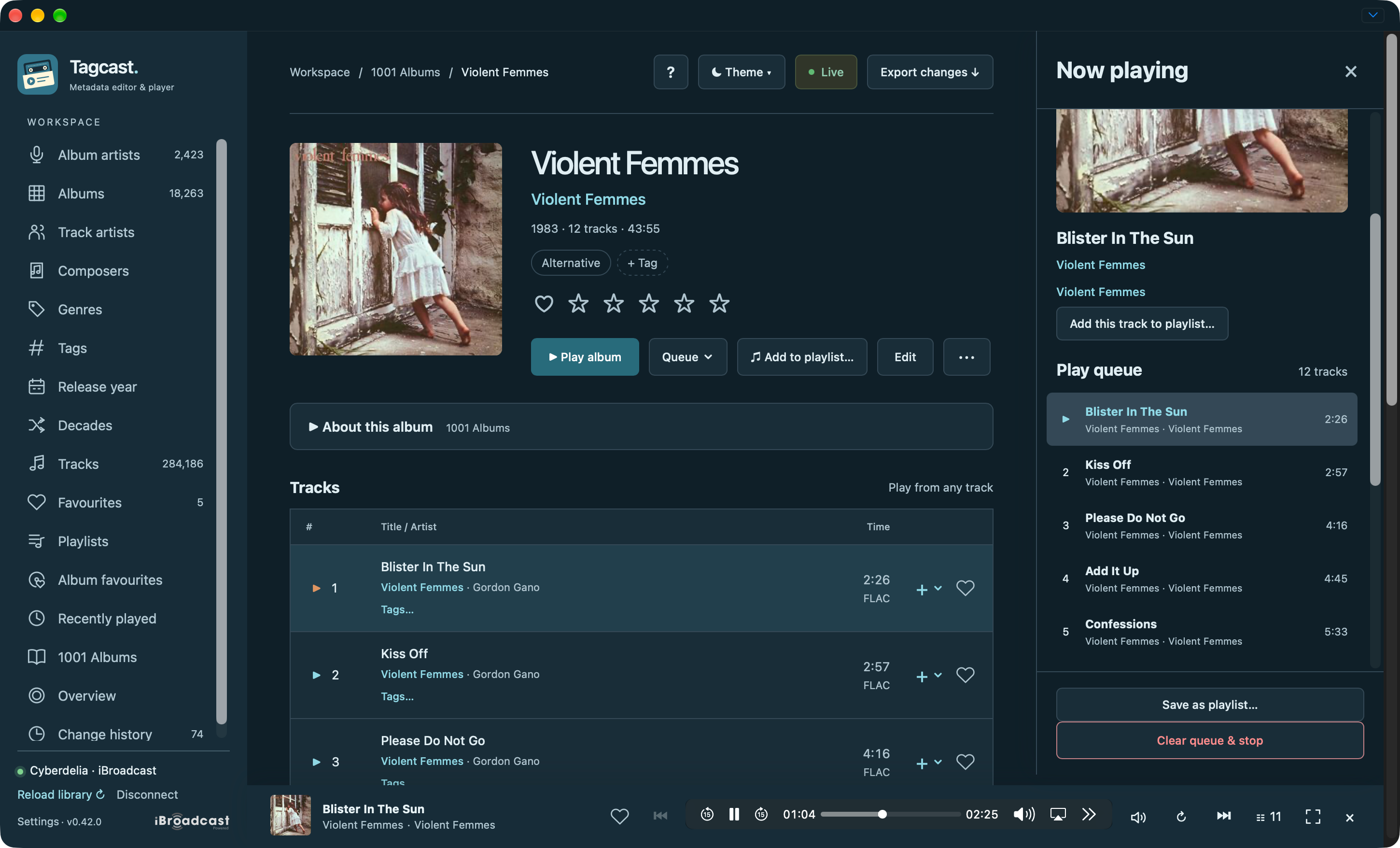
Open an album and choose Play album, or use ▶ beside a track to start there and continue through the album. Playback continues while you browse or edit another album.
| Control | What happens |
|---|---|
| Play album / ▶ on a track | Starts that album, from the chosen track, and replaces the existing queue. Clicking the already-current track toggles pause/play. |
| + ▾ on an album card / + Queue ▾ on its page | Opens a menu for the entire album, including every disc of a set. Opening the menu does not change playback. |
| + ▾ beside a track | Opens the same menu for just that track. Use the arrow keys to choose, Escape to close, or click outside. |
| Add to queue in the menu | Appends the chosen track or album without interrupting the current track. An empty queue starts playing when you add to it. |
| Player cover / queue button | Opens Now playing with a large cover, the current track and the full play queue. Click a queue entry to jump to it. |
| Play next in the menu | Adds a track or a full album to Up next in click order, preserving disc/track order. Up next is consumed before returning to the original queue. |
| Add to playlist… in a track's + ▾ menu | Reviews adding only that track to a private new playlist or an existing playlist. Available in album tracks, Tracks, Favourites, Recently played and playlist tracks. |
| ↻ Repeat | Cycles Off → Queue → Track. Queue repeat preserves album order; Track repeat applies when a track ends naturally. |
| Save as playlist… | Prepares a review of the queue before creating a private native playlist or appending to an existing playlist. |
| Clear queue & stop | Stops playback and removes the entire queue, including the current track. |
Use the player's previous/next buttons, seek bar and volume controls while browsing. Its album artist and album title link to their pages. A third line appears when the track artist differs; that name opens albums featuring that track artist.
The speaker-cabinet button → Sound always provides a Player volume slider and Mute, independently of the browser's native media controls. It adjusts the same audio element without restarting playback or changing the queue, and follows volume changes made through the native controls. It controls this player, separately from system or speaker volume. Outputs or browsers that refuse volume changes show a message to use the system or device controls.
Below the volume controls, Audio output offers a browser device picker or a list of permitted outputs when supported. In Safari and compatible wrappers, AirPlay… opens the native route picker when available. Otherwise, choose an output in your computer's sound settings; compatible AirPlay speakers, including supported Sonos models, may appear there. Available devices depend on your browser and system. Tagcast does not request microphone access to discover speakers. Changing an output keeps the existing audio element, track position and queue; the choice is not saved as a Tagcast preference. This does not add direct Sonos or Chromecast control.
On macOS, the standalone Electron app does not expose Safari's native AirPlay picker. Keep System default selected in Tagcast, then choose the speaker through macOS Control Centre → Sound → AirPlay. This routes system audio, including other apps; direct native AirPlay playback has not been added. The browser version can use its native picker where supported. Now playing also offers track lyrics.
Where the browser supports Media Session, system media controls and media keys can play/pause, move to the previous/next track and seek. The system receives the current track artist, album, cover, playback state and progress. Stop clears the queue, like Clear queue & stop. The controls operate only this browser's local player; an optional queue-sync controller does not claim system playback. The controls shown by the operating system vary by browser and platform.
Album tracklists show the common stored format in their heading and flag different formats in amber. Tracks search and Favourites keep individual format labels. These labels require no audio download and do not indicate the playback stream’s bitrate or resolution.
By default, the queue lives in the current browser page and resets when you reload it. Save it as a playlist to keep its contents, or explicitly connect the optional queue synchronisation described below. Audio goes through Tagcast's local server, keeping the access token out of the page; supported audio formats depend on your browser. Play reporting is off by default. Enable Settings → Playback → Record played tracks in iBroadcast to send a track ID and UTC timestamp after more than ten seconds of actual listening. Pauses, buffering and seeking do not count toward the threshold. Each playback sends at most one play; replaying the track starts another. Enabling midway starts counting from that moment; earlier plays and skips are not sent. An uncertain request is not automatically retried, so a network failure can leave a play unrecorded. Playback continues, and the error is available in Settings. Tagcast itself does not send Last.fm scrobbles.
Settings → Playback → Streaming quality chooses MP3 96/128/192/256/320 kbps or Original. The preference applies to the next track. Free accounts use 128 kbps; all other choices, including 96 kbps and Original, require Premium; a free account uses 128 kbps for a selected Premium option. The player displays File: FLAC · Stream: MP3 128 kbps, for example: the uploaded file format and this playback request are different things. If Original cannot play in the browser, Tagcast tries MP3 128 kbps once and labels the fallback. It does not infer bit depth, sample rate or audio identity.
Album tracklists keep ordinary tracks on one line. A second line shows distinct performers, composer credits, assigned tags or a file-format exception; the album artist is not repeated as a track performer. The heading reports the track count, known duration and most common stored format. Different formats get an amber label; ties list all known formats, and incomplete format data is identified as known files. These labels describe stored metadata, not the stream's bitrate or audio quality.
On mobile, the cover fills the available width, followed by the album title, album artist, metadata and controls. Desktop keeps the cover alongside this information.
The playing row uses a speaker instead of its number and a subtle background. On a mouse, hovering or focusing a row reveals Play, track tags, queue and empty heart controls. A filled favourite heart stays visible. Touch devices always show actions. Cleanup mode retains upload advice, individual format labels and checkboxes.
The fullscreen icon in the player opens a focused view of the current album cover, track title, album artist and album. A different track artist appears underneath. The same player controls remain available, so playback and the queue continue without restarting. Press Escape or use the close button to return to your library. Where native browser fullscreen is unavailable, the view fills the browser window. No extra album or track details are downloaded for this view.
Enable Settings → Playback → Record played tracks in iBroadcast to show Recently played in the sidebar. This page reads iBroadcast's native recent tracks playlist, including plays reported by your other devices. Disabling play recording hides the page; Tagcast does not maintain a separate local listening list.
Tracks stay in iBroadcast's order, most recent first, with each track appearing once. The playlist does not provide play timestamps or a complete event history. Search and pagination run on the server; play a track, open its album, or add it to the queue using the usual controls.
Opening the page checks for an updated library. Refresh from iBroadcast fetches it again, including when iBroadcast's change timestamp has not advanced. A large library can take longer to refresh; playback never downloads the library just to update this page. Older caches are upgraded once on first use. If iBroadcast does not supply this playlist, the page explains that it is unavailable.
- Enable Settings → Devices & queue synchronisation → Enable queue synchronisation and remote control, then save.
- Use Reconnect iBroadcast and approve
user.queue:readanduser.queue:write. Ordinary sign-in keeps the existing library/account scopes when this option is disabled. - Open Devices and choose Connect this app's queue. Restore the saved queue and explicitly play here, or replace it with your current local queue.
- Choose Control [device] to join an available device's queue. Previous/Next, Play/Pause, position, volume and repeat control that device. The controller pauses its local audio, records no plays and never advances a finished track.
- Disconnect queue stops the bridge without stopping the remote device. Disabling the option closes the connection. Only one browser tab owns a bridge; another tab can explicitly disconnect it before taking over.
The server obtains a fresh one-use WebSocket token and keeps it and OAuth tokens
out of the frontend. It restores native tracks/play_next, retains the base
queue for Previous and repeat, and waits five seconds between reconnect attempts.
Library-change notifications offer a manual reload so an edit is not interrupted.
These flows are covered by mock API/WebSocket tests and browser interaction checks;
compatibility with a particular real iBroadcast device still requires its live
session and the additional OAuth consent. Queue synchronisation is independent
of optional play reporting and is off by default.
See track thumbs-down and large playlists for native track ratings and playback from the current playlist page. The Sound icon is separate from the native player volume icon; the native panel follows the selected colour palette where the browser supports it.
In Now playing → Play queue, hover a row or focus it with the keyboard to replace its number with ×. On touch devices the remove button is always visible. Its tooltip is Remove from play queue; Tab to the button and press Enter or Space to remove that one queue position. The title/artist part of the row remains a separate Play button.
Removing a track before or after the current one keeps the current audio and listening position intact. Removing the current entry selects the following track, preserving a paused state. If no track follows, playback pauses on the preceding retained entry so the player and queue remain reachable without starting audio again. Removing the only entry stops the player. Repeated track IDs are separate positions: only the chosen occurrence is removed, including an entry in Up next. Focus moves to the next available remove button and the queue stays at the same scroll position.
This changes only the play queue, never a saved playlist, library metadata or music files. It uses already-loaded queue metadata; no extra library requests are needed. An optional queue-sync player publishes the changed queue through its existing bridge. Remote controllers keep their existing device controls.
Play next already adds tracks or albums to a separate FIFO Up next block before returning to the ordinary queue. This update adds no extra row menu or shortcut for moving an existing queue position to that block.