Repository navigation
Taps And Kegs
Taps & kegs in the admin top bar has four tabs: Taps, Kegs, Suppliers and Monitors. Kegs and Suppliers show owner cost and are for admin accounts only; editors and viewers see Taps and Monitors.
The page opens with a sentence about your taps ("Twelve taps. Tap 12 is empty and two more kegs are nearly done.") and which keg to swap first. Under it, chips filter the list: All, Needs a swap (empty, kicked, at 15 % or less, or projected to kick within three days: every tap with a Swap keg button) and Due for cleaning. A nearly empty keg with no recent pours has no pace to forecast from, so its Kicks in column reads "almost out".
Each row's Left column is a sight glass filled with the beer, with a foam edge and marks at each quarter; it gets an amber edge when the keg is low, and a stout keeps a warm outline.
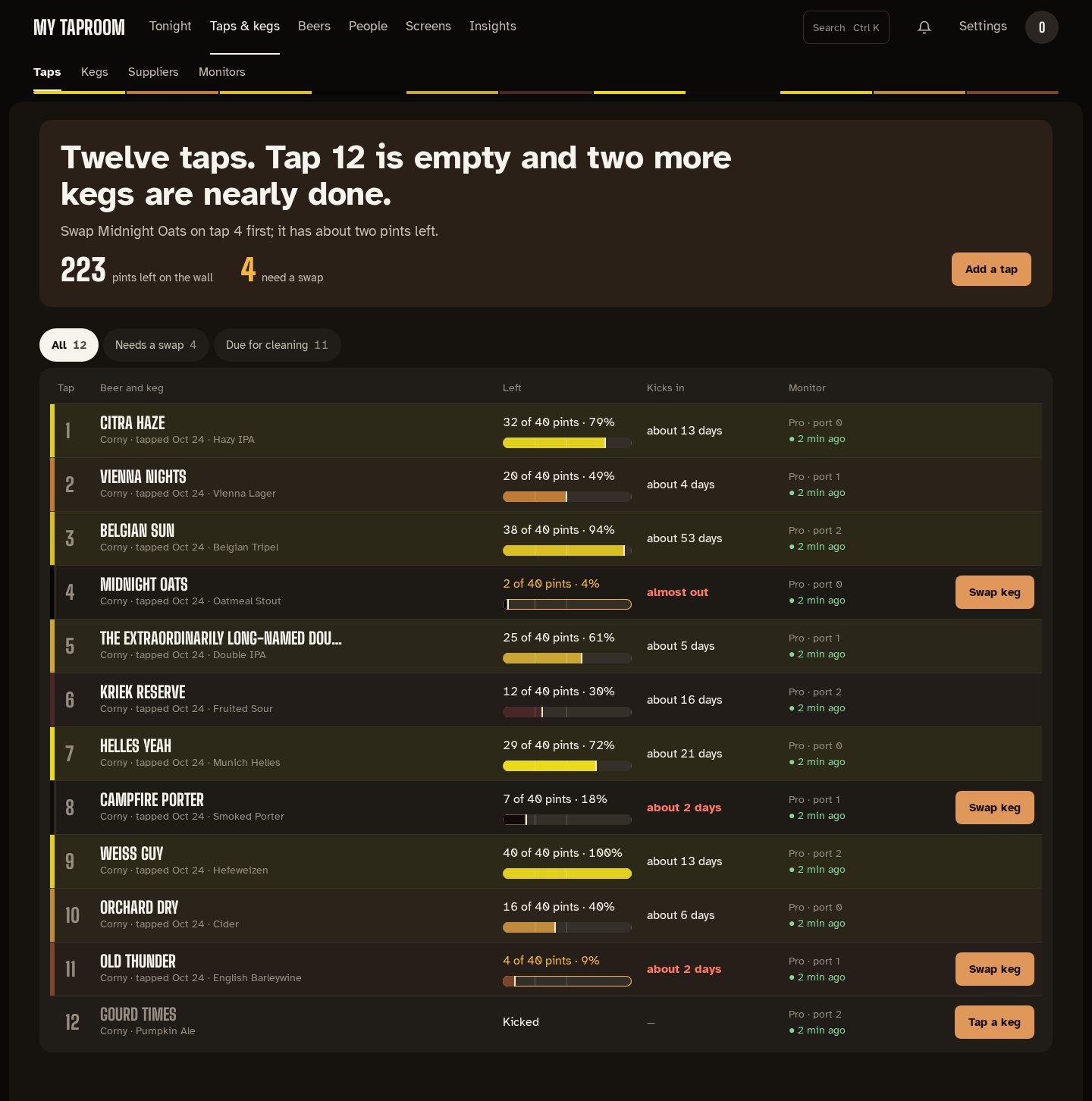
Each row shows:
| Column | What it shows |
|---|---|
| Tap | The tap number |
| Beer and keg | The tap marker (the beer's color and initials), the beer, and the tap name, keg type, the day it was tapped and the style |
| Left | Servings left of a full keg in your serving size ("20 of 40 pints · 50 %"), and a bar in the beer's color. Amber when the keg is low |
| Kicks in | The projected kick at the current pace; red when it's within three days |
| Monitor | The Kegtron port feeding the tap and when it last reported |
Levels update live, the same way the wall does. Each row has an edge in its beer's color. Swap keg appears on rows that need one; select a row (or its beer's name) to open the tap's drawer. The page opens with how many pints are left on the wall and how many taps need a swap.
Select a tap (or follow one from Tonight) to open its drawer on the right. It opens on a band in the beer's color with the tap number, the beer and the pints left:
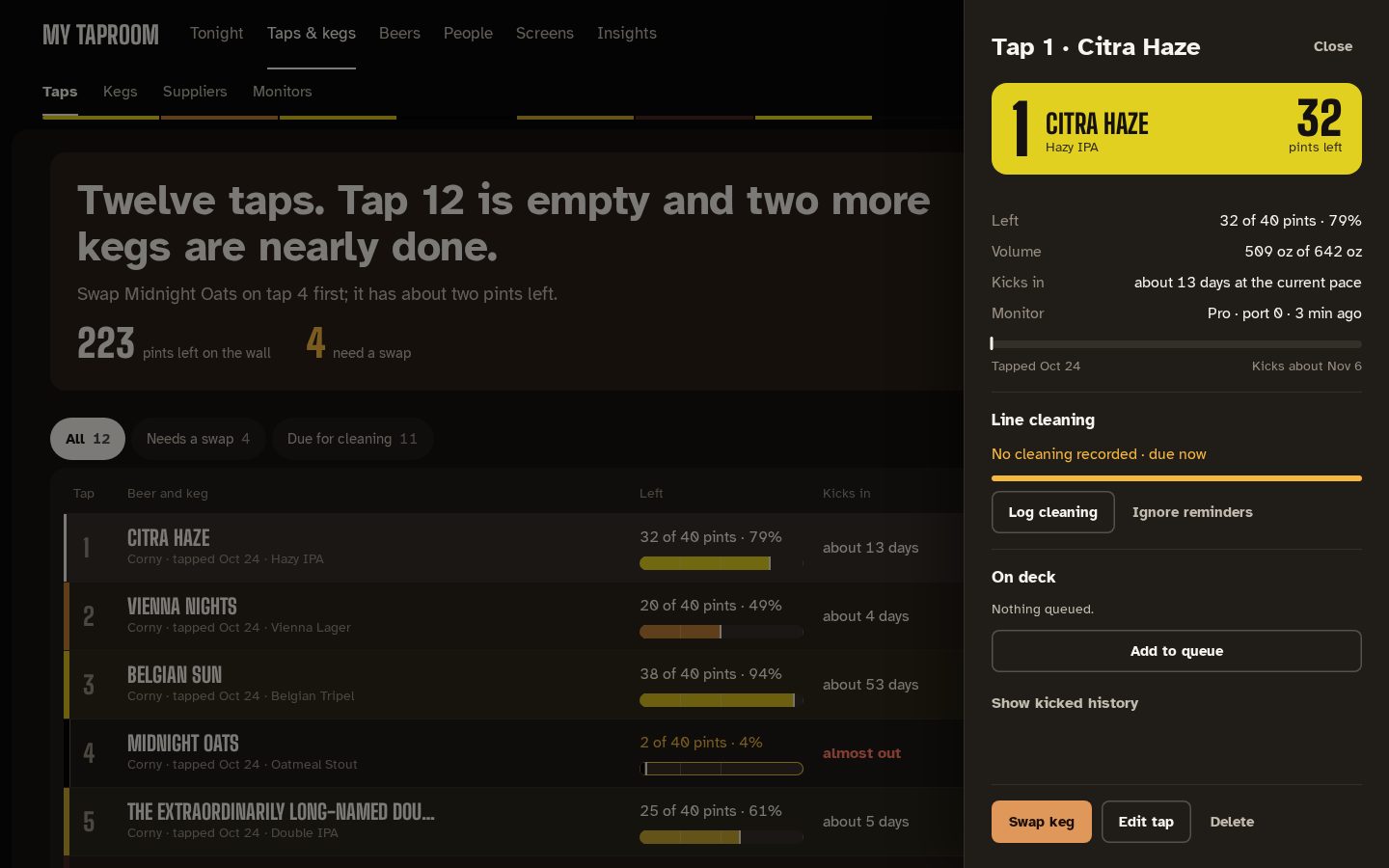
- what's left, in servings and volume, the kick forecast and the bound monitor, with a timeline from the day it was tapped to the projected kick;
- Line cleaning: days and gallons since the last cleaning, a meter toward the next one, Log cleaning (now, yesterday or a date you pick) and Ignore reminders / Resume reminders. See Cleaning reminders and unclaimed pours;
- On deck: kegs queued for this tap, with Tap next (or Swap now when the current keg is about to kick), Remove and Add to queue;
- Show kicked history: the tap's last kicked kegs;
- Swap keg, Edit tap and Delete along the bottom (editors and admins).
Addresses such as /admin/taps?tap=4 open that tap's drawer directly.
Swap keg opens the swap in a drawer, with its steps listed at the top:
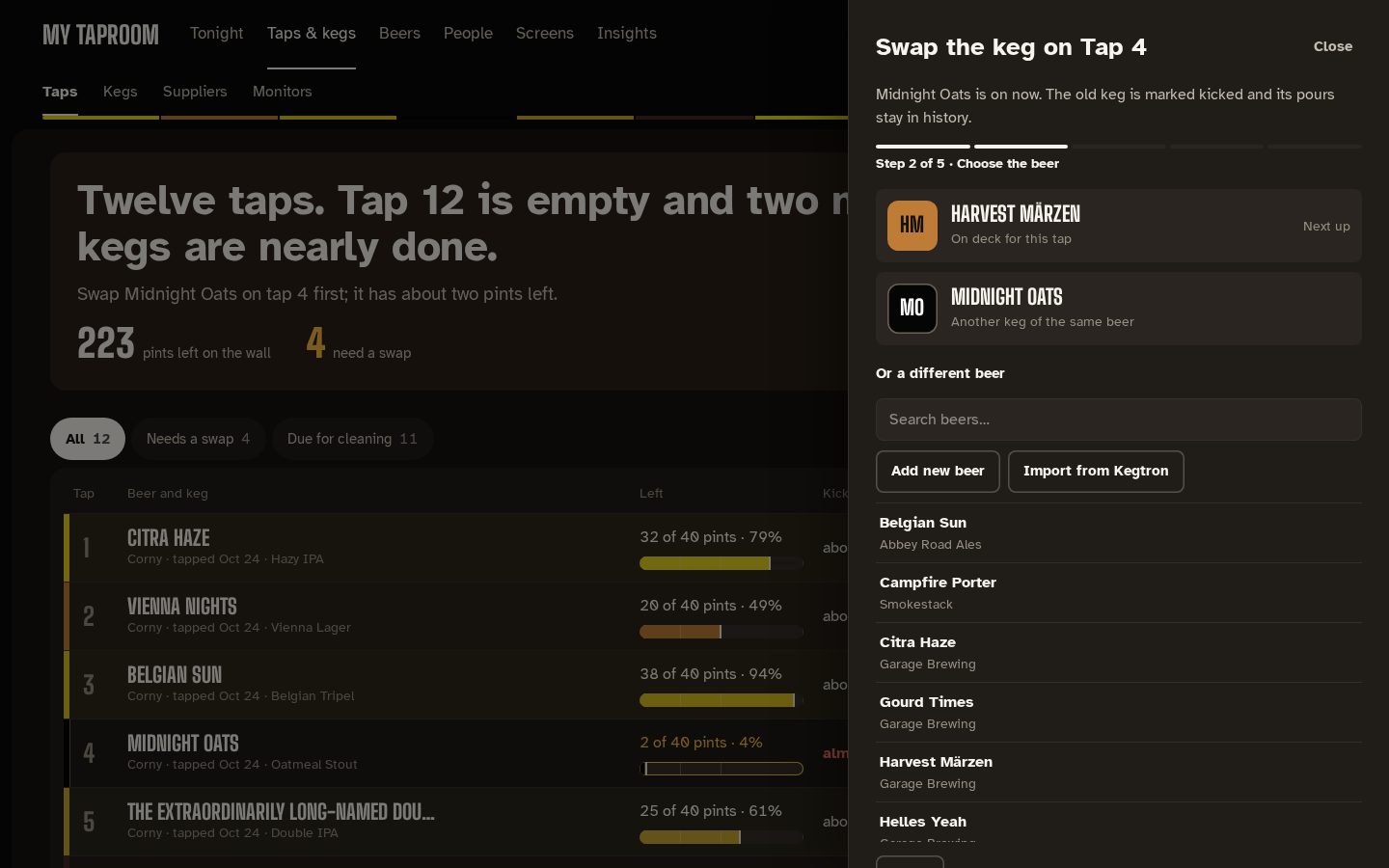
- Kick the old keg (when one is on). The kicked keg and its pours stay in history.
- Choose the beer. The first choices are the tap's next up keg from the on-deck queue and another keg of the same beer; under them, search the beer library, add a new beer, or import the beer a bound Kegtron Pro already knows.
- Keg size: size, starting volume (lower it for a partly used keg) and keg type, prefilled from the Kegtron device or the beer's last keg.
- Cost (optional, owners only): cost, deposit, supplier and purchase date, with the cost per pint. Skip taps the keg without it.
- Reset the counter: when the tap's monitor is a Kegtron Pro, reset its on-device volume counter to match the new keg. This changes the real device.
Choosing the next-up keg taps that queued keg as it is, so the size and cost steps are skipped. Escape, Close or Cancel leaves without changing anything until a step's own button runs.
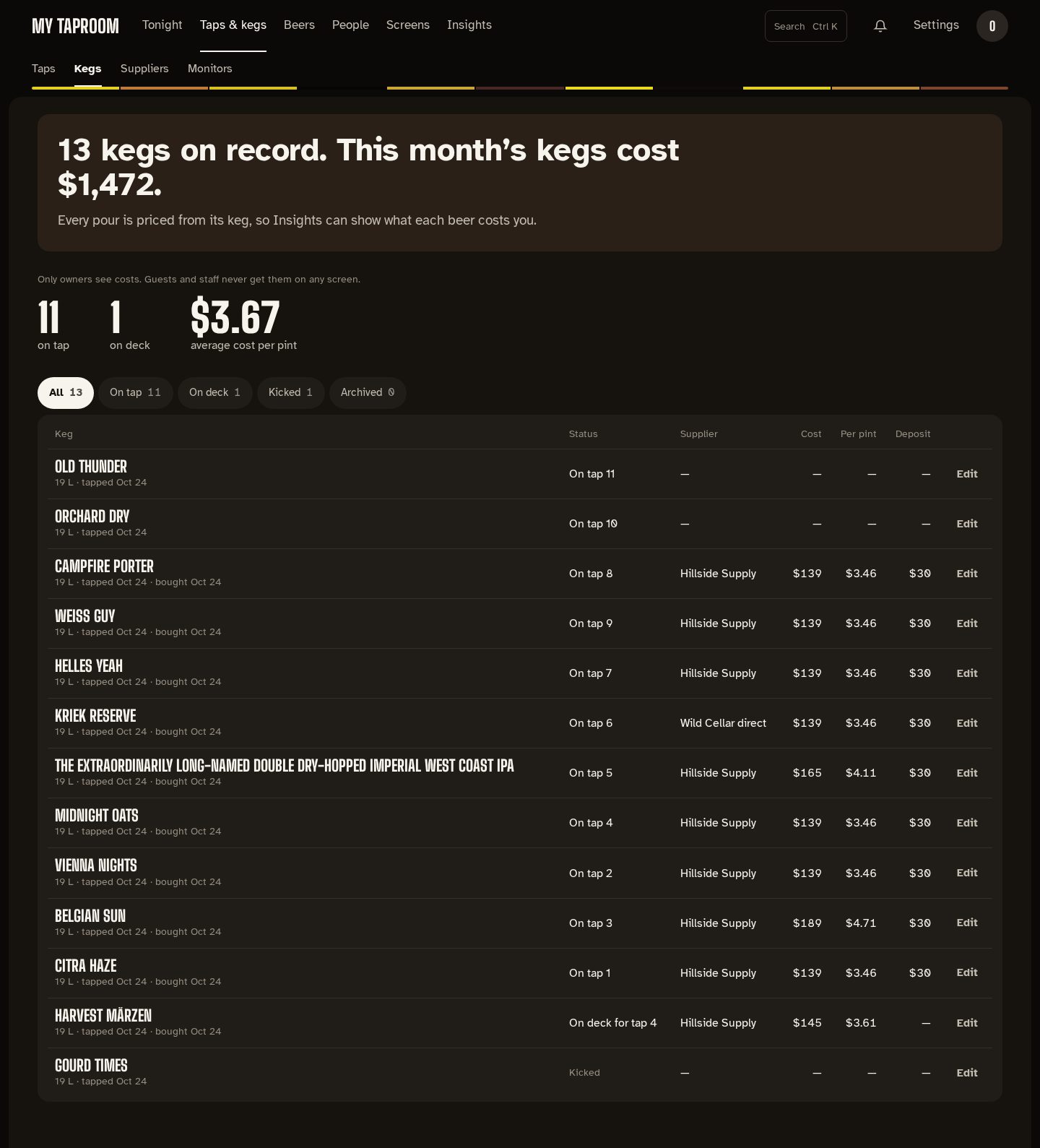
Every keg on record, on tap or not, with what it cost. The sentence counts the kegs and totals this month's keg costs; under it, the number on tap and on deck and the average cost per pint ("—" until a cost is logged). Chips filter by status: All, On tap, On deck, Kicked and Archived.
The table lists each keg's size and dates, its status, supplier, cost, cost per pint and deposit. Edit opens a drawer to set the cost, deposit, supplier and purchase date after the fact.
See Suppliers.
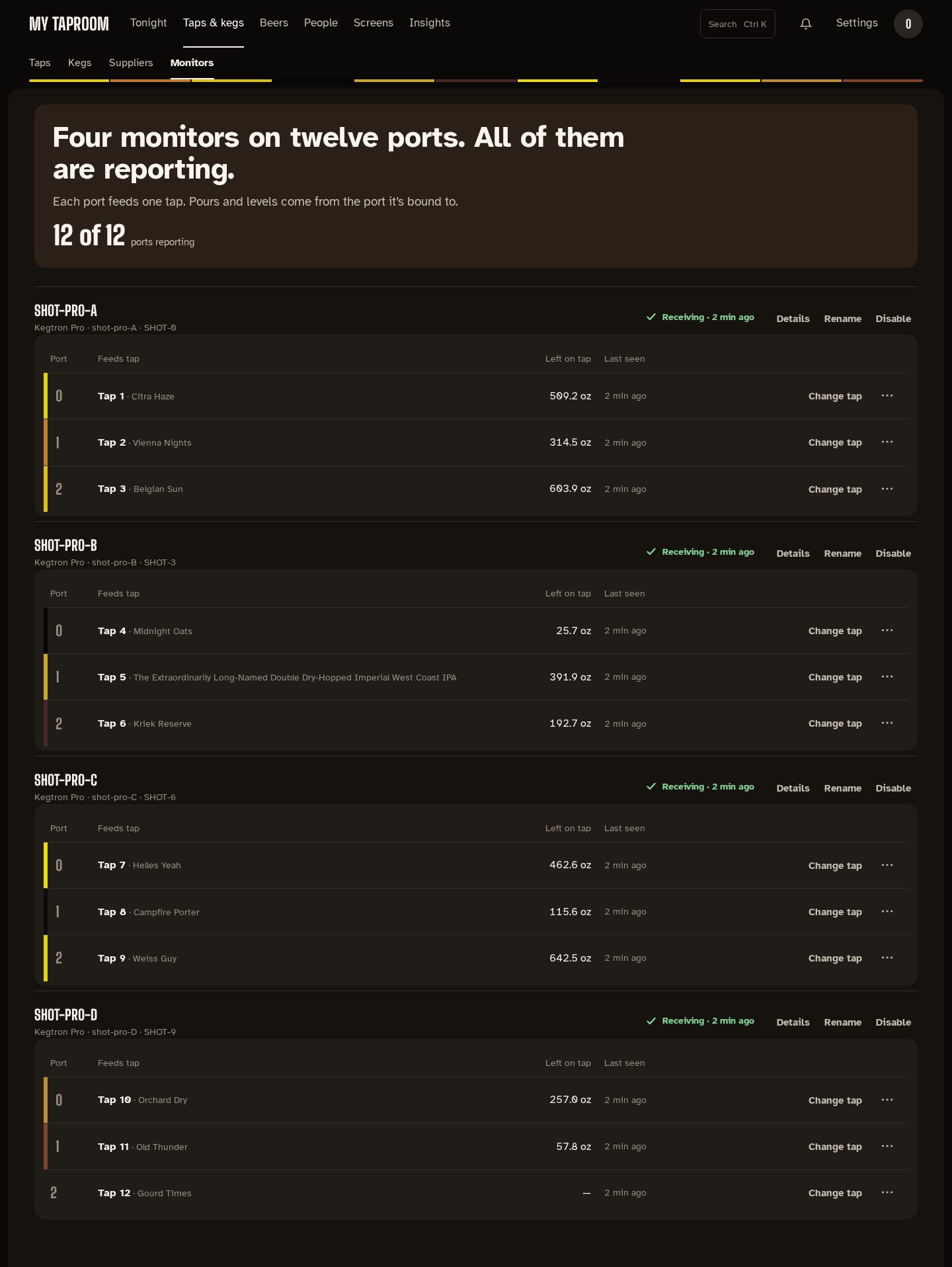
One section per physical device: a Kegtron Pro (up to four ports), a Kegtron Gen 1, or a Govee sensor. Each says where its state comes from: Receiving with the time of the last report, Not heard from when nothing has arrived for 10 minutes, or Disabled. The sentence at the top counts the devices and ports and names any that have gone quiet; the line under it counts ports that aren't bound to a tap.
Under each Kegtron, a table maps each port to the tap it feeds, with what's left on that tap and when the port last reported, with an edge in the beer's color on ports that feed one. Bind a tap / Change tap picks the tap; the ⋯ menu holds Unbind this port and, on a Kegtron Pro, Reset volume, which resets that port's on-device counter after a confirmation. The page opens with how many ports are reporting.
Details opens the device's drawer: firmware and Kegtron cloud state, Check WiFi signal (asks the device, so it runs only when you press it) and the last 24 hours of temperature and humidity. Rename gives the device a friendly name. Disable is for hardware at another location: the device stays listed but stops feeding pours, levels and readings until you Enable it again.
Viewers see all of this without the controls.
Mirrored from docs/taps-and-kegs.md. Edit the repo copy; this page is regenerated from it.