Repository navigation
Back Up and Move Data
Keep a copy of Podcast planning and its notes before moving the project. A JSON backup lets you choose conversations and settings. Copying the whole workspace folder carries the files associated with that workspace.
- Open Settings → Data → Export data.
- In Conversations, choose the Podcast planning folder or specific chats. Expand the folder to check that the interview and its notes are selected. Clear the other selections if you only need this project.
- Review LLM connections and Model presets. Under Interface, choose Include tabs and layout if you want that state in the backup.
- Select Export selected items and save the resulting
pointer-backup-*.json.
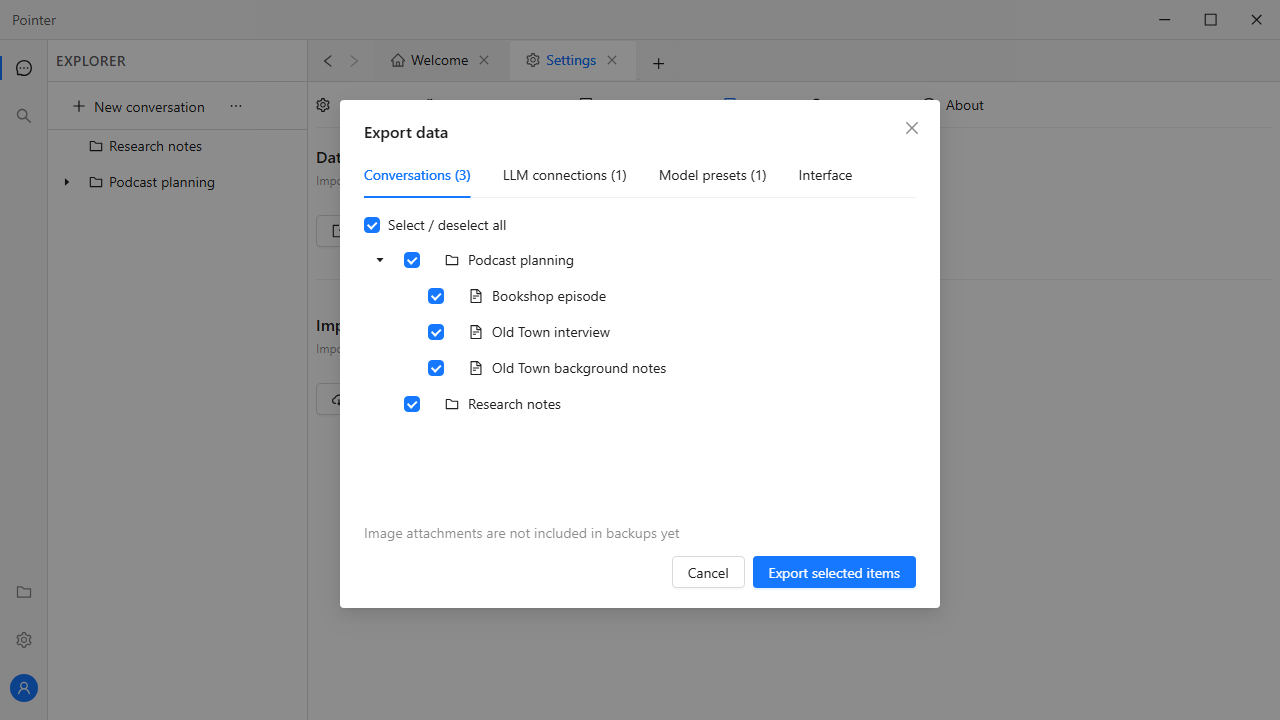
API keys are excluded by default. Include API keys (plain text) stores the credentials in the backup as readable text. JSON backups omit image attachment files. To keep the images, copy the workspace folder as described below.
-
Open the destination workspace. Choose Settings → Data → Import data and select the backup JSON.
-
Check the conversations, connections, presets, and interface state you want to restore.
-
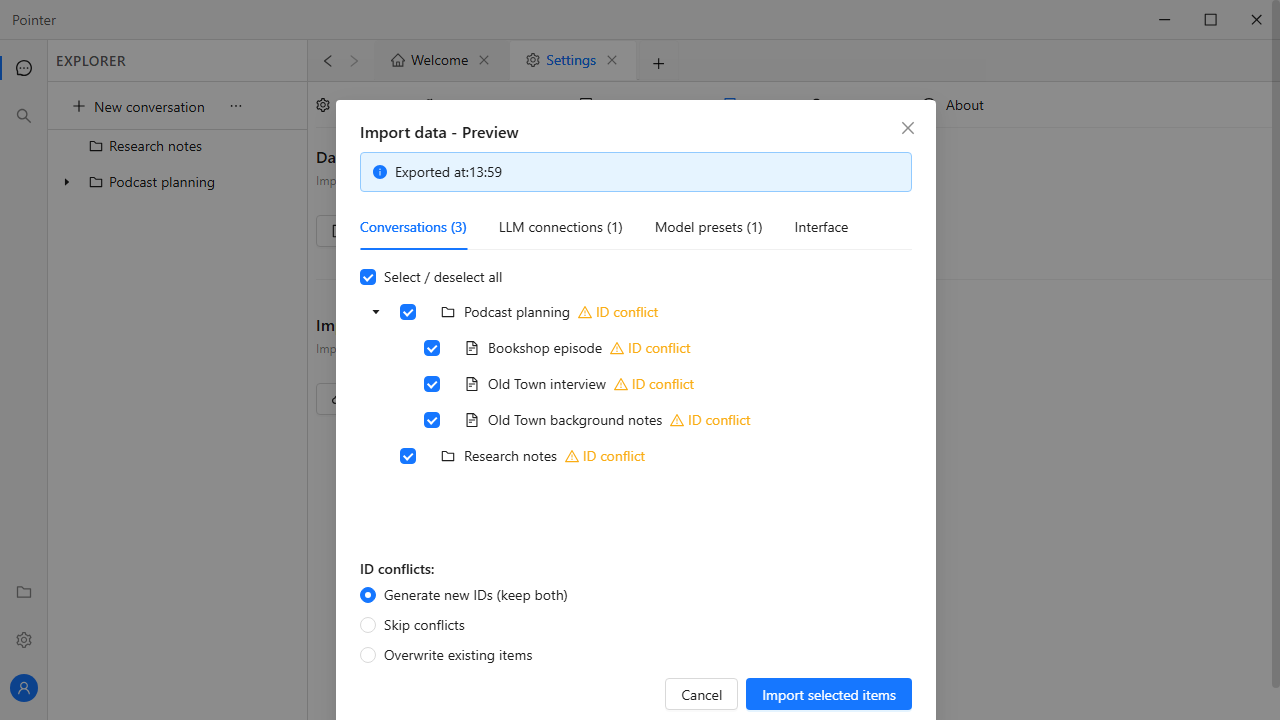
If a backup record has an ID that already exists, choose a conflict policy.
Policy Effect Generate new IDs (keep both) Imports a separate copy for matching IDs. Skip conflicts Keeps the records already present for matching IDs. Overwrite existing items Replaces matching records with the selected backup items. -
Select Import selected items and review the result. Open Old Town interview and check its branch choices and topic titles.
- In Workspace, select Open in file manager. Locate the directory that contains Podcast planning.
- Close Pointer to let it finish saving. Copy the whole workspace, including the hidden
.pointerdirectory, to its new location. - In Pointer at the destination, choose Workspace → Open folder… and select the copied folder.
- Open the interview. Check its replies, any attached images, and a workspace search for
Old Town.
Conversation files end in .pointer.md. Their Markdown is readable in an editor. Keep the metadata comments when editing these files, as Pointer uses them to reconstruct messages and branches. The .pointer directory contains workspace metadata, attachments, and a search index that Pointer can rebuild. Use the JSON backup for account-level model connections and presets when moving to another setup.
Tutorial complete You have a shareable export and a backup of the podcast material.