Repository navigation
Workspaces and Folders
A workspace is the local folder that holds a set of conversations. Use one for the Old Town interview and its research so the Explorer tree, search results, and tabs stay focused on that project.
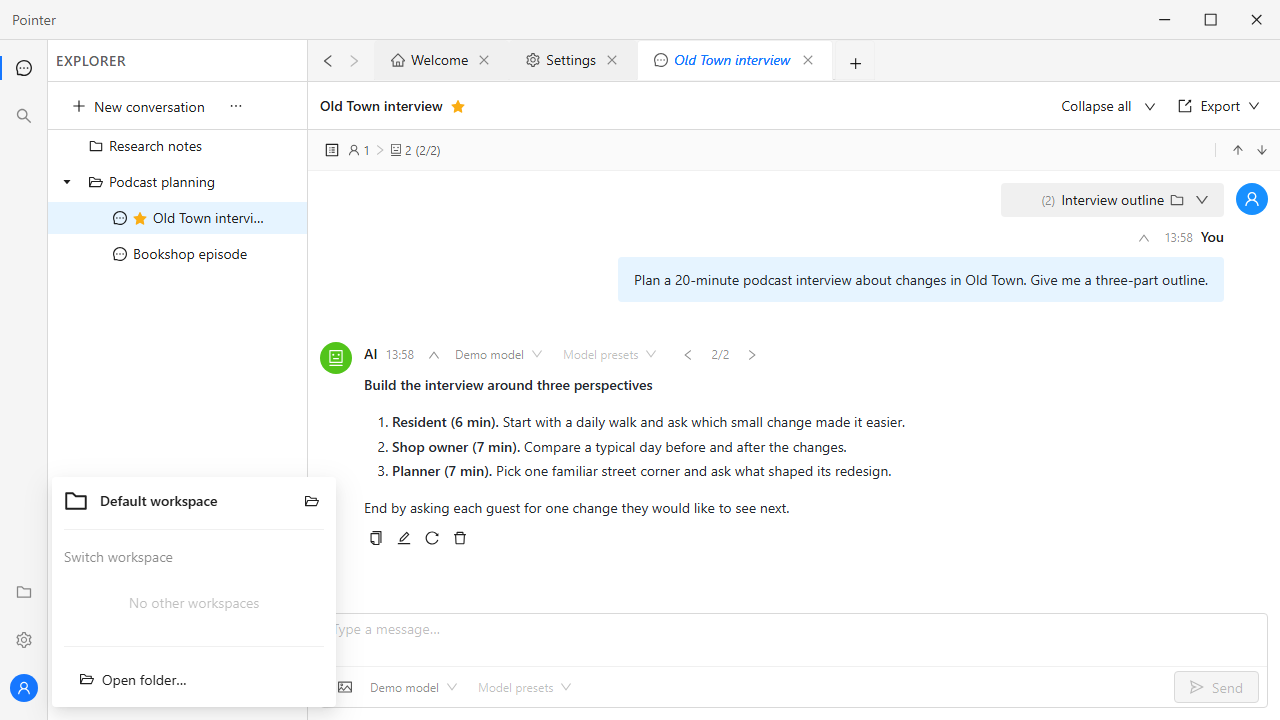
The Workspace button near the bottom of the activity bar shows the active folder and the available workspaces. Use Open folder… to choose a local directory, Switch workspace to return to one you already opened, and the folder icon next to the active name to open it in the file manager.
The Account button at the bottom opens your local profile. Create or switch accounts there, or edit the displayed name and avatar. Each account has its own workspace list and model settings. When you switch workspace or account, Pointer finishes saving the current session and can stop an in-progress reply. If the app asks you to retry saving an answer, finish that before switching.
- Use the menu beside New conversation and choose New folder. Name it Podcast planning.
- Move Old Town interview into that folder. Drag a row onto a folder to put it inside, or drop it between rows to change its position. Right-click a folder to create a conversation or subfolder there.
- Add a Research notes folder for reference material. From a conversation's right-click menu, choose Move to… to select an exact destination. Root represents the top level of the current workspace.
- Click the star in the conversation header to mark it. Explorer also offers Star or Unstar in the conversation's context menu.
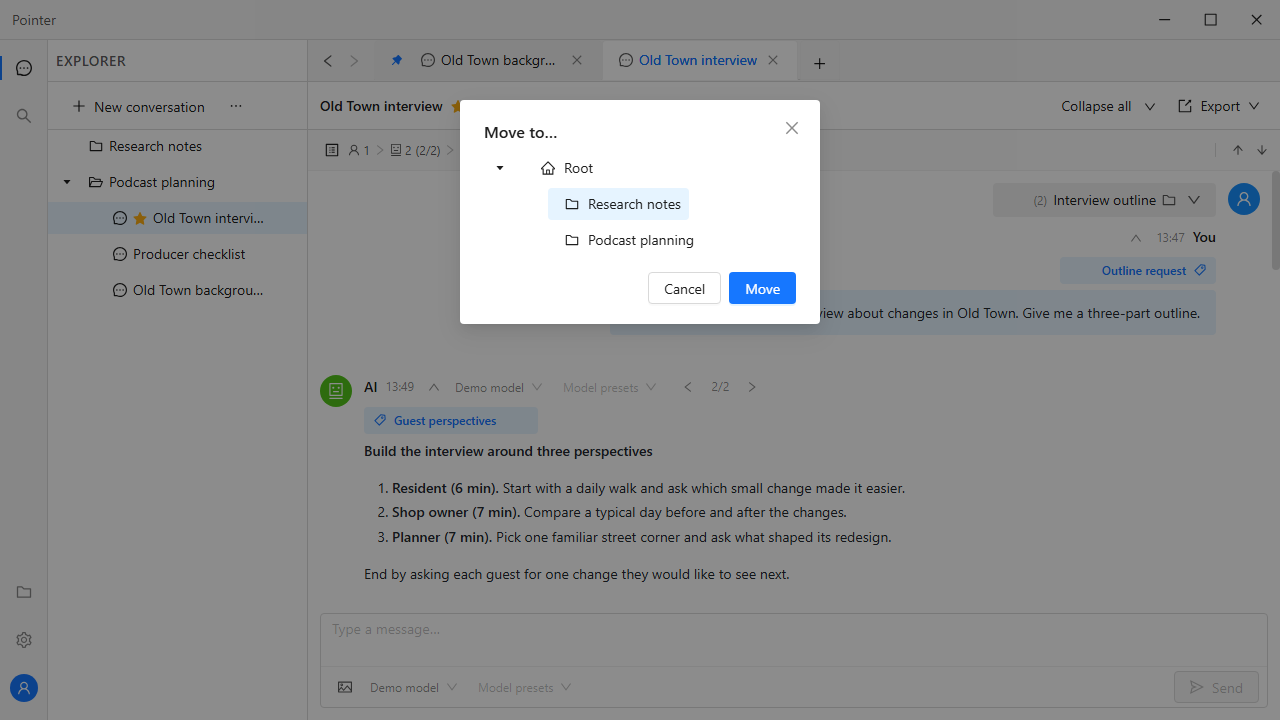
When a move would create a duplicate name, the dialog offers to cancel or rename the moved item automatically with a numeric suffix. Explorer's Find in folder opens workspace search with that folder selected.
- Use Rename in the row menu, or focus the row and press
F2on Windows or Linux orEnteron macOS. Renaming a conversation also updates its chat tab title. - Use the row's Delete action to delete a folder and its contents. Clear folder removes its contents and leaves the folder. In Select items to delete mode, selected conversations are removed and surviving children of selected folders move to the root.
- Press
Ctrl+BorCmd+Bto toggle the sidebar. Drag its outer edge to adjust the width when you need more space for the tree or search results. - A custom workspace can be removed from the Workspace list while keeping the folder on disk. Use Open folder… to register it again. The file manager displays each conversation as a
.pointer.mdfile. Copy a workspace or restore selected conversations