Repository navigation
Shortcuts and Troubleshooting
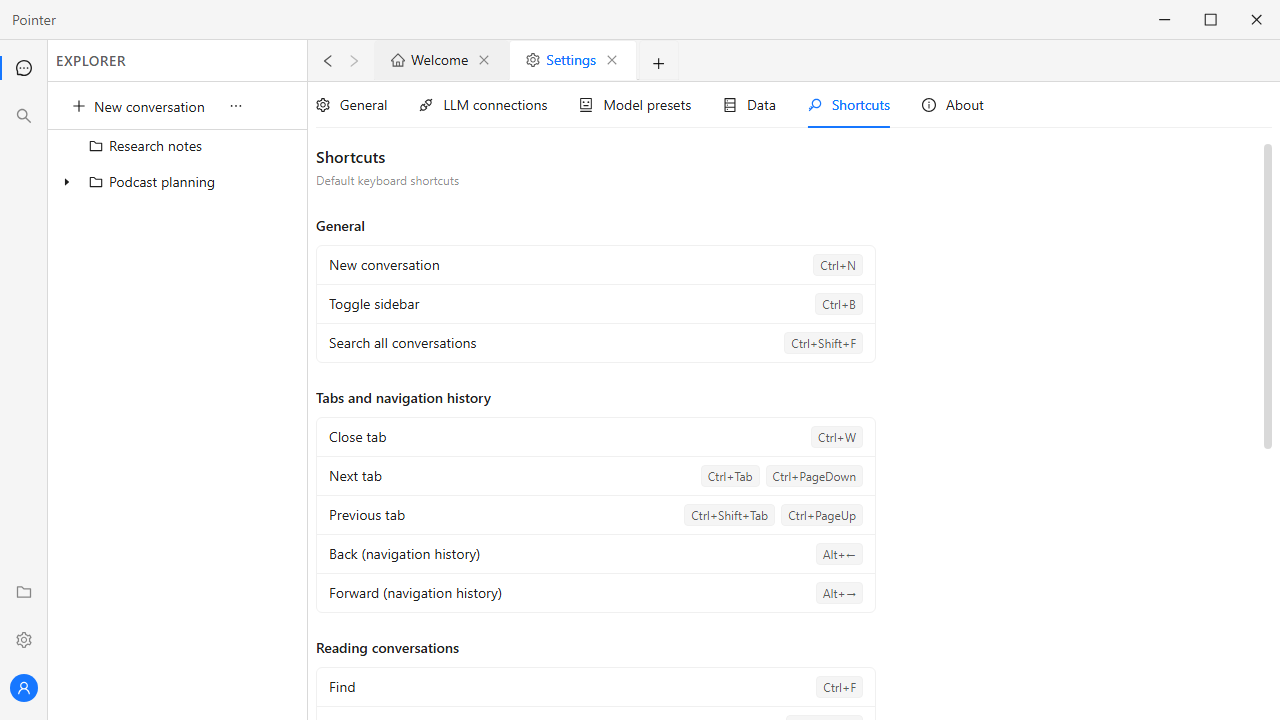
Open Settings → Shortcuts to see the bindings for your platform. The tables below cover the controls used throughout the Old Town interview.
| Action | Windows and Linux | macOS |
|---|---|---|
| New conversation | Ctrl+N | Cmd+N |
| Toggle sidebar | Ctrl+B | Cmd+B |
| Search all conversations | Ctrl+Shift+F | Cmd+Shift+F |
| Close active tab | Ctrl+W | Cmd+W |
| Next / previous tab | Ctrl+Tab / Ctrl+Shift+Tab | Ctrl+Tab / Ctrl+Shift+Tab |
| Alternate next / previous tab | Ctrl+PageDown / Ctrl+PageUp | Cmd+Option+Right / Cmd+Option+Left |
| Rename selected Explorer item | F2 | Enter |
| Delete selected Explorer item | Delete | Cmd+Backspace |
For access history, use Back and Forward to the left of the tabs. On Windows, the keyboard bindings are Alt+Left and Alt+Right. On Linux, use Ctrl+Alt+- and Ctrl+Shift+-. On macOS, use Ctrl+- and Ctrl+Shift+-. Use tab order and access history
| Action | Shortcut |
|---|---|
| Next / previous visible message | Space / Shift+Space |
| First / last visible message | Home / End |
| Open Find | Ctrl+F on Windows and Linux, Cmd+F on macOS |
| Next / previous match from the Find field | Enter / Shift+Enter |
| Close Find | Esc |
| Toggle case, regular expression, or whole word in Find | Alt+C, Alt+R, Alt+W on Windows and Linux. Cmd+Option+C, Cmd+Option+R, Cmd+Option+W on macOS. |
Use the reading keys in an idle, active chat with focus outside the composer and other interactive controls. Use Find's own keys while its field is focused. Pointer yields many app shortcuts to dialogs and the export code editor. Read one message at a time
- In Settings → LLM connections, recheck the API Base URL, including its provider-specific prefix, the key, and the exact model name. Run Test connection with that model.
- An empty catalog can come from the model list endpoint. Try the exact model ID your provider gives you, then test the chat connection. If the test shows an authorization, quota, or rate-limit error, check that key's access and usage with the provider.
- If no reply starts, check which model is selected under the composer and whether a working connection is set as Default. A paused queue displays Resume queue when there are pending prompts.
- Check your active Account, Workspace, and search filters. Search the workspace for a unique phrase, then check the branch counter after opening the result.
- If the text is in a collapsed message, click its summary to read it. If Find shows unexpected results, check the selected branch and the case, regex, and whole-word switches.
- Known issue in 2.0.0-preview.2 A conversation topic's fold control can fail while saving the group. Use Collapse all or Collapse AI messages to compact the view and Outline to reach messages in open sections.
- After changing an export selection, choose Generate preview again. If a finished chat shows a save error, use Retry save before switching workspaces or closing the app.
Use Settings → General for interface language and font size. After changing languages, restart Pointer for the export editor's built-in menus to switch as well.
Open Settings → About to check the installed version. On builds that support updates, select Check for updates, start the download if a new version is offered, and use Install and restart after downloading. Automatic checking is a separate setting. Install updates for the current macOS test builds manually. Choose the release asset for your platform
If an issue persists, include the app version, operating system, steps to reproduce it, and the exact error with credentials and private conversation details removed. Pointer Issues