Repository navigation
Export a Conversation
Share an outline or a few questions from Old Town interview with the co-host. Start on the guest-perspectives branch and check the visible answers before opening an export.
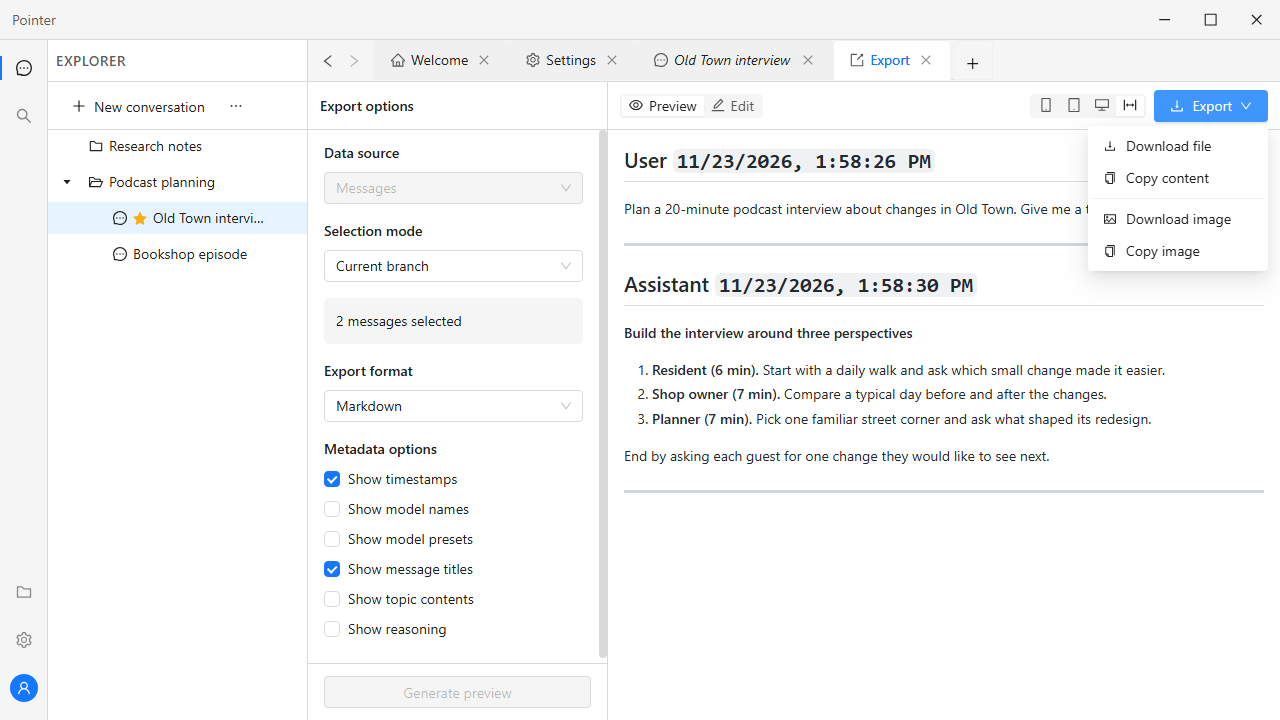
- In the conversation header, choose Export → Current branch messages.
- In the export tab, choose Markdown and review the preview. The branch is the one you started exporting. Opening an export from another branch lets you keep both previews in separate tabs.
- Use Metadata options to control timestamps, model names, model presets, message titles, topics, and reasoning. Review the result with the options you intend to share.
- Choose Export → Download file and save it as
old-town-interview.md. Copy content puts the same output on the clipboard.
| Selection mode | What to use it for |
|---|---|
| Current branch | Share the active path from its first prompt through its later follow-ups. |
| All branches | Keep all the alternative paths in one export. |
| Custom selection | Choose individual messages or an entire group of messages on the branch used to start the export. |
| Topic messages | Choose a single named topic when the conversation has topics. |
To prepare only Guest questions, choose Export → Custom selection from the chat. Clear Select all, select the checkbox beside Guest questions, and choose Generate preview. Check that the prompt and its two opening questions appear in the preview. The running order remains part of the chat.
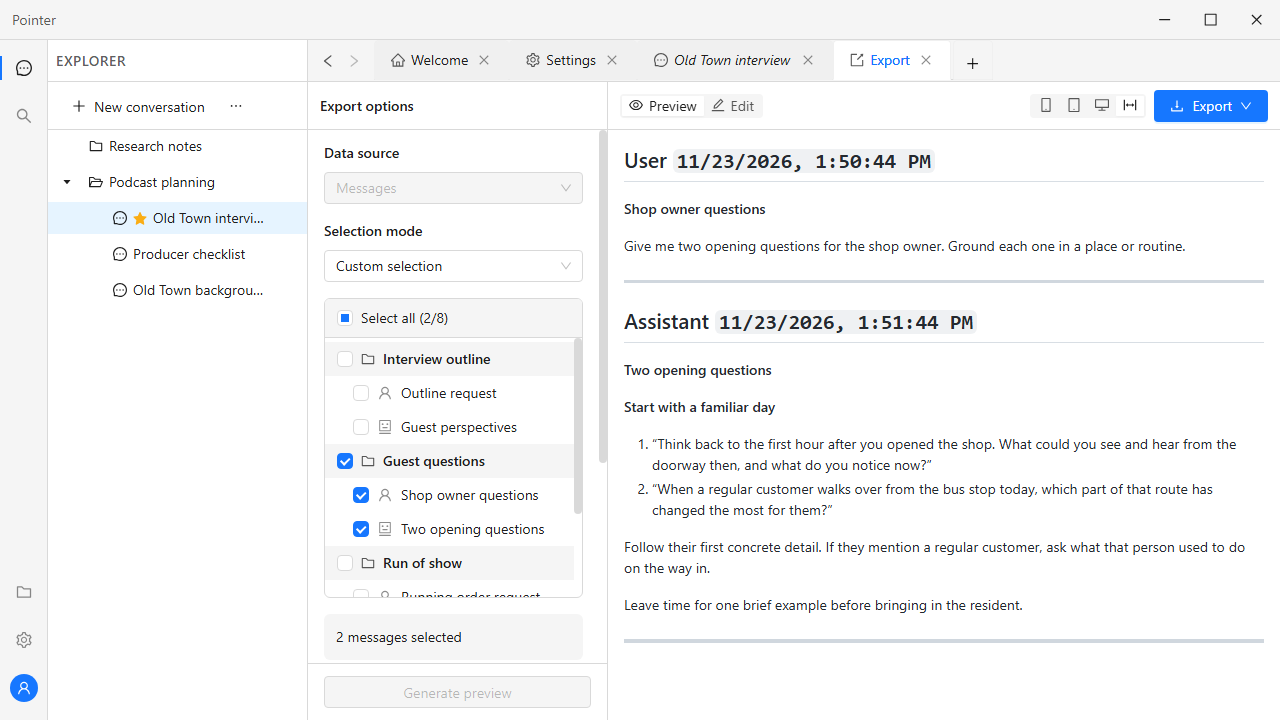
Changing the selection can make the preview stale. Generate it again before copying or downloading. Use Edit to refine supported output formats. If changing formats prompts you to discard edits, review the new preview before saving.
| Source | How to start | Formats |
|---|---|---|
| A whole message | Right-click it and open the Export submenu. | Markdown, TXT, HTML |
| Selected text | Select a passage, then right-click and choose its export action. | Markdown, TXT, HTML |
| A code block | Right-click inside the block and select the code export action. | Markdown, TXT, HTML |
| A table | Right-click the table to open export options, or use Export CSV in the table viewer. | Markdown, TXT, HTML, CSV |
Use the phone, tablet, desktop, or responsive controls to check the rendered preview. The export menu also offers Download image and Copy image for the rendered output.
Next Back up conversations and the settings you want to reuse