Repository navigation
Tabs and Navigation History
Keep Old Town interview and Old Town background notes open while you prepare for recording. Open the notes from the import exercise or create a conversation with that name to practice. A third chat named Producer checklist makes it easier to see how preview tabs and history behave.
- Open Old Town interview and keep it open by double-clicking its tab.
- Single-click Old Town background notes in Explorer. Its italic tab title indicates a preview.
- Single-click Producer checklist. The checklist takes the preview slot. Click the notes again to return to them.
- Right-click the italic notes tab and choose Keep open. Double-clicking a preview tab or double-clicking a conversation in Explorer also opens it as a regular tab.
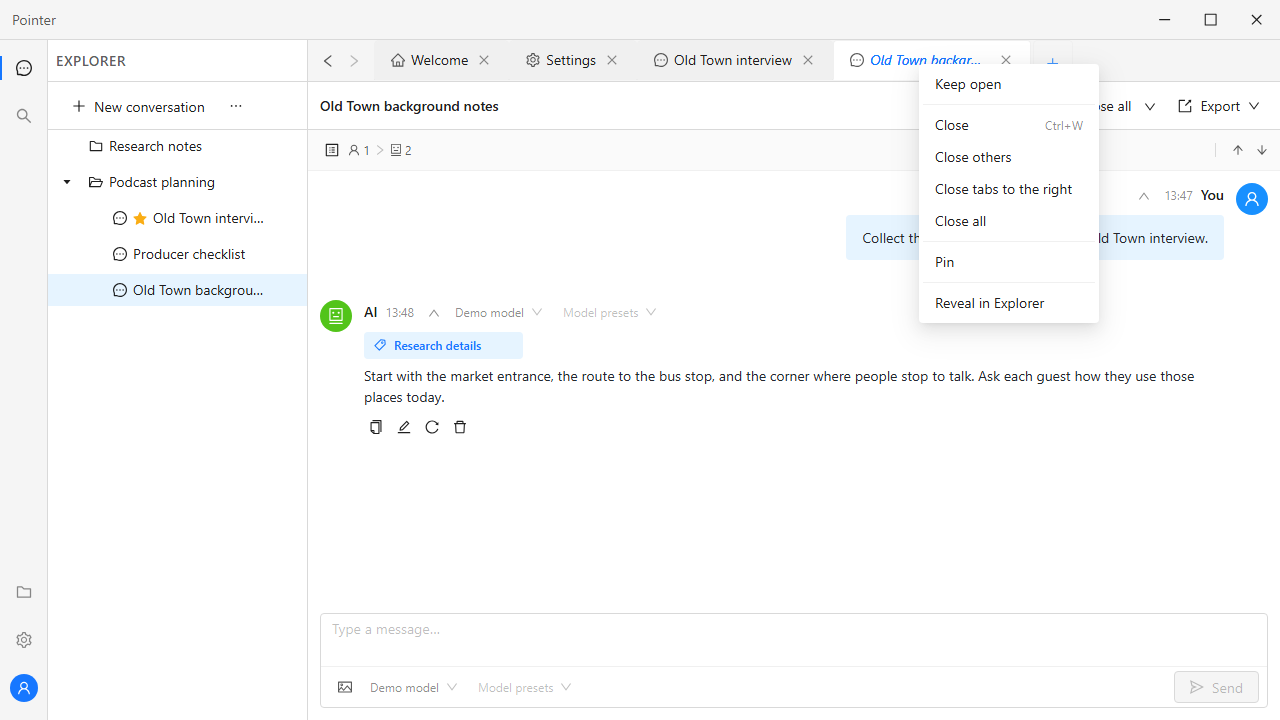
Single-clicking a conversation with an open tab activates that tab. New conversations opened with the + on the tab bar open as regular tabs. You can keep Settings and more than one Export tab beside your chats.
- Right-click Old Town background notes and choose Pin. It moves to the pinned area on the left. Use Unpin from the same menu to return it to the regular tabs.
- Drag a tab to reorder it inside its pinned or regular area.
- Activate Old Town interview, then right-click its tab and choose Reveal in Explorer to switch the sidebar back to its folder tree. Expand Podcast planning to see the selected conversation if the folder is collapsed.
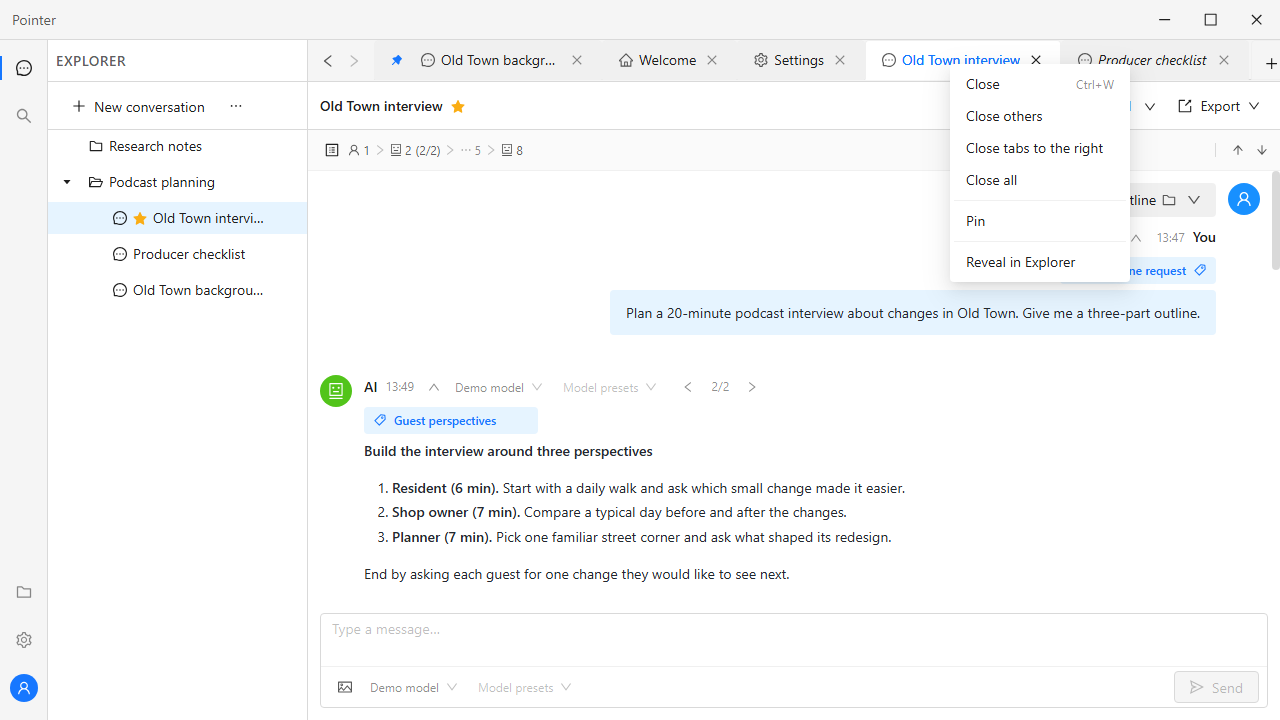
| Menu action | Effect |
|---|---|
| Close | Closes the chosen tab, including a pinned tab if selected individually. |
| Close others | Keeps the chosen tab and pinned tabs. |
| Close tabs to the right | Closes regular tabs to the right of the chosen tab. |
| Close all | Closes regular tabs and keeps pinned tabs. |
You can also use the tab's close button or the close-tab shortcut. The conversation stays available in Explorer.
- Click Producer checklist, then click Old Town interview.
- Click Back at the left of the tab bar to return to the checklist. Click Forward to return to the interview.
- Right-click the arrow area. The menu lists recent visits and marks the current entry with an arrow. Choose an entry to jump to it.
- Try closing the checklist tab and choosing one of its history entries again. An existing conversation reopens as a preview. The menu also has Clear navigation history if you want to start with the current tab.
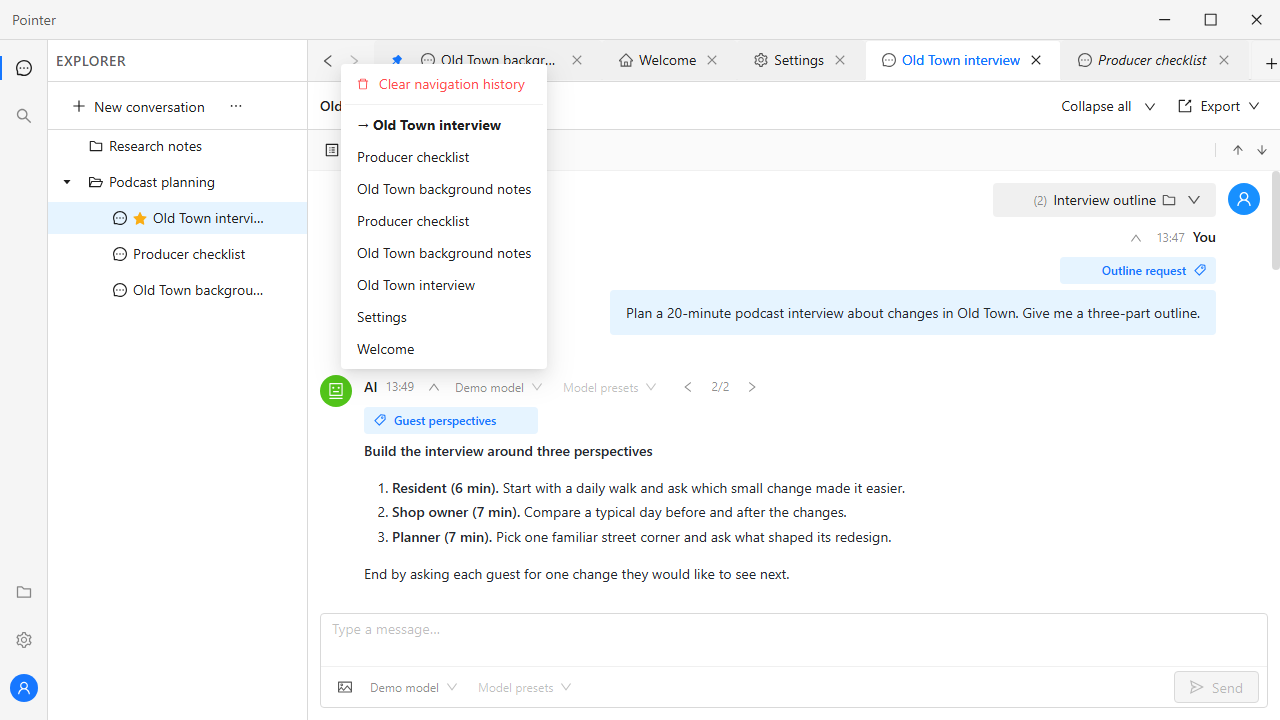
Opening a different tab after going back starts a new forward route from that point. Workspace context determines the tabs and history you see.
Use the next and previous tab shortcuts to cycle through the visible tab order. With both notes and the interview open, use these keys to alternate between them in tab order. Use the history shortcuts below to retrace visits in the order they happened.
| Action | Windows | Linux | macOS |
|---|---|---|---|
| Next / previous tab | Ctrl+Tab / Ctrl+Shift+Tab | Ctrl+Tab / Ctrl+Shift+Tab | Ctrl+Tab / Ctrl+Shift+Tab |
| Alternate tab keys | Ctrl+PageDown / Ctrl+PageUp | Ctrl+PageDown / Ctrl+PageUp | Cmd+Option+Right / Cmd+Option+Left |
| History back / forward | Alt+Left / Alt+Right | Ctrl+Alt+- / Ctrl+Shift+- | Ctrl+- / Ctrl+Shift+- |
| Close active tab | Ctrl+W | Ctrl+W | Cmd+W |
Inside a conversation, use the path bar and reading controls to move between messages. Review reading shortcuts