Repository navigation
Everyday Chat
Keep Old Town interview open. Use the composer to direct the next reply and the message controls to reuse or revise earlier work.
- Select a connection using the model selector under the message box. The neighboring selector applies a reusable system prompt and sampling settings. Set up the Podcast outline preset
- Press Enter to send and Shift+Enter to add a line break. If your provider supplies reasoning, Pointer shows it in the separate Reasoning section. You can fold or reopen it independently.
- When the composer is idle, select Add image, paste an image, or drag one into the box. Use a model that accepts images. For this interview, ask an image-capable model what details in a reference photo might prompt a good question. Click an attached image to inspect it. The viewer supports zooming, rotation, and resetting the view.
- Right-click a message and choose Copy to copy its text. Select a passage first to copy just that passage. The copy icon below a message copies the entire message.
- Use Quote from the same menu to insert a selected passage or message into the composer. For example, quote the shop owner's part of the outline and ask for a concrete opening question.
- Select the edit icon, or choose Actions → Edit in the context menu. Save updates the message in place. Save and resend on a user message creates a new question and answer path. Esc cancels the edit. Compare revised prompts and answers
- The actions menu also offers Retry for completed assistant replies and Continue generating when the active path ends on a user message. Deleting a message removes that message and the replies or follow-ups descended from it. Use the branch counter to check the path before confirming.
- While the model is answering, type
Suggest one follow-up question for each guest.and press Enter. The text enters the current conversation's queue. - Select the hourglass beside Stop. Its badge shows how many prompts are waiting. In the drawer you can append another prompt, edit or remove an item, or clear the pending list.
- When the conversation becomes idle, Pointer sends pending prompts in order. Select Stop to interrupt the reply and pause the queue. When the main button shows Resume queue, use it to continue sending.
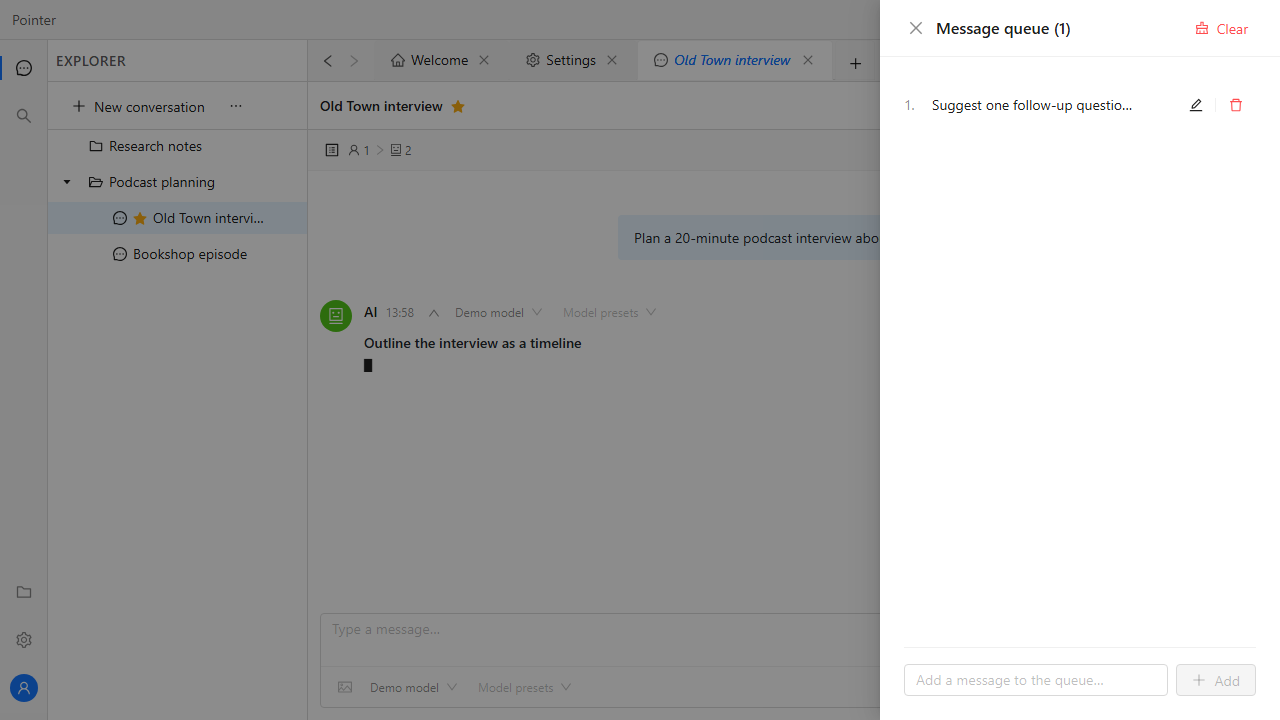
The queue is stored with the workspace and belongs to its conversation. Queue entries contain text. To send an image, wait until the chat is idle and add the attachment in the composer.
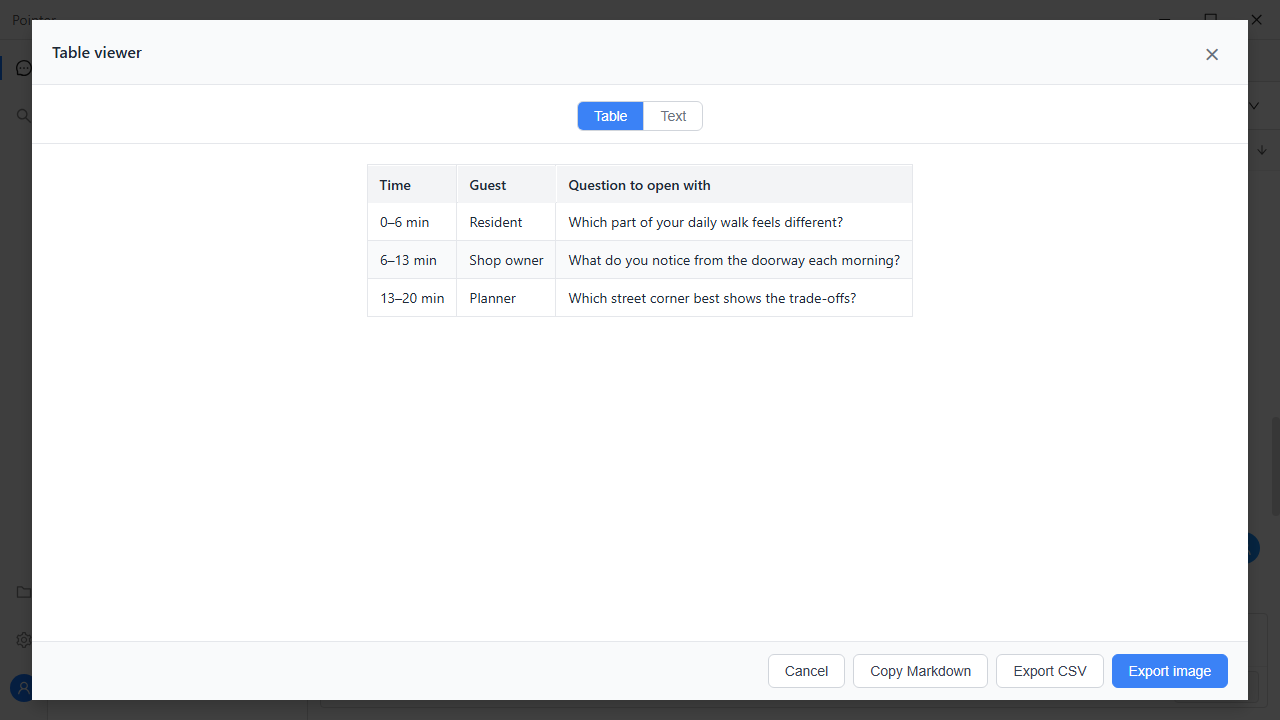
When you ask for a running order later in this tutorial, ask for a Markdown table. Hover over the table and choose View table in full screen to read and export it. The viewer offers Copy Markdown, Export CSV, and image export. Code blocks have copy and download buttons. Pointer also renders math and Mermaid diagrams when the model returns them in Markdown.