Repository navigation
Back Up and Move Data
Save the Podcast planning conversations and the settings you want to reuse. Pointer provides a selective JSON backup and lets you move a workspace by copying its folder.
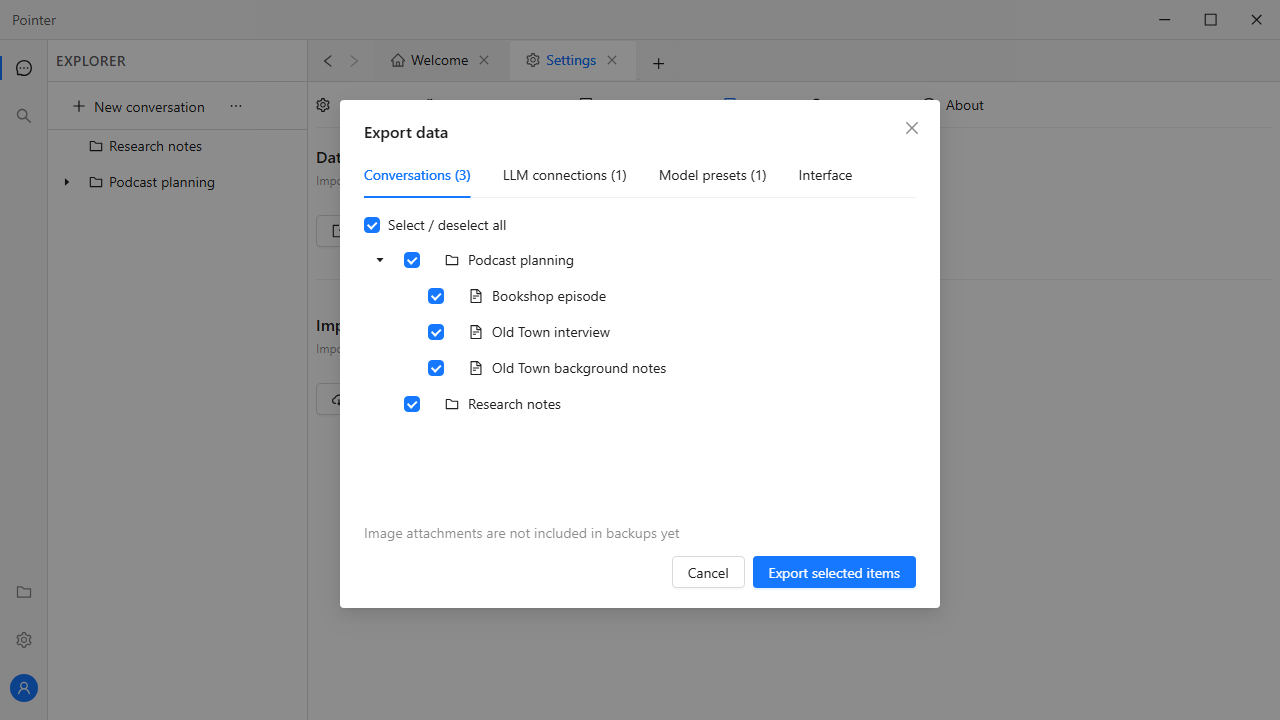
- Open Settings → Data → Export data.
- Under Conversations, choose the Podcast planning folder or the individual chats to include. Clear other selections if you only want to back up this project.
- Review the LLM connections and Model presets tabs. Under Interface, you can include tabs and layout. API keys are excluded by default. Selecting Include API keys (plain text) adds the actual credentials to the backup.
- Select Export selected items and keep the resulting
pointer-backup-*.jsonwhere you can find it.
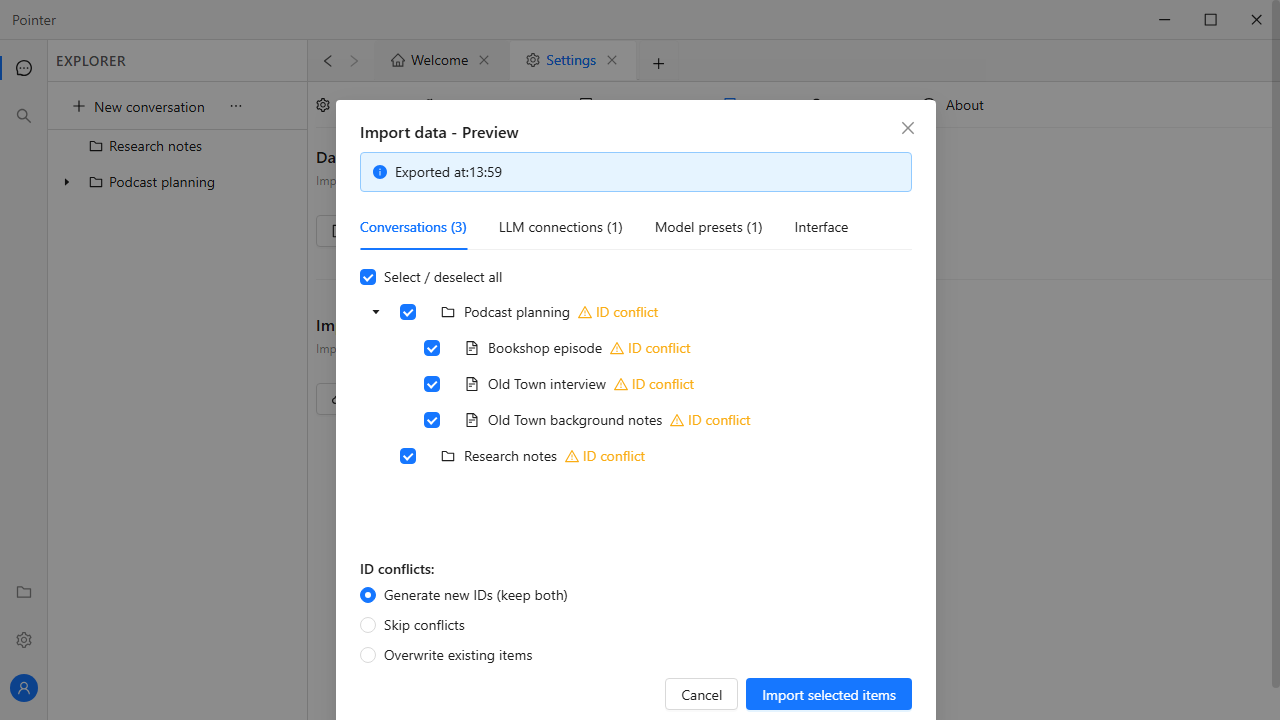
- Open the workspace where you want the data and select Settings → Data → Import data.
- Select the backup JSON and review the items you want to restore.
- Choose how to handle matching IDs. Generate new IDs (keep both) preserves both copies, Skip conflicts keeps the existing record, and Overwrite existing items replaces it with the selected backup record.
- Select Import selected items and check the result. Open Old Town interview and confirm the answers and branch choices you expected.
- In Workspace, choose Open in file manager and locate the current workspace.
- Close Pointer so it can finish saving. Copy the entire workspace folder, including the hidden
.pointerdirectory, to the new location. - In Pointer at the destination, choose Workspace → Open folder…, select the copied folder, and check the interview and its search results.
Copying the folder preserves workspace files, including image attachments. The JSON backup collects selected conversations and settings and excludes image files. Use the JSON backup to move account-level model connections and presets when needed.
Tutorial complete You have an exported outline to share and a copy of your podcast materials.