Repository navigation
Everyday Chat
Keep the Old Town interview open. The controls below the message box apply to the next message you send.
- Open the model selector to choose one of your configured LLM connections. Use the neighboring selector for a reusable model preset.
- Use Add image, paste an image, or drag one into the composer. Choose a model that accepts image input. To ground the interview in a setting, try attaching a photo of a street corner and asking which details might prompt a good question.
- Press Enter to submit and Shift+Enter for a new line. While an answer streams, select Stop to end generation. If your provider supplies reasoning content, Pointer can display it alongside the answer.
- While an answer is still generating, type a text follow-up, such as
Suggest one follow-up question for each guest. - Press Enter to queue the message. Select the hourglass next to Stop to open Message queue.
- In the drawer, edit or delete a pending prompt, add another, or clear pending prompts. For the branch walkthrough, you can clear the practice follow-up so you have one question and one answer to start from.
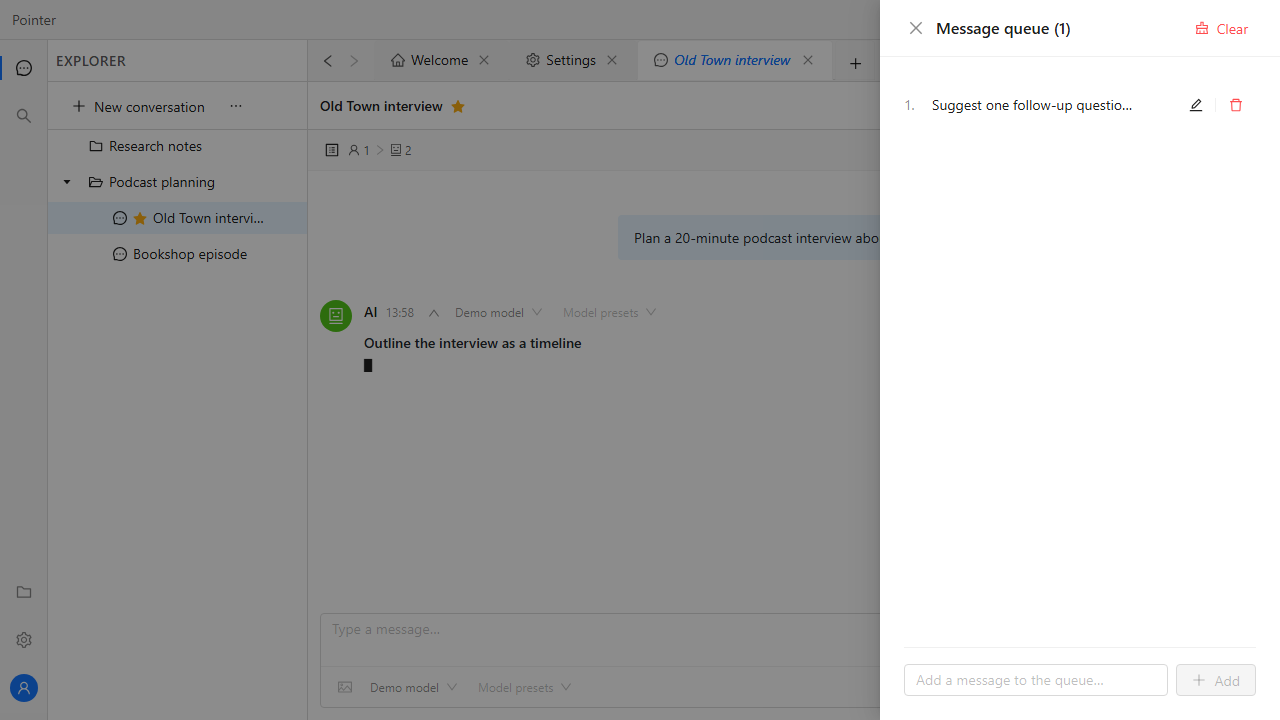
Each conversation has its own queue. Pointer sends queued prompts in order when that conversation is idle. If Resume queue appears after stopping a generation, select it when you are ready to send the remaining prompts. Add images after the ongoing generation finishes.