Repository navigation
Export a Conversation
Export the Old Town interview branch you want to share with a co-host. For the exercise, choose the version organized around the resident, shop owner, and planner.
- Open the chat and switch to your preferred branch.
- In the conversation header, choose Export → Current branch messages.
- In the export tab, choose Markdown and review the preview, including any follow-up messages you added to this branch. Use Metadata options to include details such as timestamps, model names, titles, or topics.
- Choose Export → Download file and save it as
old-town-interview.md. To paste the result into another app, choose Copy content.
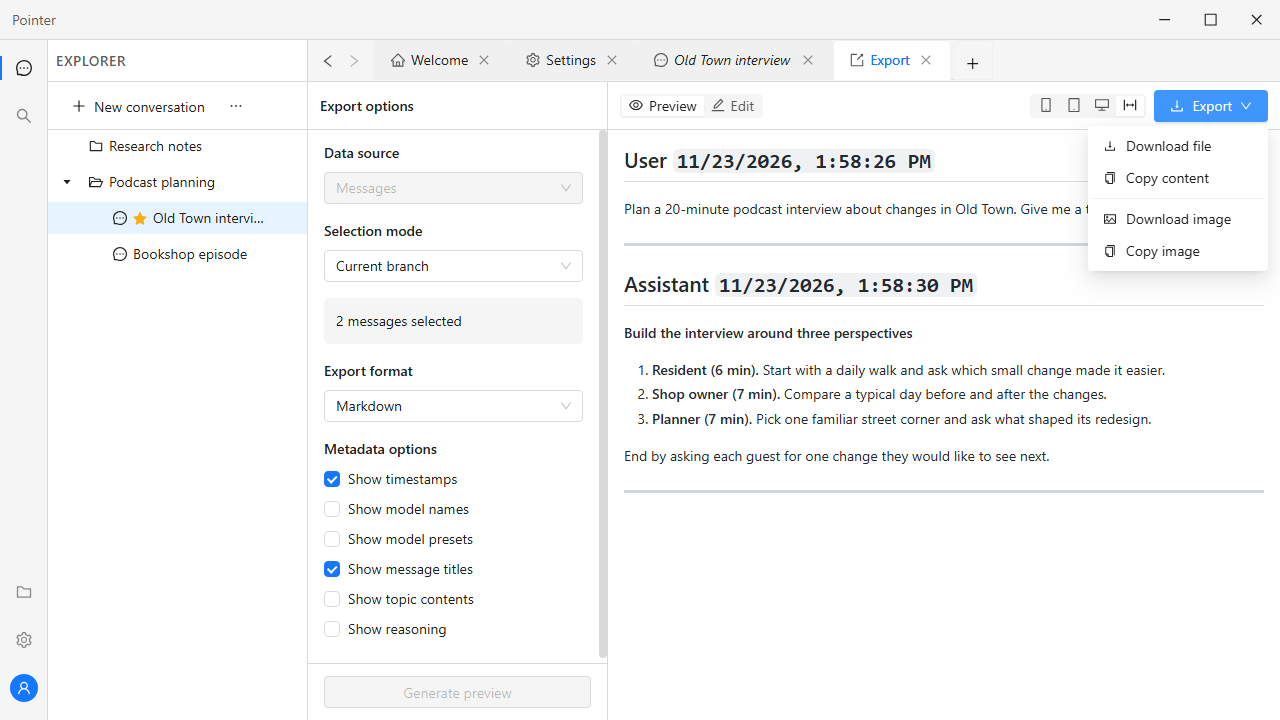
Use Export → Custom selection in the conversation header to pick individual messages. Select the messages and choose Generate preview. Review the preview again after changing your selection.
Messages, text snippets, code, and tables can be exported through their context menus. The available formats depend on the source. For example, use CSV for a table or TXT for a code block. The export editor offers Edit for supported formats. HTML previews can also be saved or copied as an image using the image options in the export menu.