Repository navigation
First Conversation
Connect your first model and start the Old Town interview. You will ask for a three-part outline for a 20-minute podcast about neighborhood changes.
- Select the gear near the bottom of the activity bar to open Settings. Select LLM connections → New configuration.
- Enter a recognizable Configuration name. This is the label you will see in the composer. Fill in API Base URL, API Key, and Model name with the values for your provider.
- The base URL includes the provider's API prefix, such as
/v1. Pointer appends/chat/completionswhen sending a request. Choose a model from the list when the provider supplies one, or type its exact model ID. - Select Test connection. It sends a small request using the model you chose. When it succeeds, select Set as default. The button changes to Default.
- Return to the conversation and check the model label under the message box before sending.
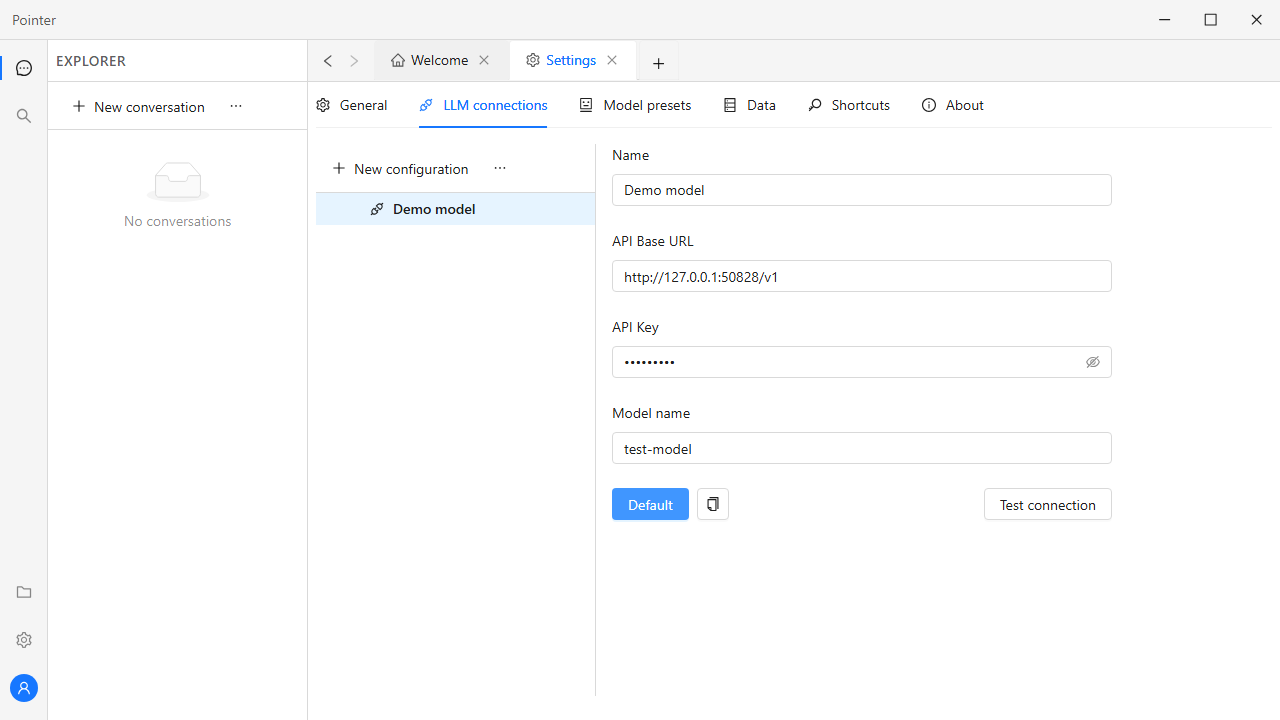
The screenshot uses a local demo service with an example model. Use the base URL and credentials supplied by your provider. If the test fails, check the exact error and follow connection troubleshooting.
-
In Explorer, select New conversation. You can also use the + in the tab bar or press
Ctrl+Non Windows or Linux, orCmd+Non macOS. -
To call the chat Old Town interview, right-click its row in Explorer and choose Rename, or hover over the title at the top of the chat and click the edit icon.
-
Enter this prompt in the message box.
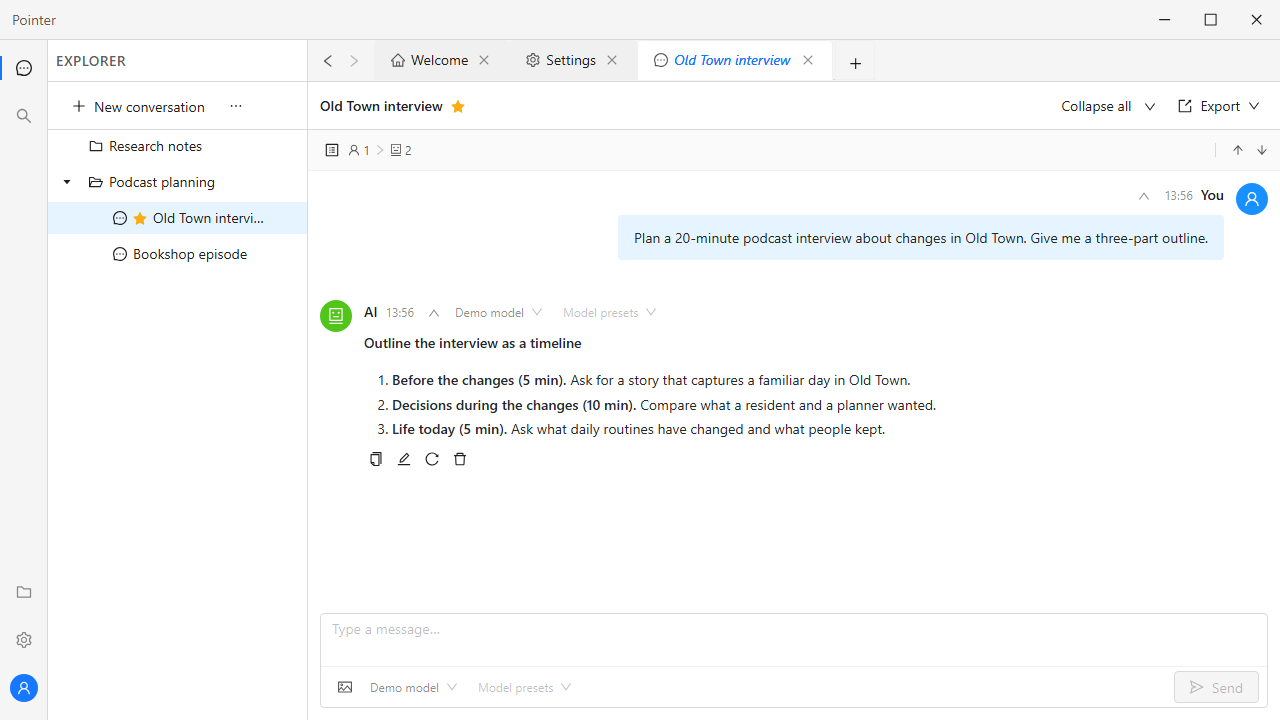
Plan a 20-minute podcast interview about changes in Old Town. Give me a three-part outline. -
Select Send or press Enter. Pointer shows the answer as it streams. The illustrated first answer follows the neighborhood's timeline. Your model may suggest a different structure.
| Area | What you can do there |
|---|---|
| Activity bar at far left | Open Explorer, Search, Workspace, Settings, or Account. |
| Explorer beside it | Open conversations, create folders, and organize the project. |
| Tabs at the top | Switch between chats and other editors. Use the arrows to the left for visit history. |
| Conversation header | Rename or star the chat, collapse messages, and start an export. |
| Path bar under the header | Open the outline, jump to a message or a branch, and move by one visible message. |
| Composer at the bottom | Choose a model and preset, add an image, and send or queue a prompt. |