Repository navigation
Outline and Topics
Turn the long Old Town interview into a table of contents. Give individual messages short titles and use topics for stretches of discussion.
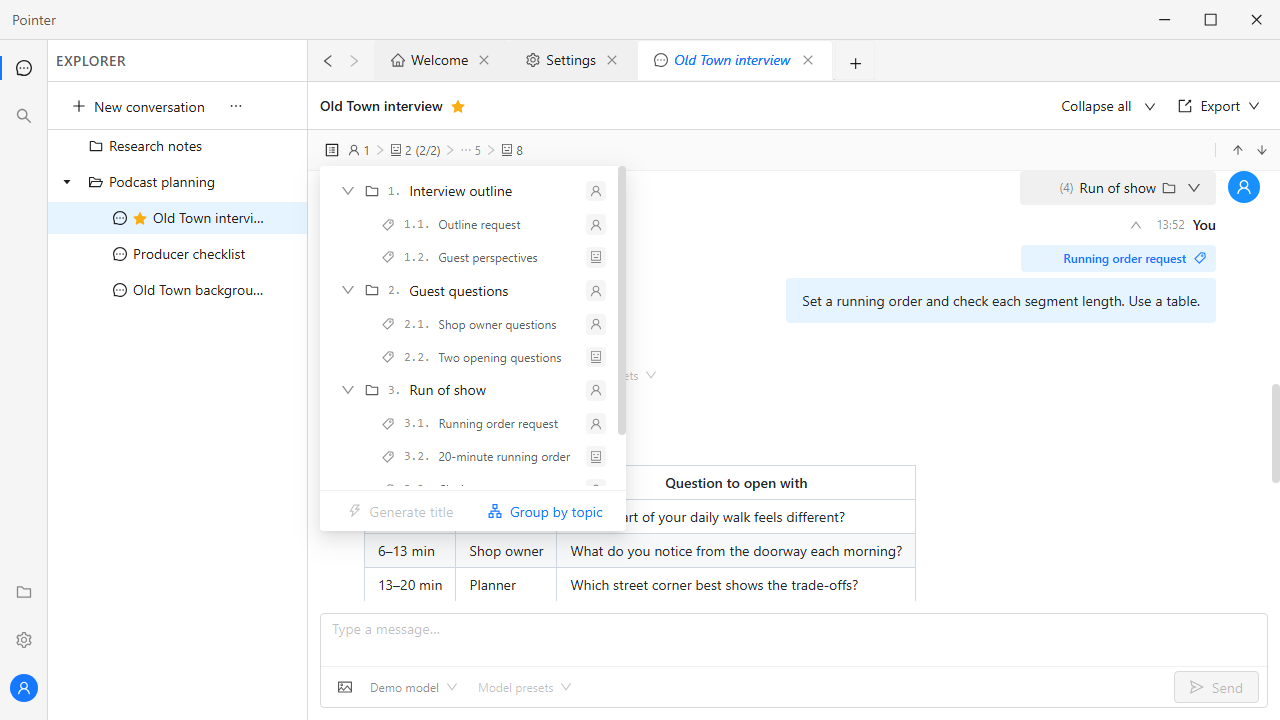
- Right-click the assistant's three-perspective outline and select Outline → Add title. Type Guest perspectives and press Enter.
- Title the later assistant replies Two opening questions, 20-minute running order, and Closing question and note. Use Edit title if the message already has one.
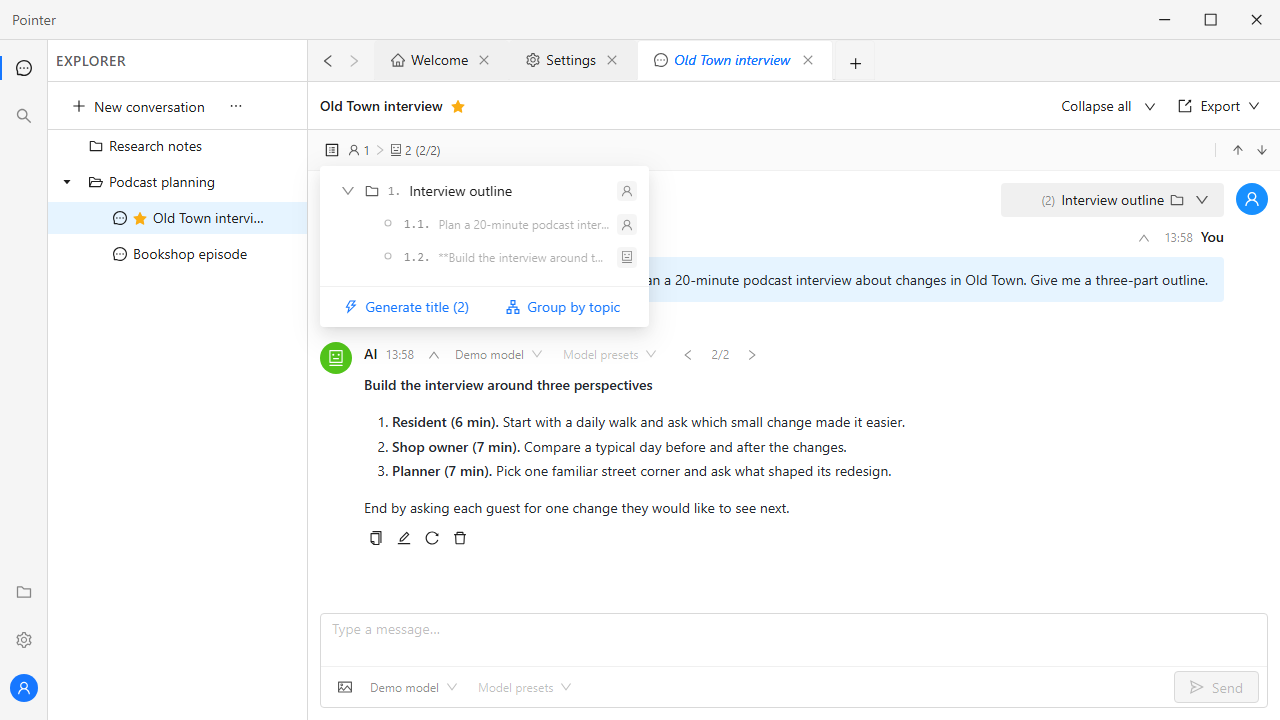
- Open Outline at the left of the path bar. Select a title to jump to its message. The path bar also uses titles when available and shows a short message preview for unnamed items.
- Right-click the opening prompt and choose Outline → Add group. The app starts the group with a name based on the message title or opening text.
- Open Outline → Edit group on that message or use the small menu on the topic heading. Rename it Interview outline.
- Start Guest questions at your first shop-owner follow-up. Start Run of show at the prompt requesting a running-order table. Each new group starts at the chosen message and extends to the next topic or the end of the active path unless it has a specific ending.
- Open the outline and click Two opening questions to return to the shop-owner answer. A topic's chevron inside the outline controls the list of entries. Use the menu on a topic heading to rename or remove the grouping.
Version note In 2.0.0-preview.2, the chevron on a topic heading in the conversation can fail while saving a fold or unfold. The outline still provides access to open topics. For a compact conversation, use the message folding menu. Fold and navigate individual messages
- Use Generate title in the Outline menu to request titles for unnamed messages on the current path. The count shows how many remain. A title can also be generated from a message's title editor.
- Group by topic asks the configured model to identify stretches of discussion in the active path. Review the suggested names and rename them to match your recording plan.
- After switching branches, reopen the outline to see the messages and topic sections on the newly active path.