Repository navigation
Reading Long Conversations
Use the reading controls to review a long Old Town interview without losing your place. Start on the guest-perspectives branch from Compare and continue branches.
Send these follow-ups one at a time on the same branch. Wait for each answer before sending the next.
Give me two opening questions for the shop owner. Ground each one in a place or routine.Set a running order and check each segment length. Use a table.Draft the closing question and a short note for my co-host.
You now have an opening outline, questions, a running order, and a closing note on the path. Your model's wording and the length of its replies can vary.
- Return to the opening prompt by clicking the first numbered item in the path bar above the conversation.
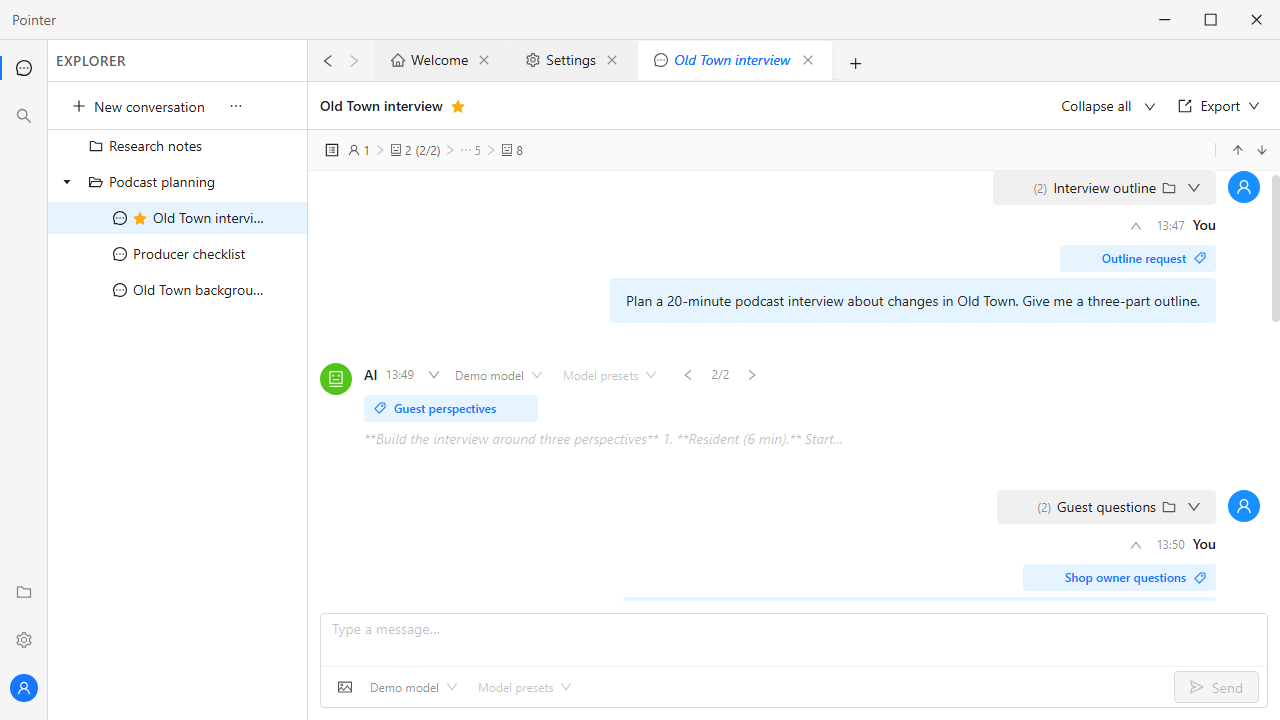
- Open the drop-down beside Collapse all in the conversation header. Choose Collapse AI messages.
- Scan the questions. To read one answer in full, click its one-line preview or the chevron in that message's header.
- To restore the message bodies, choose Expand all messages from the same menu.
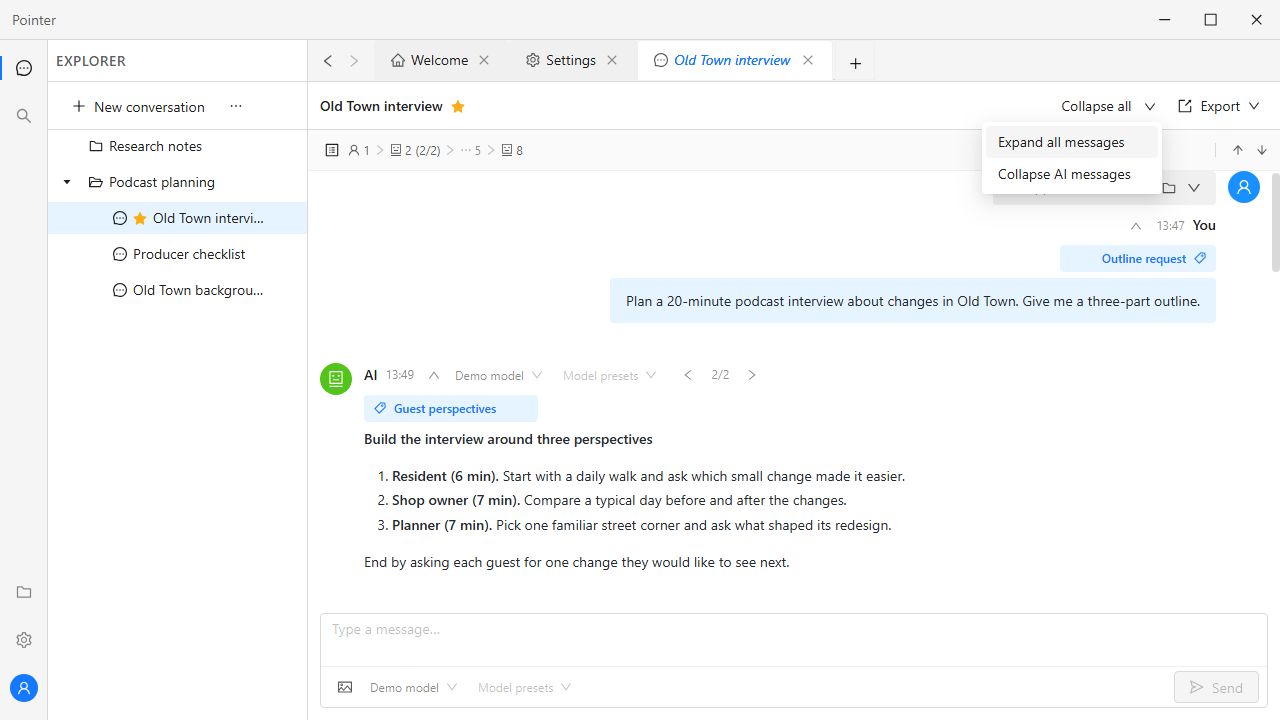
The main Collapse all button collapses both user and AI messages on the current path. The bulk collapse actions skip a reply while it is streaming. Expand all messages opens individual message bodies on the active path. Message folding applies to individual bodies. Topic headings provide a separate group control. In 2.0.0-preview.2, saving a topic fold or unfold can fail. Use the message folding menu to make the conversation more compact in that release.
A provider that returns reasoning adds a separate Reasoning section to its AI reply. Pointer opens it while reasoning arrives and folds it when the reply finishes. Click the Reasoning heading to control that section independently of the message body.
The up and down arrows at the right end of the path bar scroll to the previous or next visible message. Pointer uses your reading position in the current branch as the starting point.
| Go to | Key |
|---|---|
| Previous visible message | Shift+Space |
| Next visible message | Space |
| First visible message | Home |
| Last visible message | End |
Try Home, then press Space to move from the opening prompt to the first reply. Press Shift+Space to return to the prompt. Use End to revisit the closing note. At the last visible message, another Next moves to the bottom and resumes automatic following.
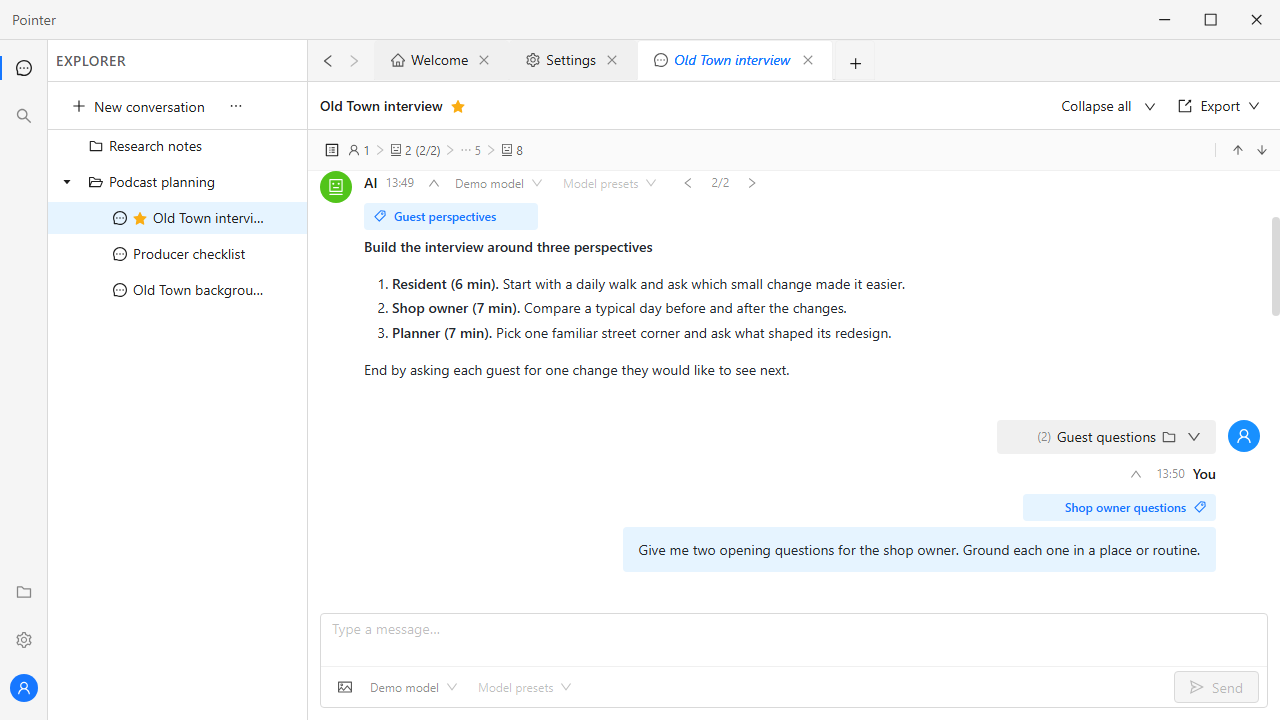
Reading keys work in the active chat while it is idle. If the composer or Find field has focus, click the reading area before using the keys. The arrows are also available on the path bar. A folded topic, when present in a saved conversation, occupies one position in the visible sequence.
- Click a numbered item in the path bar to jump to its message. Hover over it to see the message title or a short preview.
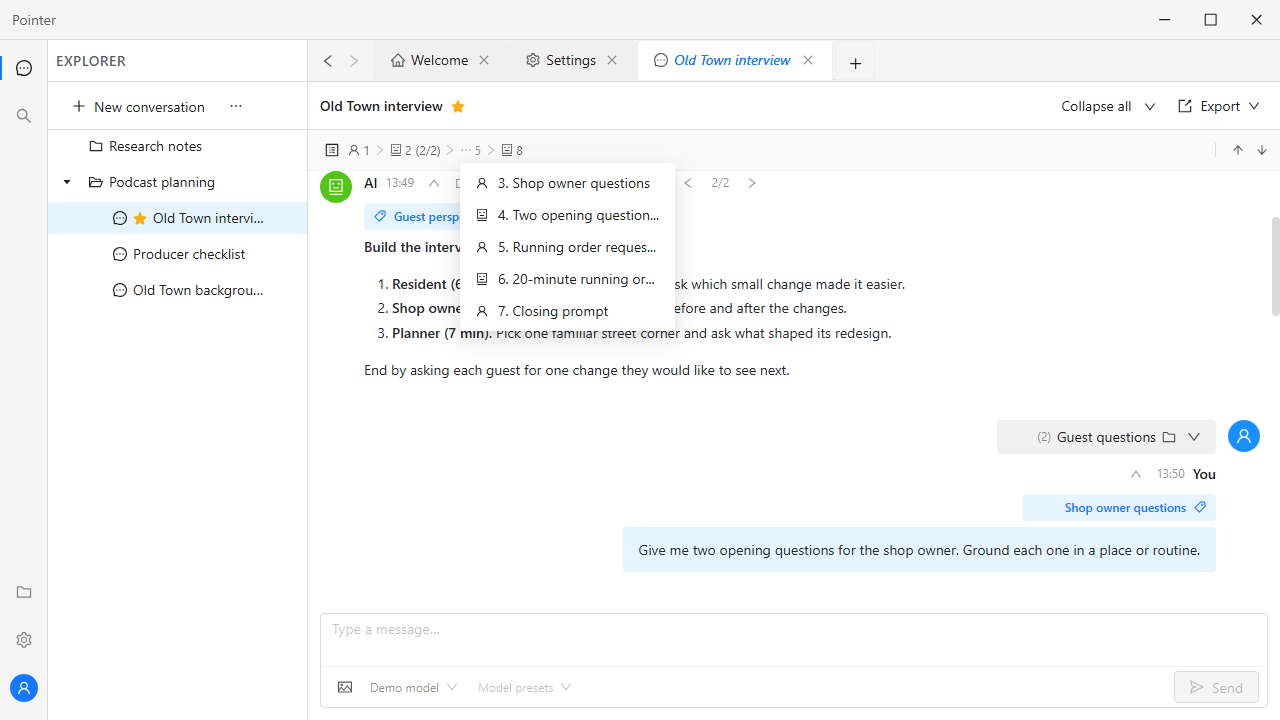
- Click an ellipsis with a number to list the intermediate messages. Choose the Running order request if you used the example. Pointer shows the start, the end and fork points along the path, and groups the messages between them under ellipses.
- Click Outline at the left of the bar to find named messages and topics. Choose an entry to jump to its message. For a saved folded topic, this jump depends on the topic being opened successfully.
- Click a branch count such as (2/2) to choose a different answer at that fork. The branch picker follows the chosen path. The up and down controls move between messages along it.
A new generation starts with automatic following enabled. If you scroll up to reread an earlier message while the reply is arriving, automatic following pauses. Scroll down to the bottom again to resume following.