Repository navigation
Search
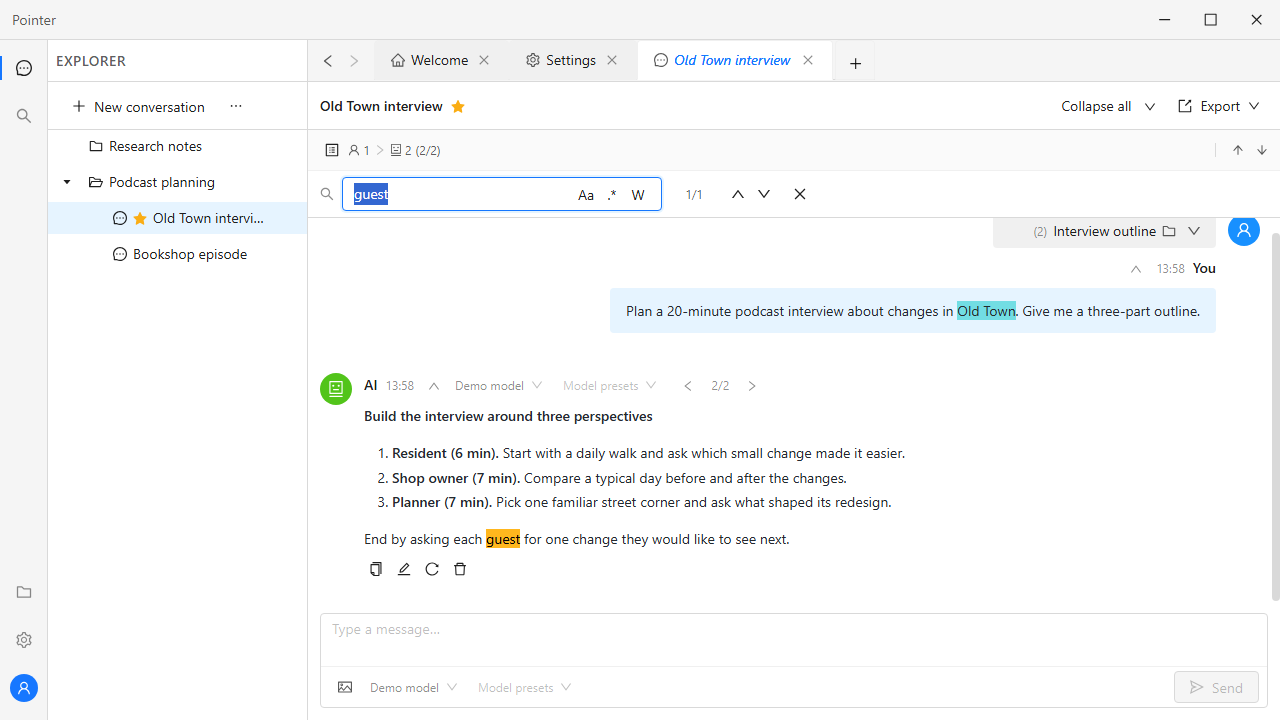
Use Search to find a passage anywhere in the active workspace. Use the Find bar in a conversation to go through matches along its selected branch.
- Select the magnifying glass in the activity bar or press
Ctrl+Shift+Fon Windows or Linux, orCmd+Shift+Fon macOS. - Enter
Old Townin Search message content…. If you select text before opening search with the shortcut, Pointer can fill the query with that selection. - Results are grouped by conversation, then message, then matching passage. Expand a group to see its matches. Expand and Collapse manage the result list. Select a passage to open the conversation and highlight the match.
- Open Filters to limit results to user or assistant messages, a time preset, or one or more folders. Select Podcast planning or choose Find in folder from that folder's context menu. A folder filter includes its descendants.
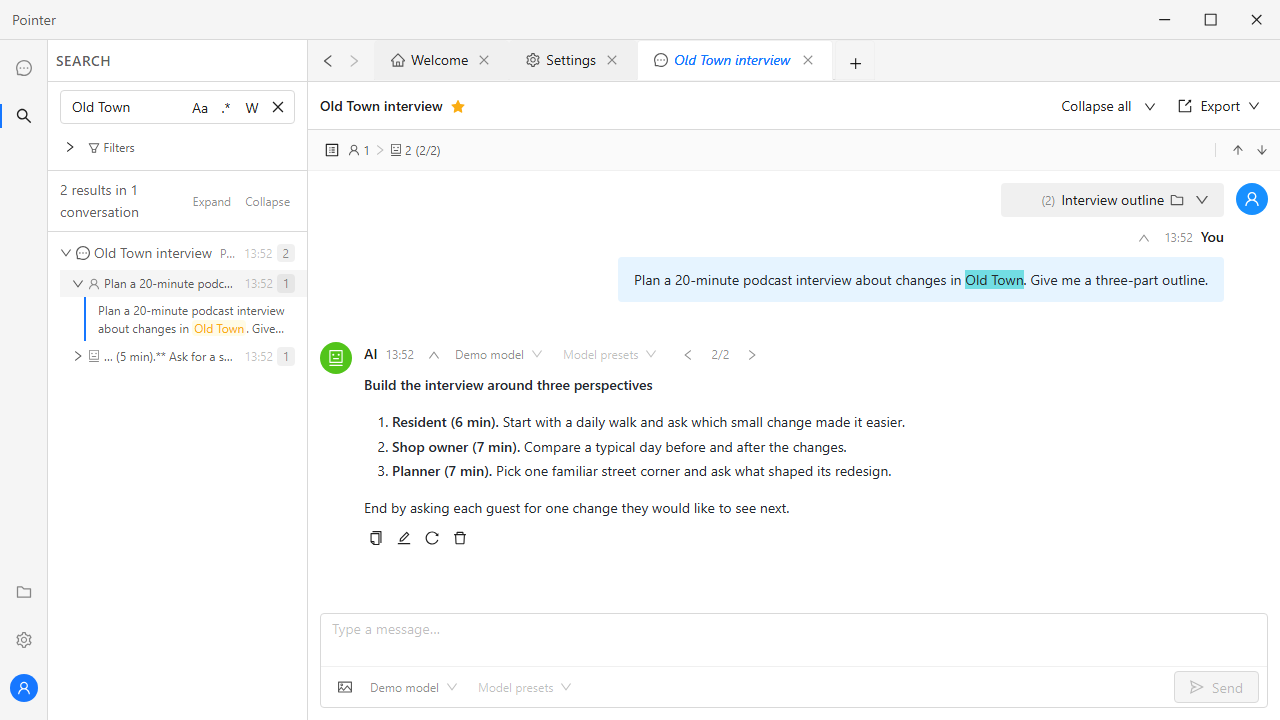
Use Aa to match case, .* for a regular expression, or W to match whole words. For example, guest with W enabled matches the singular word. To broaden results again, clear the folder filter and return the role and time filters to their full ranges.
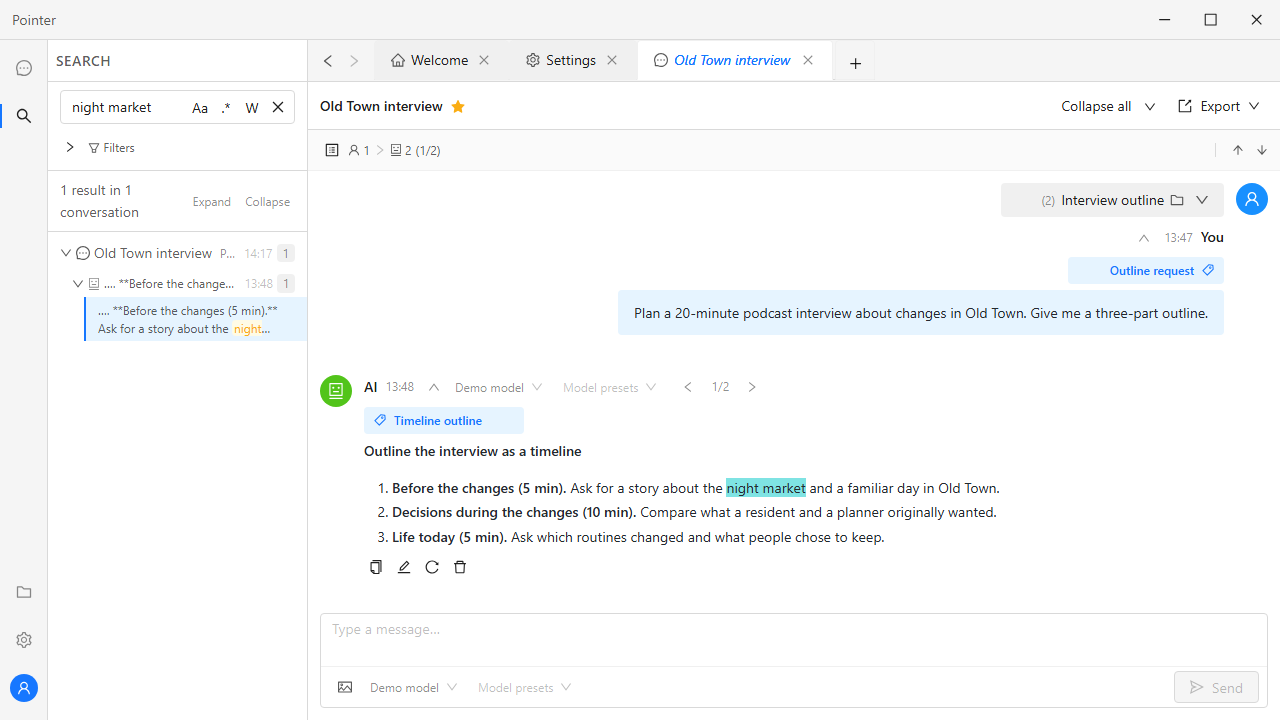
- In Old Town interview, select the guest-perspectives branch. Recall a phrase from the timeline branch. In the illustrated case it is
night market. - Search for the phrase in the workspace and expand the Old Town interview result. If your model produced different text, search for a phrase that appears only on your timeline branch.
- Select the matching passage. Pointer opens the matching path and highlights the occurrence. Check the branch counter to see that the timeline is active.
- Use the path-bar branch picker to return to guest perspectives.
A result can open a conversation in a preview tab. Use Keep open if you want it alongside your other chats. Work with preview and pinned tabs
- Open the conversation and choose the branch to read.
- Press
Ctrl+Fon Windows or Linux, orCmd+Fon macOS. Selecting a phrase beforehand can fill the Find field. - Search for
guestor another word in the answer. Repeatedly press Enter to move to the next match or Shift+Enter for the previous one. The arrows in the bar do the same. Esc closes Find. - Change Aa, .*, or W in the bar when you need a more specific match.