Repository navigation
Workspaces and Folders
A workspace is the folder on disk that holds your conversations. Use the Workspace button near the bottom of the activity bar to see the active workspace or open another folder.
- Select Workspace → Open folder…. Choose a local folder for your podcast work, or keep using Default workspace.
- Open Explorer. Use the menu beside New conversation and select New folder. Name it Podcast planning.
- Move Old Town interview into that folder. Drag it onto the folder or right-click the conversation and choose Move to….
- Select the star in the conversation header to mark the chat. The star also appears beside the conversation in Explorer.
If you started the interview in the default workspace, organize it there or use the backup and restore steps to bring it into a different workspace.
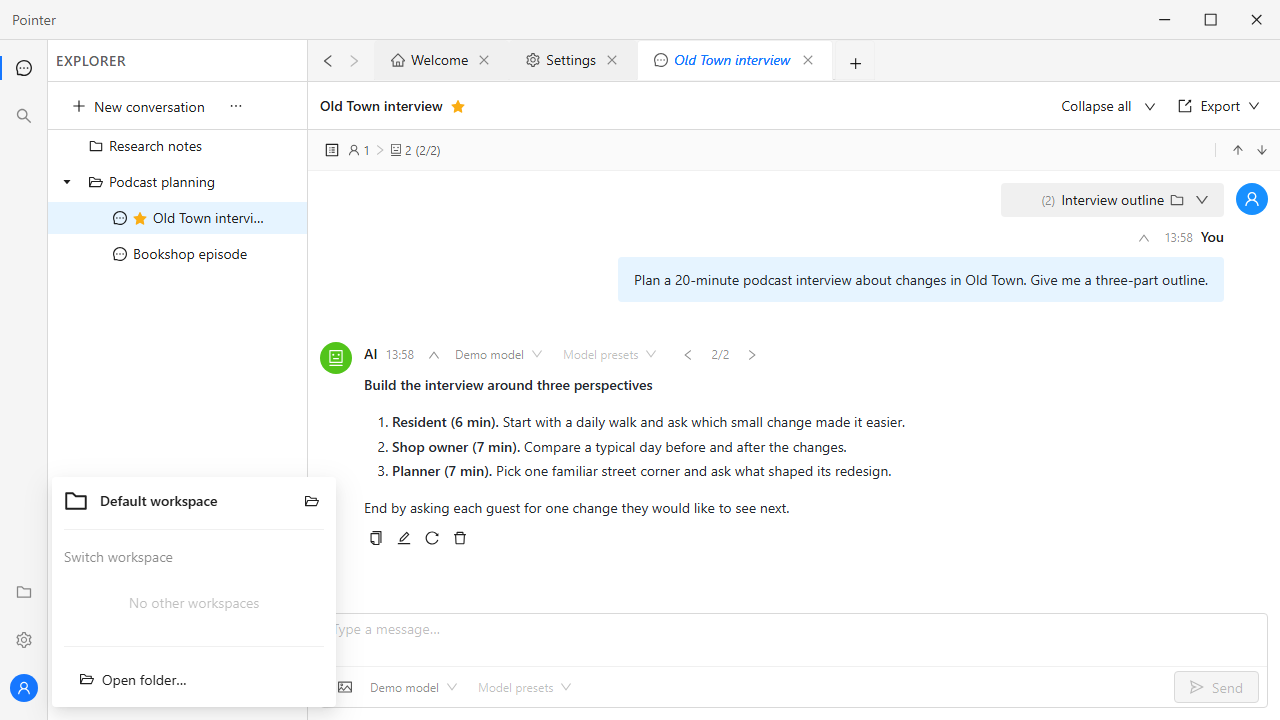
- Open a conversation from Explorer to view it in a tab. Double-click its entry or use Keep open in the tab menu to keep it available while consulting another conversation.
- Use the avatar button labeled Account to manage or switch local accounts. Each account has its own workspace list and model settings.
- Use Open in file manager from the Workspace popover to find the files for the current workspace. Conversation files end in
.pointer.md.