Repository navigation
Preferences
GAMA preferences control the application interface, editor, experiment execution, displays, network access and data handling. In GAMA 2026-11, the Preferences view has six tabs: Interface, Editors, Execution, Displays, Network and Data and Operators. Each tab groups related settings. A preference row shows its label and control; when a preference is exposed to GAML, its context menu gives the variable name.
By default, GAMA stores preferences for the current operating-system user. They are shared between that user's workspaces and GAMA installations. To use a store scoped to one GAMA installation instead, start GAMA with -Duse_global_preference_store=false. The two stores are separate; changing this option does not copy existing values between them.
On Linux and Windows, open Support > Preferences. On macOS, open the GAMA application menu and choose Settings... (Cmd+,). Both routes open the same GAMA Preferences view.

The buttons at the bottom of the view provide these actions:
- Revert to defaults restores default values for all preferences and asks before restarting the platform.
- Advanced... opens the Eclipse preferences described in Advanced preferences.
- Import... opens a file chooser for a preferences file.
- Export to GAML saves a GAML model containing preference assignments.
-
Export to preferences writes stored preference values to a
.prefsfile. - Cancel discards unsaved changes; Save applies them.
Although both actions use the .prefs extension, Import... reads an XML preferences file while Export to preferences writes Java Properties text (key=value). The exported file therefore cannot be re-imported as a backup. To apply exposed preference values during a simulation, use Export to GAML and run the generated Set __PREFS__ experiment; GAMA restores the previous values when the experiment closes.

Preferences exposed to GAML can be read or assigned through the gama species. The context menu of a preference row shows its variable name. For example, an experiment can control whether monitors appear in the Parameters view:
experiment Demo target: sim {
  init {
    gama.pref_monitors_in_parameters <- false;
  }
}
An assignment made by an experiment is temporary: GAMA restores the previous value when the experiment closes. The pref_monitors_in_parameters preference is enabled by default, so monitors added from the interface appear in the Parameters view.
A JVM system property can set a preference for one launch. For example, -Dpref_monitors_in_parameters=false disables that behavior for the started platform. A system property takes precedence over values set in the Preferences view or by a model and does not change the stored preference.
The Interface tab groups settings for startup, workspace handling, the console, simulations and theme. The controls include whether GAMA remembers its window size, which prompts appear when opening or updating workspaces, console limits, simulation colors and theme behavior.
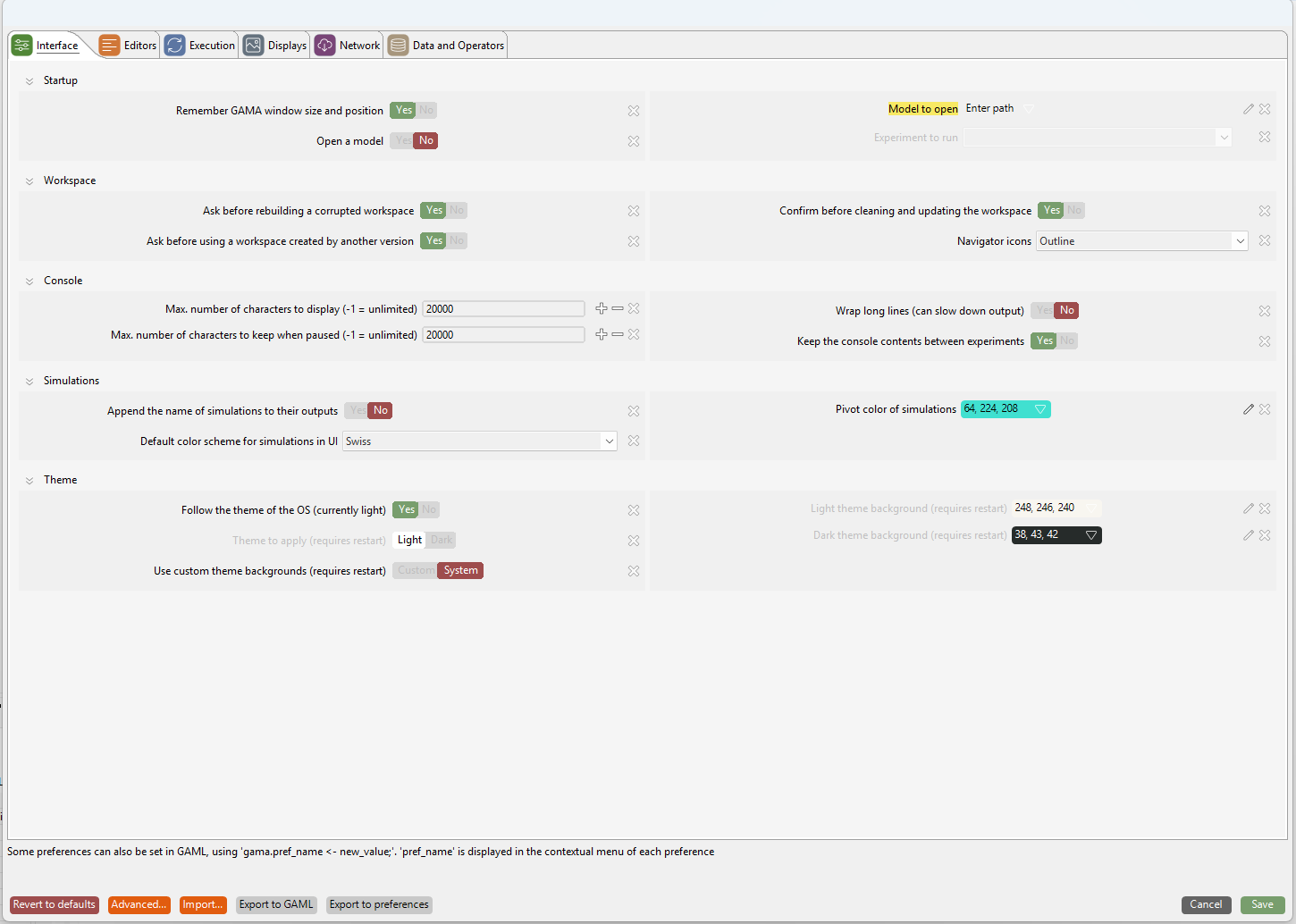
The Theme group is part of the Interface tab. It can follow the operating-system theme or use a selected light or dark theme. Custom theme backgrounds and theme selection require a restart.
The Editors tab contains options for saving editors, formatting on save, editor behavior when switching perspectives, validation timing and how experiment launch controls are displayed. Its syntax-highlighting groups let users choose a configuration and edit colors for light and dark themes.

In the Editors tab, Syntax highlighting configurations offers GAMA 2026 (the default), GAMA 2025, Swiss, Warm Amber and Mineral. Each syntax category has a color and independent Bold and Italic controls for light and dark themes. Editor backgrounds are also stored per theme; font family and size still follow the editor font. Existing custom syntax colors are preserved.
Load... stages a configuration for both themes. Save as... exports both themes, including unsaved edits, to a shareable .gama-syntax file named after the chosen filename. The preferences dialog's Save applies the staged configuration; Cancel discards it, but does not undo an explicitly exported file. Restore a custom configuration with Load....
Configuration files are Java properties. Current exports use version=2, a name, light.background and dark.background RGB values, and one entry per category and theme. For example, light.keyword=8e44ad,true,false specifies an RGB hex color, bold and italic. Both themes and all categories are required; invalid files are rejected before settings are changed. Version 1 configurations remain readable, using the older default backgrounds when no background is supplied.
Bundled presets use the same format as exported configurations and live in gama.ui.shared/syntax/. See Vintage color palettes for Swiss, Warm Amber and Mineral simulation/chart palettes, editor configurations and paper-and-ink examples.
The Execution tab groups preferences for experiments, parameters, tests, memory, runtime errors and parallelism. The Parameters group includes Display monitors in the parameters view; when enabled, monitors appear in the Parameters view. See Inspectors and monitors for the dedicated Monitors view and monitor controls.

The Displays tab contains default settings for display layouts and rendering, charts, agent appearance and OpenGL displays. A display can also override some defaults through its GAML declaration or its own controls.

The Network tab covers GAMA server mode, the browser used for web links and HTTP connection behavior, including timeouts and retries. GAMA server mode is disabled by default. To enable the desktop server, select Enable GAMA server mode in the Server mode group; set the startup preference from Gama.ini with -Dpref_enable_server=true when it should be enabled for a particular launch. See Headless Server for the desktop and headless server interfaces.

The Data and Operators tab groups settings for random-number generation, GIS coordinate reference systems, CSV and JSON handling, spatial queries, GIS caching, file input/output and dates.

Use Export to GAML to save a model containing preference assignments. The export includes only preferences exposed to GAML; hidden or non-GAML preferences are excluded. Its generated model can display their current values or assign them while the corresponding experiment runs. GAMA restores the previous values when that experiment closes.
Advanced... opens the Eclipse preferences contributed by the platform and installed plugins. Available pages depend on the installation. These settings are separate from the GAMA-specific tabs above.
