Getting Started
New to Godot, Vision Pro, or both? This page is the gentle on-ramp. No prior XR experience assumed. By the end you'll understand what this project is, what pieces it's made of, and why building for Vision Pro is a little unusual.
Godot is a free, open-source game engine — think of it as a program for building other interactive programs. You arrange your game out of nodes (a camera is a node, a light is a node, a bouncing cube is a node), group nodes into scenes, and attach small scripts (written in a Python-like language called GDScript) that say what should happen.
Three words you'll see everywhere:
| Word | ELI5 |
|---|---|
| Node | One "thing" in your game — a light, a shape, a sound player. |
| Scene | A bag of nodes saved together (a .tscn file). |
_ready() |
A function Godot calls once, when a scene wakes up. It's where you set everything up. |
That's 90% of the mental model. If you've never opened Godot, their official "step by step" intro takes about an hour and is worth it.
A hand-tracked physics arcade game for Apple Vision Pro. Glowing cubes pour out of a spawner, tumble through bumpers and ramps, and you reach in with your real hands — pinch to grab and throw them into a goal ring for points. It runs in mixed reality, so the cubes appear to fall through your actual living room.
It's also a proof of concept: the first publicly documented example of Godot's
RigidBody3D physics and hand-tracking pickup running in immersive mode on
real Vision Pro hardware at a locked 90 FPS.
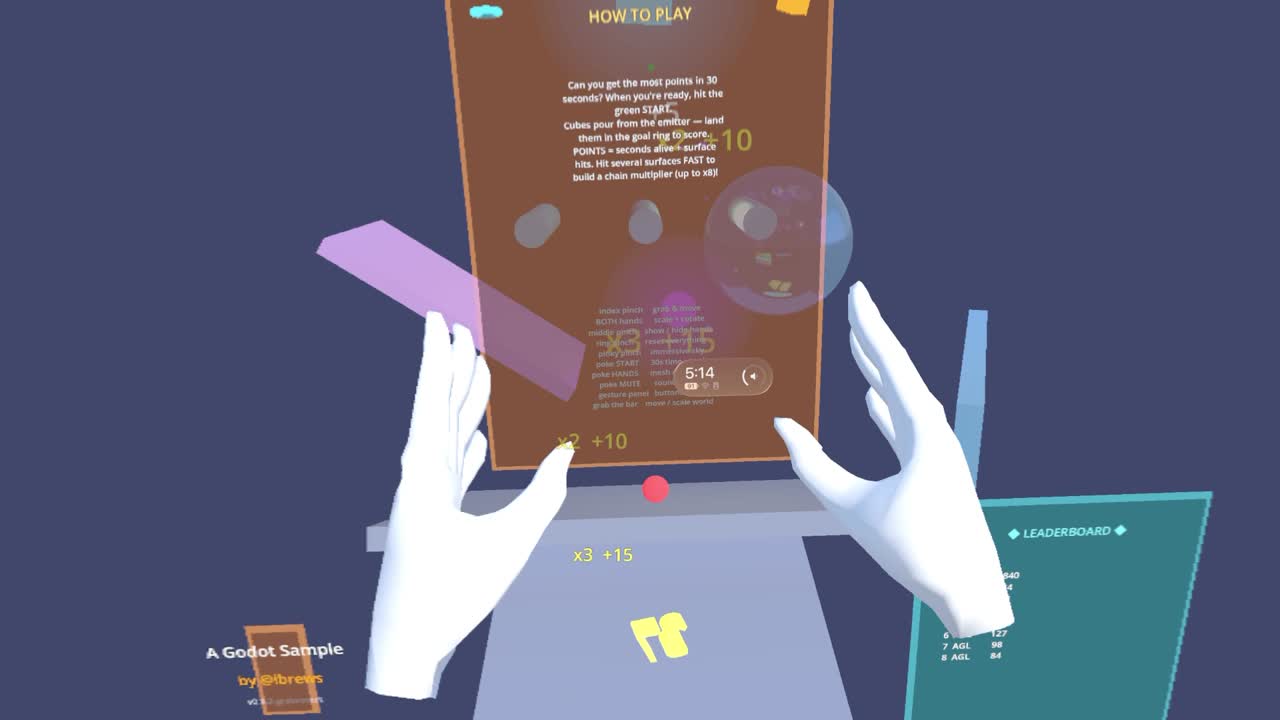 The cold-open instructions board, as seen in the headset — everything you see (panel, hands, leaderboard, cubes) is drawn by Godot and composited over your real room.
Here's the surprising part. Stock Godot — the version on godotengine.org — cannot build immersive Vision Pro apps yet. visionOS support is brand new and still working its way into the engine through an official Apple-authored pull request (godot#109975, led by Ricardo Sanchez-Saez on Apple's visionOS team).
Until that merges and ships, you build the engine yourself from a fork (a copy of Godot's source with the extra visionOS code added). There are two forks, and which one you pick decides whether hand tracking works:
| Fork | What you get | Pick it if… |
|---|---|---|
rsanchezsaez/godot apple/visionos-xr (Apple's official PR branch) |
Rendering only — cubes fall, you watch | you just want the falling cascade |
Clancey/godot visionos_master_pr
|
Rendering + pinch grab/throw | you want the full game |
The tell: if cubes render but you can't grab anything and you never saw a hand-tracking permission prompt, you're on the render-only fork. Hand tracking is an engine capability, not a setting you can flip in your project — the code that asks visionOS for hand data simply isn't compiled into that build. Switch to Clancey's fork. (When Apple's PR gains hand tracking upstream, this project will move back to the official path.)
- A Mac with Apple Silicon (M1 or newer) and Xcode 26
- An Apple Vision Pro, paired and trusted to that Mac
- An Apple Developer account (for your Team ID — needed to sign the app)
- Patience for one slow step: building the engine from source takes 30–90 minutes the first time. After that, your edit→test loop is only ~3–4 minutes.
   your GDScript            Godot editor              Xcode               Vision Pro
  (main_v2.gd)   ──export──►  .pck file   ──wrap──►  .app bundle ──install──►  tap icon
   "the game"               "the cartridge"          "the player"            "put on headset"
- You write the game in GDScript.
- Godot exports it into a
.pck— a single packed file, like a game cartridge. - Xcode wraps that cartridge in a real Vision Pro app and signs it.
- You install the app on the headset and tap to launch.
The exact commands live on the Build and Deploy page.
- How the Game Is Built — the "everything is created in one script" approach, and a tour of the moving parts.
- Hand Tracking, Explained — how a pinch becomes a grab.
- Procedural Audio — how the music is synthesized live from the physics, with no sound files.
- visionOS Gotchas — the silent failures that cost us days, so they cost you minutes.
- Build and Deploy — the copy-paste command pipeline.