Repository navigation
Connections and Groups
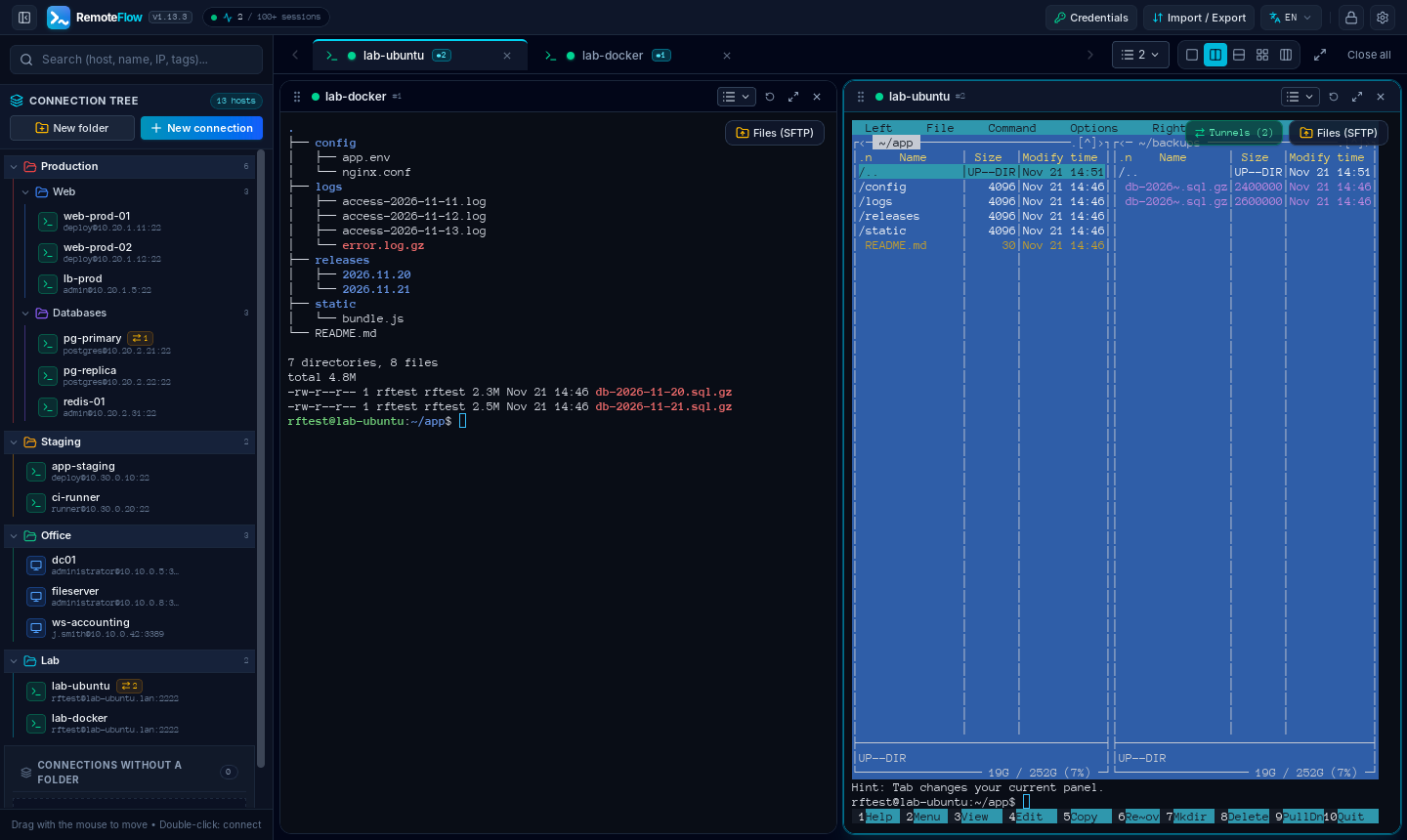
The Connection tree panel on the left (show/hide: Ctrl+B, drag its edge to resize).
- Folders (groups) can be nested and coloured. The New folder button creates a group.
- Drag and drop moves connections and groups; dropping on the "root level" bar takes them out of a group.
- Search filters by name, host, IP address and tags.
- Expanded groups and A–Z sorting of selected groups are remembered.
| Item | Action |
|---|---|
| Connect | Opens a session (or switches to an open one) |
| Open in a new tab | Another, independent session of the same connection |
| Copy login / Copy password to clipboard | Without opening a session |
| Edit configuration | Connection editor |
| Clone connection | Copy including credentials and tunnels – after confirmation |
| Delete connection | After confirmation |
Connect to all hosts in the group, add a connection or subgroup, sort by name (A–Z), edit, delete, expand/collapse all groups.
The Credentials button in the header opens the saved credentials manager – logins, passwords, SSH keys (with passphrase) and SSH CA certificates used by many connections.
- Add a new credential – name (e.g. "Root Global", "Windows Domain Admin"), login, method and data.
- In the connection (Authentication & keys tab) choose it in Shared credentials.
- Changing the password in the profile applies to all connections at once.
A connection without its own password/key uses the method of its profile. Deleting a profile detaches it from its connections.
If a connection uses password login and the password is empty, the program asks: connect without a password, or enter one (and optionally save it in the connection).
Tags & notes tab: comma-separated tags (e.g. web, staging, dmz) – used by the search; administrative notes (procedures, contacts) are encrypted together with the vault.
Import / Export in the header:
| Format | Description |
|---|---|
mRemoteNG (confCons.xml) |
Folders, RDP/SSH connections, ports, descriptions and passwords (AES-GCM, older AES-CBC, fully encrypted files). Passwords are decrypted only in the Rust backend and immediately encrypted with the vault key. |
.rfvault |
Encrypted RemoteFlow export (password min. 8 characters). The whole database or selected groups with subgroups and the credential profiles they use; connections without a group can be included separately. |
| JSON | Plain text file for scripts or audits – requires explicit confirmation because it contains passwords in clear text. |
The export file is saved where you choose in the system Save as dialog; the message shows its full path (on Unix the file is readable only by you).
When importing you can merge with the existing database instead of replacing it.