Repository navigation
SFTP File Manager
Open the two-pane file manager (like WinSCP / FileZilla) with the Files (SFTP) button in an SSH session. It uses the same, already authenticated connection.
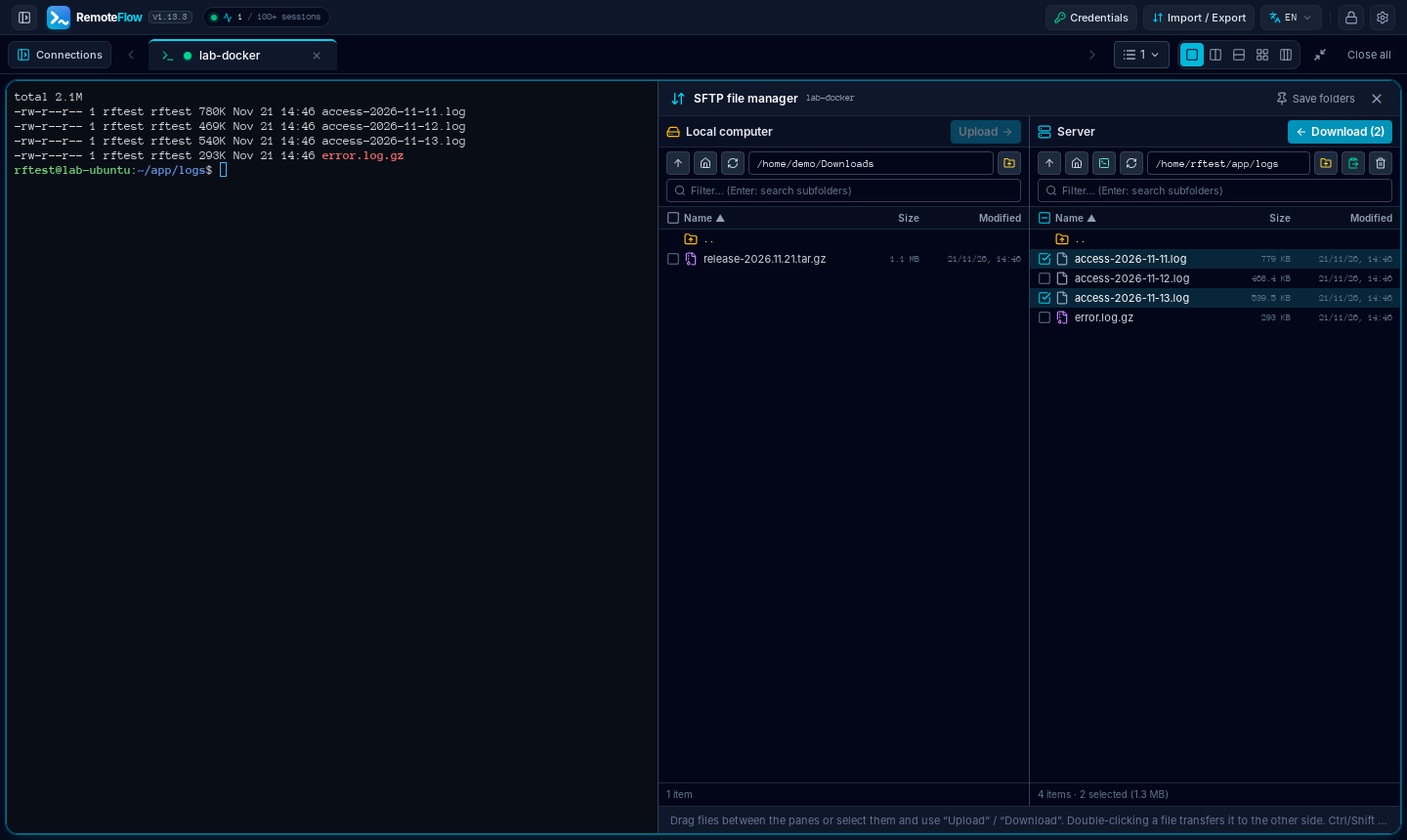
- Left pane – this computer, right pane – the server.
- The window takes half of the session pane, or the whole pane on a split screen. Esc closes it.
- Select files/folders (click, Ctrl, Shift, Ctrl+A) and click Upload or Download – folders are transferred recursively.
- Drag between panes, onto a folder, or from the system file manager.
- Upload files from the system clipboard – uploads files copied in Explorer / the file manager (Ctrl+C).
- The progress bar shows files and transferred data. Stop cancels the transfer – files already transferred stay.
- The window can be closed during a transfer – it keeps running in the background. The Files (SFTP) button of the terminal is then amber with a spinner and the amount transferred; when it ends, the button stays green (done) or red (error or cancelled) until the window is opened again. Its tooltip has the details.
- When an item already exists at the target, you are asked to replace it (files are overwritten, folder contents merged).
A file is first written to a temporary file next to the target (.name.rf-part) and replaces the existing file only when complete – in both directions. A cancelled or failed transfer never leaves a truncated file, and the existing file keeps its previous content and its permissions on the server. If the target is a symbolic link, the file it points to is updated.
| Key | Action |
|---|---|
| Enter / double click | Open folder |
| Backspace | Parent folder |
| Ctrl+R | Refresh the focused pane (both when focus is elsewhere) |
| Ctrl+A | Select all |
| Delete | Delete the selected items: permanently on the server, to the trash on this computer (folders with contents, after confirmation) |
| Esc | Close the window |
- Filter – typing filters the current folder, Enter searches subfolders too.
- New folder and New file – on both sides (toolbar buttons or the context menu). A new empty file opens straight in the editor; an existing file with that name is never overwritten.
- Deleting – on both sides (trash button, Delete or the context menu). On the server permanently; on this computer to the Recycle Bin (Windows) / desktop trash (Linux), where it can be restored. When there is no trash (e.g. a network drive), the program asks before deleting permanently. The home folder and drive roots cannot be deleted.
-
Directory from the terminal – the server pane goes to the directory you are in in the SSH terminal (also in a nested shell; nothing is typed into the terminal). Works on Linux servers (
/proc); on others when the shell reports its directory (OSC 7).
Select a file and press F3 to view it (read-only) or F4 to edit it, as in Total Commander or Midnight Commander. The same is available from the eye icon in the toolbar (view) and "View (F3)" / "Edit (F4)" in the context menu. The preview works on both sides; a server file is read over the same SFTP connection, without saving it to disk. Pressing F3 again (or Esc) closes the viewer. Double-clicking a file still transfers it to the other side.
| View | Shows |
|---|---|
| Text | Line numbers, search (Ctrl+F), line wrapping, a choice of encoding: UTF-8, Windows-1250, ISO-8859-2, Windows-1252, UTF-16 LE/BE (detected automatically, BOM included) |
| HEX | Offset, 16 bytes per row and an ASCII column; files of any size (read in chunks while scrolling), Go to offset (e.g. 0x1F40), a clicked byte shows its offset and value |
| Image | PNG, JPG, GIF, WebP, BMP, ICO, SVG (up to 20 MB) |
Binary files open in the HEX view, images as images, everything else as text – the view can be switched.
- Text files up to 5 MB can be edited: open them with F4, or in the viewer (F3) click Edit / press F4. Ctrl+S or the Save button saves the changes. A new file opens ready for editing. Larger text files are view-only (loaded 1 MB at a time – Load the next 1 MB), as are binary and read-only files.
- Kept on save: the encoding, BOM, line endings (LF/CRLF – shown in the footer) and the file permissions. A character the file's encoding does not have (e.g. an emoji in Windows-1250) blocks saving with a message – change the character or switch the encoding to UTF-8.
- Saving writes a temporary file next to it that replaces the original only when complete – an interrupted save never leaves a truncated file. A symbolic link stays, the file it points to is changed.
- If the file changed since it was opened (another program or person saved it), you are asked whether to overwrite it.
- Closing (Esc) with unsaved changes asks: Save / Discard changes / Cancel. Undoing (Ctrl+Z) back to the saved state clears the modified mark.
The vault file, its backups and the display settings (display.json) cannot be previewed, edited, overwritten, deleted or uploaded from this window, and a folder containing them cannot be deleted – back up the vault in Settings → Vault backups or with an export. The local pane works only while the vault is unlocked.
Home folders open by default. The pin button Save folders saves the current local and remote folder for this connection; they can also be set in the connection editor (SFTP start folders) and reset to the defaults.