Repository navigation
Tabs and Split Screen
Every session has a tab with a state icon (connecting / connected / disconnected).
- Reorder: drag the tab or use the tab menu (Move to the beginning / to the end / left / right). The connection is not interrupted – the terminal and RDP session keep running.
- With many tabs, scroll arrows and a list of open sessions with search (group, host, state) appear – navigate with the arrow keys and Enter.
| Item | Action |
|---|---|
| Reconnect | New connection in the same tab (also F5 / Ctrl+R) |
| Open in a new tab | Duplicate the session |
| Copy login / Copy password to clipboard | |
| Move to the beginning / end / left / right | Without disconnecting |
| Split right / Split down | Opens the session in a new pane |
| Close tab | |
| Close tabs to the right (N) | |
| Close other tabs | |
| Close all |
Confirmations before closing connections and the program can be switched off in Settings → Confirmations.
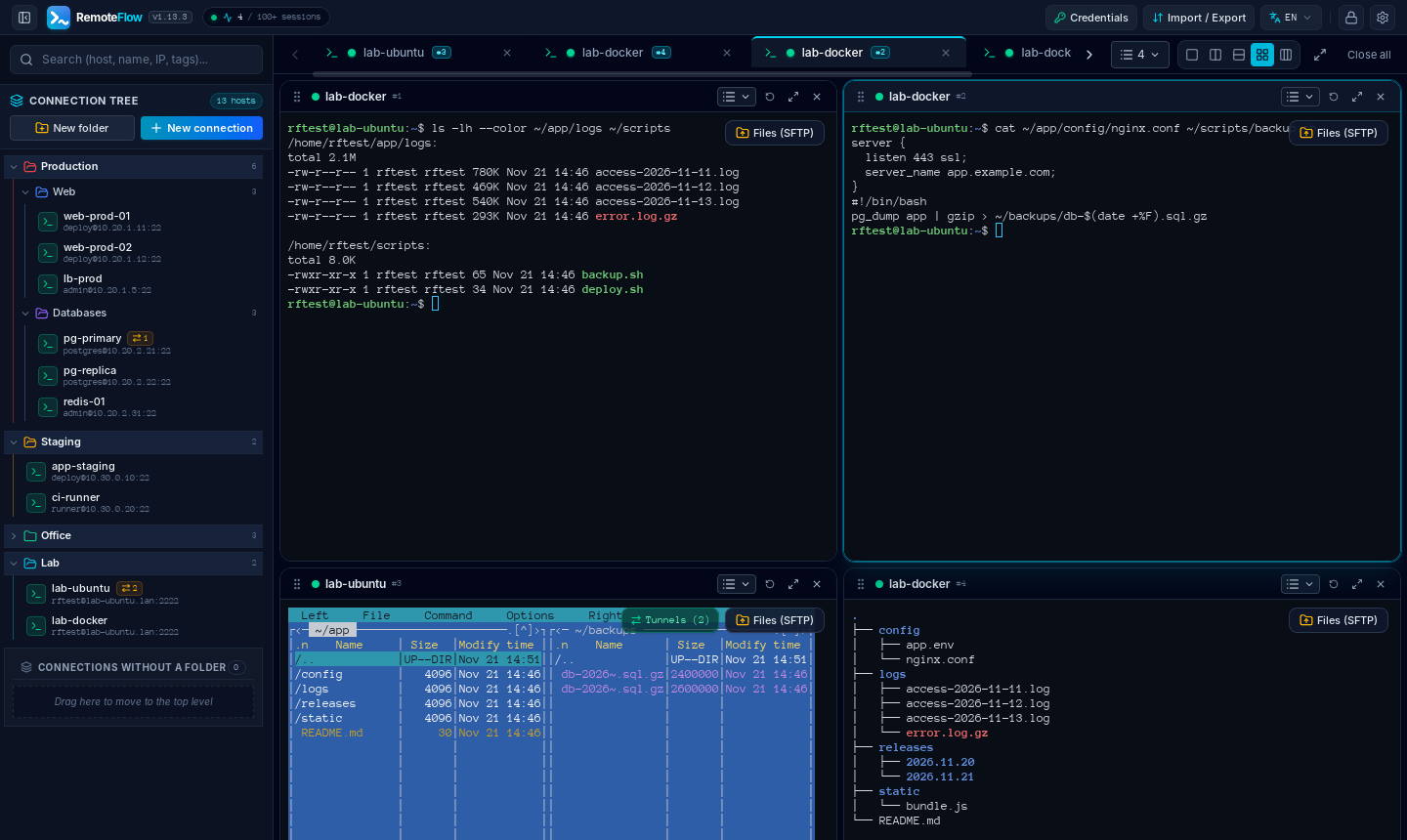
Layout buttons above the workspace:
| Layout | Panes |
|---|---|
| Single tab | 1 |
| Horizontal split | 2, one above the other |
| Vertical split | 2, side by side |
| 3 columns | 3 |
| 2×2 grid | 4 |
- Drag a tab onto a pane to show that session in it; onto a pane edge to split it.
- Drag a pane's title bar onto another pane to swap the sessions.
- In an empty pane, pick a session from the list of available connections.
- Pane borders can be moved; the button in a pane's bar maximizes it to the whole area.
- Ctrl+B hides the connection tree to give sessions more room.