Repository navigation
Releases: jazzphone/hk-frontend
Release list
HK Frontend 1.8.3

Car Browser gets its own Home and a Scale. Builds on 1.8.2.
Car Browser: Car Layout and Scale
A screen with Car Browser on now chooses which Home it shows in the car, and how much fits in the car's window.
- Car Layout: Car Home has the weather and the house's status in one line (no clock, since the car shows the time), the chips, Scenes, Security, Favorites, and the camera strip if it's on. It leaves out the rooms. Security shows the garage doors, the alarm and the locks as tall tiles. Full Home is the screen's usual Home.
- Scale: Larger (1,000 px), Standard (1,200), Smaller (1,400), or Custom (600 to 2,400 px). This setting wins over a width an old
?vw=link left in the car's browser. - The Car preset starts on Car Home.
hk-header-cardtakesclock: false.
Upgrading
Update through HACS (or copy custom_components/hk_frontend) and restart Home Assistant, then reload each screen once (in the car, reload its browser).
HK Frontend 1.8.2
Home Energy and Weather on the screensaver, HK Frontend's fifty Landscapes as a background for any screen, a house on the Power page for everyone, and Reset to Defaults on Sky / Background. Builds on 1.8.1.
Home Energy on the screensaver
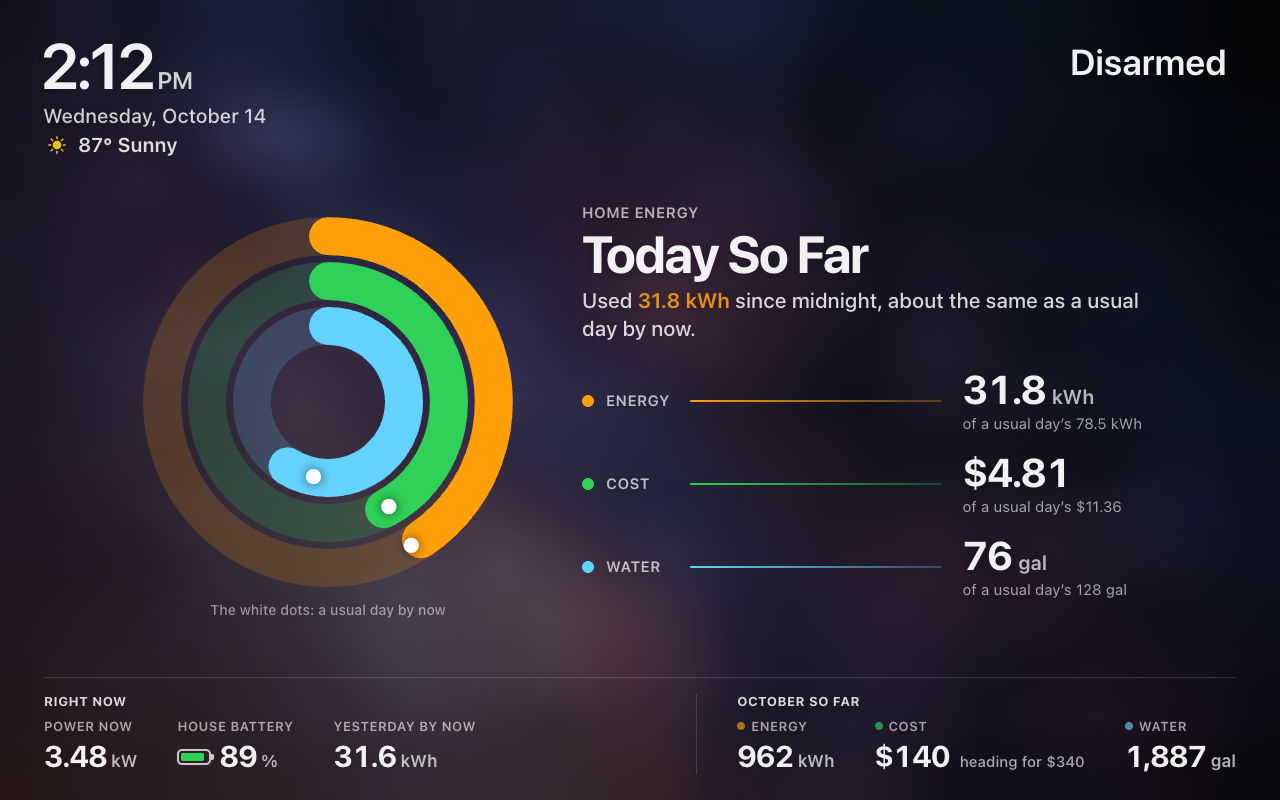
Home Energy shows today so far against a usual day, using the Energy page's own rings.
- The rings: energy, cost and water, plus solar and gas where Home Assistant's Energy settings have them. Each ring is today so far against a usual whole day, and a white dot marks where a usual day would be by now. Each figure sits beside its ring with what a usual day comes to, and a line draws out to it as the rings sweep in.
- Along the bottom: Right Now shows what the house draws, the house battery and yesterday by now. The month so far shows where the cost is heading: the cost so far plus a usual day for each day left.
- Matches the Energy page: it uses the page's own sums for Today and This Month, so the two never disagree. It also adds the five-minute readings since the last full hour, so it is up to date within five minutes.
- Tells the time: it shows its own time, date and weather, and Home Status stays top right. A tap opens the Energy page.
- Home Energy Options sets which rings show, Right Now's three figures, and the month so far. The preview stays on Home Energy while you change them.
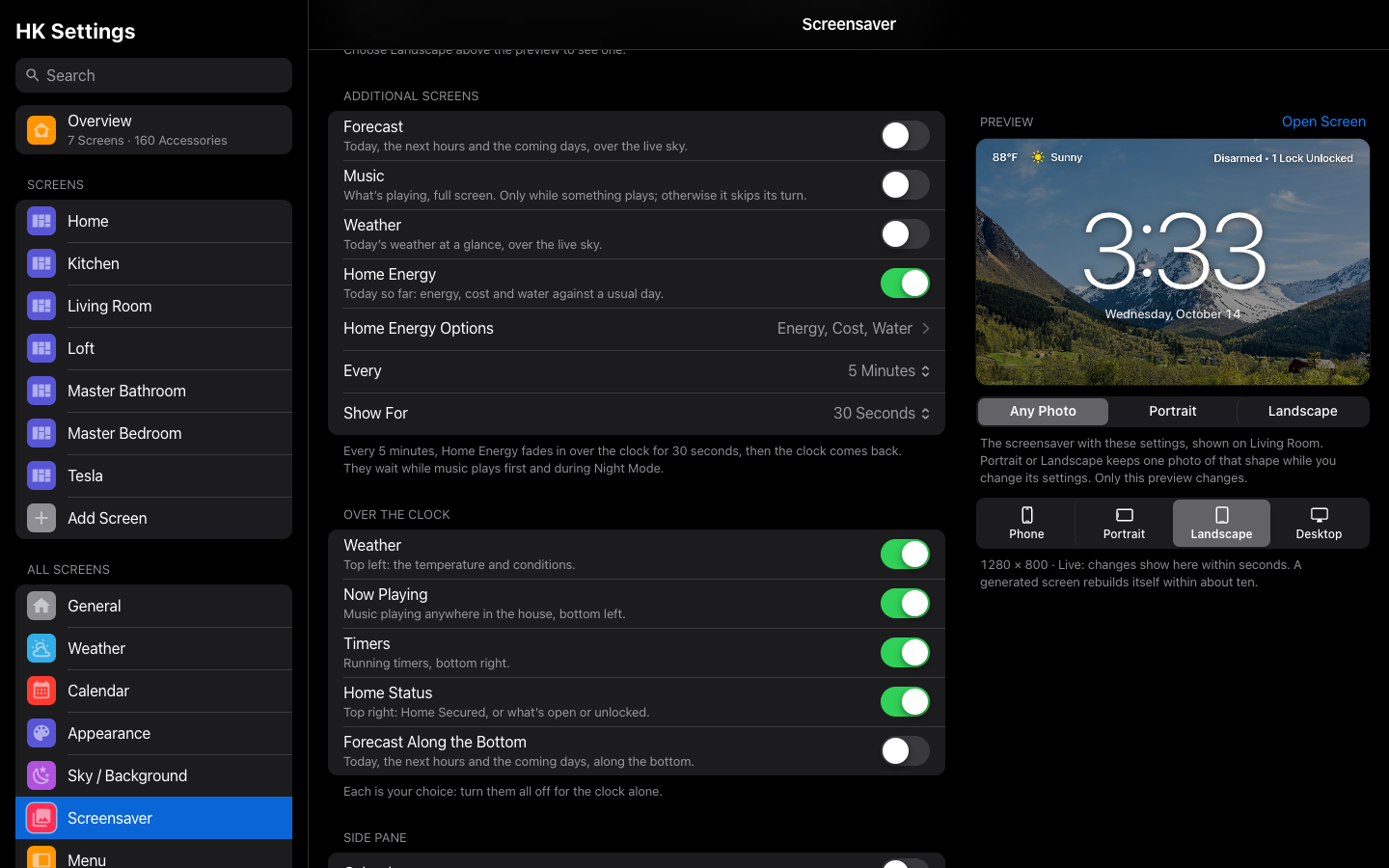
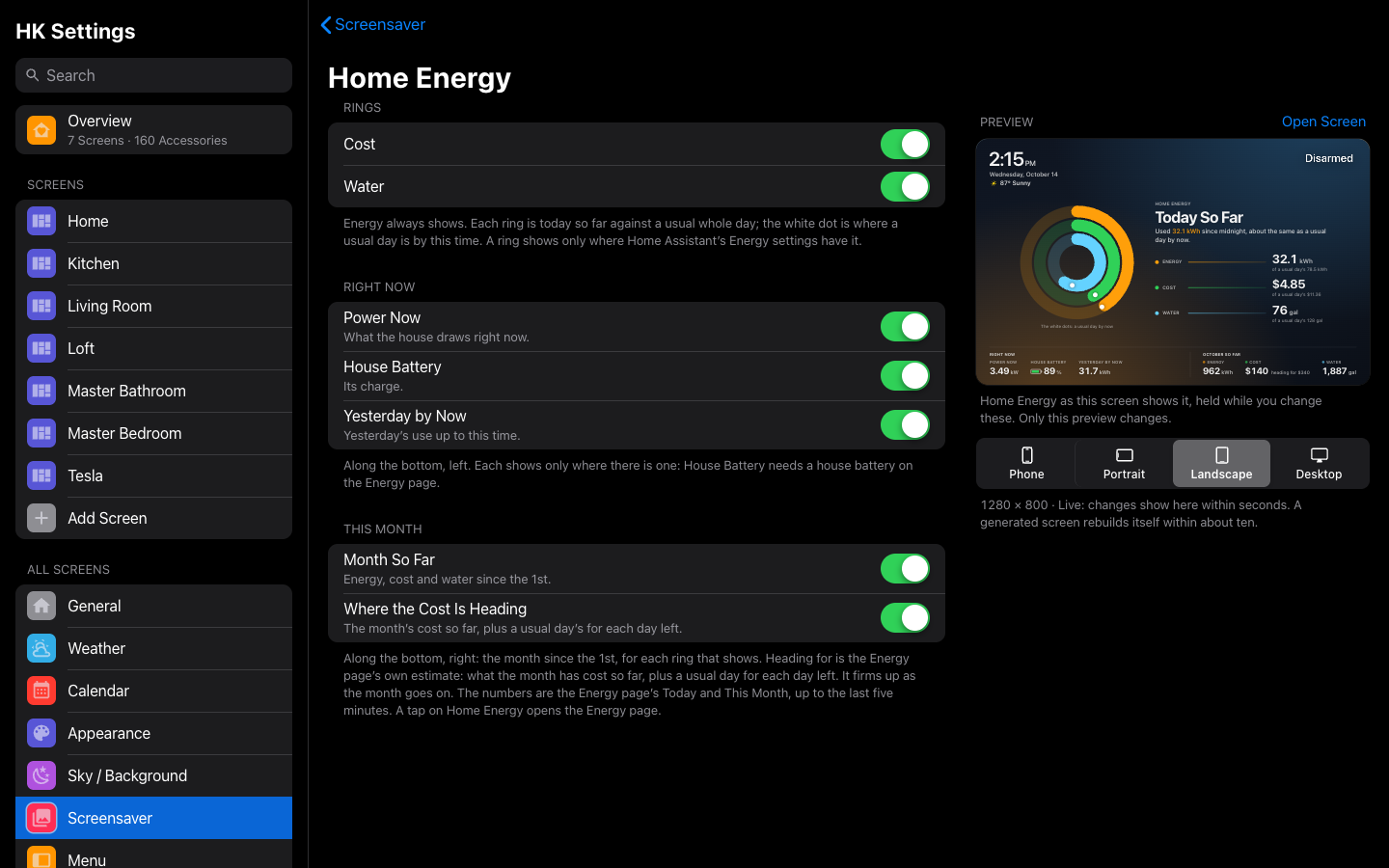
Where it shows:
- With Show: Photos, it is one of the slides Between the Photos. The music, the forecast and Home Energy take turns.
- With Show: Forecast or Clock, a new group called Additional Screens brings other screens in now and then:
- Forecast: with Show: Clock only.
- Music: only while something plays.
- Home Energy.
- Every sets how often (1 to 30 minutes) and Show For how long (15 seconds to 2 minutes). With more than one on, they take turns.
- None of them come while music plays first or during the clock's Night Mode.
Home Energy and additional screens on the wiki.
Weather on the screensaver
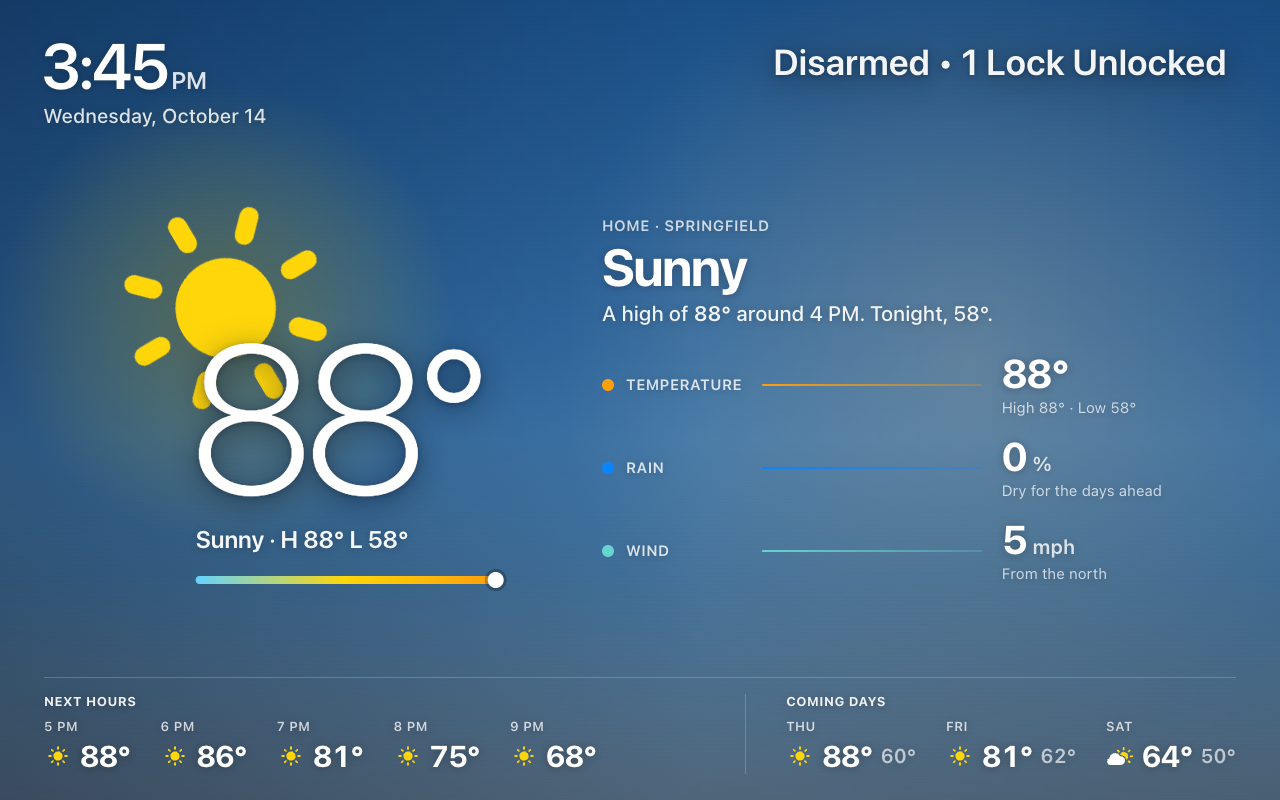
Weather shows today's weather at a glance, laid out like Home Energy, over HK's own Live Sky in its Sky Only form: its clouds, rain, snow, stars and moon, with no land or decorations.
- Front and center: the temperature, large, in front of the weather's own symbol. Under it are the condition, today's high and low, and a bar from low to high with now marked on it.
- The symbol is animated: a sun's rays slowly turn, clouds drift, rain and snow fall, a thunderstorm's bolt flickers, and the stars twinkle. It holds still with Reduce Motion or the sky's Animations off.
- The day in words: for example, A high of 87° around 4 PM. Tonight, 58°. or Rain until about 9 PM, then drying out.
- Temperature, Rain and Wind, with Home Energy's leader lines. Rain reads Snow when it snows.
- Along the bottom: the next five hours and the coming three days.
- Weather Options turns Rain, Wind, Next Hours and Coming Days on or off. A tap on the screen opens the Weather page.
It is one of the slides Between the Photos (taking turns with the music, the forecast and Home Energy), and one of the Additional Screens over the clock. It isn't offered over Show: Forecast, which already shows the weather.
Weather on the wiki.
Landscapes behind any screen
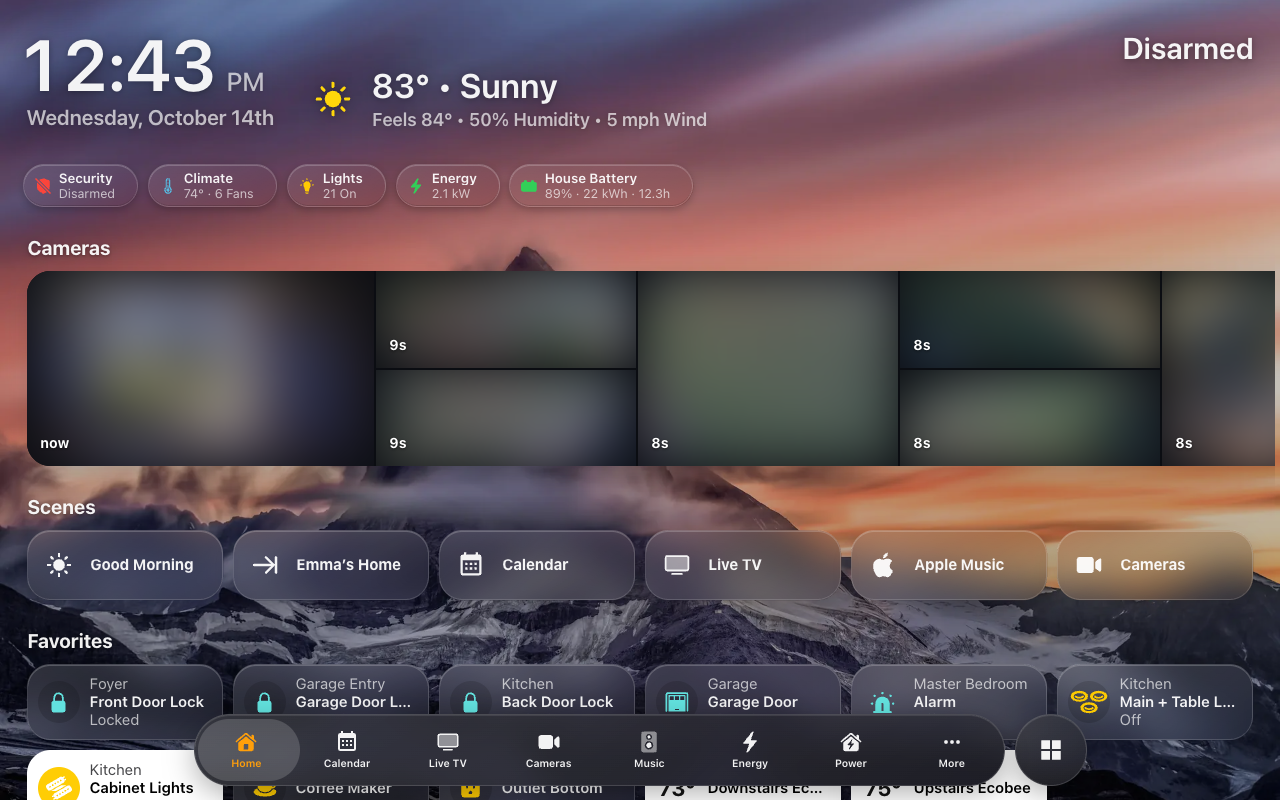
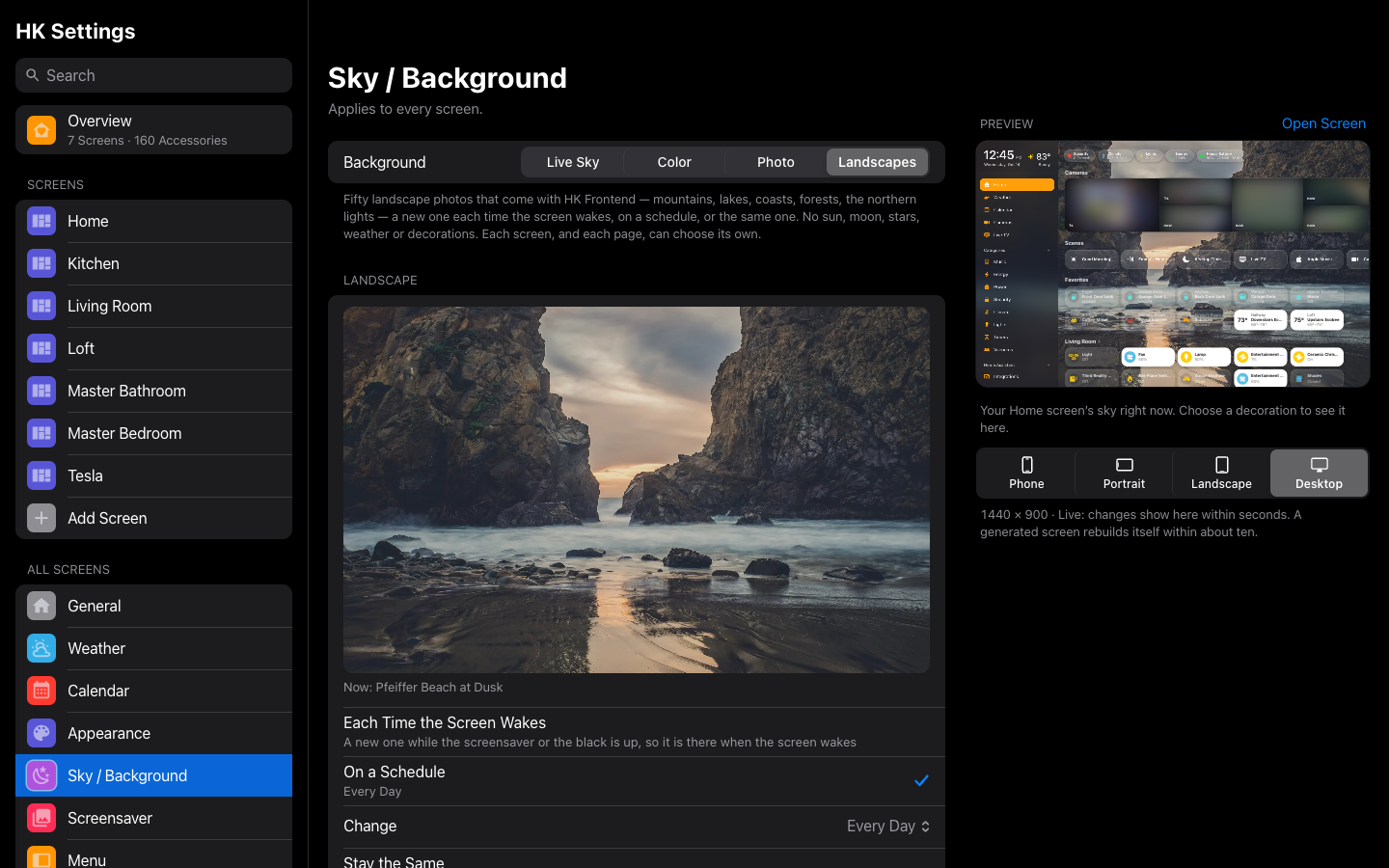
Sky / Background has a fourth Background: Live Sky, Color, Photo and now Landscapes. These are the fifty photos that come with HK Frontend, the same ones the screensaver's clock can show, all public domain or CC0. There's nothing to upload, and nothing from your home appears on the screen.
- When it changes:
- Each Time the Screen Wakes: a new one is drawn while the screensaver or the black is up, so it is already there when the screen wakes. You never see it switch.
- On a Schedule: every 15 or 30 minutes, every 1, 3, 6 or 12 hours, or Every Day (the default; it changes at midnight).
- Stay the Same: keeps the one showing now.
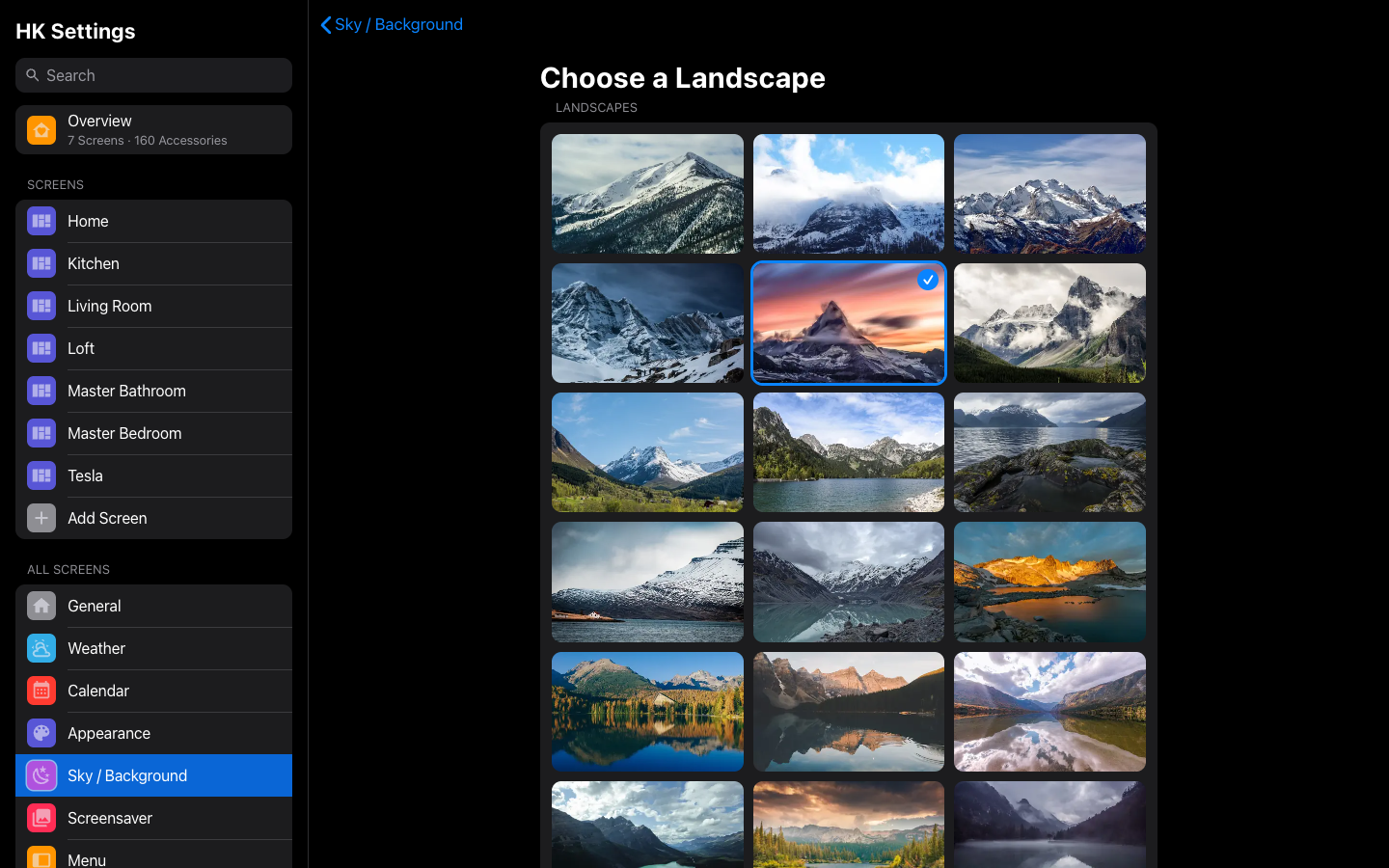
- Choose a Landscape shows all fifty as small thumbnails. Tap one and it stays.
- No neighbors in a row: each change jumps well along the list, so the next one is never the one beside it, and all fifty come round.
- Its own Look: Blur, Dim, Saturation and a Color Tint, as a Photo has, kept separate from your Photo's.
- For every screen, one screen, a page or a room: a screen can choose its own landscape and Look, and any page can be set to Landscapes with a Look of its own.
Landscapes on the wiki.
A house on the Power page
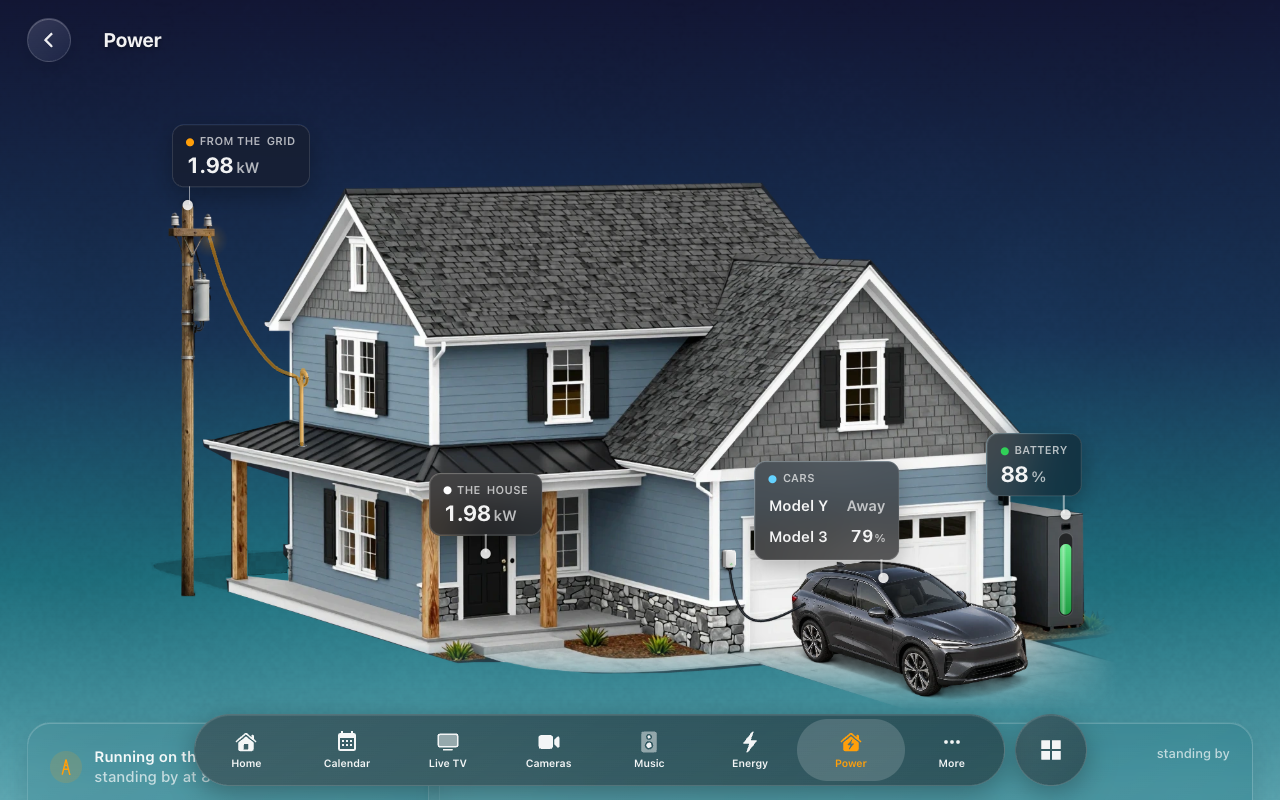
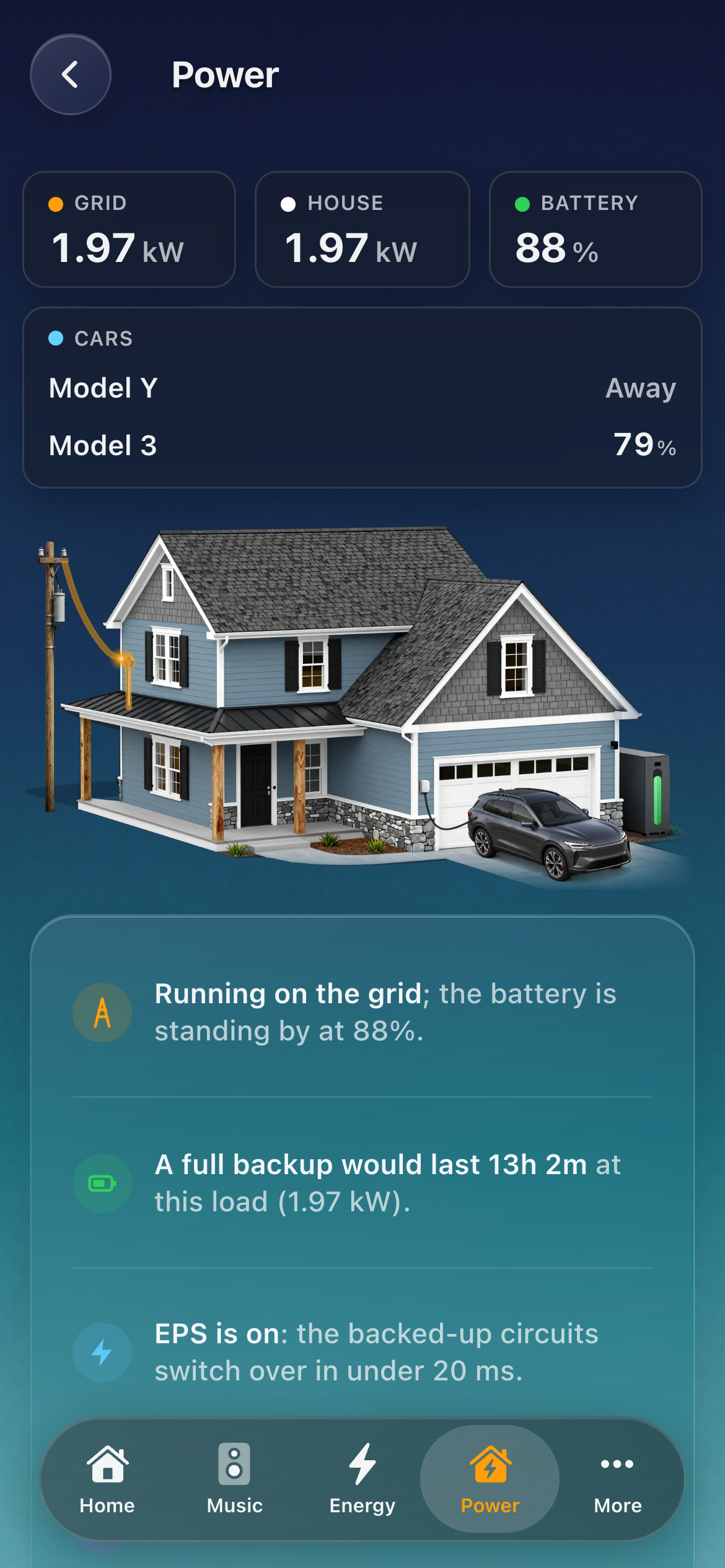
The Power page now shows a house by default, instead of the flow chart. Before, you only got one with a picture of your own.
- Only what your house has: it comes in layers, so the panels show only with solar, the cabinet only with a house battery, and the car only while one is home.
- Live: the grid comes in down the pole's cable, the panels light up with the sun, the battery's level sits on its cabinet, and the car glows while it charges. Each figure floats over its part of the house.
- Your own house still takes its place: set a Picture Folder (
art.jsonand its layers, laid out likefrontend/power-house/). - Prefer lines? Picture → A Flow Chart in HK Settings → Energy → Power Page.
Reset to Defaults on Sky / Background
At the foot of every Sky / Background page, Reset to Defaults… puts the page back after asking first.
- On All Screens: back to HK Frontend's defaults (the Live Sky, with its weather, decorations and liveliness).
- On a screen: back to Same as All Screens.
- What it keeps: the Pages keep their own backgrounds, photos and Looks. A photo you uploaded and any custom colors you made stay for next time, and Advanced (hemisphere, dates, sources) is left alone.
Smaller changes & fixes
- Screenshots: new shots of Weather, Home Energy, Additional Screens and Home Energy Options, Landscapes on Home, Sky / Background on Landscapes, and Choose a Landscape. Sky / Background has been retaken to show its four Backgrounds.
- The Landscapes folder has small copies (
frontend/landscapes/thumbs/, about 14 KB each) for the picker, listed in itsindex.jsonasthumb. A set of your own in your files folder can list its own thumbnails, or leave them out and the picker uses the photos themselves.
Upgrading
Update through HACS (or copy custom_components/hk_frontend) and restart Home Assistant, then reload each screen once (on a wall tablet, clear the app's cache).
- Weather and Home Energy are off until you turn them on: Between the Photos on Show: Photos, or Additional Screens on Show: Clock (Home Energy on Show: Forecast too). Home Energy's numbers come from Home Assistant's Energy settings, as the Energy page's do.
- Landscapes is a Background like any other: nothing changes until you choose it.
- The Power page shows the house where it showed the flow chart. Picture → A Flow Chart brings the chart back, and a Picture Folder of your own is used as before.
HK Frontend 1.8.1
Fifty landscape photos behind the screensaver clock, speakers you tick to choose where music plays, and playlists that open at once. Builds on 1.8.0.
Landscapes behind the clock
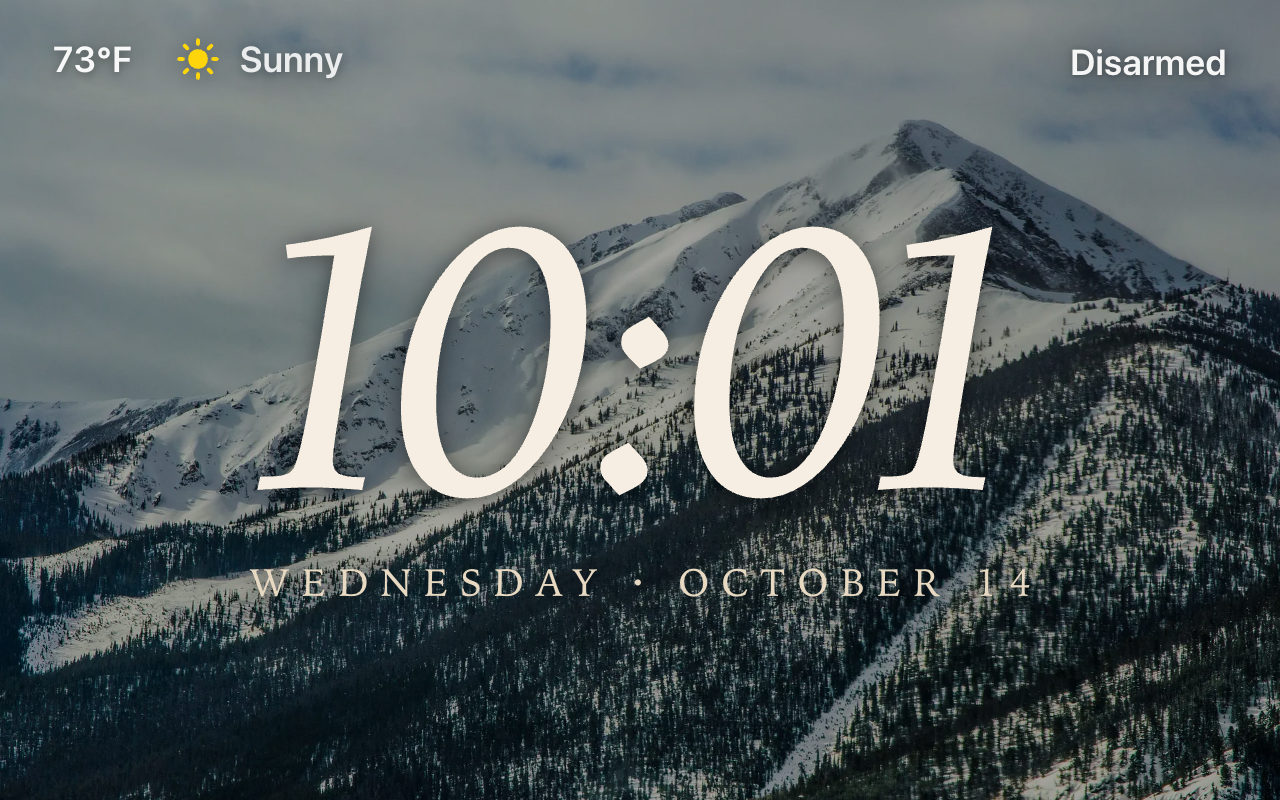
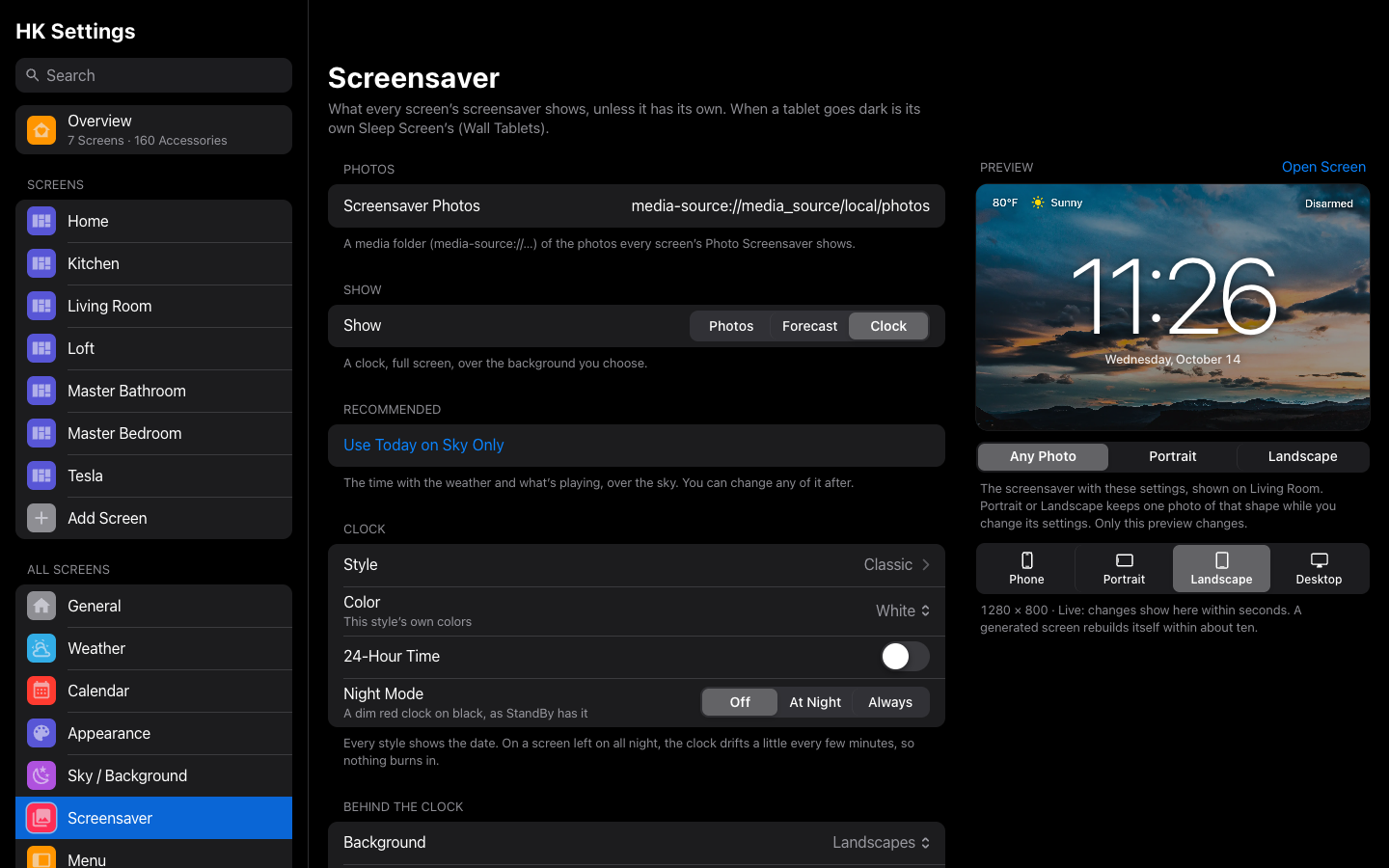
Behind the Clock has a new choice, Landscapes: fifty photos that come with HK Frontend, shown in place of your own. They include mountains, lakes, coasts, deserts, canyons, forests, waterfalls, snow, the Milky Way and the northern lights. There is nothing to set up, and nothing from your home appears on the screen.
- They behave like your photos: Each Photo For, Order, Layout, Darken, Sharp or Soft, and the clock's Shadow and Outline.
- Free to use: every photo is public domain or CC0, from Wikimedia Commons.
frontend/landscapes/index.jsonlists each one's source and license. They are 1920 px WebP, about 300 KB each. - Your own set: put an
index.jsonand your pictures in alandscapesfolder of your files, and they are shown instead of the bundled ones. - All Screens → Screensaver has its live preview back. In 1.8.0 the preview disappeared once every screen had its own settings. Now it shows a screen that follows All Screens, or else any screen with the screensaver, using All Screens' settings either way. The line under the preview names the screen. Clock Style works the same way.
Landscapes on the wiki.
Music: what's ticked is where it plays
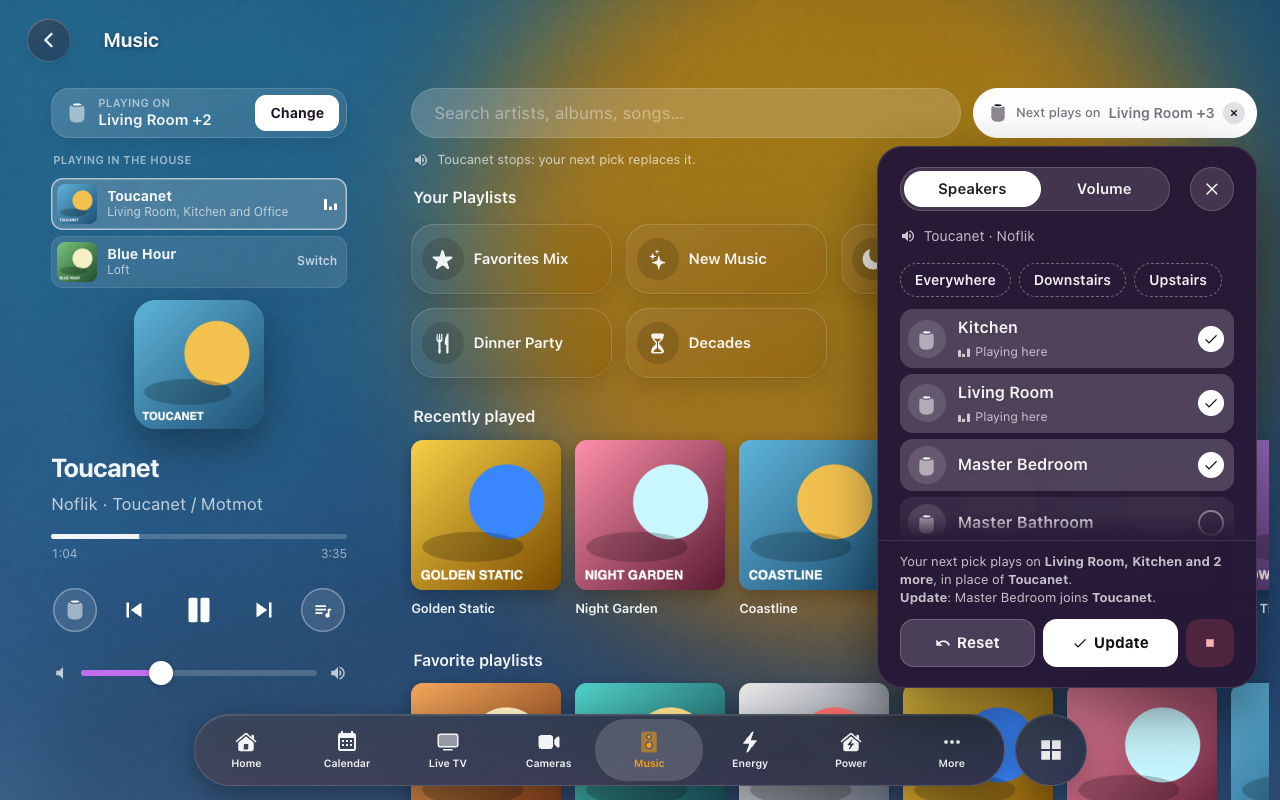
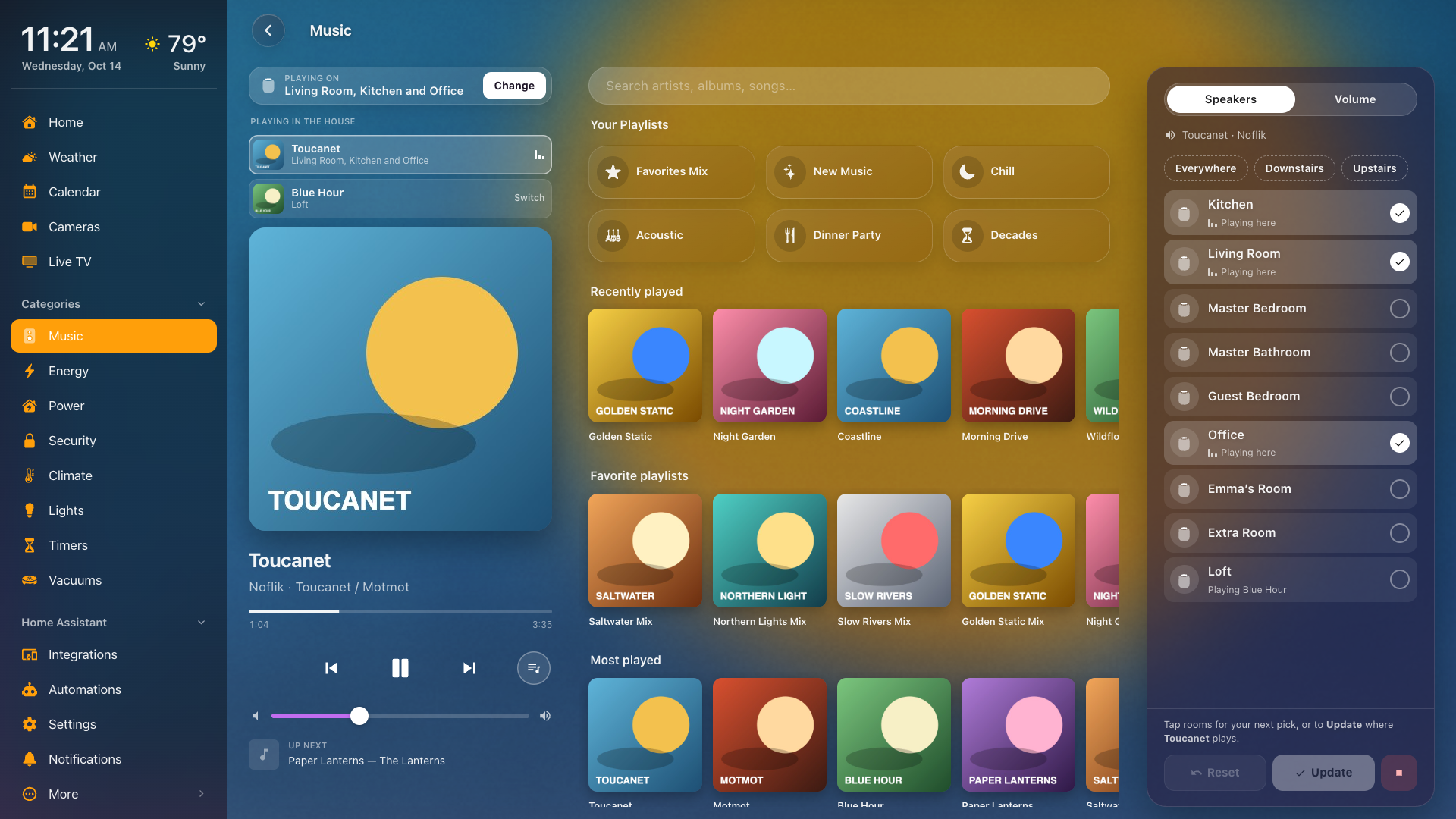
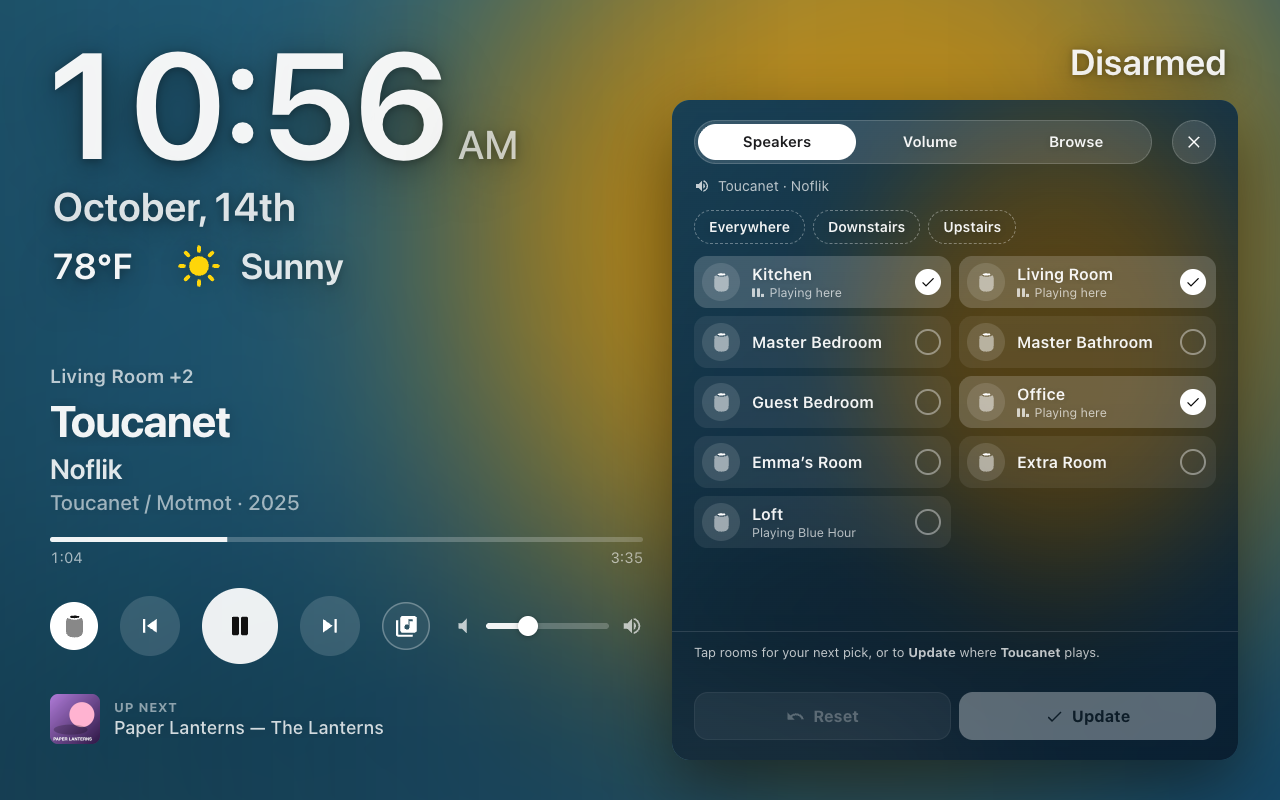
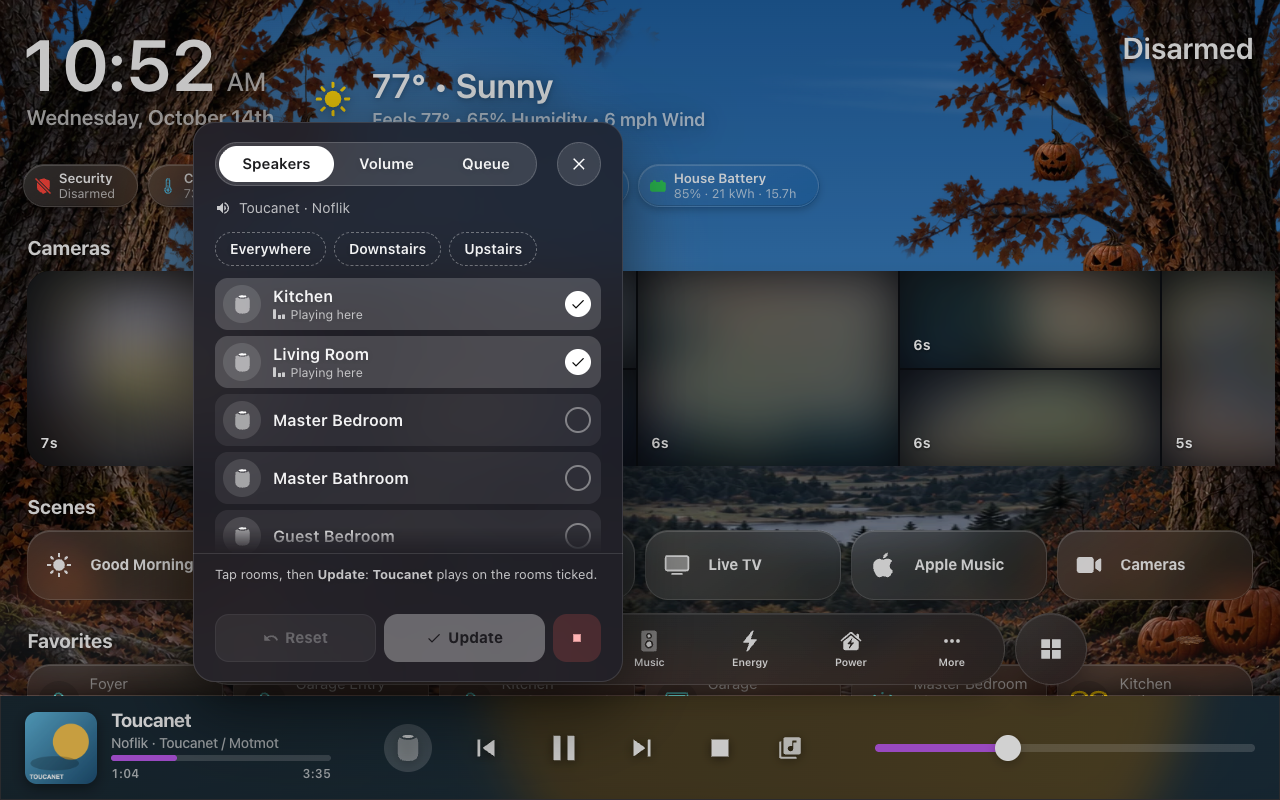
The Speakers panel works the same way everywhere: on the Music page, the screensaver and the Now Playing bar. The rooms that are playing start ticked. Tap a room to tick or untick it; a preset (Everywhere, Downstairs) ticks all of its rooms.
- Update plays the music on exactly the ticked rooms. Rooms join, rooms stop, or the music moves. Reset puts the ticks back, and Stop still stops it. Update replaces the old Add and Transfer.
- Your next pick plays on the ticked rooms. Tick only the Guest Room, pick a playlist, and it starts there while the rest of the house keeps playing. Before you press anything, the line above the buttons says what will happen, including any room that has to stop something else first.
- Plays on (beside the search) opens the same panel under the button, with Speakers and Volume, as tall as the screen allows. On a phone it opens as the Speakers sheet.
- On a wide desk screen the Speakers column is always visible on the right, with Speakers and Volume tabs, so there is no Plays on button. Queue (under the artwork) switches the left side to the queue.
- On the screensaver, the panel's ticks now show (they were hidden before), and Browse plays on the ticked rooms.
Keep Playlists Ready
Music Assistant keeps a streaming playlist's songs for only 3 hours, then asks the service again. Opening a playlist after that took 7 to 45 seconds, and longer while Apple Music was limiting requests. A pill that plays six playlists waited for all six.
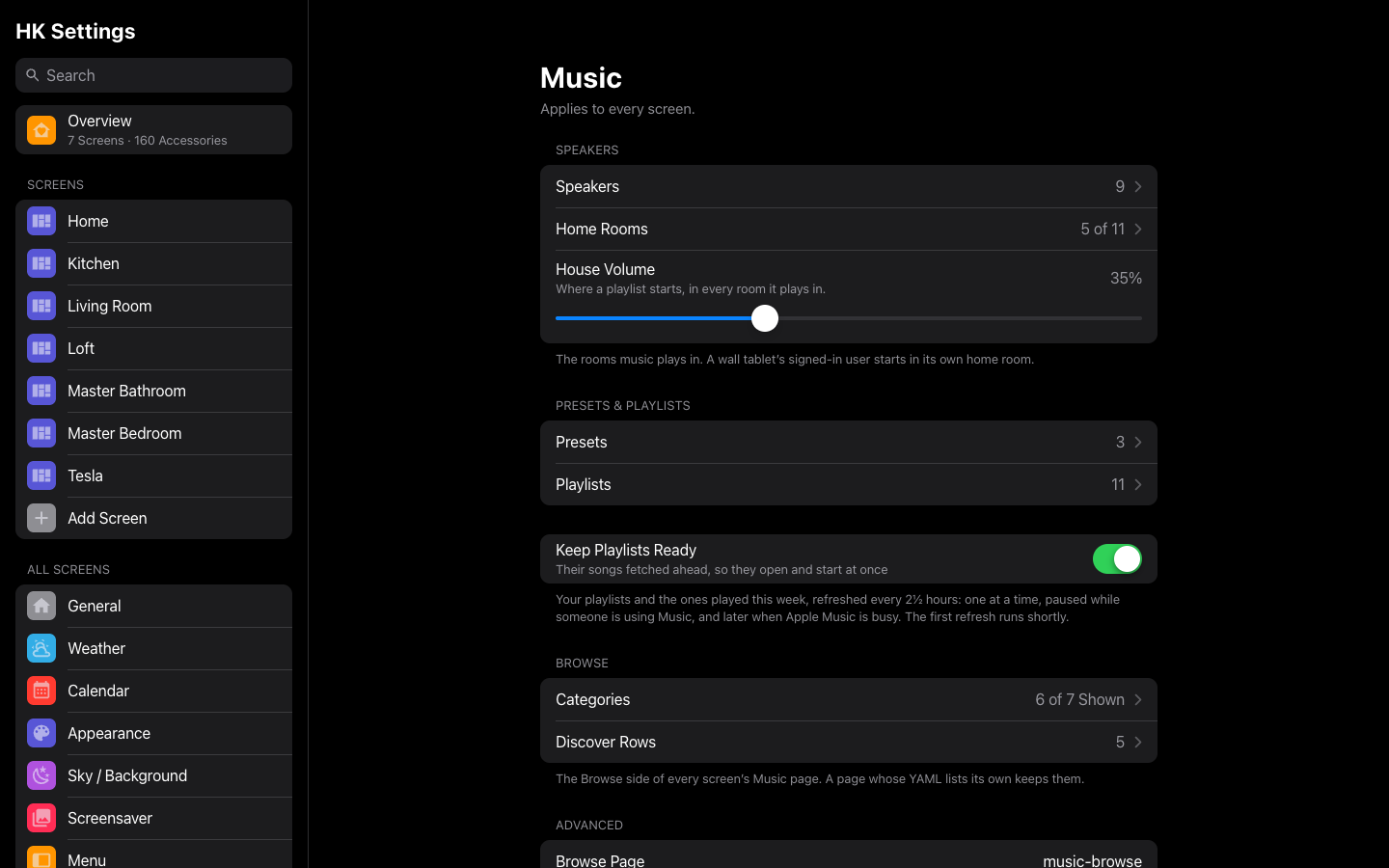
- Keep Playlists Ready (HK Settings → Music, off unless you turn it on) refreshes those songs in the background every 2½ hours. It covers every playlist your pills play, plus the ones played in the last week. It fetches one playlist at a time, never while someone is using the Music page, and stops early when the service is busy. Under the switch: when it last ran and how many playlists are ready.
- A playlist that opens slowly shows its cover and name right away with Loading songs…, and the songs appear as they arrive.
Smaller changes & fixes
- The clock screensaver closes on any tap. With photos or the Landscapes behind the clock, a tap near the left or right edge moved to the next photo and left the screensaver up. Now a tap anywhere on Show: Clock closes it. Edge taps still step through the photos on Show: Photos.
- Music page: the same song in several rooms is one card. Rooms playing the same song on their own (an iPhone AirPlaying to several HomePods) show as one card, "Kitchen, Living Room and 7 more". A long Playing in the House list scrolls within itself, so the player always stays on screen.
- Music page background: it now follows the music on a tablet too. Before, it changed only when a Now Playing bar happened to redraw. When the music changes, the old cover fades into the new one instead of switching in a single frame.
- Music page and the tab bar: with a tab bar along the bottom, Browse scrolls behind it like every other page, and the Library's last rows stay clear of it. Now Playing and the Speakers column end above the bar.
- New music on part of a group leaves the other rooms playing. A playlist started on three rooms used to stop the room they were grouped with.
hk_frontend.music_transferto the source alone now lets the rest of its group go. It used to answer "The music is already there". It is still refused when the source plays alone.- Power can be placed in the menu from Pages (Categories, Top of Menu or Not in Menu) like every other page.
- Music First says in its footer that the clock stays small above the music.
- Screenshots: the photo screensaver, mosaic, clock-over-photos and Photo background shots now use public-domain and CC0 photos instead of HK's own sky. New shots show the Landscapes, the All Screens screensaver preview, Plays on and the desk's Speakers column.
Upgrading
Update through HACS (or copy custom_components/hk_frontend) and restart Home Assistant, then reload each screen once (on a wall tablet, clear the app's cache).
- Keep Playlists Ready is off until you turn it on in HK Settings → Music. Its first refresh runs a few minutes after Home Assistant starts.
- The Landscapes add about 14 MB to the integration (
frontend/landscapes/). - The Speakers panel's Add and Transfer are now Update.
HK Frontend 1.8.0
A Power page for right now, a full-screen clock for the screensaver, the Home app's own tile sizes and font, a still color or a photo of your own behind any page, and wall tablets that are items of their own. Builds on 1.7.5.
The Power page
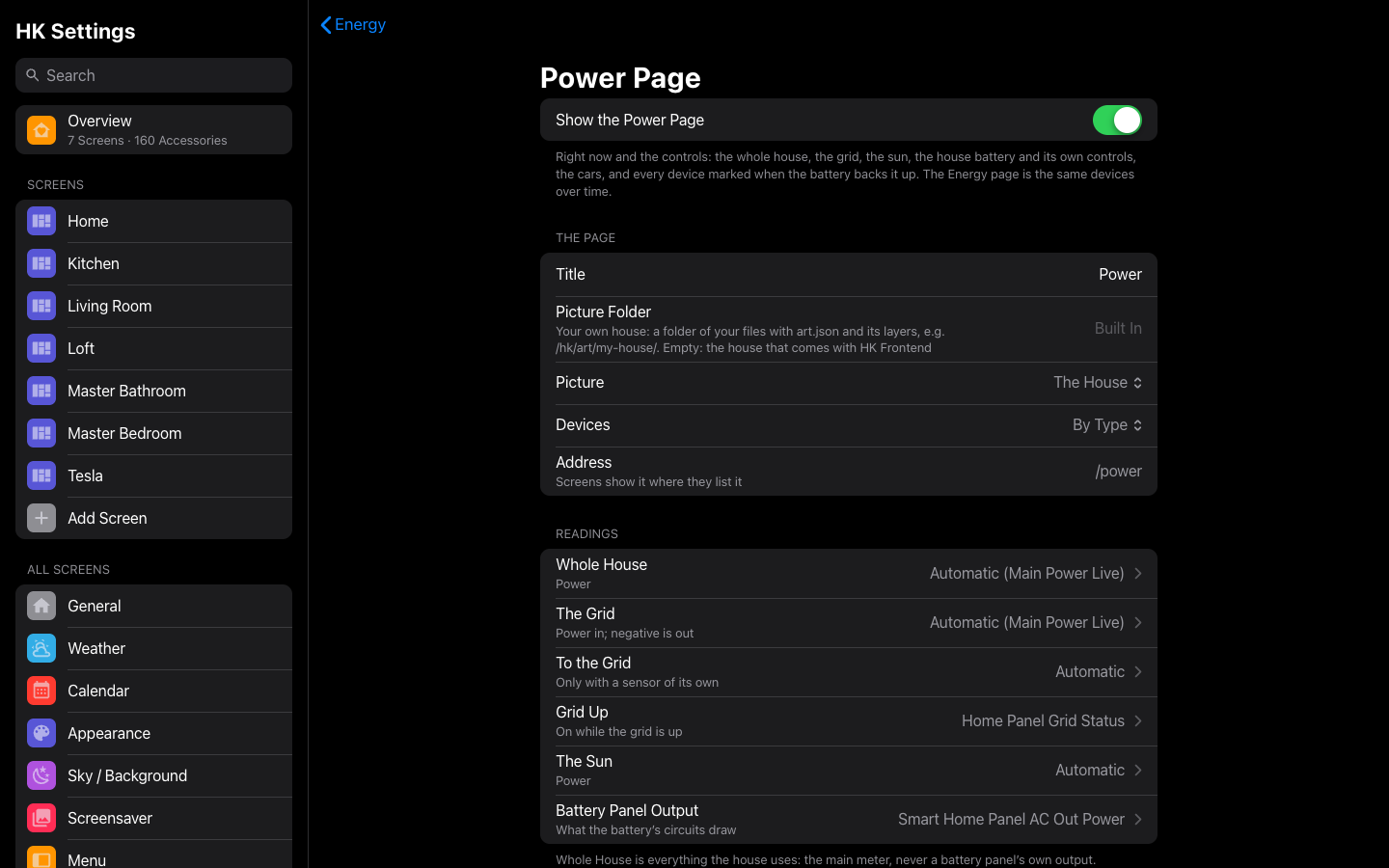
The Energy feature has a second page. Energy is over time; Power is right now and the controls. Turn it on in HK Settings → Energy → Power Page.
- Right now: the grid, the house and a house battery as a flow chart, light running along each line while power flows. Without a battery, it is the grid and the house alone. With a Picture Folder of your own (
art.jsonand its layers), it can be a picture of your house instead. - The status in sentences, beside the House Battery with its packs, reserve and limit. The House splits the whole house into backed up, not backed up and a car charging, with the three drawing the most. Where the Sun Goes with solar.
- The battery's own controls: its Mode as a choice, each saying what it does, and its Levels (a backup reserve, a charge limit) as sliders.
- Backed Up: found from Home Assistant's own registries (the battery's circuits and switches), with a Yes or No on any device. A device the battery backs up shows a small green battery before its kWh line, here and on the Energy page.
- The cars: a row each on the Cars chip, charging, at home or away. A car's charging watts come from its wall charger, read live on your network, not from the car's cloud reading that runs minutes behind. Each car can have its own Name and Charging Power.
- A page of its own: its own backdrop, beside Energy in a screen's pages and menu.
Energy → The Power page on the wiki has all of it.
A clock for the screensaver
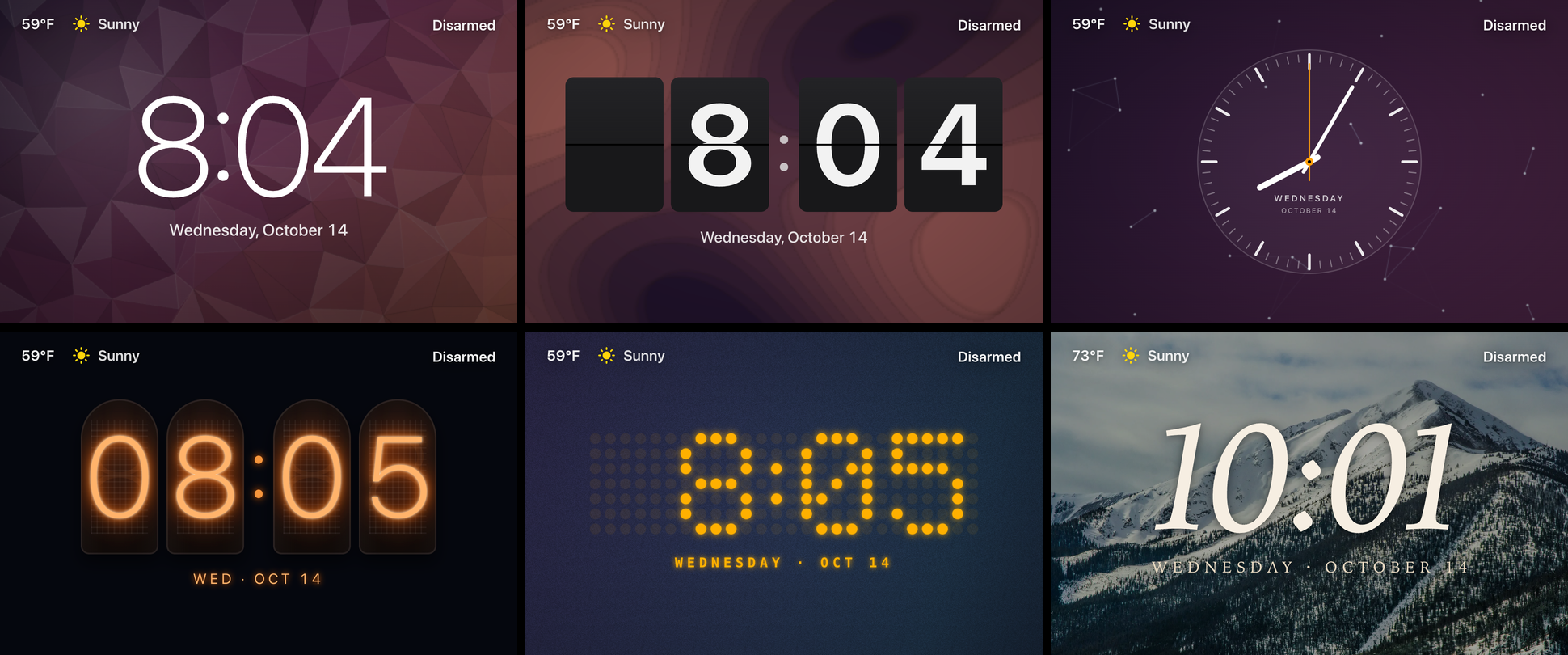
Show is now Photos, Forecast or Clock: a full-screen clock in place of the photos.
- Fifteen styles: Today, Classic, Big Serif, Neon, Retro LCD, Flip, Analog, Words, Minimal Arc, Nixie Tubes, Poster, Dot Matrix, Day Ring, Glass and Typewriter, each with its own Color.
- Behind it: a moving background (Grain Wash, Drifting Gradient, Aurora, Ink Swirl, Low Poly, Topography, Constellation, Follow the Sky) with its own Speed and Depth; Black; the forecast, or its sky alone; or your photos, darkened or softened.
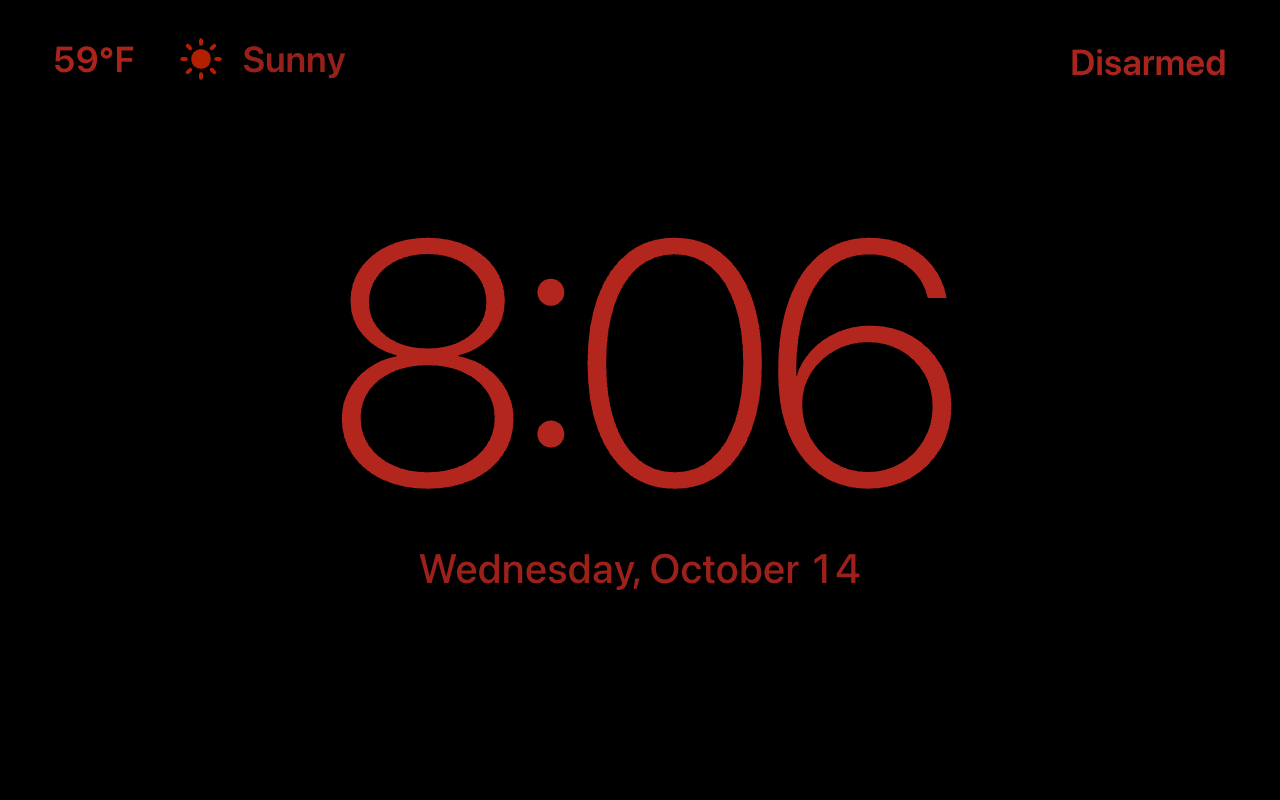
- Night Mode: StandBy's dim red on black, always or at night.
- Over the photos, the clock is Corner, Large or Off.
- Music First now keeps the time on screen: with the Clock or a Large clock, the small clock and date stay above the music while it plays.
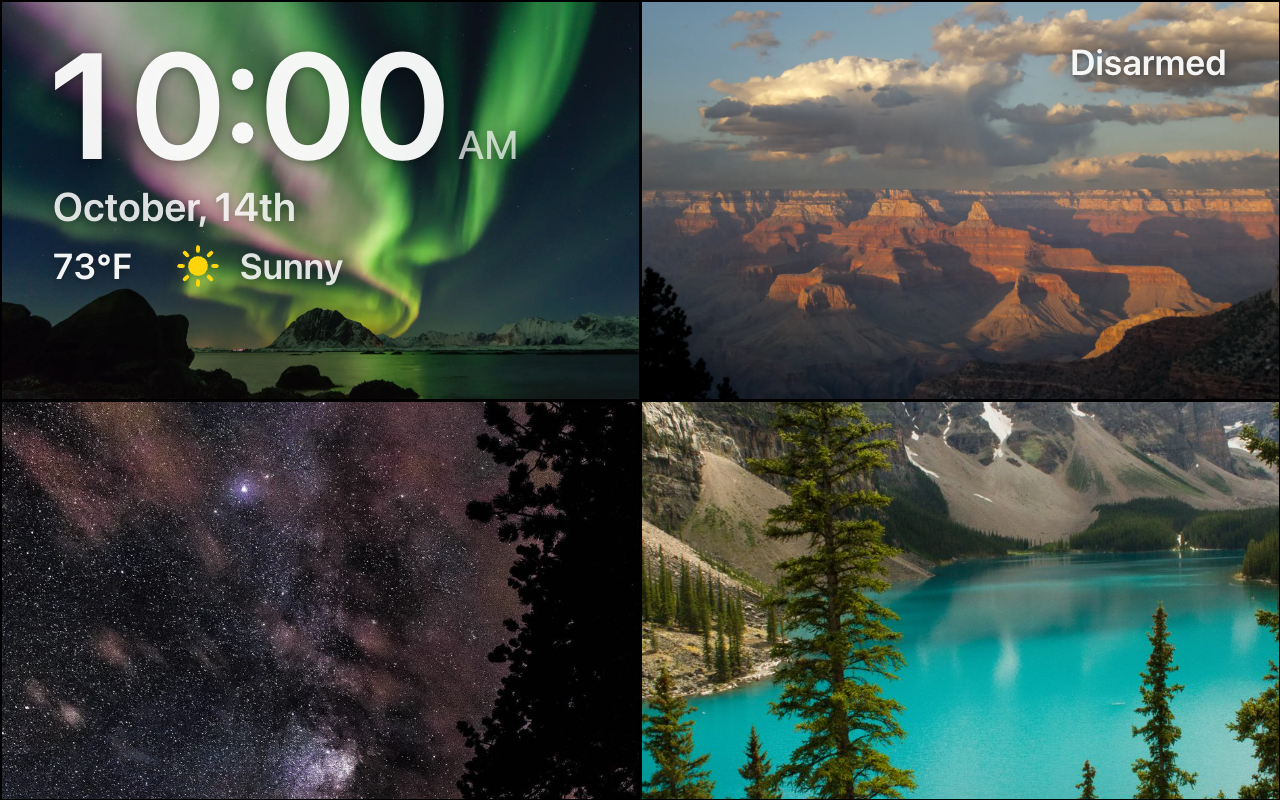
Photos, your way: a Mosaic of 2 to 5 photos at once, built at random, with its lines' width and color, and Up To for a different number each time. Portrait Photos and Landscape Photos each have their own settings (fill or not, blur, dim, zoom, focus), with a preview that holds a photo of that shape while you change them.
A clock on the wiki.
The Home app's size and font
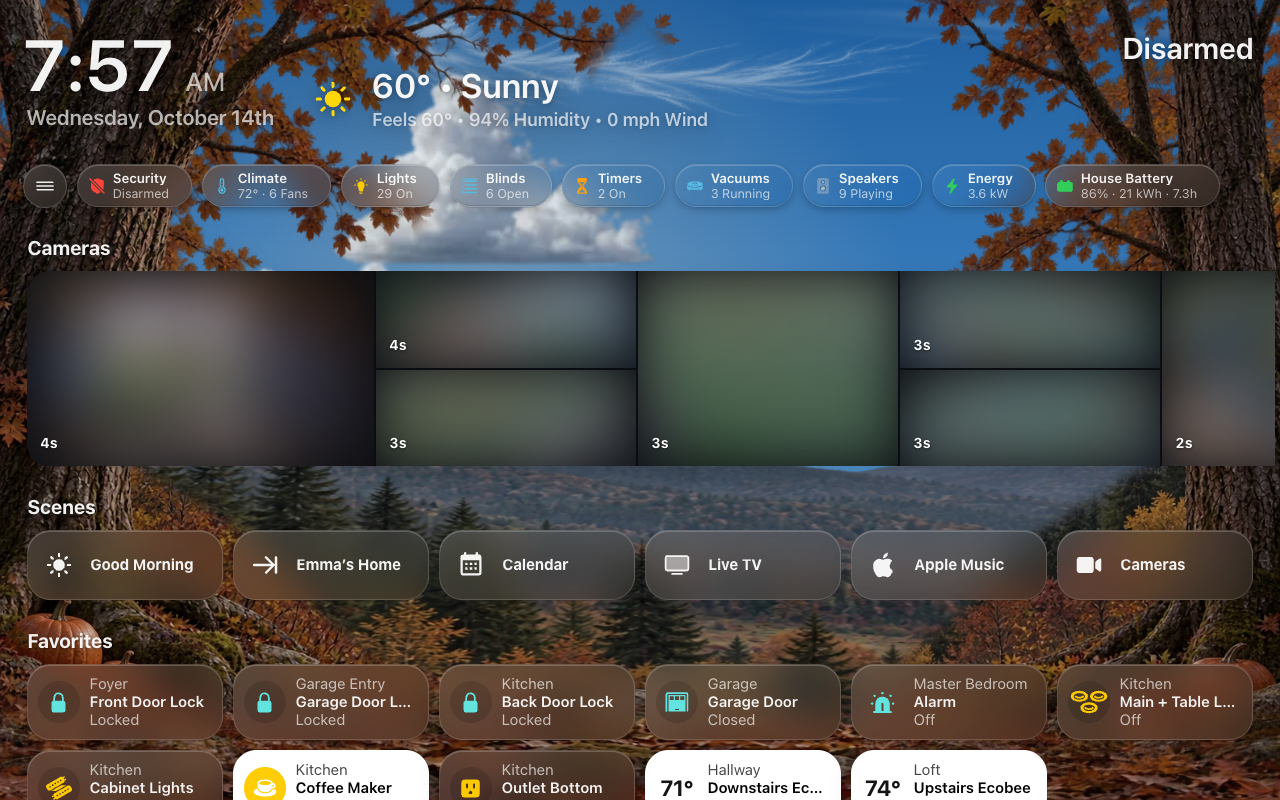
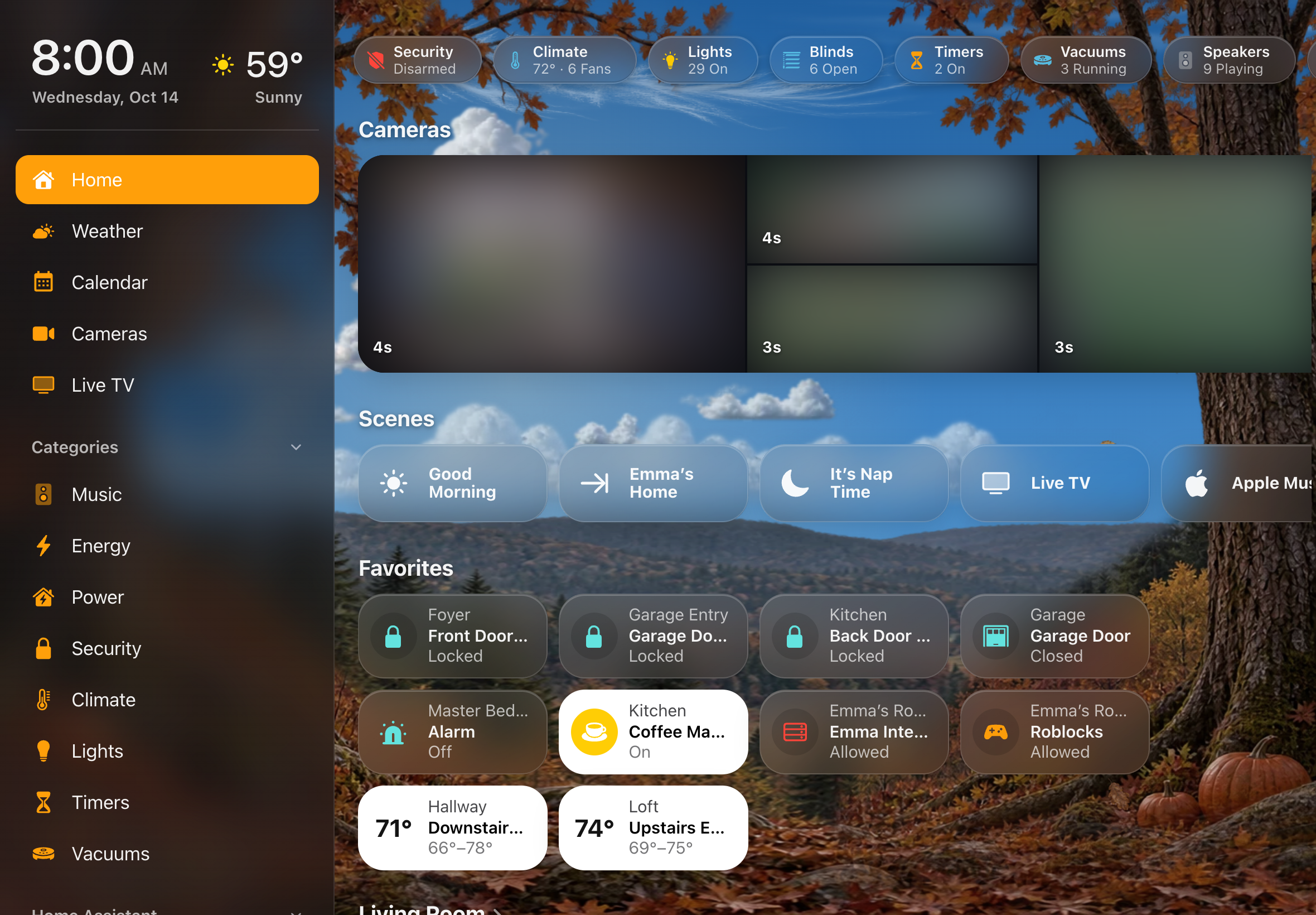
- Tiles are the Home app's own: 196 px wide, 10 apart, favorites 76 tall, and 170 on an iPad, so four fit across an iPad mini held upright. The circle, the name, the line spacing and a lit tile's grays all match.
- Narrower margins: 1.5% at each side from 641 px up, so a wall tablet gets six tiles across.
- SF Pro on every surface: sheets, banners, the menu, the tab bar and the screensaver now use the theme's font, not only the cards. Without your own SF Pro file, an iPhone, iPad or Mac still gets SF (the system's own); other devices get Roboto.
- One set of design values behind every card: one table of colors, spacing, corners, blurs, motion and type, with tests that keep every card on it. Details that had drifted apart now match (a sheet's labels, the blur on banners, the curve every sheet opens on).
A color or a photo behind any page
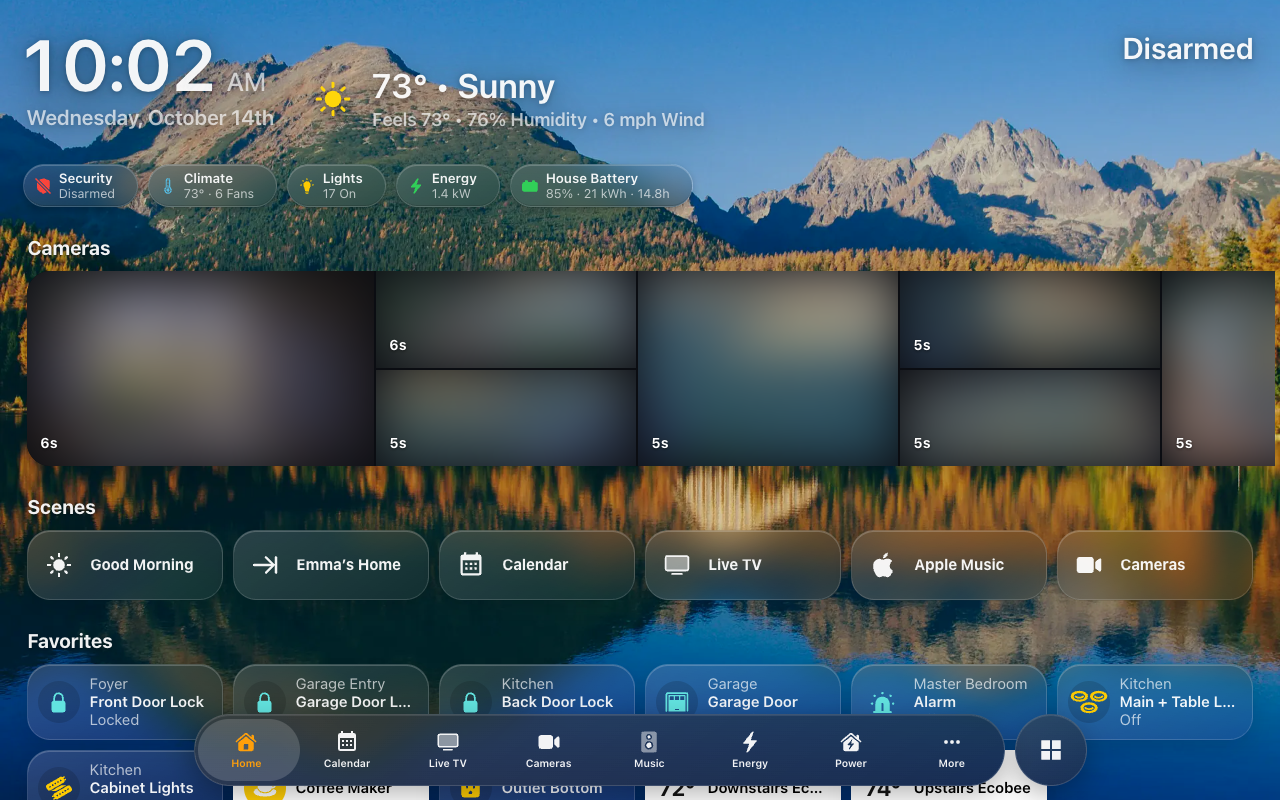
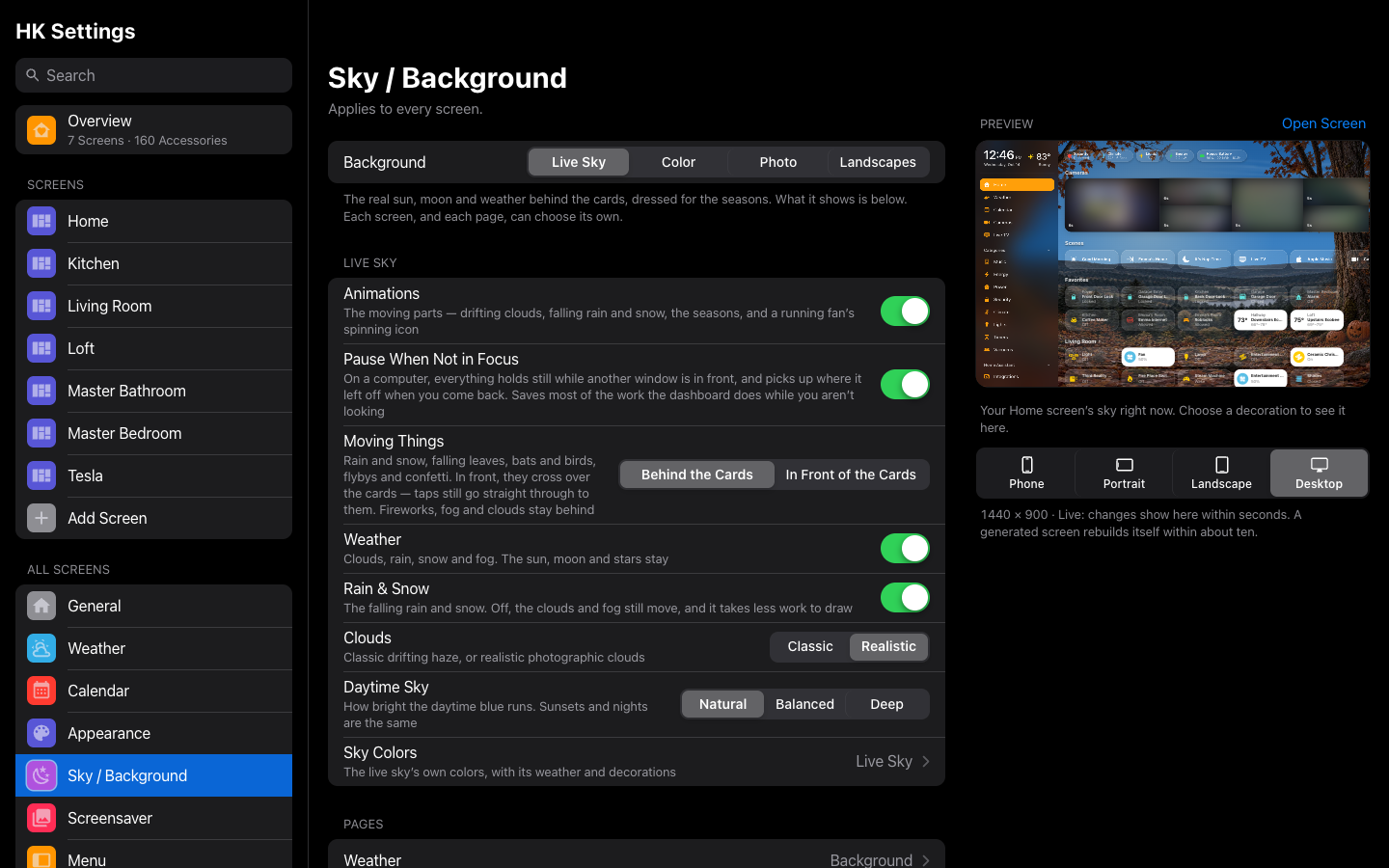
Sky / Background starts with the Background: Live Sky, a still Color (by day and by night), or a Photo of your own.
- A photo's Look: Blur, Dim, Saturation and a Color Tint, with Reset to Default.
- For every screen, one screen, a page or each room: Room Pages can give each room its own background and Look.
- The photo is uploaded through Home Assistant, shrunk and with its location and camera data taken out.
Wall tablets of their own
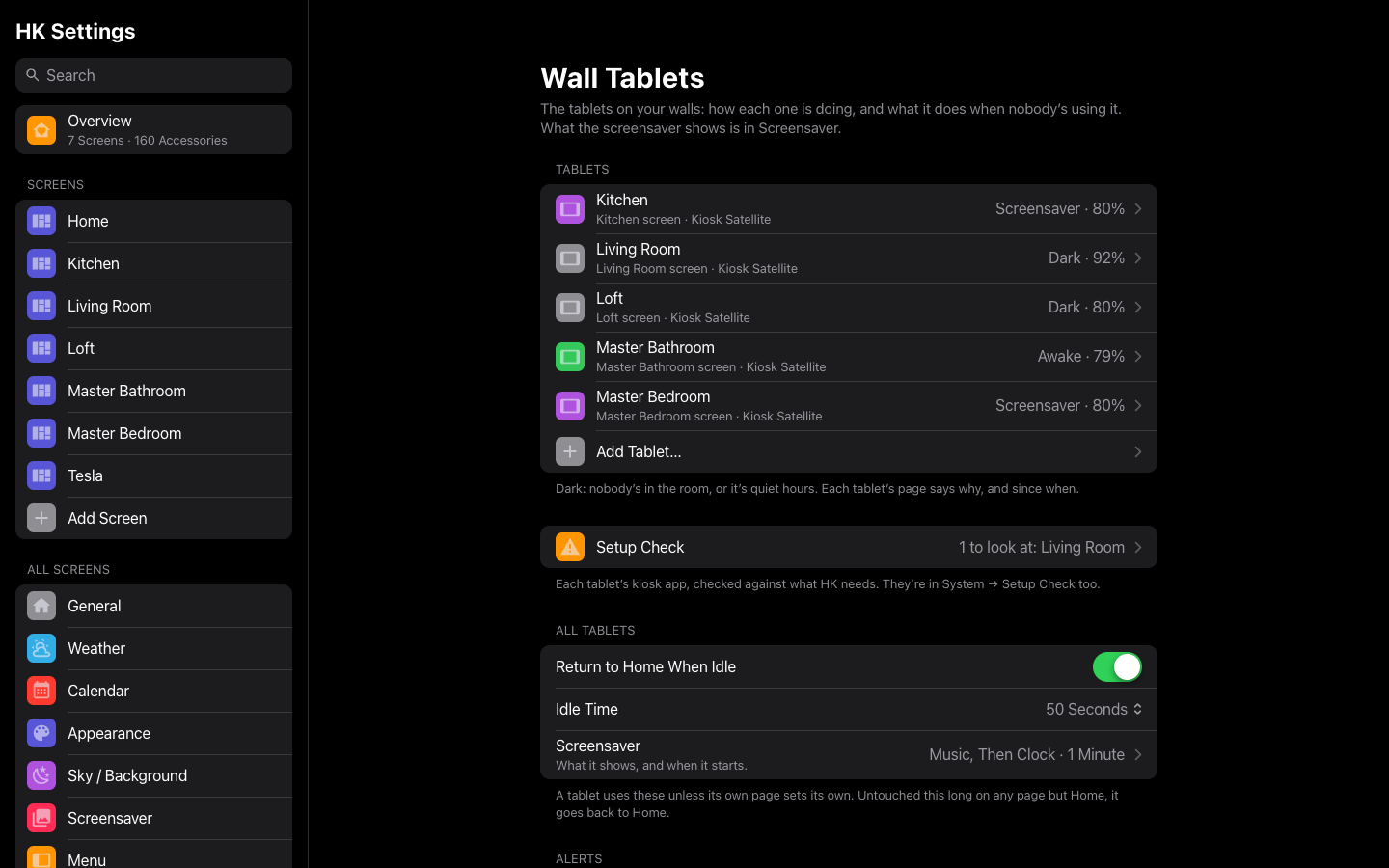
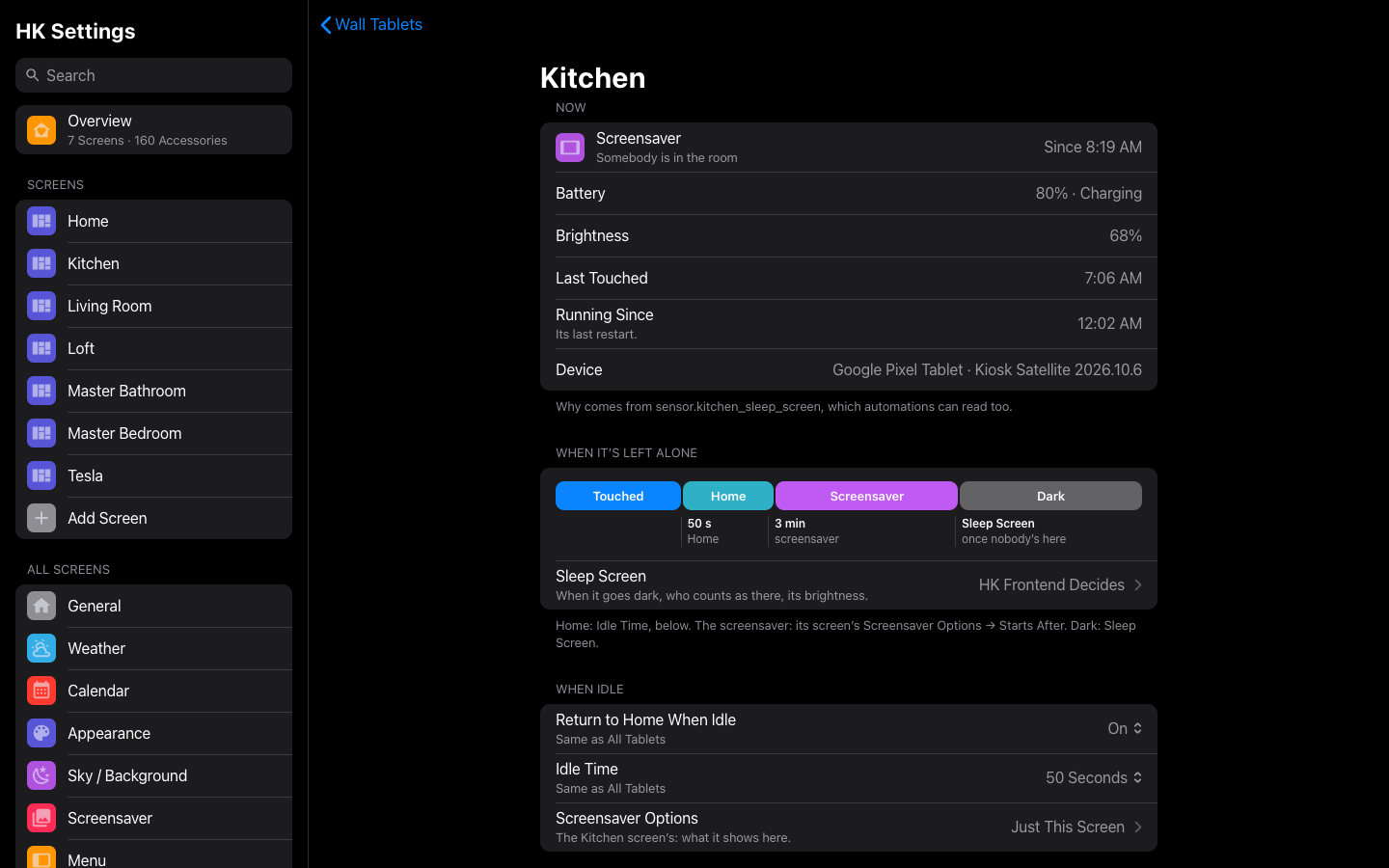
A tablet runs a screen, but a screen isn't always a tablet, so they are now kept apart.
- All Screens → Wall Tablets lists each tablet with how it is doing (awake, screensaver or dark, its battery). Each tablet has its own page: what it is doing now and why, when it is left alone, its Sleep Screen, and its device.
- Add Tablet… here, or Add wall tablet on the integration's page, which leads into HK Settings.
- Screensaver is its own entry under All Screens, no longer inside Wall Tablets.
Status Chips and Accessories, in one place each
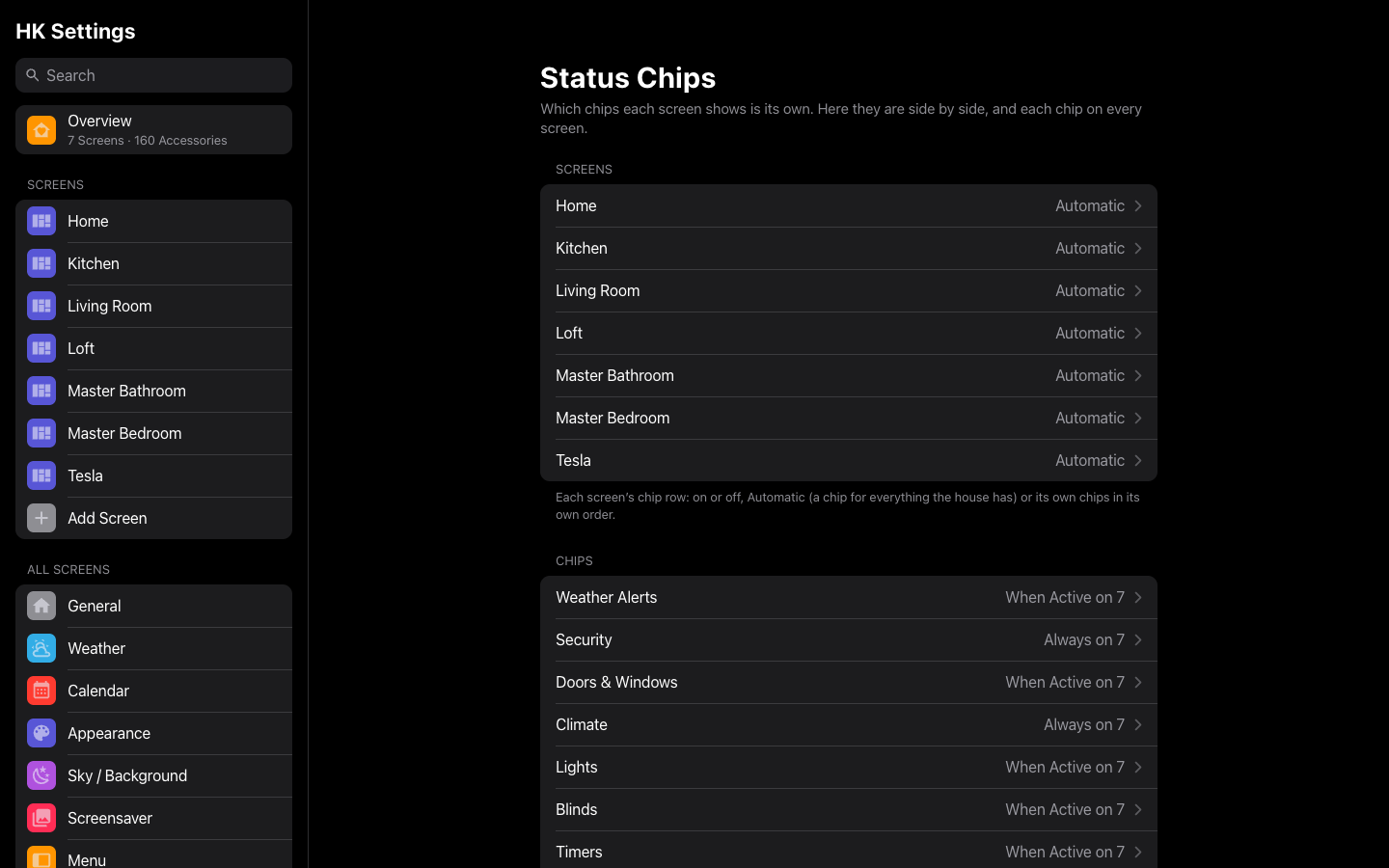
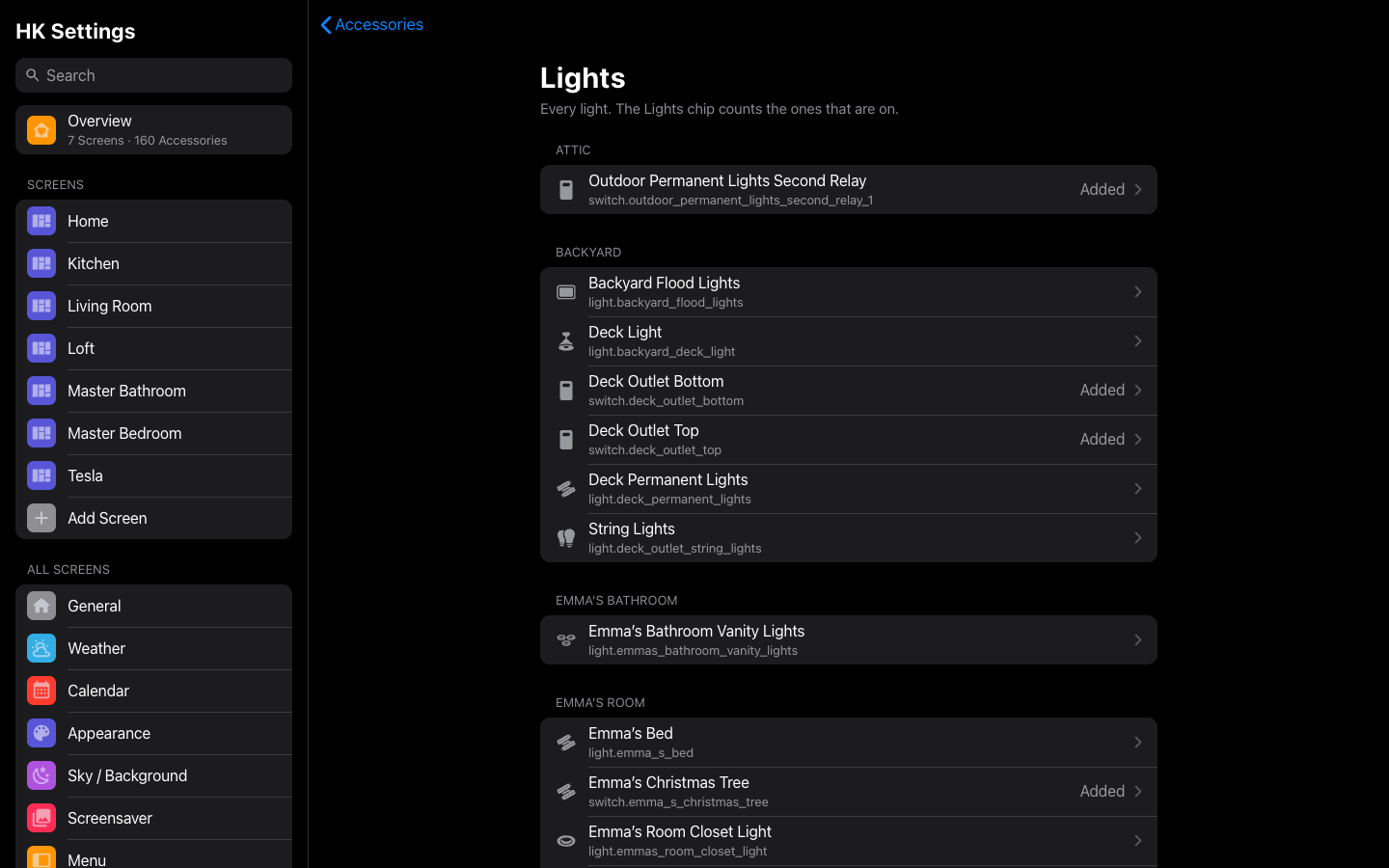
- All Screens → Status Chips shows every screen's chip row side by side, and each chip on every screen: Always or When Active, custom chips too, screen by screen. What the Chips Count is a tap away on every chip page.
- Accessories are listed by type, then by room. A type's page lists the chips that count it. One accessory picker is used everywhere.
Smaller changes & fixes
- Notifications: a tap on an alarm's notification opens its PIN keypad, and the Alarm category lists every alarm beside its keypad.
- Climate: a water heater has its own controls (Heat to, its modes with Off, Home and Away), not a thermostat's.
- Calendar: on a tablet, an event opens as cards with a little month and the day as hours, scrolled to the event.
- Group helpers ("Motion - Kitchen") can be added through Also Count As, or Add… on a type's page.
- Tab bar: a bar along the bottom or top always leaves room at the page's end; Adjust Content is only offered for a top bar or a rail.
- Pre-rendered glass: no flash of the moon on the way back to Home. Car dashboards draw the sky picture at the right size.
- Music: no Now Playing flash on a phone's first visit; Search and Plays On fit a phone.
- Energy: the page no longer blinks "Loading…" every hour or loses its live lines, and the Power and Energy links follow what each screen shows.
- The screensaver summary says Clock for a screen on Show: Clock.
- Settings are stored as set: only what differs from the defaults is kept, so a better default later reaches every screen (your settings are migrated as they are).
- Safer: the art proxy reaches only the internet and Music Assistant's own image proxy, and a pop-up or notification meant for some users goes only to them.
- Screenshots retaken throughout for the new tile sizes, the font and the settings sidebar, with new ones for the Power page, the clock, Night Mode, the mosaic, a photo background, Wall Tablets, Status Chips and Accessories by type.
Upgrading
Update through HACS (or copy custom_components/hk_frontend) and restart Home Assistant, then reload each screen once (on a wall tablet, clear the app's cache).
- The Power page is off until you turn it on in HK Settings → Energy → Power Page. A house picture needs a Picture Folder of your own; without one it shows the flow chart.
- Screensaver settings moved to All Screens → Screensaver, and Status Chips to All Screens → Status Chips. A ...
HK Frontend 1.7.5
A new Energy page built from HK's own cards, a fourth Glass Style with no blur at all, notifications that open what they're about, one place to hide an accessory, and HK cards that feel at home on your own dashboards. Builds on 1.7.1.
The Energy page, rebuilt
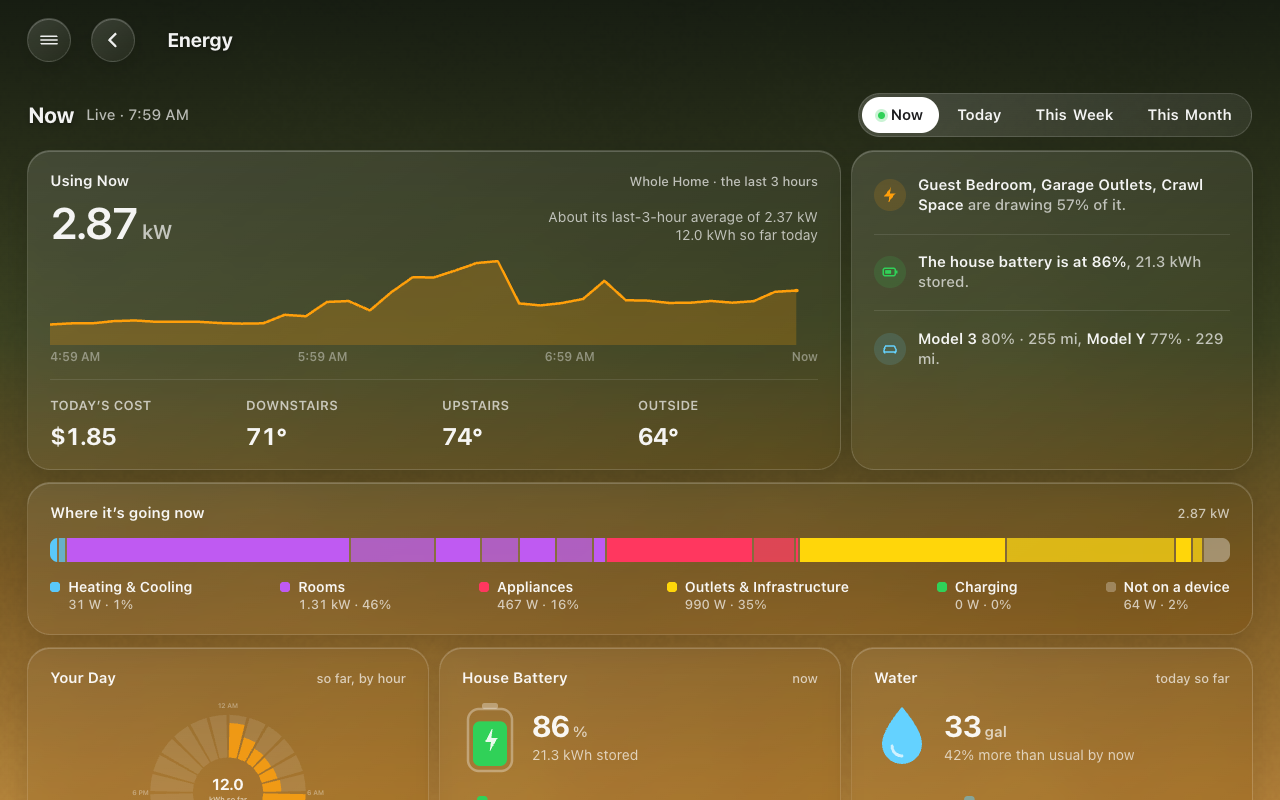
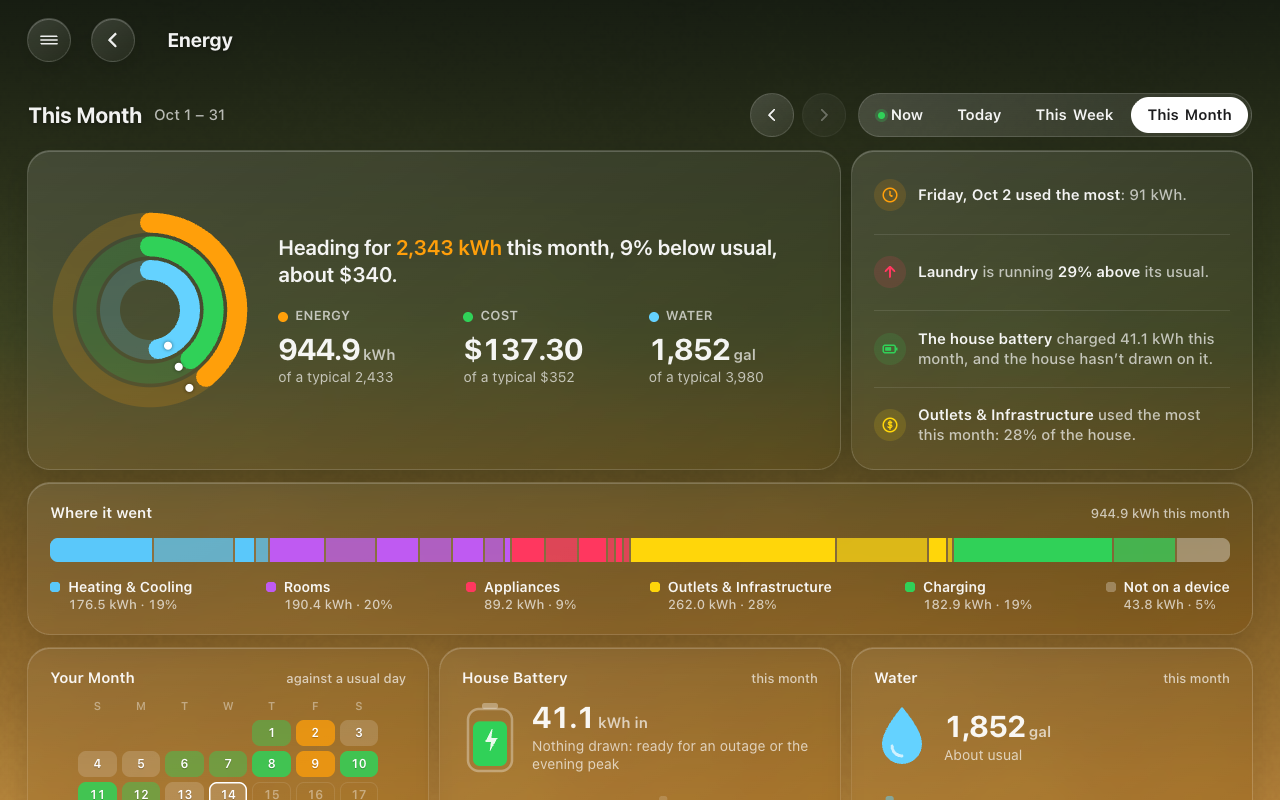
Home Assistant's four energy cards are gone from the Energy page. In their place is one page of HK's own cards with four tabs: Now, Today, This Week and This Month.
- Now is power: the whole home's watts and its last three hours, what's drawing the most, the house battery and the cars. Today, This Week and This Month are energy, summed the way Home Assistant's Energy dashboard sums them, with cost and water alongside.
- Where it went: one bar by category (Heating & Cooling, Rooms, Appliances, Outlets & Infrastructure, Charging, Not on a device). Most Used lists every device.
- Your Day, Your Week, Your Month, each against a usual one, with the busiest and quietest. Week and Month are calendar periods: a week starts on your first day of the week, a month on the 1st, and ‹ › step back through earlier ones. On the month's calendar, tap a day to see that day.
- Tracking: the devices you follow, one card of rows, each against its own usual.
- Tap anything about one thing to open its sheet. A circuit with a switch gets a power button on its tile: on is one tap, and off asks first.
- The tabs float at the top as you scroll, and Opens On chooses the tab it starts on.
Energy on the wiki has all of it.
Tinted: a fourth Glass Style
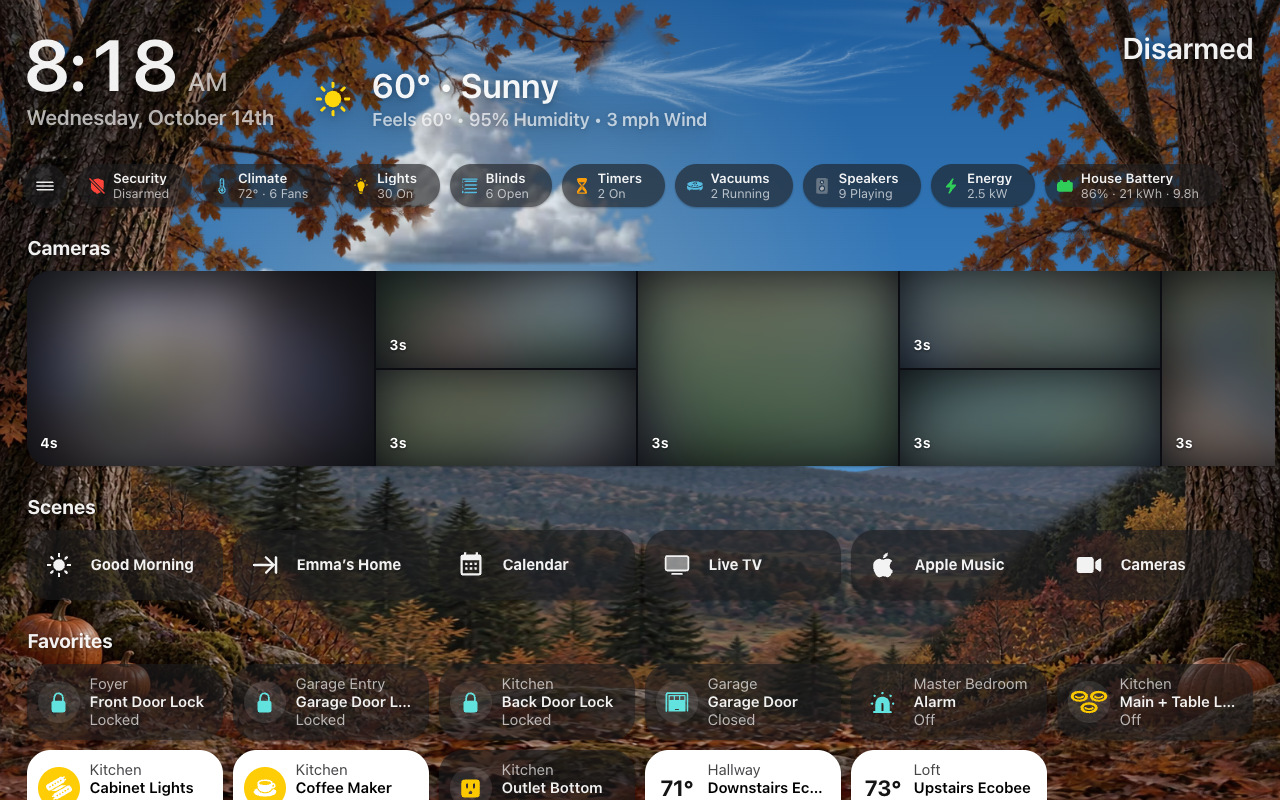
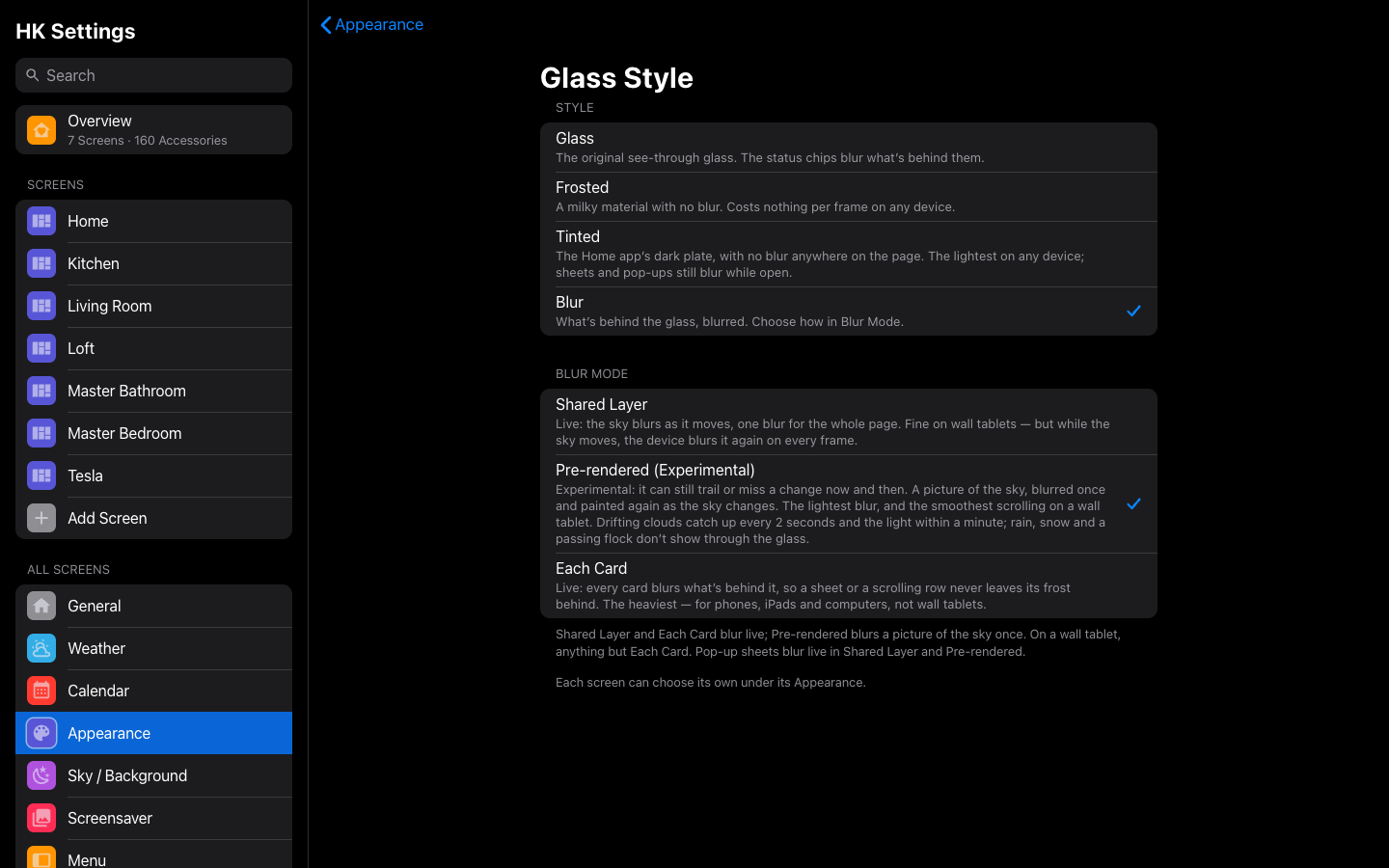
Glass Style is now Glass, Frosted, Tinted or Blur. Tinted is the Home app's flat, dark plate with no blur anywhere on the page: no shared layer, no picture, no card blurring itself, just a fine contact shadow. That makes it the lightest look on any device. Sheets and pop-ups still blur while they're open. Darkness sets how dark the plate is, and Icon Circles chooses Dark or Light circles. The tab bar's own Tinted choice works again.
Notifications open what they're about
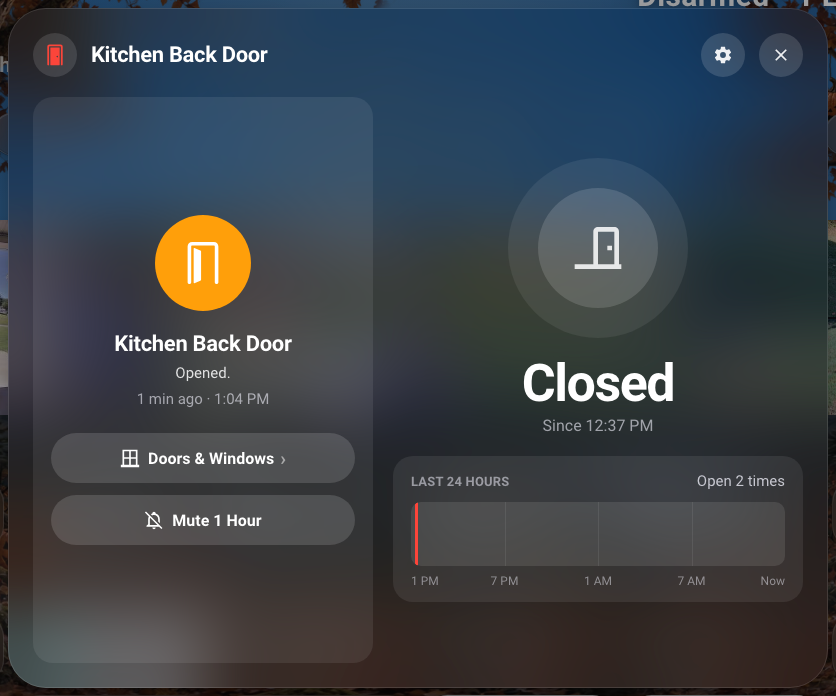
- A tap on a banner opens the accessory's own sheet with the notification on it: the snapshot big, what happened and when, a link to its page, and Mute 1 Hour. For what a camera sees, it opens the camera live. A person opens a Person sheet, and a calendar event opens an Event sheet.
- Calendars (new in 1.7.1): an event's banner opens the event.
One place to hide an accessory
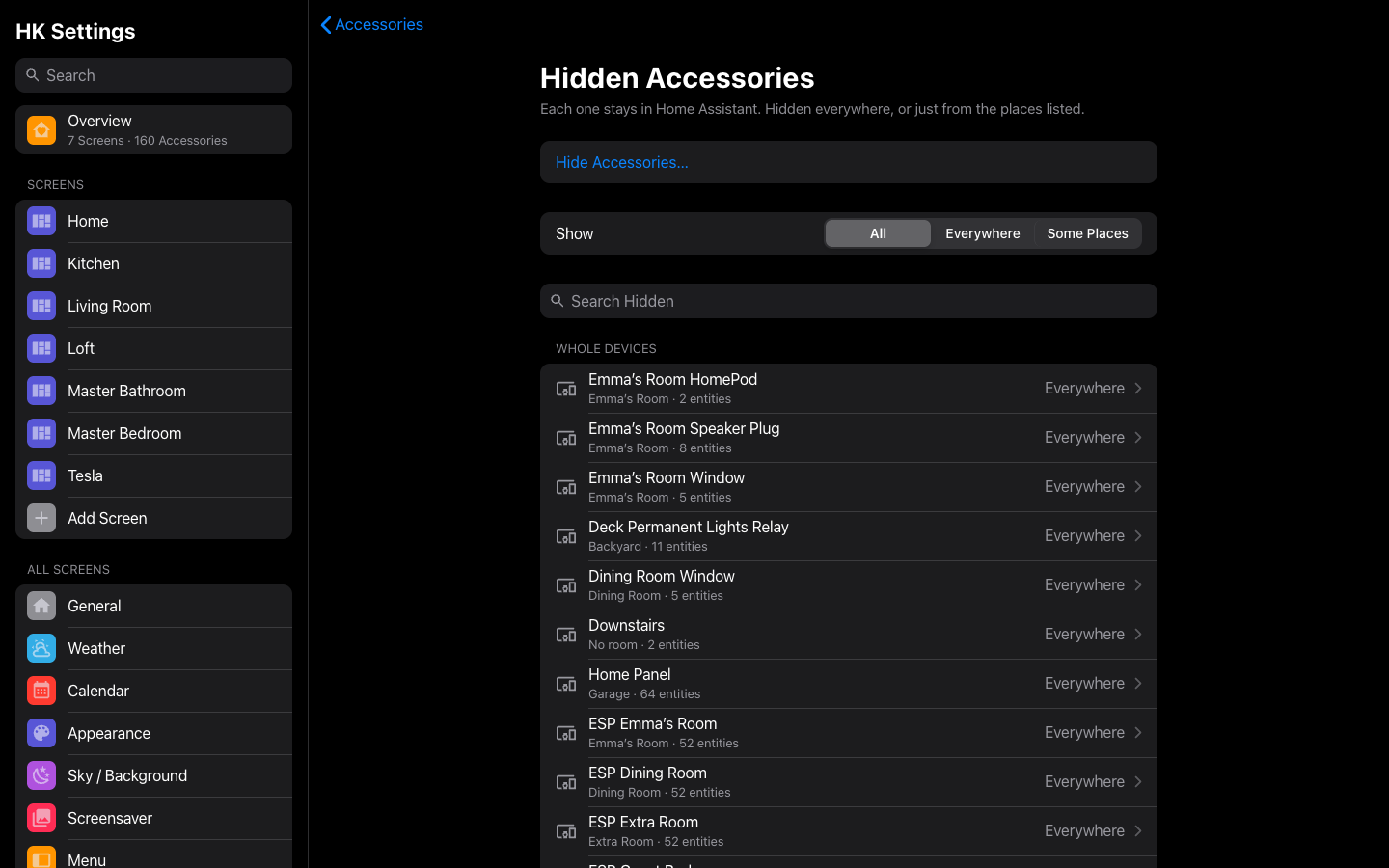
Four different settings used to keep an accessory off a page, and none said so where it was missing. Now:
- Hidden Accessories (Accessories, was Hidden from Screens) hides an accessory everywhere, or just from some places with Hide From.
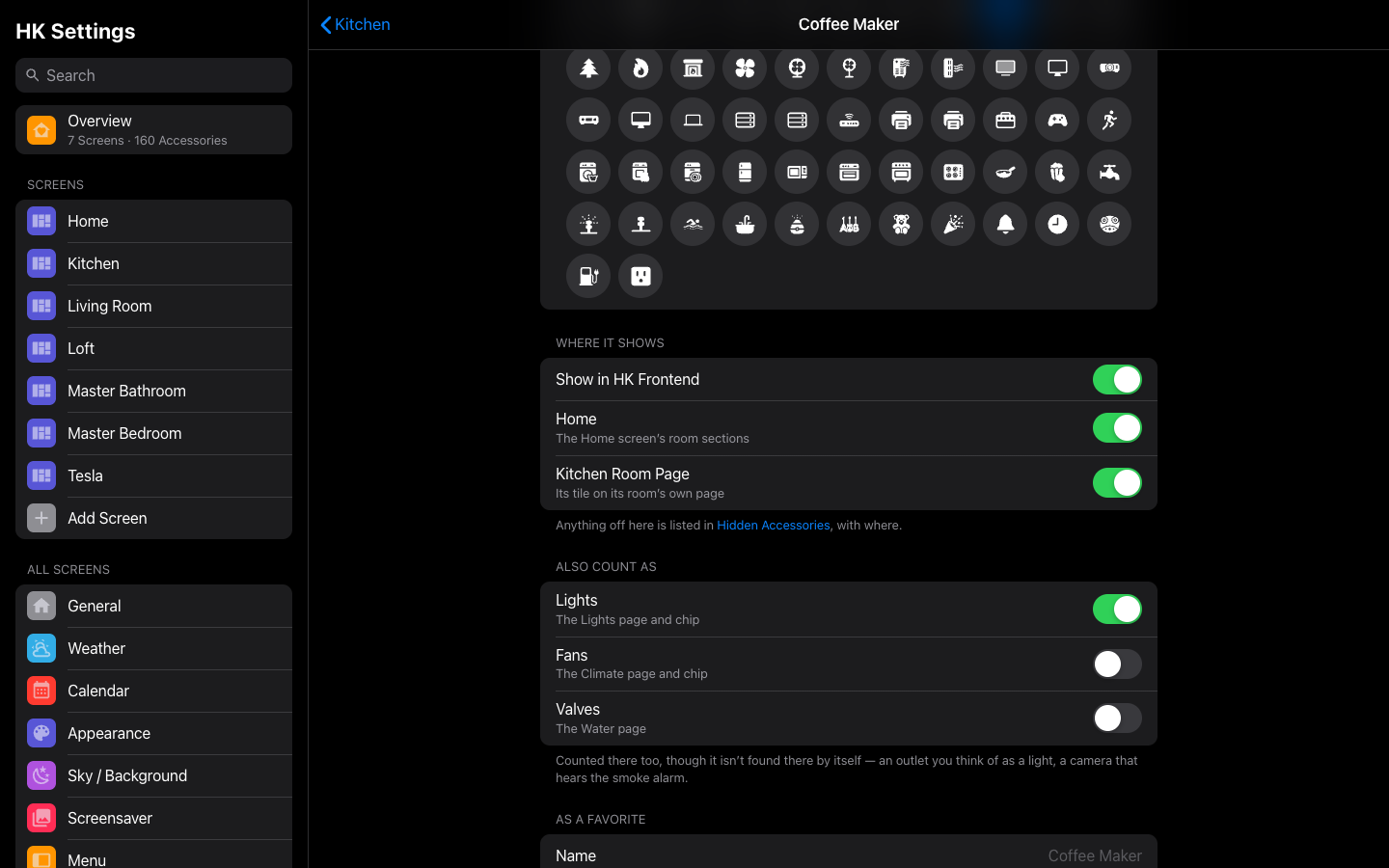
- Where it shows, on the accessory's own page, lists every page and chip it appears on.
- Also Count As, also on the accessory's page, counts a switch as a light, fan or valve, or a camera's alarm as Smoke & CO.
- Status & Chips is retired. Everything it changed is now changed on the accessory. Its overview stays as What Counts (read-only), and Indoor Temperature and Power Use are chosen on the Climate and Energy chips' own pages.
HK cards on your own dashboards
- Sized for Sections: every HK card tells Home Assistant's Sections view its size. Tiles and chips take half a section, and rows and pages the full width.
- The Home app's light look on a light page: on a dashboard of your own in Home Assistant's light mode, HK cards wear gray glass and your theme's text colors.
- Better editors and the card picker: tile editors pick from the right kind of entity and have an Advanced section, and the chips row has Menu Button and Row Layout. The Weather Alert card hides itself when there's no alert. A scroll row from the card picker no longer says "Unknown type".
- The Overview (Home Assistant's default dashboard) can be added under Existing Dashboards.
Sheets: read a graph, drag the dial
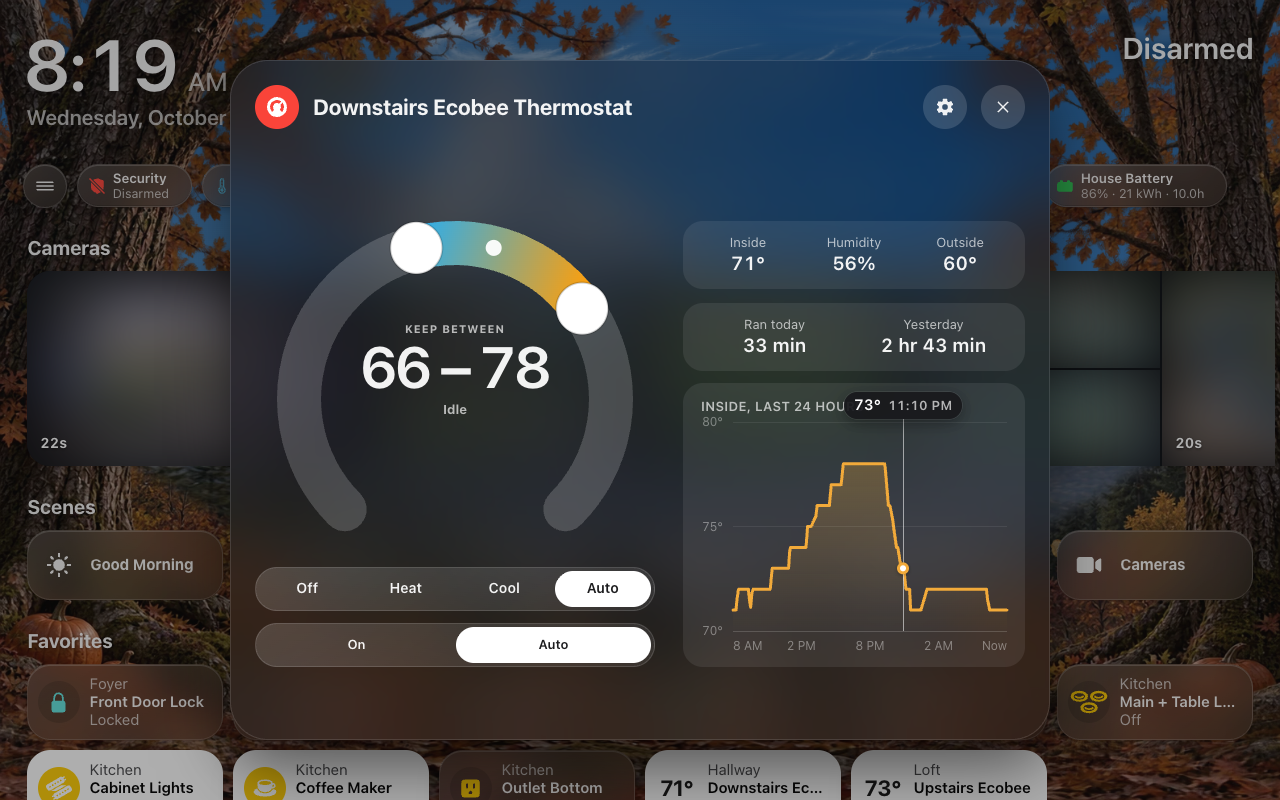
- Hover over or touch any graph in a sheet for its value: a line at the nearest point and a label above the plot, where a finger never covers it. A vertical swipe still scrolls the sheet.
- The thermostat dial follows your finger: the dot and its band move as you drag, the two setpoints never cross, and it holds where you let go until the thermostat catches up.
Smaller changes & fixes
- One segmented control everywhere: the calendar's, the Energy tabs, the thermostat's modes and every sheet's choices are the same 44 px glass control with the same sliding highlight.
- One text scale: every card's text is one of three shades (main, secondary, faint). Two dozen near-identical grays that had crept in are gone.
- Home power cards for a home battery:
hk-power-flow-card(grid, house and battery as a flow chart),hk-power-status-card,hk-house-battery-cardandhk-segment-card(Card Library). - Three blurs nobody could see were removed in every look (the pop-up stash button, the Music panel's tab switch, the choose and confirm sheets). That's less work every frame.
- The Weather page's tiles and radar map line up with the forecast band.
- The media progress fill reads on a light page.
- Statistics are fetched again only when they can have changed (five-minute data every 150 s, hourly data every 15 min), which takes load off Home Assistant.
- Notifications set up in 1.7.0 now follow All Notifications' Wakes the Screen, as 1.7.1 meant them to.
- Screenshots retaken throughout for the new controls, text scale and settings sidebar, with new ones for the Energy page, Tinted, notification sheets, Hidden Accessories and the graph readout.
Upgrading
Update through HACS (or copy custom_components/hk_frontend) and restart Home Assistant, then reload each screen once (on a wall tablet, clear the app's cache).
- Home Assistant's own energy charts are off by default at the bottom of the Energy page. Turn Home Assistant’s Charts back on in HK Settings' Energy page if you want them.
- Status & Chips is gone from HK Settings. Nothing you set there is lost: it's all on each accessory now (Hidden Accessories, Where it shows, Also Count As), and What Counts shows the result.
- Notifications from 1.7.0 that weren't set to wake now follow All Notifications → Wakes the Screen (Off unless you turned it on).
- Tinted is new and opt-in. It hasn't been measured on wall tablets yet. If you try it there, compare it with Pre-rendered.
HK Frontend 1.7.1
Calendars notifications
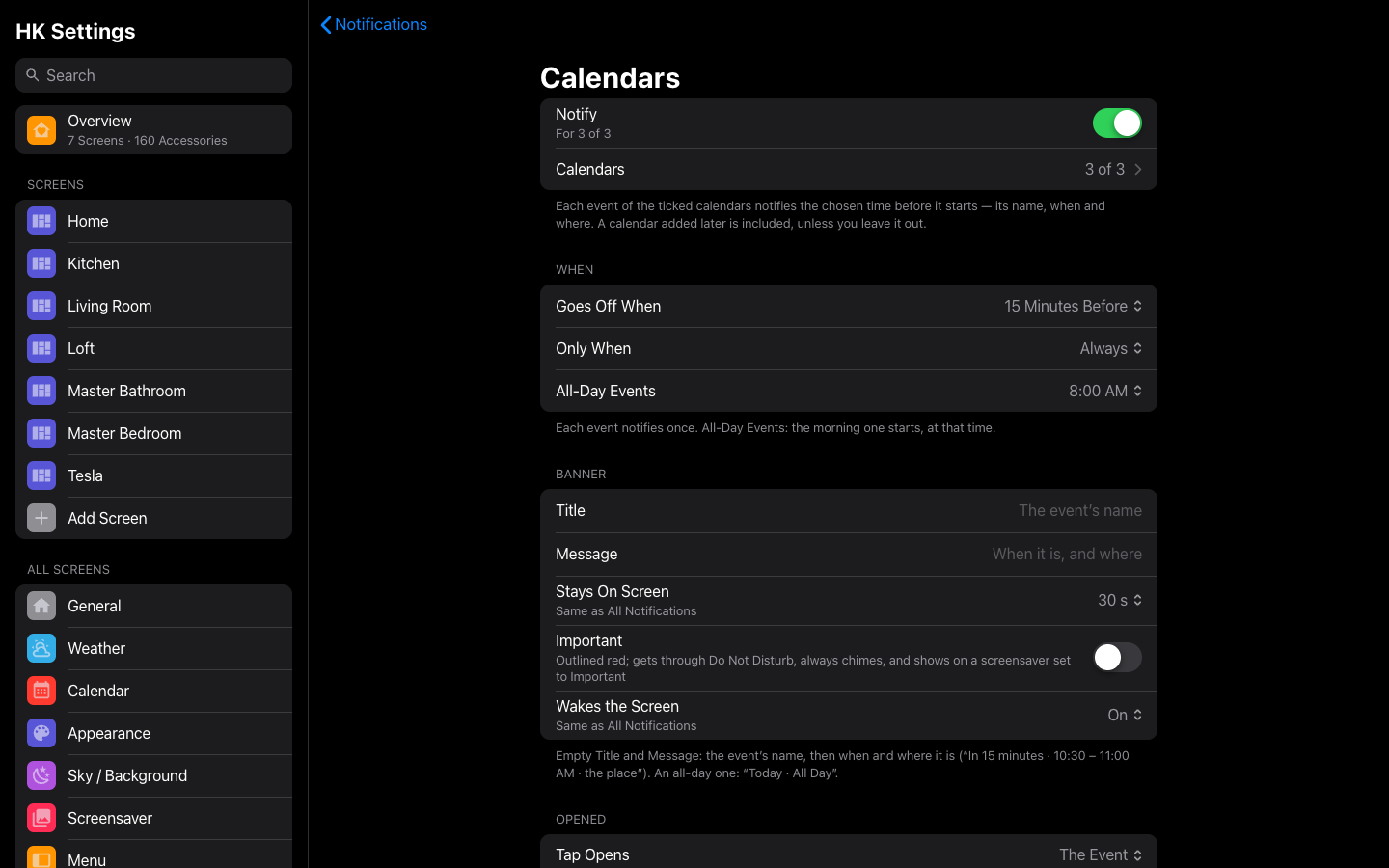
A new Calendars category under Features → Notifications → Categories. Tick the calendars that take part, and choose Goes Off When: at the start, or 5, 10, 15 or 30 minutes or an hour before. Each event's banner is its name, then when and where — In 15 minutes · 10:30 – 11:00 AM · the place. All-Day Events notify the morning they start (6–10 AM, 8 to start with, or Off): Today · All Day. The house looks ahead every minute with Home Assistant's own calendar events and sends each event once. Send Test shows the next event of the ticked calendars. (Notifications)
Wakes the Screen, for any notification
- Wakes the Screen is now a setting for All Notifications (Banner), and each notification can follow it or choose its own (Same as All Notifications / Just This Notification). It no longer needs a notification to be Important.
- It wakes up to the screensaver, the banner over the photos — not the dashboard. A screen already on its screensaver stays there and shows the banner; one on its dashboard stays on the dashboard.
- Do Not Disturb still wins: a notification that isn't Important neither shows on nor wakes a screen in Do Not Disturb (the screen's own, else All Screens').
- The Show notification action's
wakeno longer makes a notification Important.
Smaller changes & fixes
- Chime off silences every notification except an Important one, which still chimes.
- Dragging a banner away with a mouse no longer draws a blue text selection over it.
- A detail sheet's scroll shadow now sits a little below the glyph and the close button instead of right against them.
Upgrading
Update through HACS (or copy custom_components/hk_frontend) and restart Home Assistant, then reload each screen once (on a wall tablet, clear the app's cache).
- Wakes the Screen for All Notifications starts Off. A notification that was set to wake keeps waking; the rest follow All Notifications.
- Calendars is a category like the others: it does nothing until you turn it on.
HK Frontend 1.7.0
Notifications on every screen, one Music page, music on the screensaver, a docked Now Playing bar, a new Blur Mode built for wall tablets, and page changes twice as fast. Builds on 1.6.0.
Notifications
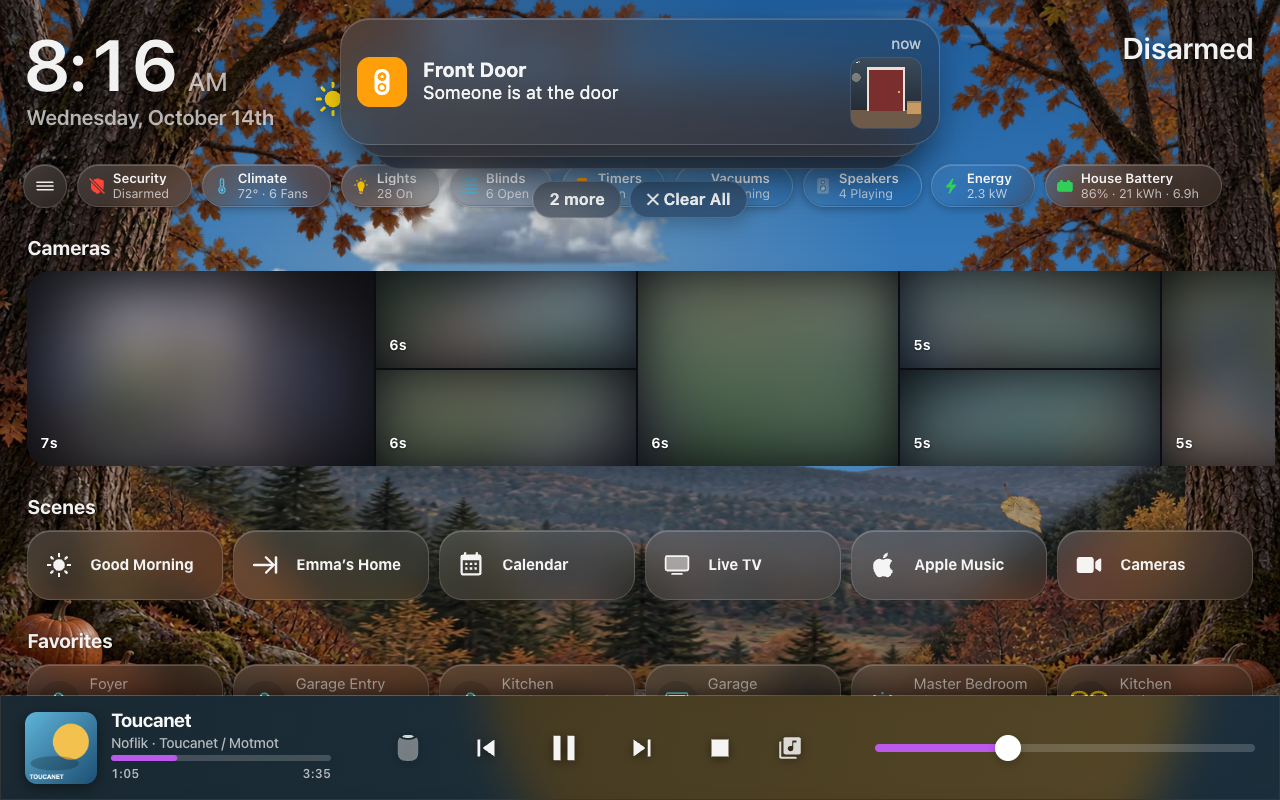

A banner at the top of your screens when something happens at home, like an iPhone's: a door opens, someone arrives, the doorbell rings, a camera sees a person, a leak, a timer ends. Add it with Add feature → Notifications.
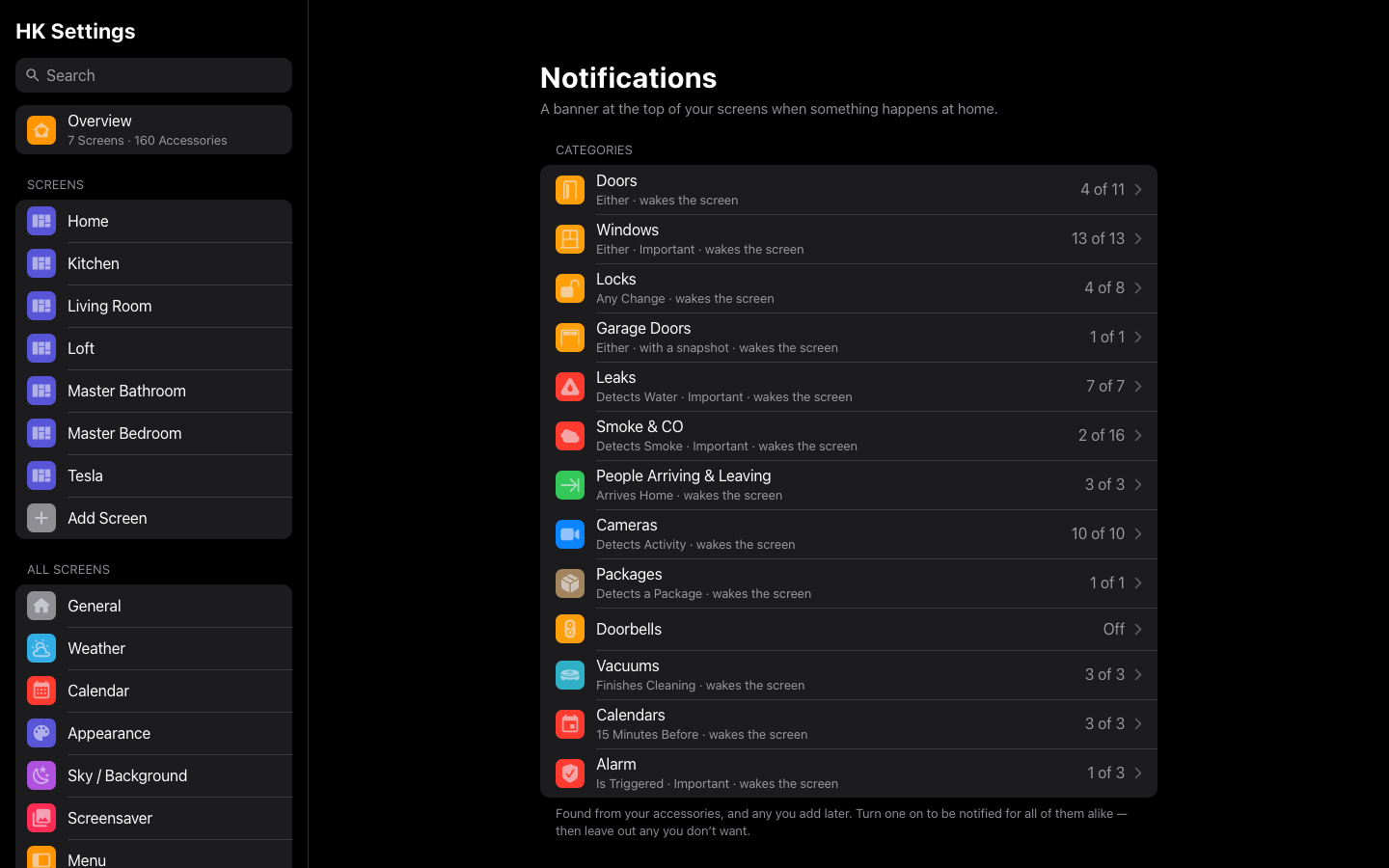
- Categories, found for you. Doors, Windows, Locks, Garage Doors, Leaks, Smoke & CO, People Arriving & Leaving, Cameras, Packages, Doorbells, Vacuums and Alarm, each with every accessory of that kind. Turn one on to be notified for all of them alike, then leave out any you don't want. Leaks, smoke and the alarm start Important: they get through Do Not Disturb and wake the screen.
- One accessory, your way: what sets it off (Opens, Unlocks, Arrives, Detects a Person…), Only When, Not Again For, its own title and message, how long it stays, Important, Wakes the Screen, a Camera Snapshot taken the moment it happened, and what a tap opens. Send Test shows it on your screens.
- The banner: HK glass over the dashboard and the photo screensaver. Several stack with N more and Clear All. Swipe one up or sideways to dismiss it, or tap it to open the snapshot big with the accessory's buttons (Close the garage, Lock the door, Live for the camera). Tablets and computers play a soft chime.
- Each screen decides: Allow Notifications, On the Screensaver (All, Important or Off) and Do Not Disturb (a schedule, or while any entity you list is on), for all screens or one. The doorbell's own pop-up isn't doubled by a banner on the wall tablets.
- From your automations: the new Show notification action (
hk_frontend.notify) puts your own banner on the screens, with an optional camera snapshot, a tap that opens a sheet or a camera, and only on the screens or users you name.
Notifications on the wiki has every setting.
One Music page
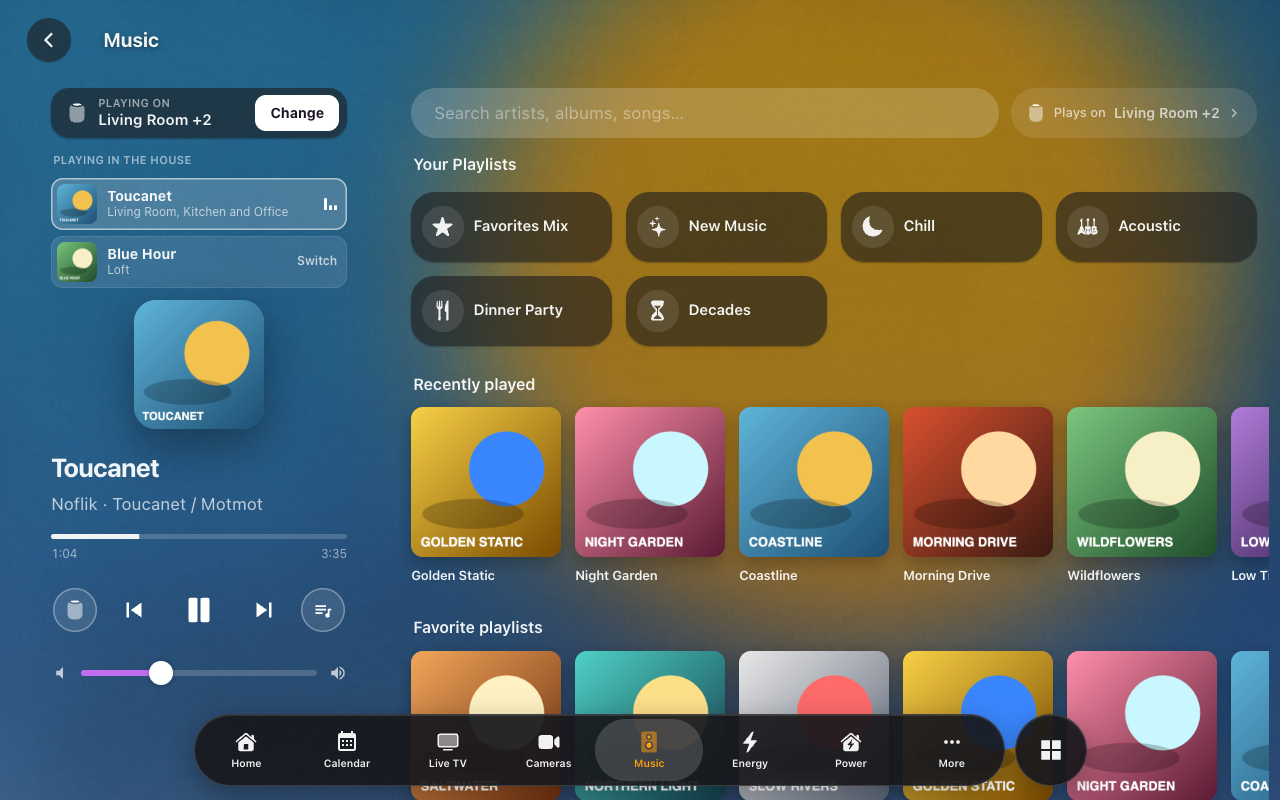
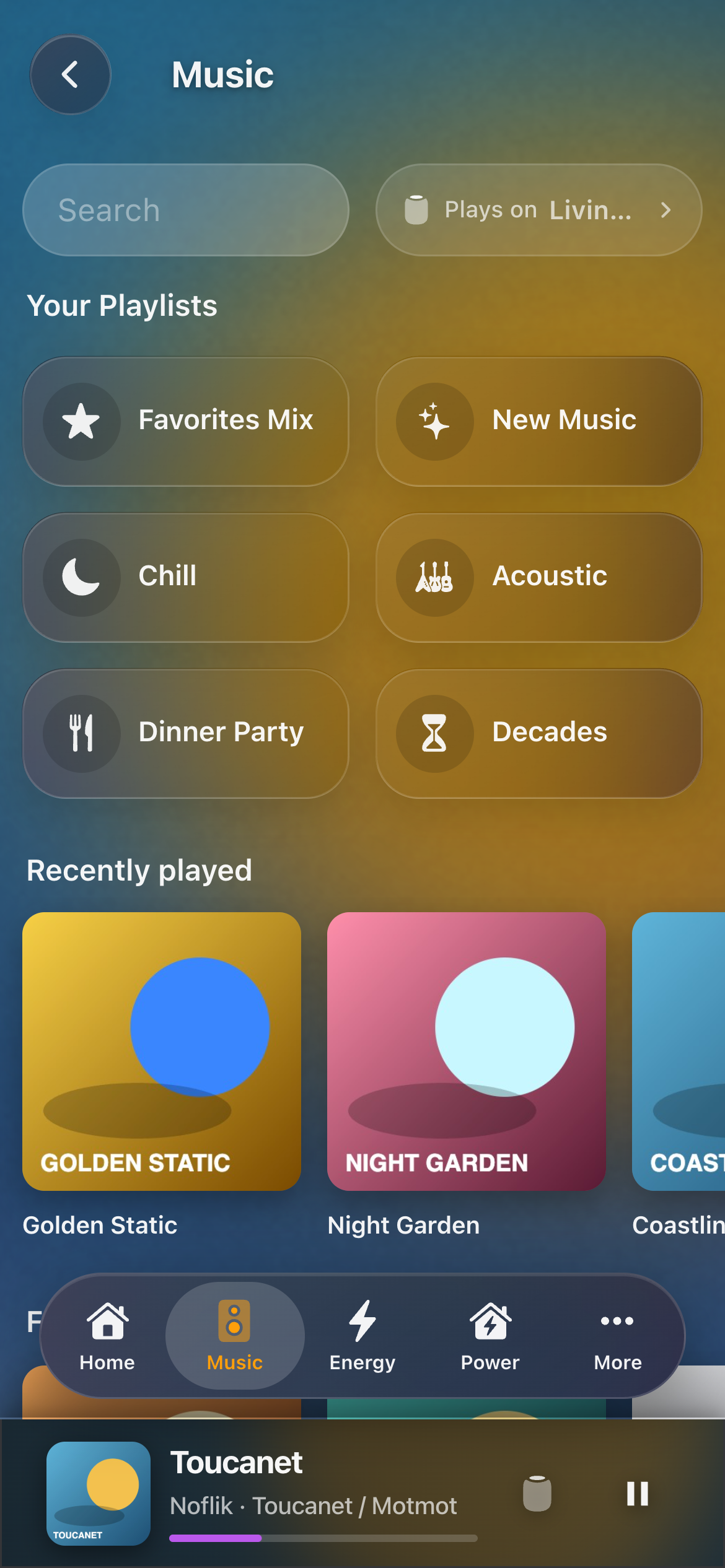
Play Music and Browse Music are one page. On the left: what's playing, where (Change), everything else playing in the house (tap to switch to it), the cover, the controls and the volume. On the right: search, Your Playlists, and your library's shelves and categories.
- Plays on: beside the search, the rooms the next thing you pick will play in. Change it without touching what's playing now.
- Speakers (add rooms to the music, or move it to others), Volume per room, and Queue (what's playing and what's next; tap a song to play it) in one panel.
- On a phone the page is the library, with what's playing in the docked bar at the bottom. Tap it for the player.
- The old addresses keep working:
playmusicis the Music page,music-browseopens it with the search ready. The menu shows Music once.
Now Playing bar and Timer Bar
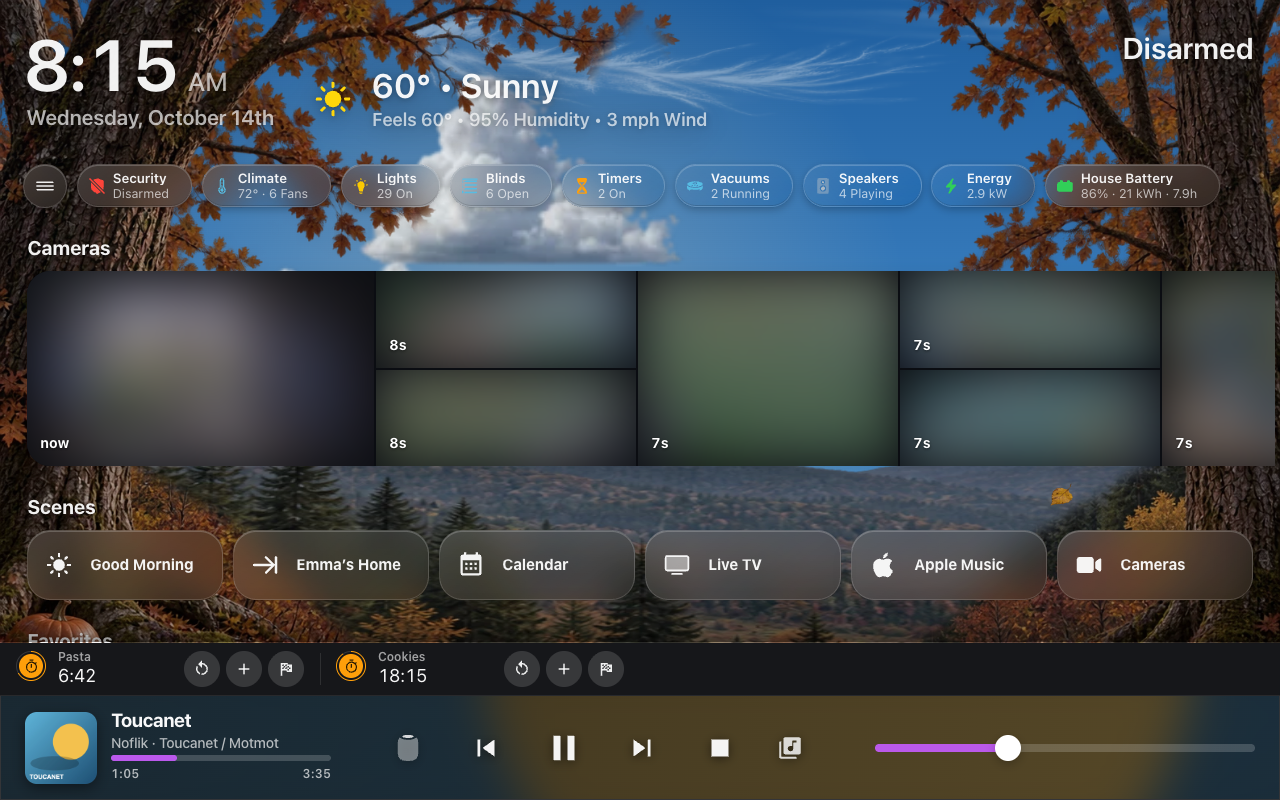
- Docked along the bottom, full width, like a music app's mini player. It sits under the menu and tab bar, and a tab bar rail fits the height above it.
- Timer Bar: running quick timers in a slim row on the same bar, with Restart, +1 minute and Finish. No more floating timer pills.
- Speakers and Browse on either side of the controls. Tap the song to open the player. Swipe the bar down to put it away, and a speaker button brings it back.
- On Every Page: the bar follows you to every page of the screen, not Home alone.
- Each is a screen setting under Behavior: Now Playing Bar, Timer Bar, On Every Page.
Music on the screensaver
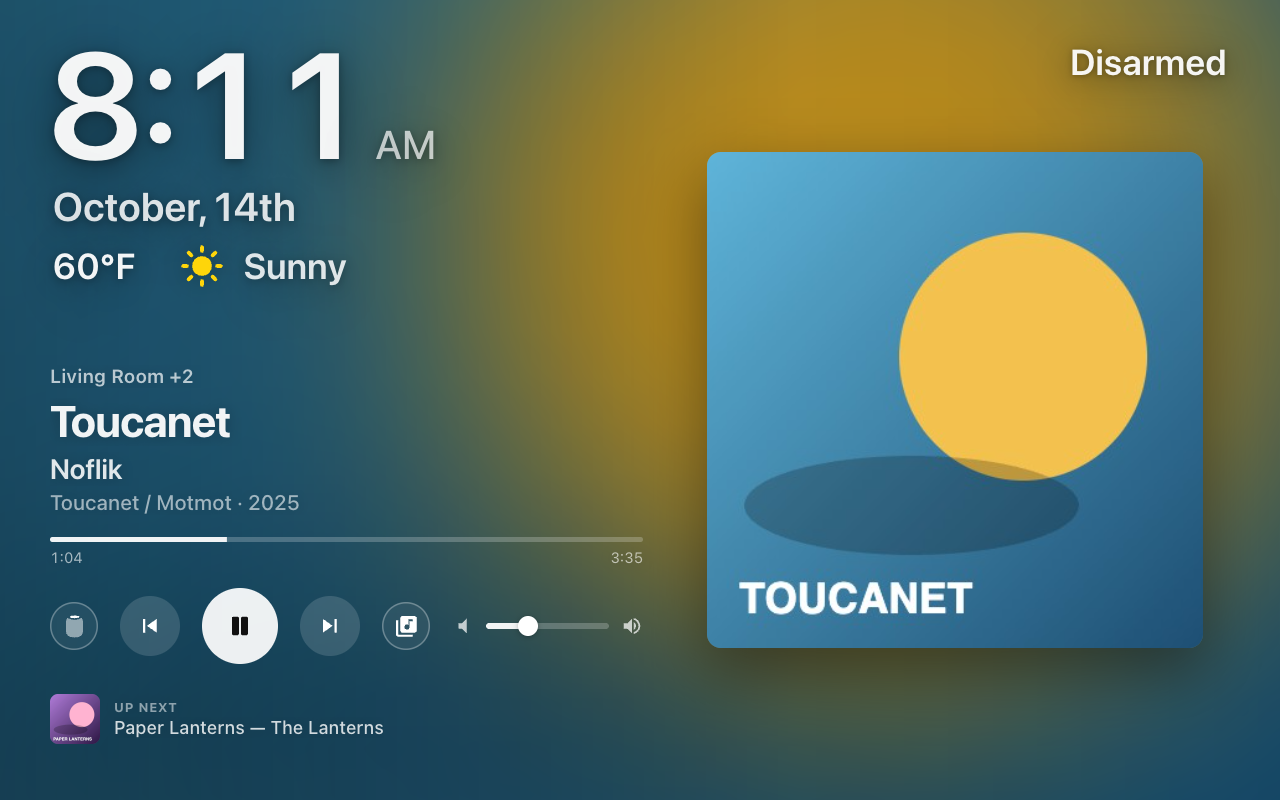
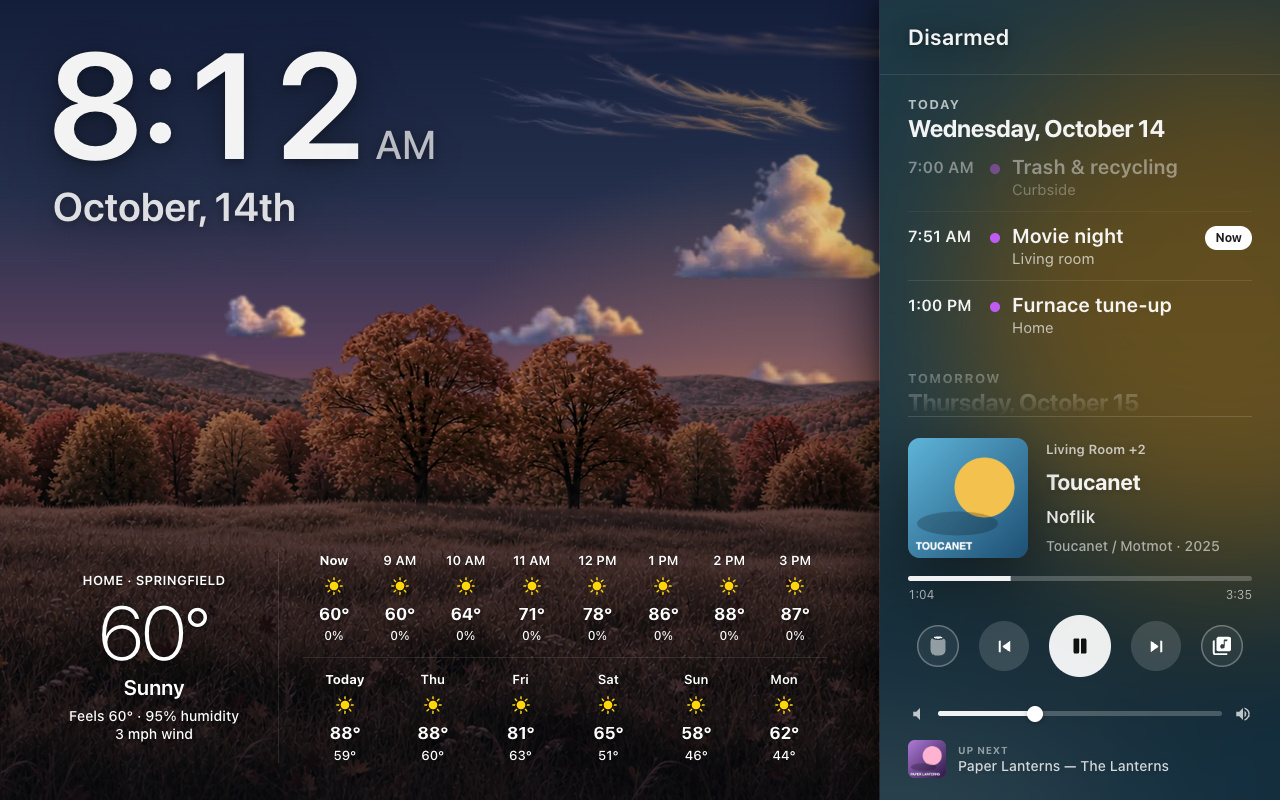
- Music slide (Between the Photos): the album art over a blurred copy of itself, the song, the rooms, how far in, Up Next, previous, play/pause, next and a volume slider, with the clock and weather kept.
- Music in the side pane: under the calendar or on its own. It comes and goes with the music.
- Music First (While Music Plays): the music fills the screen in place of the photos while something plays.
- Speakers, Volume and Browse right on the screensaver, and the screensaver stays up while you use them. Tap the album art to open the Music page.
Blur Mode, and smoother wall tablets
Glass Style is now Glass, Frosted or Blur, and Blur has a Blur Mode (All Screens → Appearance → Glass Style, or per screen):
| Blur Mode | Good at | Gives up | Best for |
|---|---|---|---|
| Shared Layer (as before) | Live: the sky blurs as it moves, one blur for the whole page | Re-blurs every frame while the sky moves; a docked bar adds a second live blur | Most devices |
| Pre-rendered (Experimental) | The lightest blur: a picture of the sky, blurred once and painted again as the sky changes. The smoothest scrolling on a wall tablet | Drifting clouds catch up every 2 s, the light within a minute; rain, snow and flocks don't show through. It can still trail or miss a change now and then | Wall tablets |
| Each Card | Every card blurs what's behind it; a sheet or a scrolling row never leaves its frost behind | The heaviest by far | Phones, iPads, computers |
Scrolling Home on a wall tablet (Galaxy Tab A9+, animations on):
| No bar | With the Now Playing bar | |
|---|---|---|
| Pre-rendered | 59.1 fps, 1.5 % late frames | 59.0 fps, 1.8 % late |
| Shared Layer | 58.0 fps, 3.6 % late | 54.5 fps, 10.3 % late |
| Each Card | 32.0 fps, 72.5 % late | 27.6 fps, 82.7 % late |
Pop-up sheets and pages without the sky blur live in every mode. Experimental means it's ready to use and still being polished: if you see the glass lag the sky, Shared Layer is one tap away.
And faster everywhere:
- Page changes are twice as fast: every page-change hold is gone (wall tablets: 410–620 ms → 130–300 ms from tap to the new page shown).
- The now-playing progress bar no longer lays out the page every frame (a tablet playing music: about a quarter less CPU).
- Falling leaves are lit leaf by leaf instead of a full-screen filter every frame, and rain is one layer drawn at half resolution.
- The shared blur stops re-reading every card each time you come back to Home.
- An open detail sheet no longer keeps the screen redrawing.
- A camera tile taken off the page lets go of its video, so visiting Cameras no longer leaks memory.
- Pause When Not in Focus (Sky / Background, on): on a computer, the sky and cards hold still while another window is in front. A Mac on Home went from ~32 % of a core to ~8 %.
Smaller features & bug fixes
- Moving Things (Sky / Background, all screens or one): rain, snow, leaves, petals, bats, birds, flybys and fireflies can cross In Front of the Cards. Taps still go straight through.
- Rain & Snow switch: the falling weather alone, off without stopping the clouds. With Animations off, a running fan's icon stands still too.
- Cameras: Live First Camera: the first tile of the camera strip plays live video, the rest show snapshots.
- Realistic clouds are simply there when a page loads, instead of fading in over 4 s every time.
- The menu's and the calendar's Day / Week / Month highlights slide to the new choice, as the tab bar's does.
- The menu chip blurs what's behind it under Glass, like the chips beside it.
- A select's long option wraps instead of ending in "…"; a tall tile's name in Arrange sits at its foot.
- Settings dividers are drawn whole on every screen density (they could break up at 1.5×–1.7× on a Mac).
- The screensaver swallows only the touch that stopped it, not the next tap.
- A camera tile under the black screen or the photos stays asleep: no stream...
HK Frontend 1.6.0
Wall tablets that sleep and wake by themselves, cameras that work everywhere, a sky as lively as you like, and a menu for each kind of device. Builds on 1.5.5.
Sleep Screen
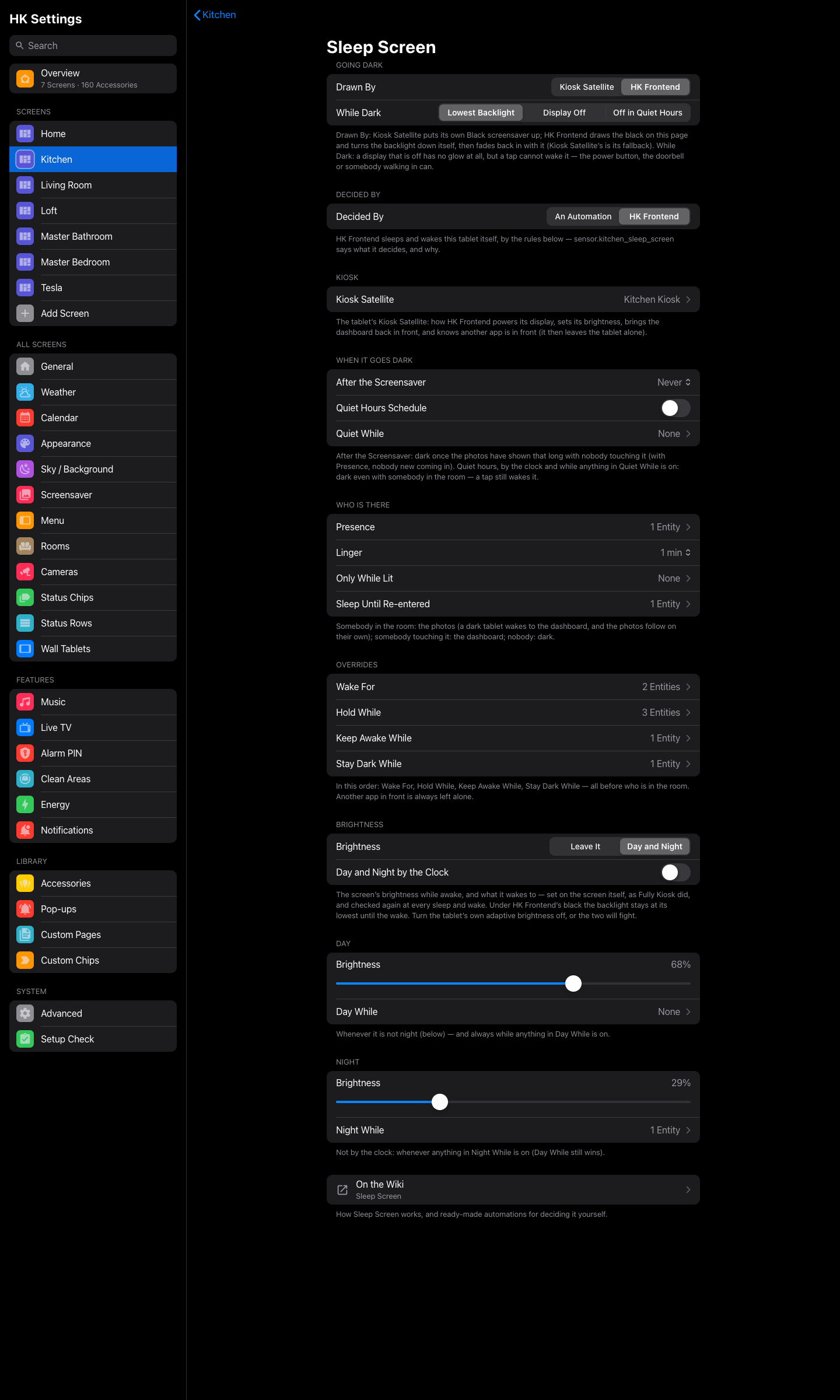
Each wall tablet dark when nobody needs it, awake the moment somebody does. HK Settings → Screens → (a screen) → When Idle → Sleep Screen:
- HK Frontend’s own black. It draws the black on the page and turns the backlight down itself through Kiosk Satellite, then fades back in with the backlight. No flash of an old frame, a white camera tile or a half-drawn page. A tap wakes it without pressing the tile under your finger. A page that reloads while dark is covered again at once. Kiosk Satellite’s black is the fallback. While Dark: the lowest backlight, the display off, or off only in quiet hours.
- HK Frontend decides when, if you want it to. No automations to write: hand it the room’s presence sensors (any number), quiet hours (a schedule, or while a Good Night or nap timer runs), Wake For (smoke, a leak, even in quiet hours), Hold While (the doorbell pop-up, the alarm: your automation owns the tablet), Keep Awake While (watching TV on it), Stay Dark While (away), Only While Lit (a dark bathroom stays dark) and Sleep Until Re-entered (Good Night). It runs inside Home Assistant, so a tablet that is reloading or has its display off still wakes for the doorbell. A missing sensor never makes it guess, and
sensor.<screen>_sleep_screenexplains every decision. - Brightness for Day and Night, each with its level, an optional time, and what forces it (the bathroom lights turned up bright; a nap timer). It is set on the screen itself and checked again at every sleep and wake.
- Or decide it yourself: the new Set black screen action (
hk_frontend.set_black_screen) turns a tablet dark or awake, with the brightness to come back to.
The Sleep Screen wiki page has all of it: every setting, the order the rules win, recipes for a kitchen, a bathroom and a bedroom, and how to use automations alongside it.
Cameras
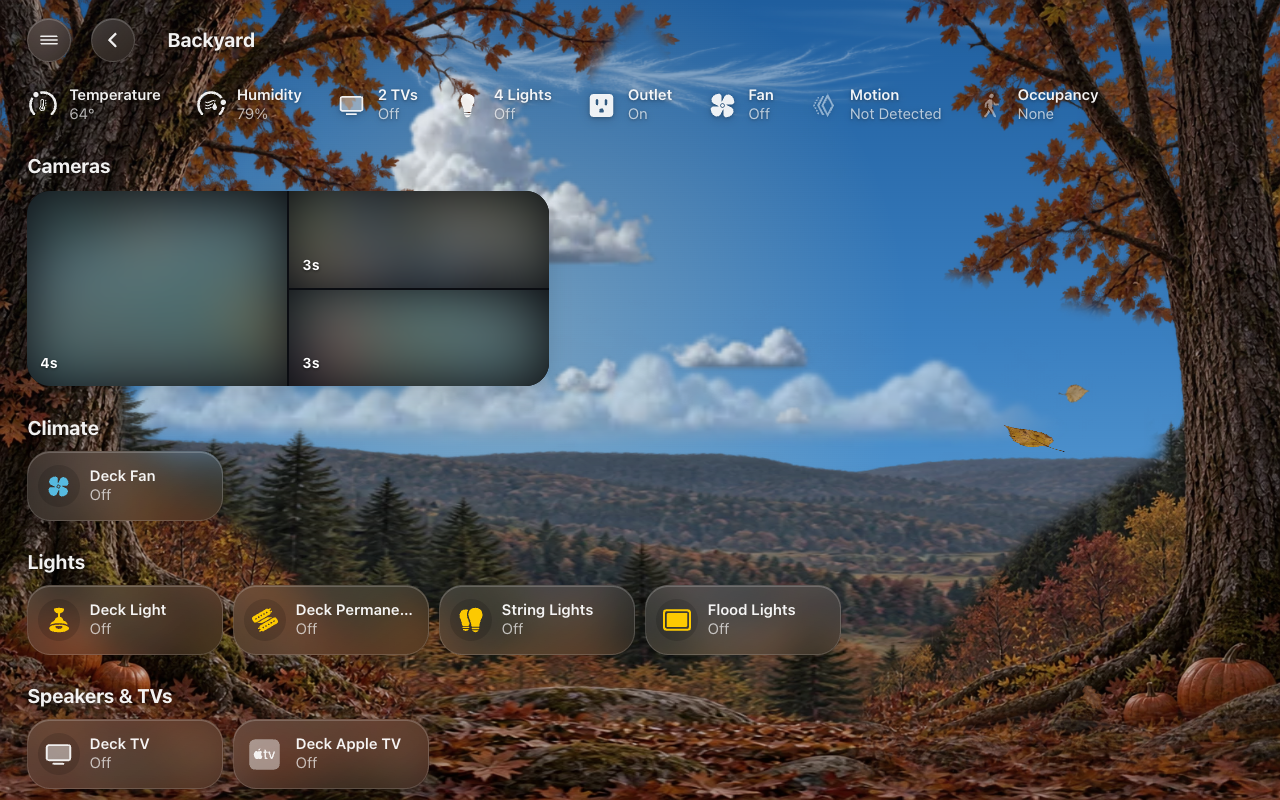
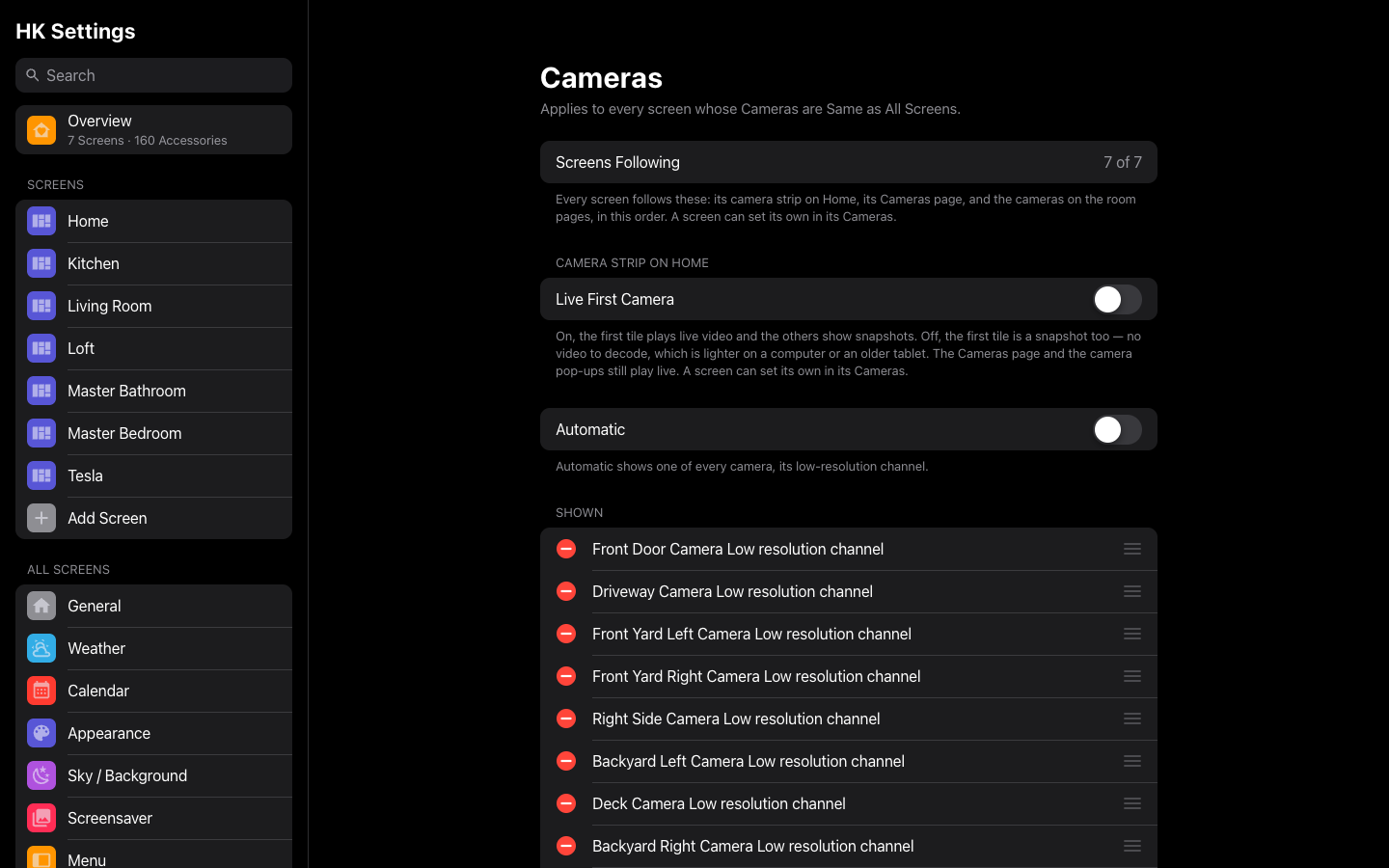
- The Cameras page is live in Safari again. Desktop Safari couldn’t connect nine live cameras at once, and showed only snapshots. Now the cameras take turns, three at a time. Each tile opens on the camera’s last picture and turns live the moment its video is on screen, with no blank or gray flash. A camera that doesn’t connect is retried. All of them are live within seconds, in every browser.
- One camera list for all screens: All Screens → Cameras sets which cameras and their order: each screen’s camera strip, Cameras page and room pages. A screen can still keep its own (Same as All Screens, off). Your existing list moves there by itself.
- A room’s cameras as a strip, as the Home app draws a room: one tall, then two stacked, as snapshots with their age. A single camera is one wide 16:9 snapshot.
- The camera strip and the Cameras page are silent; sound is only in a camera’s own sheet.
A livelier sky, your way
- Liveliness (All Screens → Sky / Background): how many bats, geese, leaves, petals and fireflies there are, and how often the witch, Santa’s sleigh, a shooting star or a firework come by. Subtle, Classic (as before), Festive or Party, or Custom for each decoration, woodland season and the Night Sky separately. Calm When Nobody’s Around quiets it on a tablet nobody is near. Each screen can have its own. Sky Lab has Liveliness, This Screen and Show Me Now.
- Frosted glass: Tint from Background. Each card’s frost takes the color of the page behind it instead of one gray, following the live sky through the day, for all screens or one.
A menu for each device
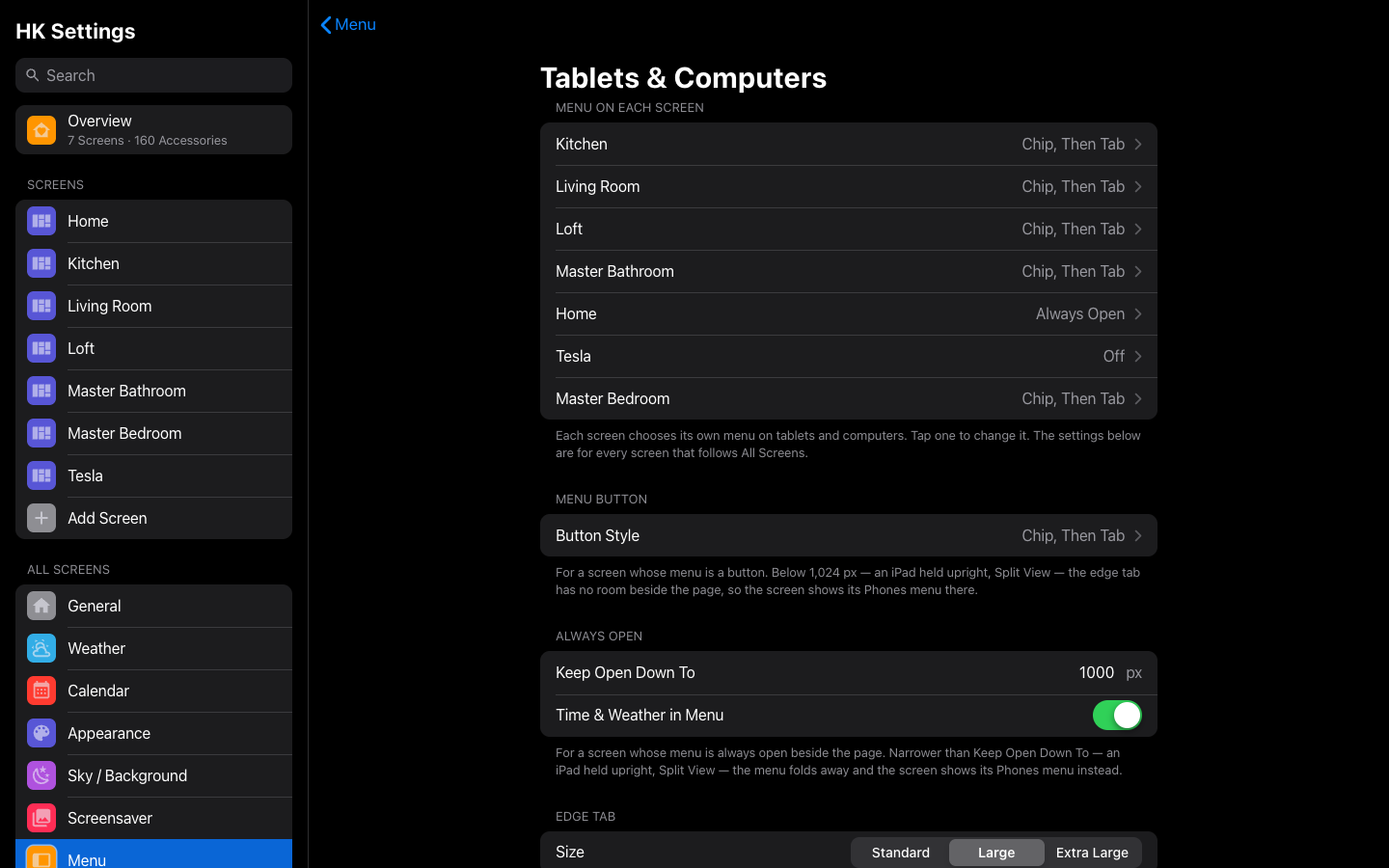
Tablets & Computers and Phones each choose their own menu (off, a button, always open, the tab bar) and its settings, the tab bar’s More sheet too. A tablet whose menu doesn’t fit (an upright iPad, a narrow window) shows its Phones menu. Each device’s page starts with every screen’s menu on that device. The tab bar’s highlight slides between tabs and sits evenly at every size and position.
Smaller features & bug fixes
- Snappier page switches: a page you’ve been to before shows as soon as it is drawn, without a quarter-second hold. A tap on a chip or the back button answers at once.
- Calendar: the arrows, Today and Day / Week / Month are glass like the calendar (they ignored the screen’s Glass setting before), and the view switch lines up with the column below it.
- Wall tablets: a clean wake from black every time. No stale photo, no half-drawn page, no white camera tile. The sky and cards hold still under the black (about a third of the CPU it used), and nothing starts there that the wake would have to wait for.
- The menu doesn’t bounce on load: Home Assistant’s sidebar goes at once, and a menu that docks by itself appears in place.
- The overcast cloud ceiling is drawn on a canvas, so the lower scenery no longer drops out for a frame on a tablet short of graphics memory.
- The vacuum’s battery updates while docked; Today’s Cost is in your currency; settings search lights the row on pages under a screen; Energy says which battery is the house’s; the Alarm PIN’s Add waits for the new PIN’s panel.
- The screensaver’s shooting stars and fireworks re-aim from a timer; a cloud manifest that fails to load is retried.
- New card for your own dashboards:
hk-camera-live-card(one live camera that takes its turn on a page of them), and the camera strip’sstills_onlyandown_camerasoptions (Card Library). - Screenshots retaken throughout, with new ones for Sleep Screen, cameras, the calendar and the menu by device.
Upgrading
Update through HACS (or copy custom_components/hk_frontend) and restart Home Assistant, then reload each screen once (on a wall tablet, clear the app’s cache).
- Your settings move by themselves on the first start. Each screen’s menu on phones is written down as phones showed it, and the camera list most screens shared becomes All Screens’ (a screen with a different list keeps its own). Nothing you see changes.
- Sleep Screen is opt-in. A screen keeps doing exactly what it did until you change When Idle → Sleep Screen. To let HK Frontend decide, choose the tablet’s Kiosk Satellite and turn off your own sleep/wake automations for that screen.
- On a wall tablet, turn the tablet’s adaptive brightness off if HK Frontend sets the brightness, and Kiosk Satellite’s Pause dashboard during screensaver off (Wall Tablets).
HK Frontend 1.5.5
A brighter, more natural daytime sky, a Daytime Sky setting to choose how bright, Sky Lab for trying any sky on your own dashboard, and a new Tools page in the wiki. Builds on 1.5.4.
Changes
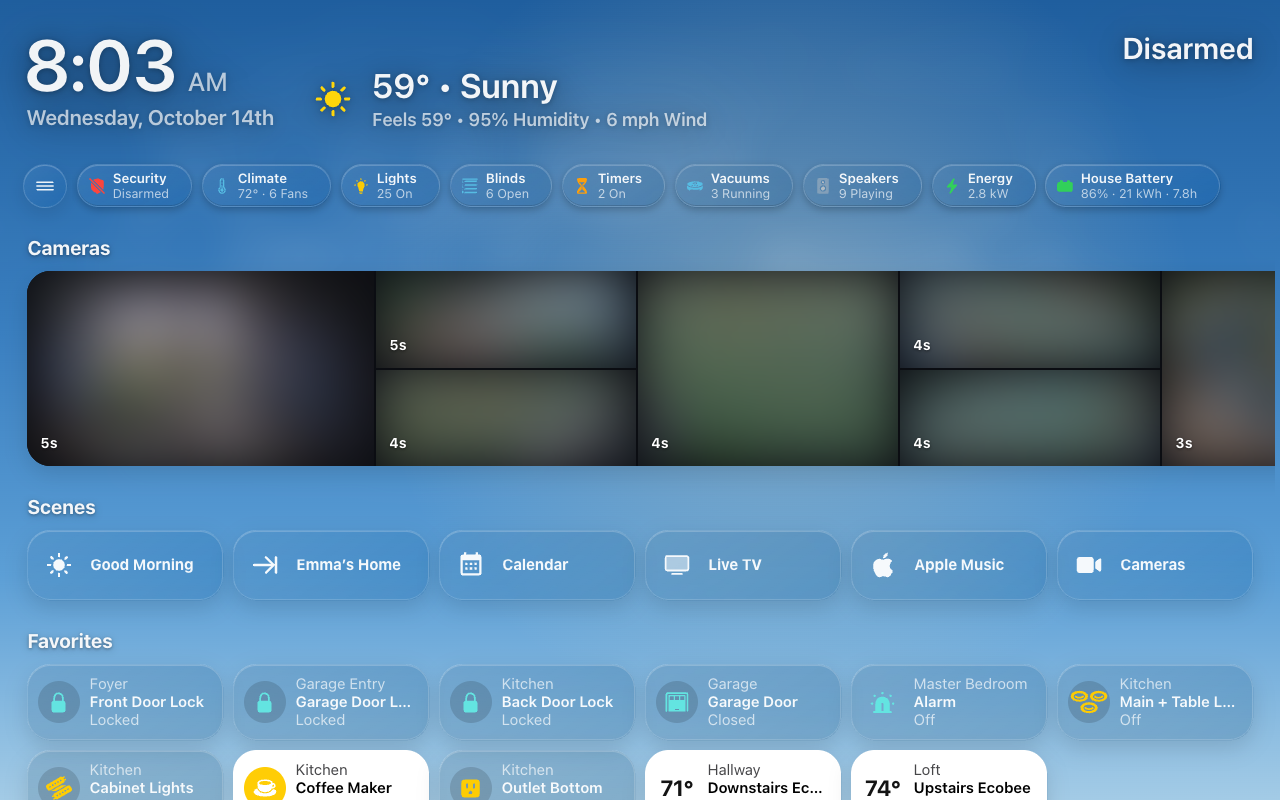
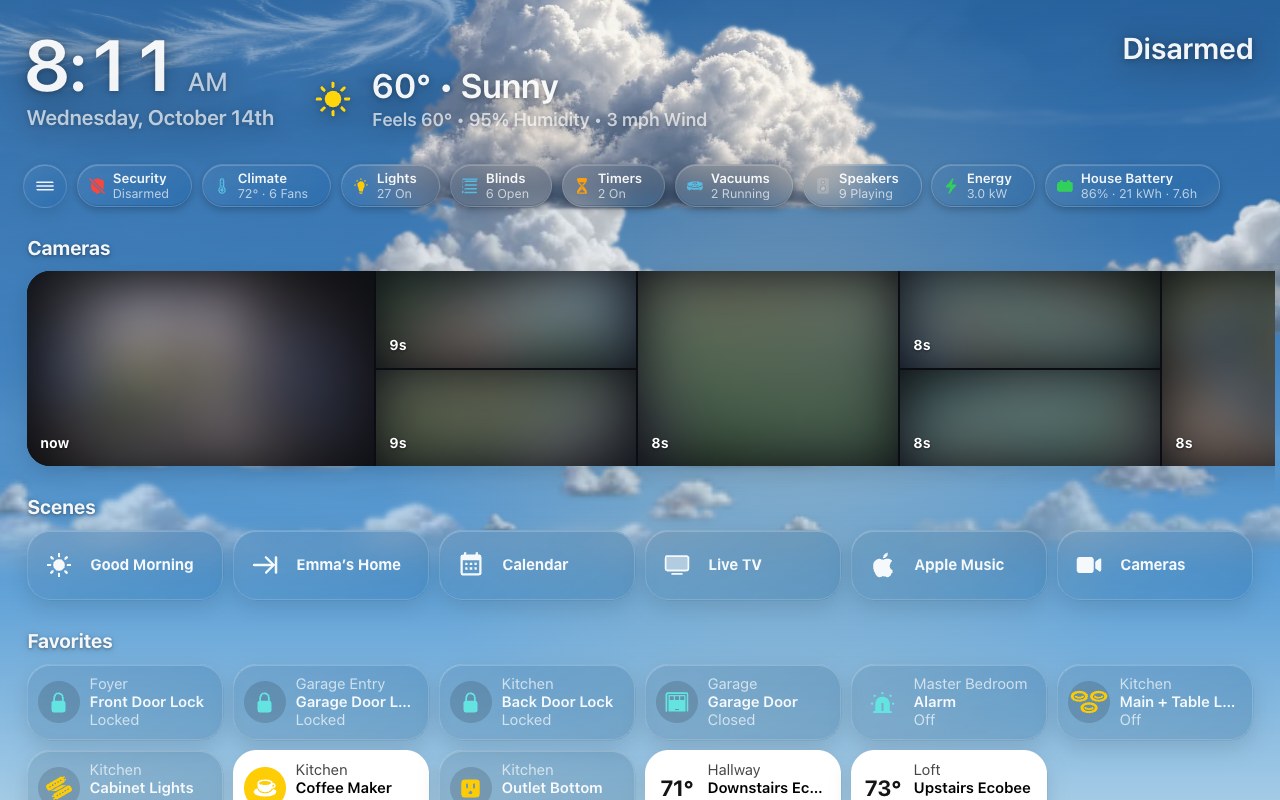
- A natural daytime sky: with the sun well up, the sky is now a real sky blue instead of a deep, dusky one. The shade behind the cards rises with it, so glass tiles and white text stay readable at noon. A grey day stays grey: the blue fades out as the sky clouds over, and rain, snow, storms and fog keep the sky as it was. Sunrise, golden hour, sunset, dusk and night look the same as before.
- Daytime Sky (HK Settings → Sky / Background, beside Clouds): Natural (the new default), Balanced or Deep (the darker blue the sky had before). Each screen can choose its own under Appearance → Sky / Background.
- Sky Lab (
/hk/pages/skylab.html): set the time of day, cloud cover, weather, wind, moon, brightness, clouds and scene by hand and watch the sky change. Show → Dashboard opens one of your own dashboards with the same controls over it. It's preview only: taps open things, but nothing in the house switches until you press Exit. - A Tools page in the wiki: the diagnostic pages, the address flags, the browser-console helpers, the test runners and the art and publishing scripts, each with what it's for and how to run it.
- Screenshots retaken for the new sky: the screens, the live sky and the realistic clouds in every weather, the forecast screensaver by day, the tab bar sizes and the Sky settings page.
Upgrading
Update through HACS (or copy custom_components/hk_frontend) and restart Home Assistant, then reload each screen once.
- The brighter sky is the new default. To keep the darker sky you had, set Sky / Background → Daytime Sky to Deep, for all screens or for one.
HK Frontend 1.5.4
A tab bar that fits its tabs and grows into More, a Size setting, a Home Assistant section you can place, a brighter Realistic sky, and a new front page. Builds on 1.5.3.
Changes
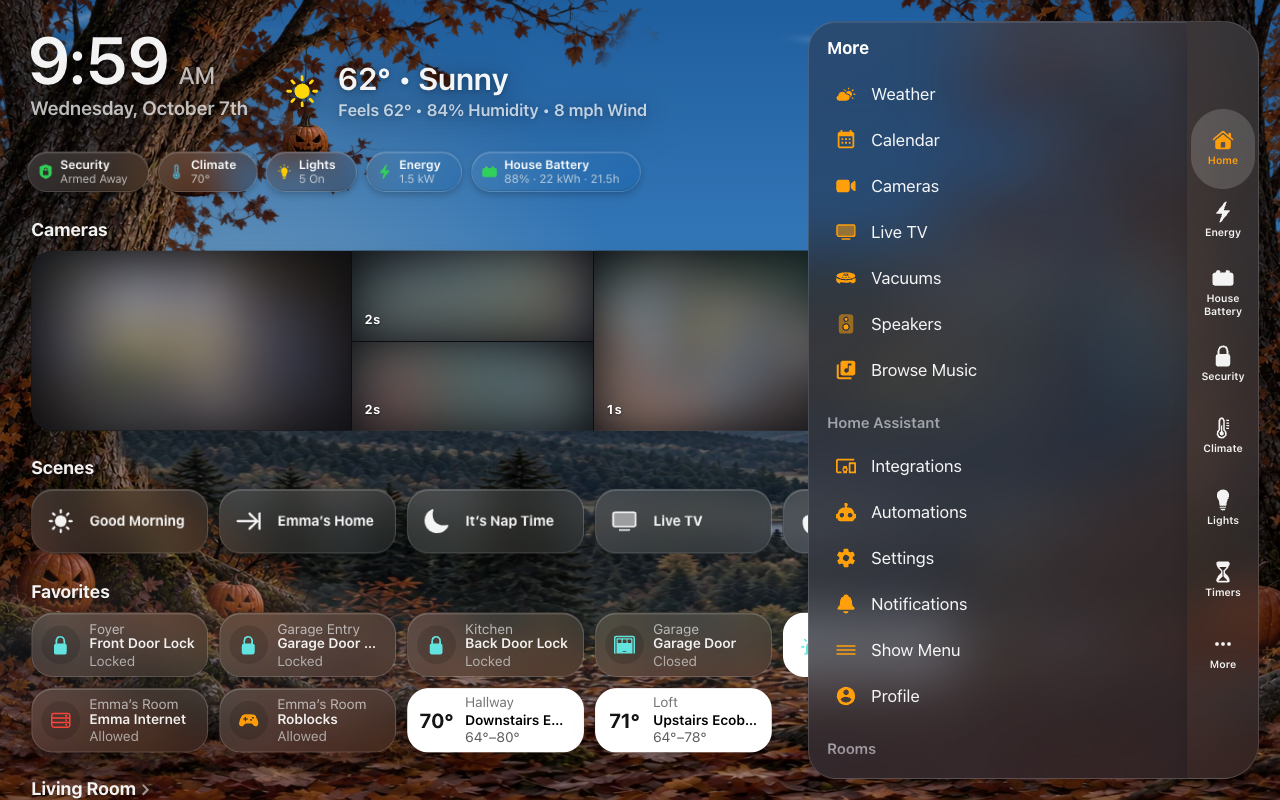
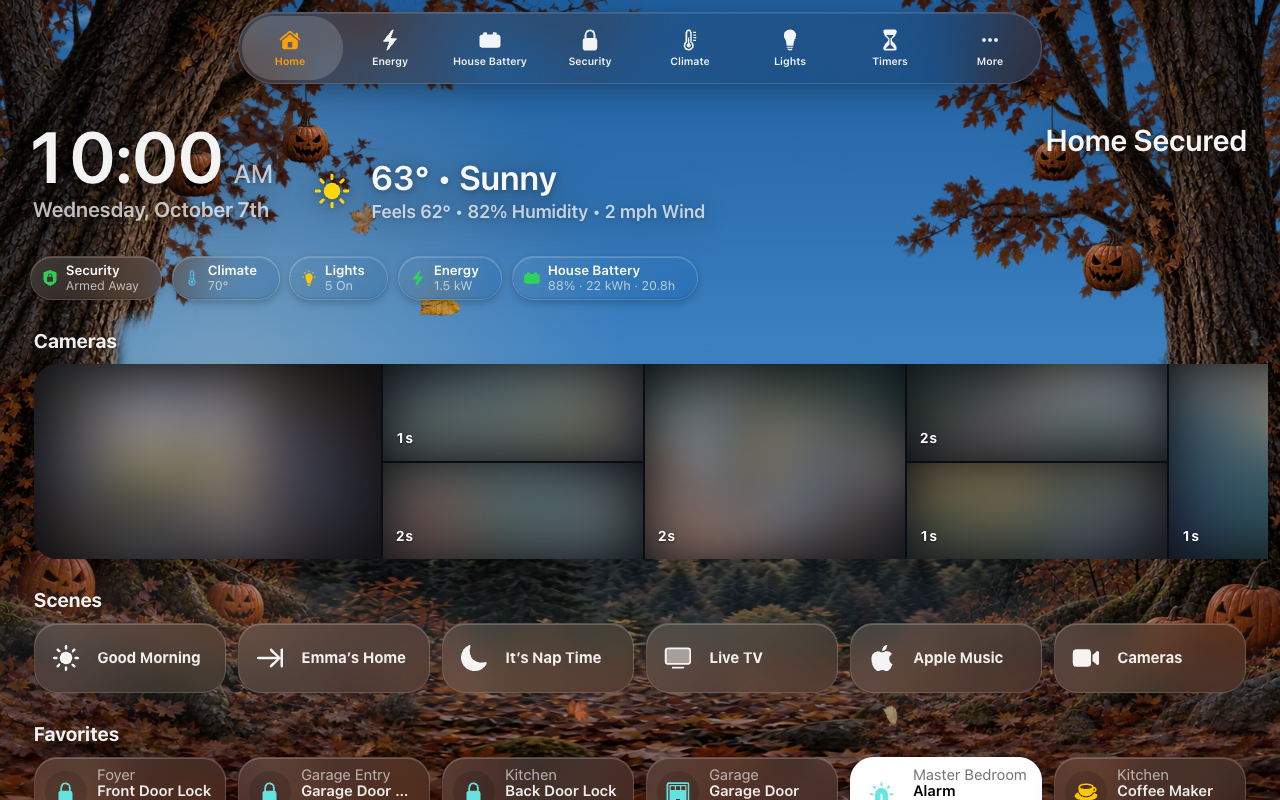
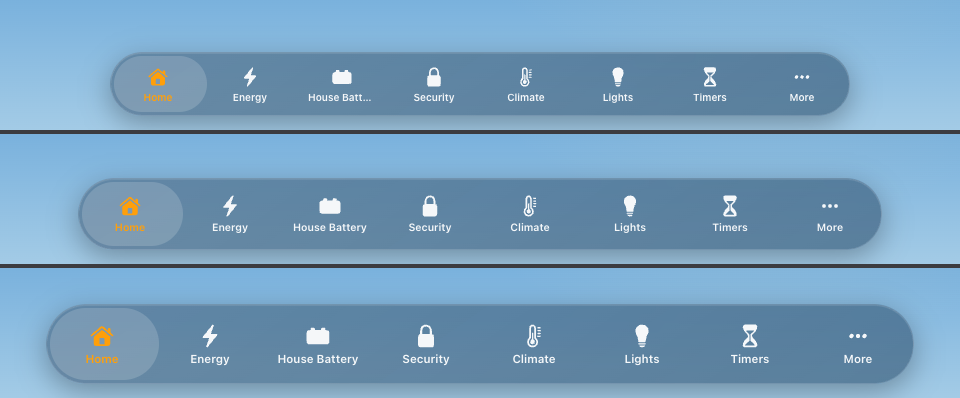
- Tab bar Size: Small, Medium (the default) or Large. Each size changes the bar's thickness (a rail's width), its icons and its names together.
- Phone: 52, 60 or 68 px.
- Tablet bar or rail: 64, 72 or 80 px.
- Everything around the bar follows: the small button, the Rooms button, where More opens, the room the page makes, and the now-playing bar beside a rail.
- A phone keeps Medium's names at Large, so they aren't cut shorter.
- The bar fits its tabs: at rest the bar is only as wide as its tabs, and a rail only as tall as them. Opening More grows the bar into More's size in one motion, and closing shrinks it back. It's one shape the whole way.
- Tabs in Bar and Tabs in Rail: choose how many pages get a tab, from 2 to 8 (6 by default). Home and More always have theirs and aren't counted. A phone shows Home, 3 pages and More.
- One thickness on a tablet: the bar and the rail are both 72 px at Medium. A phone stays at 60.
- A vertical pill on a rail: the page you're on is highlighted with a pill as tall as the tab. It keeps the same 4 px gap from the rail's edge all round as the bar's capsule does.
- Home Assistant section placement: Top, Above Categories, Above Rooms (the new default) or Bottom. It applies to the side menu and to the tab bar's More alike, and HK Settings shows it for Tab Bar screens too.
- Realistic clouds, brighter: a fair or partly cloudy day now stays as bright and blue as Classic clouds. The overcast's faint ceiling comes in only as the sky clouds over.
- A new front page: sections for getting around (the menu and the tab bar) and for wall tablets, with every screenshot retaken.
Bug fixes
- More opening: More could show as an empty slab and then pop its content in. It now opens out of the bar with its content already there.
- Adjust Content after a resize: turning a tablet past 640 px, or changing the size, now redoes the room the page makes for a top bar or a rail.
Upgrading
Update through HACS (or copy custom_components/hk_frontend) and restart Home Assistant, then reload each screen once.
- Home Assistant section: the side menu's section now sits above Rooms by default, where the tab bar's More already had it. To keep it above Categories, set Menu → Home Assistant Section → Placement.