Repository navigation
Sleep Screen
A wall tablet should be dark when nobody needs it and awake the moment somebody does: lit when you walk into the kitchen, dark again after you leave, black all night in the bedroom, and up at once for the doorbell or a smoke alarm. Sleep Screen is how HK Frontend does that.
You set it per wall tablet: HK Settings → All Screens → Wall Tablets → (a
tablet) → Sleep Screen (#/house/tablets/<id>/sleep in HK Settings; a
screen’s old Sleep Screen address, from before tablets were their own items,
opens its first tablet’s). Two tablets running the same screen can sleep
differently. It answers two questions:
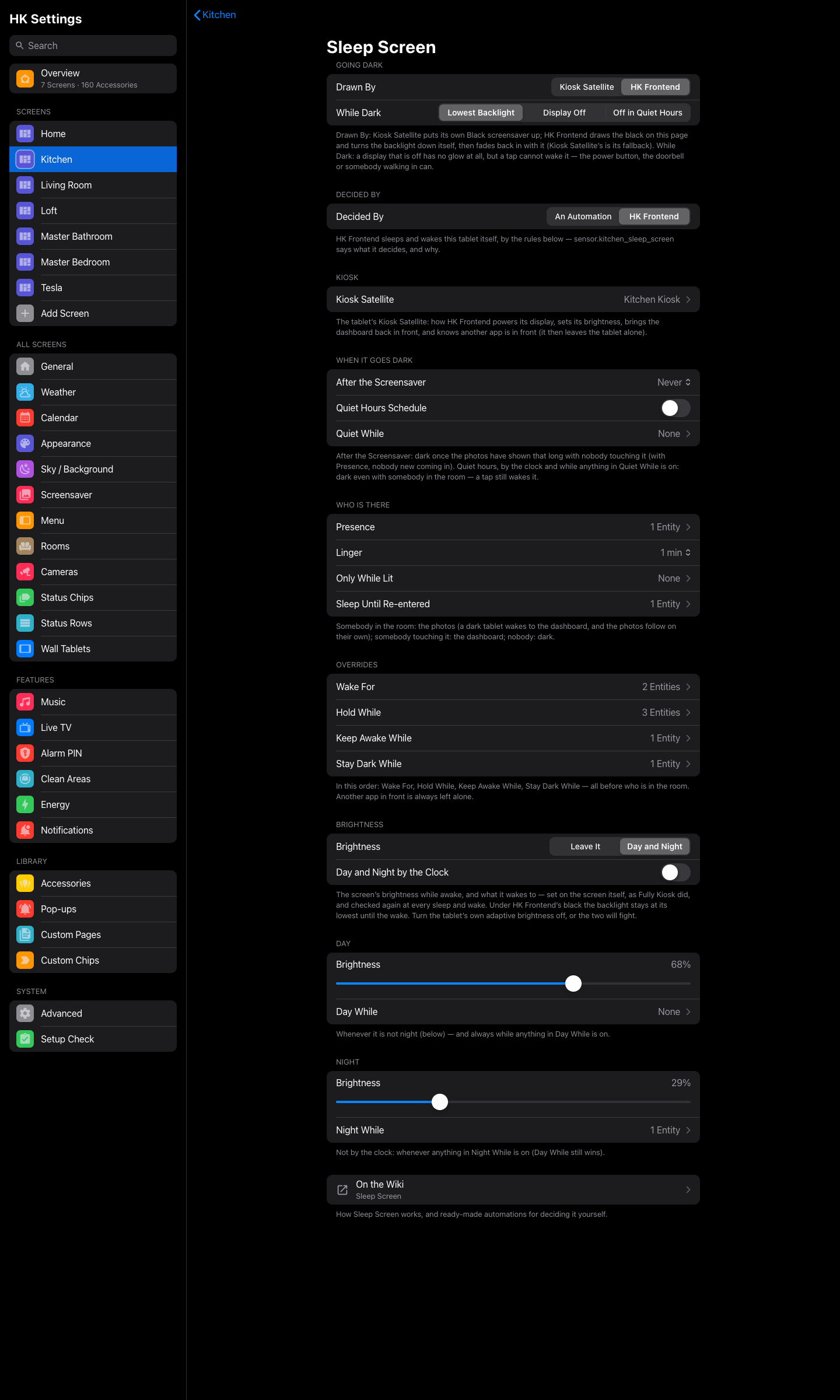
- How does the tablet go dark? Kiosk Satellite’s own black screensaver, or HK Frontend’s black drawn on the page, with the backlight at its lowest or the display switched off.
- Who decides when? Either your automations, which turn a switch on and off, or HK Frontend itself. In that case you tell it who is in the room, what should wake it, what should keep it dark and when quiet hours are, and it does the rest.
- What you need
- The four things a tablet can show
- Going dark
- Decided By: An Automation
- Decided By: HK Frontend
- Recipes
- Automations alongside HK Frontend
- The entities
- Troubleshooting
- A wall tablet (All Screens → Wall Tablets), running a screen with the Photo Screensaver on (When Idle → Photo Screensaver). Its start URL (or its own Home Assistant user) tells HK Frontend which browser is the wall tablet. A computer opening the same screen never sleeps, never wakes and never counts as a touch. See Wall Tablets.
- For HK Frontend’s own black and for HK Frontend deciding: Kiosk Satellite on the tablet, with its Home Assistant integration (Wall Tablets → Or Kiosk Satellite). That is how HK Frontend turns the backlight down, switches the display off and on, sets its brightness, brings the dashboard back in front, and sees another app in front. Without it, An Automation and Kiosk Satellite’s black still work with whatever your tablet offers.
- On the tablet: turn the tablet’s own adaptive brightness off (it fights any brightness HK Frontend sets), and in Kiosk Satellite turn Pause dashboard during screensaver off, so the dashboard is drawn and ready the instant it wakes. Wall Tablets has the full list of tablet settings.
Everything below is about moving the tablet between these:
| The tablet shows | |
|---|---|
| Dark | black: HK Frontend’s or Kiosk Satellite’s, the backlight at its lowest or the display off |
| Photos | the photo screensaver, with the time, weather and anything else it shows |
| Dashboard | the screen itself |
| Hold | whatever it is showing now, untouched: an automation or another app is in charge for the moment |
The photos come up by themselves after Starts After without a touch, so a tablet that is awake on the dashboard drifts into photos on its own. Sleep Screen only ever has to decide between dark and awake.
The top of the page: Going Dark.
- Kiosk Satellite (the default) puts the app’s own Black screensaver up.
-
HK Frontend draws the black on the page itself and turns the backlight
down to its lowest through Kiosk Satellite. Waking, it fades the dashboard
back in with the backlight coming up alongside, so you never see a flash of
an old frame, a white camera tile or a half-drawn page. Other details:
- A tap wakes it at once, and the tap is not passed on to whatever tile is under your finger.
- A page that reloads while black (the app’s nightly restart, say) is covered again as soon as HK Frontend loads.
- If the page doesn’t answer within a few seconds, Kiosk Satellite’s black is used instead, so the tablet always goes dark.
- Lowest Backlight: the display stays on at its dimmest, under the black. A tap wakes it.
- Display Off: no glow at all. A tap cannot wake a display that is off; the power button can, and so can anything that wakes it (somebody walking in, the doorbell) when HK Frontend decides.
- Off in Quiet Hours: the lowest backlight by day, the display off during quiet hours (a bedroom).
The default. Nothing in HK Frontend makes the tablet sleep on its own.
Your automations turn the tablet’s black screen switch on to sleep and off
to wake. Use the Set black screen action
(hk_frontend.set_black_screen), which also carries the brightness to come
back to:
| Field | |
|---|---|
black |
true: dark. false: awake. |
brightness |
0–255, the brightness it wakes to (and stays at while awake). Optional; sent alone, it changes the wake brightness while staying dark. |
Dark at 11 PM, waking to a dim screen:
triggers:
  - trigger: time
    at: "23:00:00"
actions:
  - action: hk_frontend.set_black_screen
    target:
      entity_id: switch.kitchen_black_screen
    data:
      black: true
      brightness: 75        # what it wakes to
Awake when somebody walks in; dark five minutes after the room empties:
triggers:
  - trigger: state
    entity_id: binary_sensor.kitchen_motion
    to: "on"
    id: "in"
  - trigger: state
    entity_id: binary_sensor.kitchen_motion
    to: "off"
    for: { minutes: 5 }
    id: "out"
actions:
  - action: hk_frontend.set_black_screen
    target:
      entity_id: switch.kitchen_black_screen
    data:
      black: "{{ trigger.id == 'out' }}"
…but never while somebody is using it (the tablet’s In Use sensor):
conditions:
  - condition: state
    entity_id: binary_sensor.kitchen_screen_in_use
    state: "off"
Awake for the doorbell, then back to whatever it was doing two minutes later:
triggers:
  - trigger: state
    entity_id: binary_sensor.front_door_doorbell
    to: "on"
actions:
  - action: hk_frontend.set_black_screen
    target:
      entity_id: switch.kitchen_black_screen
    data:
      black: false
  - delay: { minutes: 2 }
  - condition: state
    entity_id: binary_sensor.kitchen_screen_in_use
    state: "off"
  - action: hk_frontend.set_black_screen
    target:
      entity_id: switch.kitchen_black_screen
    data:
      black: true
Things worth knowing when you decide it yourself:
-
Don’t write the tablet’s brightness while it is black. The page holds
the backlight down and restores the brightness you gave. To change the wake
brightness while dark, send the action with only
brightness. -
confirmed. The switch’sconfirmedattribute turns true once the page is actually black, usually within a fraction of a second. If it doesn’t within a few seconds (the page isn’t running, or is reloading), put Kiosk Satellite’s Black screensaver up instead. - A tap sees itself first. A tap that wakes the screen turns its In Use sensor on in the same moment the switch goes off. An automation that keeps a touched tablet awake sees the touch before it sees the black gone.
Set Decided By to HK Frontend and it sleeps and wakes the tablet itself. You don’t write any automations. Instead you hand it entities: presence sensors, the things that should wake it, keep it awake, keep it dark or leave it alone. It watches them all the time and acts the moment one changes.
It runs inside Home Assistant, not on the page. A tablet that is reloading, or asleep with its display off, still wakes for the doorbell, because Home Assistant is what notices the doorbell and tells the tablet.
Every list takes as many entities as you like. Any of them on counts:
on, open, detected, playing, active, triggered and the like, and
an active timer.
Checked from the top whenever anything changes; the first that applies decides.
| # | Rule | The tablet | Example |
|---|---|---|---|
| 0 | A notification set to Wakes the Screen | wakes up to the screensaver for its while, the banner over the photos, even at 3 AM | a water leak |
| 1 | Wake For, ticked Also in Quiet Hours | wakes to the dashboard, even at 3 AM | smoke, CO, a water leak |
| 2 | Quiet hours: the Schedule (from–to), or anything in Quiet While on | dark, even with somebody in the room; only a tap, or what is ticked Also in Quiet Hours under Hold While, changes that | 10 PM–7 AM in a bedroom; a nap timer |
| 3 | Wake For | wakes to the dashboard, and stays up while it is on | the garage door left open |
| 4 | Hold While | left exactly as it is, so your automation owns it for now | the doorbell’s answer pop-up, the alarm keypad |
| 5 | Another app in front | left alone | Netflix, the camera app |
| 6 | Keep Awake While | the dashboard stays up | watching live TV on it, a recipe open |
| 7 | Stay Dark While | dark | away mode, the house empty |
| 8 | Somebody touching it (In Use) | the dashboard | |
| 8½ | Somebody using the photo screensaver’s own controls | the photos stay | the music’s buttons, its Speakers / Volume / Browse panel, a photo stepped at an edge |
| 9 | Somebody in the room (Presence) | awake: a dark tablet wakes to the dashboard, and the photos follow on their own | |
| 10 | Nobody | dark |
Three gentler rules sit in the last part of the table:
- Only While Lit: somebody walking in wakes it only while one of its lights is on. In a dark room, presence alone leaves it dark (a tap still works).
- Sleep Until Re-entered: turning one of these on darkens it even with somebody still in the room. It stays dark until somebody comes back in (presence clears, then returns).
- After the Screensaver: once the photos have shown that long with nobody touching it (and, with Presence, nobody new coming in), dark.
A tap on the screensaver’s own controls isn’t a wake. The music’s buttons, its volume, its Speakers / Volume / Browse panel and a photo stepped at an edge leave the photos up, so the screensaver tells Home Assistant the tap was its own. Kiosk Satellite reports the same tap as the tablet’s last interaction too, sometimes before the screensaver has said it was its own, so a tap seen while the photos are up waits up to 3 seconds for the screensaver’s word before it counts as a wake. Sleep Screen reads it as somebody is using the screensaver and keeps the photos (as long as In Use would keep the dashboard), where it would otherwise have woken the dashboard out from under the finger. Quiet hours don’t black the screen under it either. Any other tap closes the screensaver itself, as always.
A missing sensor never guesses. If a presence sensor or the tablet’s In Use state is unavailable (a sensor restarting, Home Assistant starting up), the tablet stays as it is (holding – an input is unavailable) instead of going dark on a family in the room. Wake For still works.
Kiosk Satellite: the tablet’s Kiosk Satellite device, the one chosen on the tablet’s page (Setup → Kiosk App: Kiosk Satellite, and its Device). HK Frontend uses it to:
- switch the display off and on;
- set the brightness;
- bring the dashboard back in front when it wakes;
- see another app in front, and then leave the tablet alone.
Choose it there for everything below to work fully.
- After the Screensaver: Never (the default), 5, 15 or 30 minutes, or 1, 2 or 4 hours of photos with nobody touching it. With Presence, somebody new walking in starts it over. Without Presence, this is the only thing that ever darkens an occupied room. Good for a tablet with no motion sensor nearby.
- Quiet Hours Schedule: dark from From to To every day (it may cross midnight: 10:00 PM to 7:00 AM). Even with somebody in the room.
-
Quiet While: quiet hours also while any of these is on, whatever the
clock says: a Good Night timer, a nap timer, a "Do Not Disturb"
input_boolean.
In quiet hours a tap still wakes it. It goes dark again once you stop using it (the In Use window, a minute less than Starts After). With While Dark: Display Off or Off in Quiet Hours, the display is off and a tap can’t reach it, so the power button wakes it. HK Frontend treats a display lit by the power button as a touch: the dashboard for a minute, then dark again.
- Presence: as many sensors as the room has. Motion, occupancy, an mmWave radar, a person’s or watch’s room from Bermuda or ESPresense. Any of them on means somebody is there. With none, the room always counts as occupied, and only After the Screensaver, quiet hours and the overrides darken it.
- Linger: how long the room still counts as occupied after the last sensor clears. None, 30 seconds, or 1, 2, 5, 10, 15 or 30 minutes; 1 minute by default. Raise it for a motion sensor that clears quickly while somebody sits still.
- Only While Lit: lights (or switches). Somebody walking in wakes it only while one of them is on. A tap always works, and so does a tap made after the lights went off: somebody deliberately using it in the dark.
-
Sleep Until Re-entered: anything that marks "we’ve said goodnight": a
Good Night timer, a scene’s
input_boolean. Turning it on darkens the tablet even though the room is still occupied. It wakes again when somebody comes back in.
In this order, all before who is in the room:
-
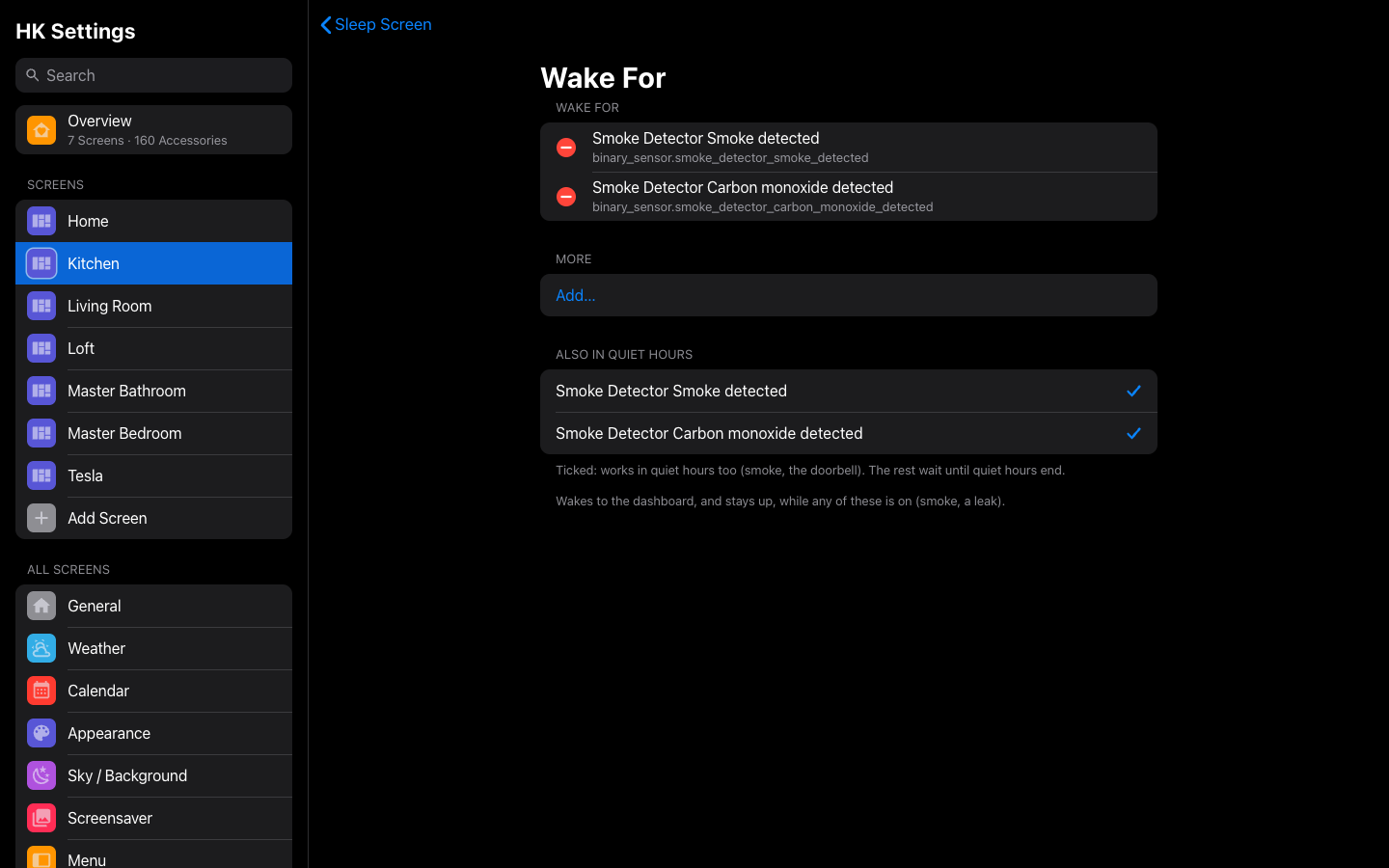
Wake For: wakes to the dashboard and stays up while any of these is on. Each entity has an Also in Quiet Hours tick. Ticked, it wakes even during quiet hours (smoke, CO, a leak); unticked, it waits until quiet hours end.
-
Hold While: while any of these is on, HK Frontend leaves the tablet exactly as it is. Use it for anything an automation of yours controls:
- the doorbell’s answer pop-up (a
timeryour doorbell automation starts); - the alarm’s keypad;
- a tablet you are configuring.
Each has the same Also in Quiet Hours tick. Tick the doorbell, and it still comes up at night.
- the doorbell’s answer pop-up (a
-
Keep Awake While: the dashboard stays up while any of these is on. For things a person is watching without touching: live TV playing on the tablet, a timer ringing, a recipe open.
-
Stay Dark While: dark while any of these is on: away mode, the alarm armed away, a "Vacation"
input_boolean. The three above still win, so the smoke alarm and the doorbell wake it even when you are away.
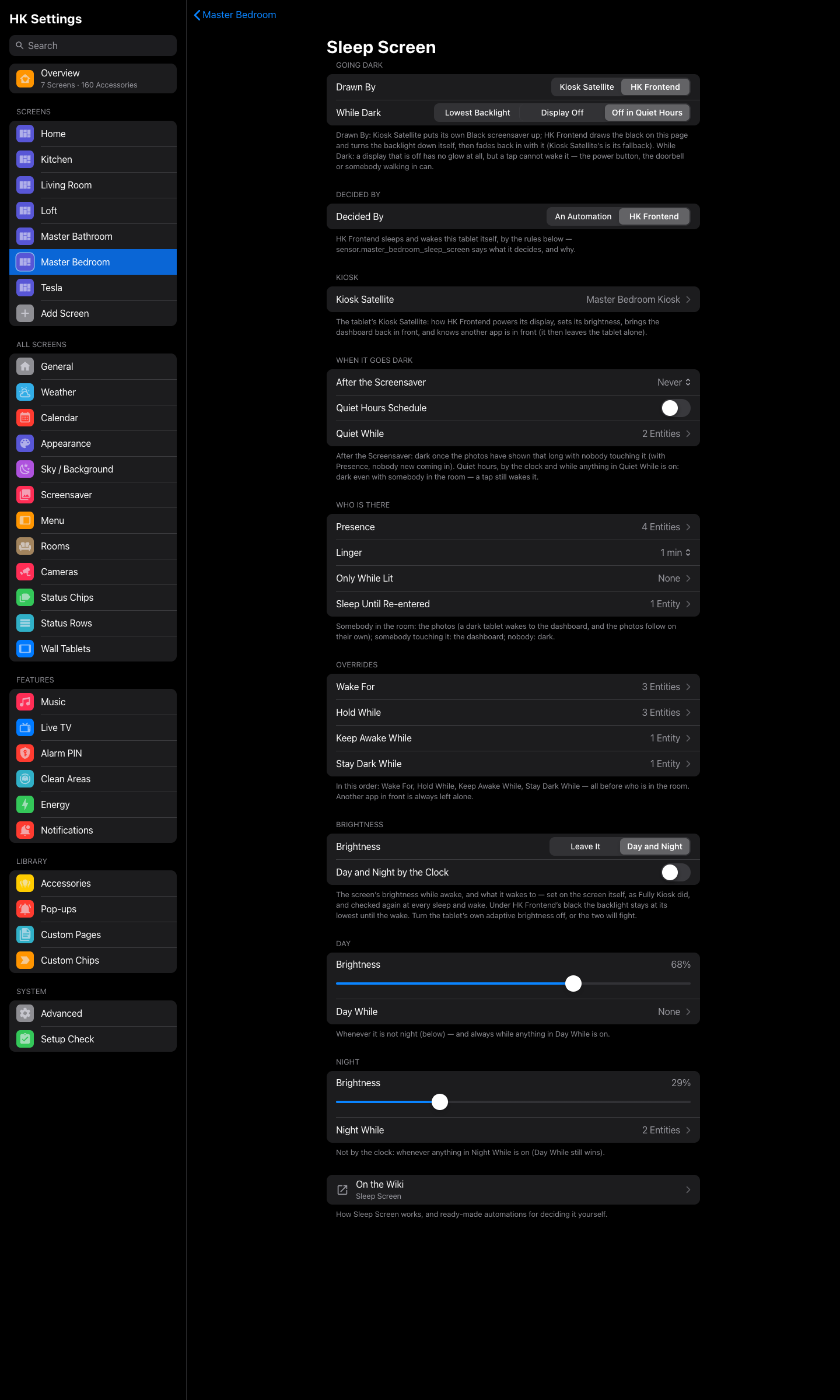
- Leave It: HK Frontend never sets the brightness. The tablet keeps its own.
-
Day and Night: two levels, Day and Night (in %), and which one
applies when:
- Day While: anything here on means the day level, even at night. In a bathroom: the vanity lights turned up bright.
- Night While: anything here on means the night level, whatever the clock says: a Good Night timer, a nap timer.
- Day and Night by the Clock: on, each starts at its own Starts At time. Off, it is day unless something in Night While is on.
HK Frontend sets it on the tablet when it changes, and checks it again at every sleep and wake, so a tablet that was offline at the change is put right the next time it wakes. A black screen wakes straight to it. Under HK Frontend’s black the backlight stays at its lowest until the wake.
Turn the tablet’s own adaptive brightness off, or the two will fight.
- It acts from Home Assistant. Reloads, restarts and a display that is off don’t stop it waking the tablet.
- Every change is one move. Waking turns the display on if it is off, takes the black down, brings the dashboard in front, sets the brightness and checks that the backlight really came up (and puts it right if not). Sleeping puts the black up, turns the display off if asked, and falls back to Kiosk Satellite’s black if the page doesn’t answer.
- It never loops. At most six actions a minute. More than that is a configuration fighting itself (an automation of yours undoing it), and it waits.
-
It tells you why.
sensor.<tablet>_sleep_screensays what it decided, and why, in words (see The entities). - The power button and a tap always work. A tap wakes it at once, even in quiet hours. A display lit by hand counts as a touch.
- It only starts once its entities exist, so a Home Assistant restart never sees half the sensors and makes a wrong call.
Each of these is just settings on the page: no automations.
- Presence: the kitchen’s occupancy or motion sensors
- Linger: 2 minutes
- Wake For: smoke and CO, both ticked Also in Quiet Hours
- Hold While: your doorbell automation’s timer (ticked), the alarm
- Stay Dark While: away mode
- Brightness: Day and Night, with Night While your Good Night timer
- Presence: the bathroom’s motion sensors
- Only While Lit: the vanity, the shower light, the toilet light. Walking in at night with the lights off doesn’t light the tablet in your face.
- Brightness: Day and Night. Night While is the Good Night timer and Day While is "vanity turned up bright" (a template binary sensor, below), so at night it is dim unless you’ve turned the lights up.
template:
  - binary_sensor:
      - name: Master Bathroom Vanity Bright
        state: >-
          {% set b = state_attr('light.master_bathroom_vanity', 'brightness') %}
{{ is_state('light.master_bathroom_vanity', 'on') and (b is none or b | int(0) > 191) }}- Quiet Hours Schedule: 10:00 PM to 7:00 AM, and Quiet While the nap timer as well
- While Dark: Off in Quiet Hours (no glow at night)
- Wake For: smoke and CO, ticked
- Hold While: the doorbell’s timer, ticked (it comes up at night), and the alarm, unticked (it waits for morning)
- At night, the power button wakes it to the dashboard for a minute.
Something a person watches without touching goes in Keep Awake While. If what you have isn’t an on/off entity (a list of who is watching, say), make it one with a template binary sensor:
template:
  - binary_sensor:
      - name: Living Room Tablet Watching TV
state: "{{ 'livingroom' in (state_attr('sensor.tv_viewers', 'users') or []) }}"Leave Presence empty and set After the Screensaver to 30 minutes. The tablet shows photos after Starts After, goes dark after half an hour of photos, and wakes on a tap. Add a Quiet Hours Schedule for the night.
Put your Good Night timer (or the input_boolean your goodnight scene turns
on) in Sleep Until Re-entered. Saying goodnight darkens every tablet,
even in rooms you are still in, and each one wakes again the next time
somebody walks into its room.
HK Frontend deciding doesn’t mean your automations stop. They work best by changing what it watches, not by fighting it:
-
Give it a helper. Create an
input_boolean(Settings → Devices & Services → Helpers) and put it in the right list. Then any automation, a dashboard button or a voice command can flip it:Put the helper in and turning it on Wake For wakes the tablet and keeps it up (a notification you want seen) Keep Awake While keeps it up (a cooking timer, a party) Stay Dark While keeps it dark (movie night) Hold While hands the tablet to your automation for as long as it is on Quiet While quiet hours now Sleep Until Re-entered dark until somebody comes back in Example: wake the kitchen tablet for five minutes when the washer finishes.
triggers:
  - trigger: state
    entity_id: sensor.washer_status
    to: "done"
actions:
  - action: input_boolean.turn_on
    target:
      entity_id: input_boolean.kitchen_tablet_wake
  - delay: { minutes: 5 }
  - action: input_boolean.turn_off
    target:
      entity_id: input_boolean.kitchen_tablet_wake
-
Take the tablet for a while: Hold While. Your doorbell automation starts a
timer, shows its pop-up, and turns the screen on. While that timer is in Hold While, HK Frontend keeps its hands off. When it finishes, HK Frontend picks up again from whoever is in the room.triggers: - trigger: state entity_id: binary_sensor.front_door_doorbell to: "on" actions: - action: timer.start target: entity_id: timer.doorbell_tablet_hold # in Hold While (ticked) data: duration: "00:02:00" - action: hk_frontend.set_black_screen target: entity_id: switch.kitchen_black_screen data: black: false - action: hk_frontend.show_popup data: popup: doorbell
-
React to what it decides.
sensor.kitchen_sleep_screenis a normal sensor. Trigger on it goingdarkto turn off a lamp, or ondashboardto announce something. -
Don’t turn its switches yourself while HK Frontend decides, except while one of your Hold While entities is on (as the doorbell above). It sees the tablet change and puts it back as its rules say. Use a helper in one of the lists instead.
Moving over from your own automations: set Decided By to HK Frontend on one
tablet, turn off that tablet’s old sleep/wake automations, and watch
sensor.<tablet>_sleep_screen for a day. Its reason explains every move.
Copy Sleep Screen To…, on the tablet’s page, puts one tablet’s rules and brightness onto others (each keeps its own kiosk). The tablet’s page also has Wake Now and Sleep Now while HK Frontend decides: one move, and its rules decide again after.
For a tablet called Kitchen (each tablet has its own; their attributes
include tablet and the screen it runs, dashboard):
| Entity | |
|---|---|
switch.kitchen_black_screen |
On while the tablet is dark under HK Frontend’s black. Attributes: black_screen (who draws it: kiosk or hk), brightness (what it wakes to), confirmed (the page really went black). Turn it with hk_frontend.set_black_screen. |
switch.kitchen_photo_screensaver |
On while the photos show. |
binary_sensor.kitchen_screen_in_use |
On while somebody touched it within the In Use window (a minute less than Starts After). |
sensor.kitchen_sleep_screen |
What Sleep Screen decides, while HK Frontend decides: dark, photos, dashboard or hold. automation while your automations decide. |
sensor.kitchen_sleep_screen’s attributes:
| Attribute | |
|---|---|
reason |
why, in words: somebody is in the room, quiet hours, Smoke Detector is on, nobody here, the room’s lights are off, holding – an input is unavailable… |
actual |
what the tablet shows right now (dark, photos, dashboard) |
present |
somebody in the room, after Linger |
in_use |
somebody touching it |
quiet |
quiet hours now |
last_touch |
the last touch |
after_saver_at |
when After the Screensaver will darken it |
target_brightness |
the brightness it wants now (0–255) |
last_action |
the last thing it did, and when |
decided_by |
hk or automation
|
It goes dark with somebody in the room. Look at sensor.<tablet>_sleep_screen:
-
presentfalse: your presence sensor cleared. Add another sensor, or raise Linger. -
reason"the room’s lights are off": that is Only While Lit. -
reason"quiet hours": the schedule, or something in Quiet While.
It won’t go dark. The reason says what keeps it up: a Keep Awake While or
Wake For entity still on, in_use (somebody touched it), or hold (Hold While,
or another app in front).
A tap doesn’t wake it at night. While Dark is Display Off (or Off in Quiet Hours) and the display is off. Use the power button, or choose Lowest Backlight.
The brightness jumps around. The tablet’s own adaptive brightness is on. Turn it off in the tablet’s Display settings.
It woke but showed an old picture, a white tile or a half-drawn page for a moment. Use Drawn By: HK Frontend, and turn Kiosk Satellite’s Pause dashboard during screensaver off (Wall Tablets).
"holding – an input is unavailable". A presence sensor or the tablet’s own entities are unavailable. It waits rather than guessing. Check the sensor.
Nothing happens at all. Check that Decided By is HK Frontend, that the
tablet’s Kiosk App is Kiosk Satellite with its Device chosen, and that
its screen has the Photo Screensaver on. The tablet’s Setup Check (on its
page) says what is missing. sensor.<tablet>_sleep_screen says automation
when HK Frontend isn’t deciding.
See also: Screensaver & Idle · Wall Tablets · Screens