Repository navigation
Energy
An Energy page for your screens, built from Home Assistant’s own Energy settings, and a Power page beside it for right now and the house battery's controls.
The page has four tabs, Now, Today, This Week and This Month, which float at the top as you scroll, and every card keeps its size and place on all four:
- Now is power. The whole home’s watts and its last three hours, your readings (today’s cost, thermostats, outside), what is drawing the most, the house battery and the cars.
-
Today, This Week and This Month are energy, from Home Assistant’s
statistics: the same numbers as its own Energy dashboard.
- Rings fill toward a usual day (energy, cost, and solar, water or gas where you have them), with a sentence saying where the period is heading.
- Highlights: the busiest hour or day, a device or AC running well off its usual, the battery, the section that used the most.
- Where it went (or, on Now, where it’s going): one bar of the house’s energy by section, and what is not on a device. Tap a section to light it on the whole page.
- Your Day, Your Week, Your Month: the day as a clock, the week as bars against a usual day (stacked by section), the month as a calendar in five steps from well below usual (green) to well above (red), with the period’s three figures under it. Tap a day on the calendar for that day: its kWh, cost and devices. With no battery or water beside it, the card widens and adds Most Used, every device in order.
- The house battery (its level, what it took in and gave back) and water (or gas, against a usual amount), each with the tab’s own bars.
- Tracking: the meters and runtimes you follow, a row each, with its figure and bars for the tab and how it compares with its usual.
- A section of tiles for each group of devices (Heating & Cooling, Rooms, Appliances, Outlets, Charging), each heading with its total. On Now a tile shows its watts and last three hours; on the other tabs its kWh, its last two weeks and how that compares with its usual. An AC with a runtime sensor also shows its hours (“Ran 1h 11m · ↓ 57%”).
- A power button on a circuit's tile, where there is something to switch (the device's Switched By, below): green while on, gray while off, the tile dimmed while it is off. Turning it on is one tap; turning it off asks first (“Turn off Office? Everything on this circuit loses power.”). A tile with nothing to switch has no button.
Tap anything about one thing and its sheet opens: a Tracking row its meter or runtime, the battery's or water's level and meter, each ring's figure its own meter or cost, a highlight what it is about, a Most Used row its device.
This Week and This Month are the calendar week and month: the week from the first day of the week in your Home Assistant profile (Sunday for English), the month from the 1st. Every day of the period has its place, so a Monday shows Sunday's and today's bars and the days still to come in gray as last week's same days. Everything is read against the same point last period: on Tuesday at 6 PM, last Sunday to last Tuesday at 6 PM ("Last Week by Now"). The rings fill toward a usual whole week or month, and a white dot on each ring marks where a usual one would be by now: past the dot is above usual. "Heading for" is what is used so far plus a usual day for each day left; on the period's first morning the sentence says it has just started and gives the last one's total. ‹ › beside the tabs step back through the weeks (half a year) or months (a year), each one whole, against the one before it; tap the tab again to come back to this week or month.
The graphs build when you open a tab: the rings sweep in like the Activity rings, the bars rise, the bar grows from the left. Reduce Motion turns that off. Once you scroll, the tabs float at the top of the page on a strip of their own (in the Tinted look a near-solid one, with no blur); on a phone the strip is just the tabs.
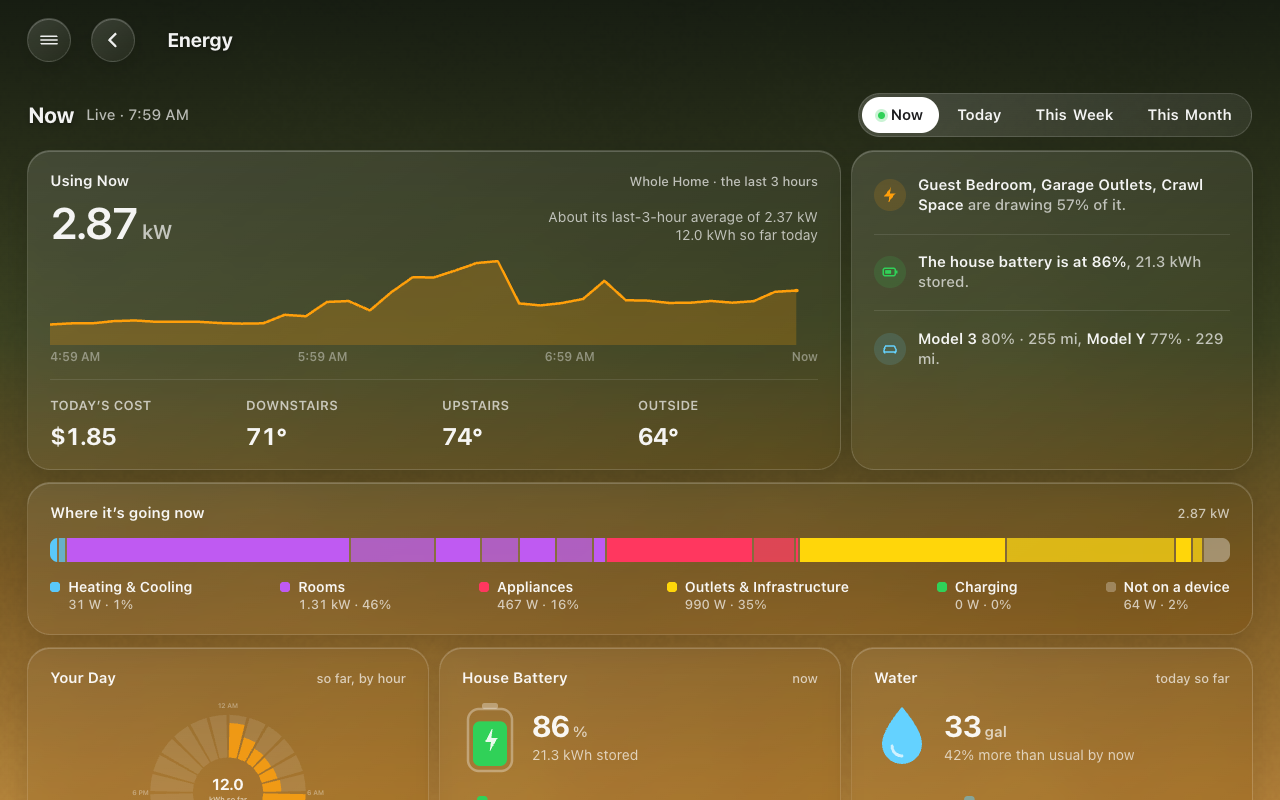 The Energy page on Now: power right now, with the tabs at the top.
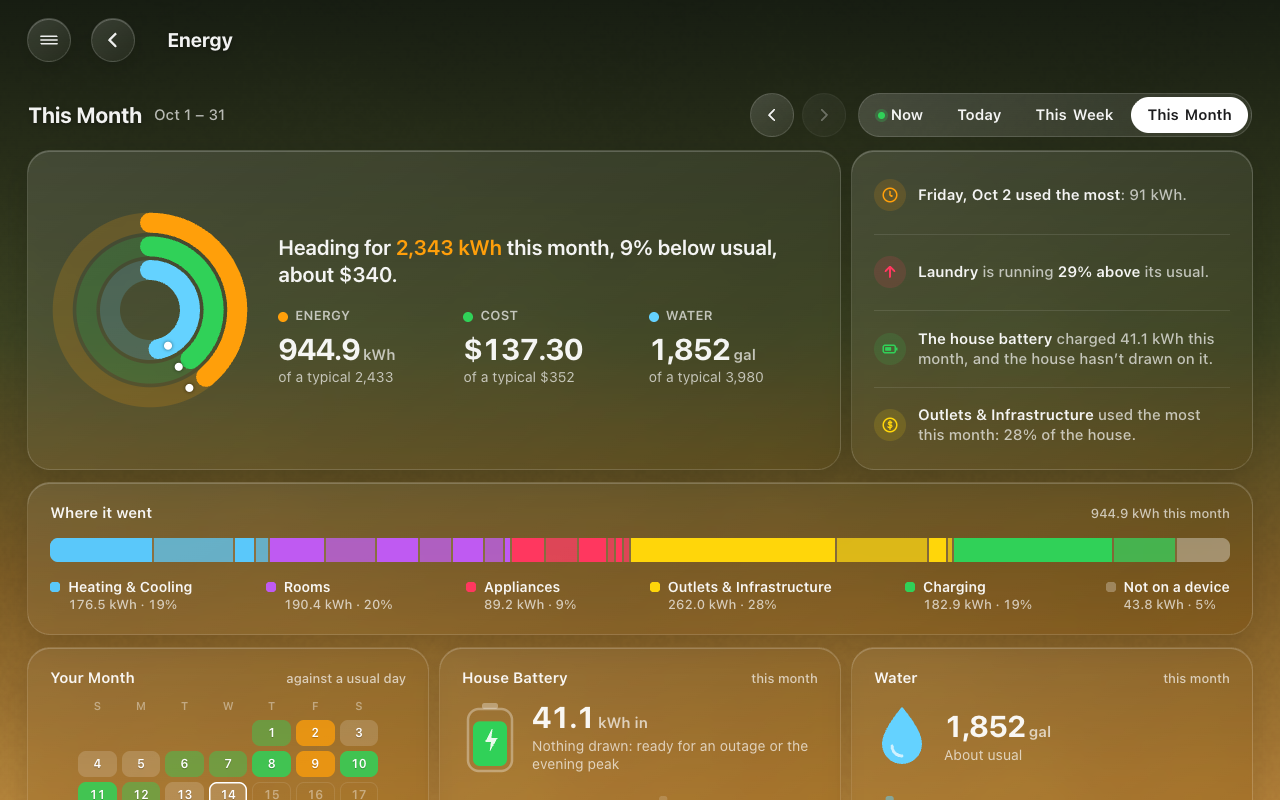 This Month: the rings, and Your Month as a calendar. Tap a day for that day's use.
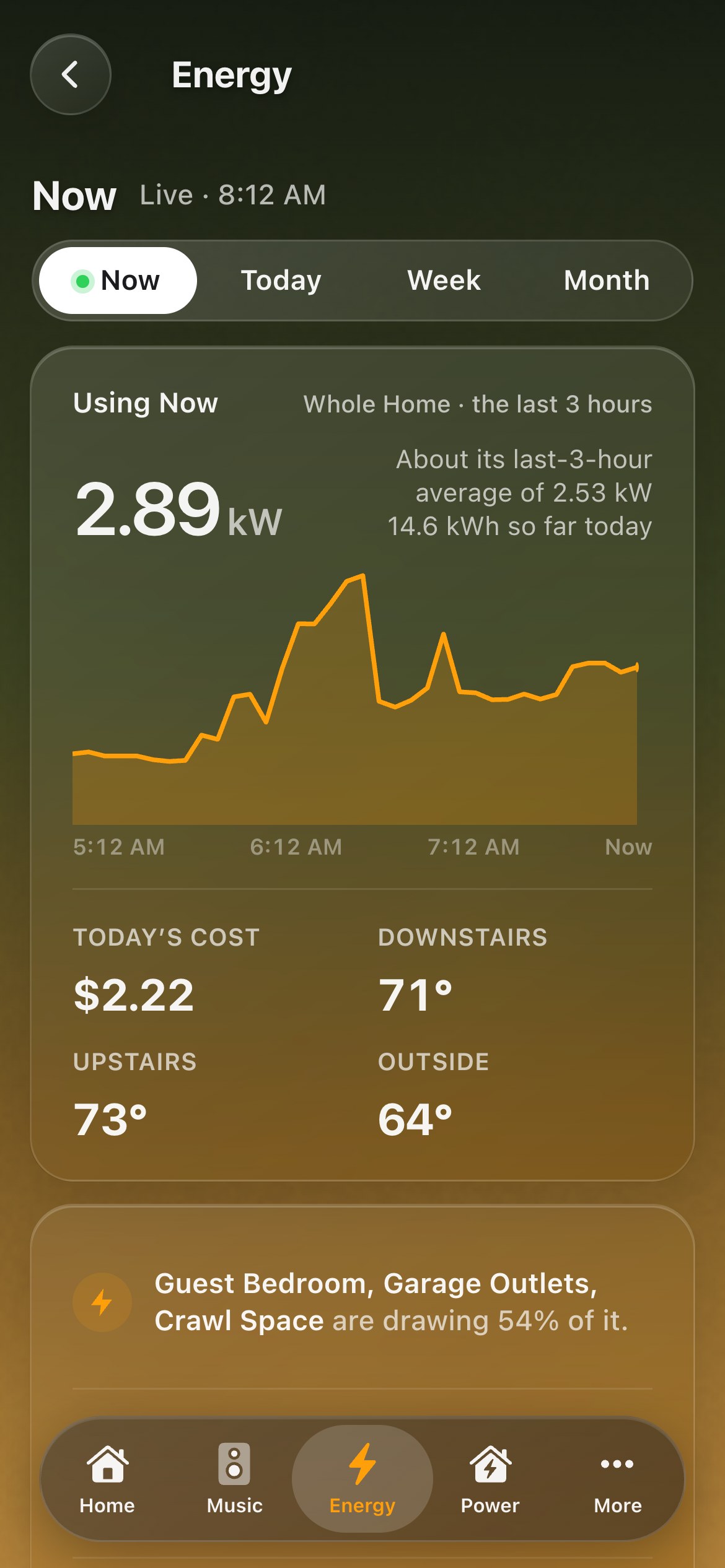 |
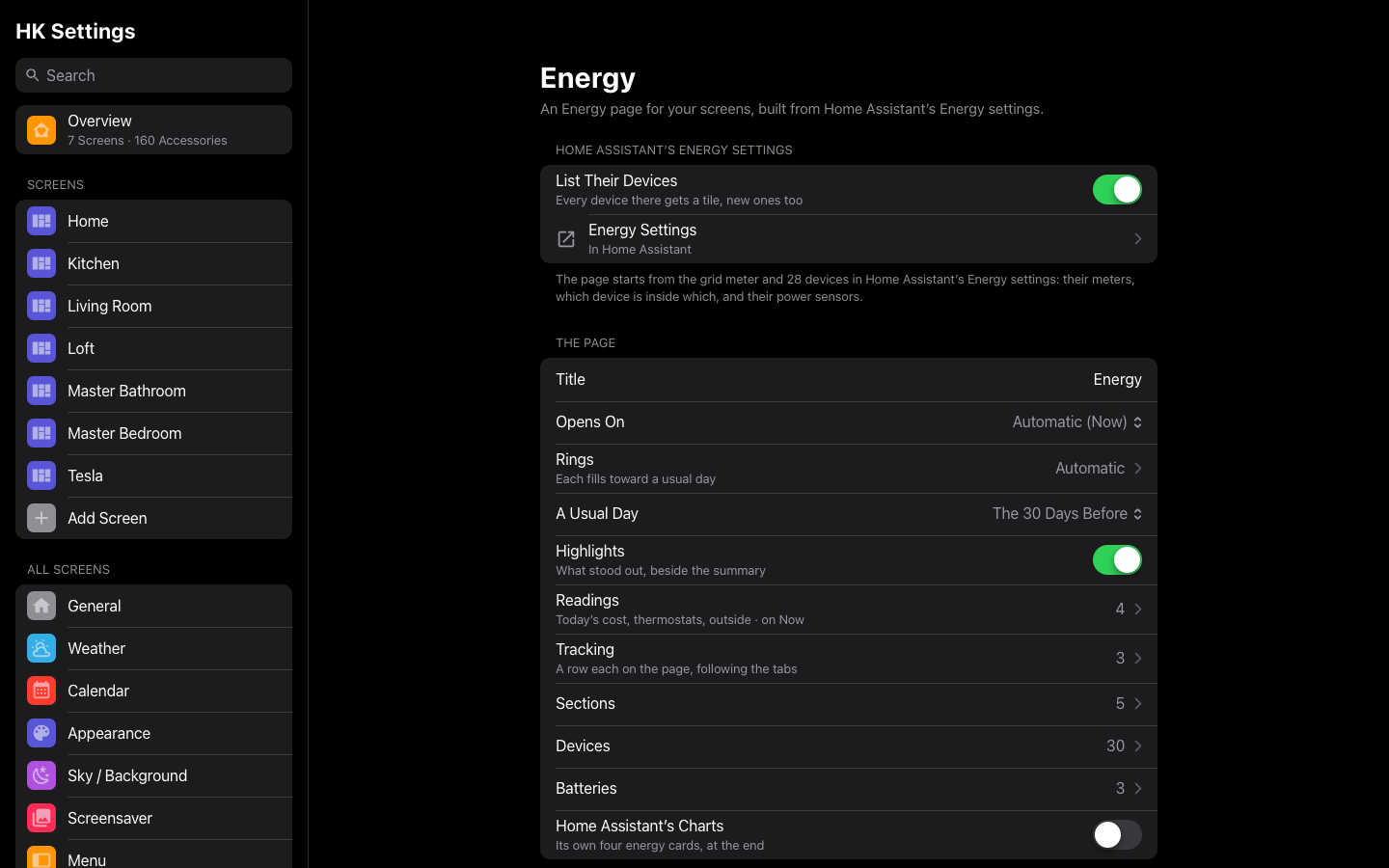 |
| On a phone | HK Settings → Features → Energy |
Everything comes from Settings → Dashboards → Energy in Home Assistant:
| From the Energy settings | On the page |
|---|---|
| The grid meter (kWh) and its price or cost | The Energy and Cost rings, Today’s Cost, Where it went |
| Solar, water, gas | Their rings (and water’s or gas’s card) |
| The house battery’s meters | The House Battery card |
| Each device’s meter | A tile’s kWh on Today, This Week and This Month |
| A device “inside” another (Upstream device) | Its sheet says Part of; the other’s sheet says Includes |
| A device’s power sensor | The tile’s live watts |
| The house battery’s level | A battery tile |
Most homes leave a device’s power sensor empty in the Energy settings, so HK Frontend also looks for it:
- The Power Sensor you pick for that device on HK Settings.
- The device’s power sensor in Home Assistant’s Energy settings.
- The meter’s source. A Utility Meter counts an Integral (Riemann sum) sensor, which integrates a power sensor. HK Frontend follows those helpers back to the watts.
- A power sensor on the same device, such as a smart plug’s W beside its kWh (also on the device of the sensor a Utility Meter counts).
A device with none of these still gets a tile, showing its kWh today instead of watts.
Now reads each device’s power sensor (watts). Today, This Week and This Month read its energy meter (kWh), never watts added up. The sums are Home Assistant’s:
- What the house used = from the grid − to the grid + solar + out of the battery − into the battery.
- On a device = the devices in Home Assistant’s Energy settings, less any marked as inside another. A device you add only here gets a tile but isn’t counted, as Home Assistant doesn’t count it either.
- A usual day is the average of the 30 days before today (or the 7 or 14 you choose); for a past week or month, the days before it. Today is compared with the share of a usual day that has gone by, from yesterday’s own shape hour by hour.
- A cost the statistics don't have (a cost sensor that started over, or days before it existed) is priced at the grid meter's own rate from the other days, so no week or month shows a negative or a too-small cost.
What the Energy settings can’t say is guessed from each device’s name, and every guess can be changed:
-
Its section.
- Heating & Cooling: an AC, air handler, heat pump or furnace.
- Charging: a charger or wall connector.
- Outlets: an outlet or plug.
- Rooms: a name that is one of your areas (or two joined by “&”).
- Appliances: everything else.
- Its name. “Office Utility” becomes “Office”: words like Utility, Energy, Power and Consumption at the end are dropped.
- Its glyph and color.
Cars are found by themselves: a battery level on a device that also reports a range. They go into Charging, with their range under the level.
Energy is over time; Power is right now and the controls, on a page of its own beside it (turn it on in HK Settings → Energy → Power Page). It reads the same devices, and sits beside Energy in a screen's pages and menu, on a backdrop of its own.
- The house, full width: a picture of a house, with the grid coming in down the pole's cable, the panels lit by the sun, the battery's level on its cabinet and a car in the driveway glowing while it charges, each figure floating over its part of the house. Only what the house has is drawn: no panels without solar, no cabinet without a battery, no car unless one is home. Tap a figure for its sheet. Prefer lines? Picture → A Flow Chart shows the grid, the house and the battery as a flow chart instead.
- The status in sentences beside the house battery, then The House (the whole house: what the battery backs up, what it does not, a car charging, and the three drawing the most) beside Where the Sun Goes (with solar). Without a battery, the status sits beside The House and says nothing of a battery.
- The battery's own controls: its Mode, a choice with a line saying what each one does, and its Levels, a slider each (its backup reserve or charge limit, say).
- Every device, by type or backed up first. A tile the battery backs up shows a small green battery before its kWh line, here and on the Energy page (on a narrow tile the word "today" steps aside for it); one with a switch has its power button. A car's tile has a button that starts or stops charging (it asks before stopping).
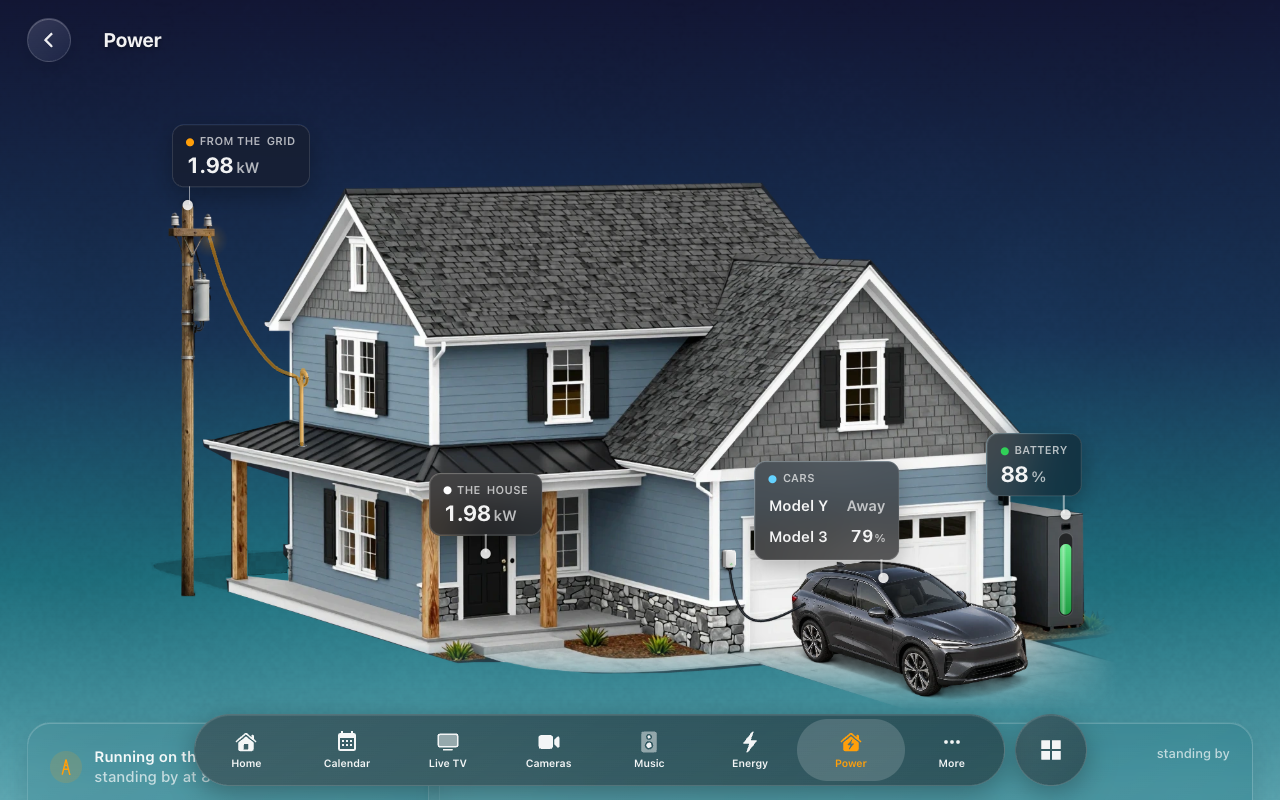 The Power page: right now, and the battery's controls.
The house comes with HK Frontend: a made-up house, drawn in layers so
that only what your house has shows. The Cars figure has a row for each
car: its name, and its charging power, its level at home, or Away; tap a row
for that car. A picture of your own house takes its place with a
Picture Folder (a folder in your files holding
art.json and the picture's layers, laid out as frontend/power-house/ is).
What is backed up is worked out from Home Assistant's own device registry: a device whose power sensor or switch is on the battery's own device, whose switch is a group of the battery's circuits, or which sits inside a backed-up circuit. Each device's settings page has Backed Up (Automatic, Yes or No) for what Home Assistant cannot see, and the battery's Backs Up says Some Circuits, The Whole House or Nothing.
A car's charging power comes from the wall chargers by default: they are on the house's network and read live, where a car's own reading comes from its maker's cloud and runs minutes behind. The chargers are found among the Energy page's Charging devices, and the car's own reading only says which car is charging. With two cars charging at once that can guess wrong; give each car its own Charging Power (its charger, or the circuit it charges on) to know.
Its address is /power, or the address it takes over: a screen that
lists a custom page at that address shows the Power page in its place.
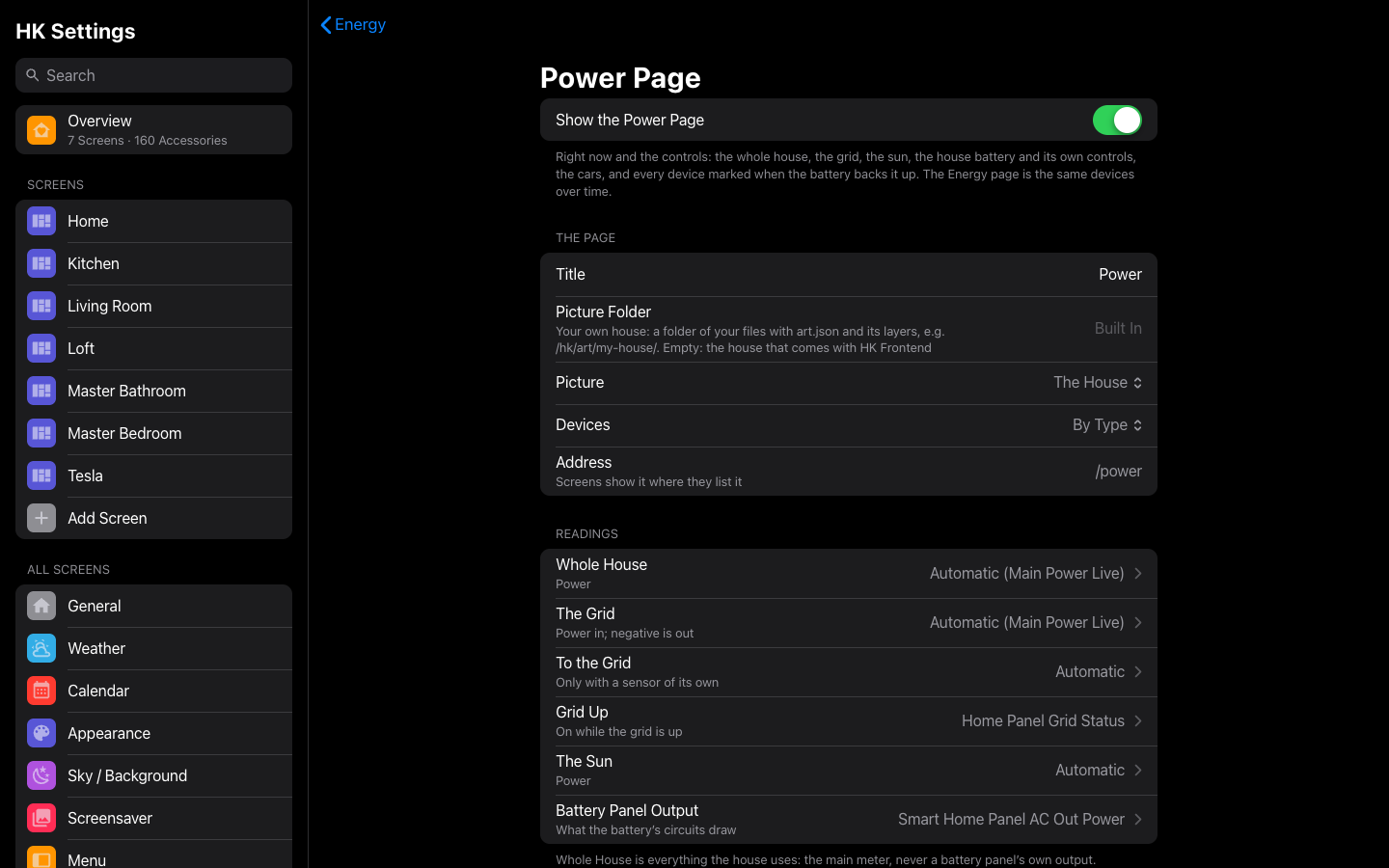
HK Settings → Energy → Power Page:
| Setting | Default | What it does |
|---|---|---|
| Show the Power Page | Off | The page, on every screen whose pages are Automatic (or that lists it). |
| Title | Power | Its name, in the menu and at the top of the page. |
| Picture Folder | Built In | A folder of your files with art.json and its layers: your own house in its place. Empty: the house that comes with HK Frontend. |
| Picture | The House | The House, or A Flow Chart of the grid, the house and the battery. |
| Devices | By Type | Or Backed Up First: two sections, Backed Up and Not Backed Up. |
| Readings | Automatic | Whole House (the Energy page's Whole Home), The Grid (Home Assistant's grid power sensor), To the Grid and Grid Up (only with sensors of their own), The Sun (the solar sources' power sensors) and Battery Panel Output (what the battery's circuits draw). Each says what Automatic found. |
| House Battery | None | Its Level, Charging, Giving, Reserve, Charge Limit, Stored Energy, Backup Time, Charging Speed, EPS, Storm Mode and Fault, and Backs Up. Without a level the page has no battery. |
| Battery Controls | None | Mode: a select, shown as a choice on the page. |
| Battery Levels | None | Add… a number the battery takes; each is a slider on the page. Tap one to remove it. |
| (each car) | Automatic | Name (blank: its integration's) and Charging Power: Automatic (the wall chargers), any power reading (a wall charger, or the circuit a charger without a network is on), or The Car's Own Reading. Cars are the ones the Energy page finds, with their parts found on each car's own device. |
- In Home Assistant, set up Settings → Dashboards → Energy: the grid and your devices. The more it lists, the less there is to do here.
- Go to Settings → Devices & services → HK Frontend → Add feature → Energy.
- Give a screen the page:
- Any generated screen. With Automatic pages, Energy is included (and Power, once it is on). With pages of its own, add Energy (or Power) from More on its Pages. The Energy chip opens the Energy page.
- A screen that is only the Energy page (a page screen, see Whole screens and page screens). In HK Settings → Add Screen, pick Shown On → Energy Display, or Shows → Only the Energy Page. It has no Home page, no menu, and Home Assistant’s header hidden. The same button is on the Energy settings page: Add an Energy Display.
HK Settings → Features → Energy:
| Setting | Default | What it does |
|---|---|---|
| List Their Devices | On | Every device in Home Assistant’s Energy settings gets a tile, including ones you add there later. Off: only the devices you add here. |
| Title | Energy | The page’s name, in the menu and at the top of the page. |
| Opens On | Now | The tab the page shows first. |
| Rings | Automatic | Energy, Cost, Solar, Water and Gas, in that order, up to four. Automatic: every one the house has. |
| A Usual Day | The 30 Days Before | What the rings, the tiles and the calendar compare with: the 30, 14 or 7 days before today. |
| Highlights | On | The four sentences beside the summary. Off: the summary takes the whole row. |
| Readings | Automatic | On Now: Today’s Cost (on or off), then up to three readings. Automatic: the first two thermostats from Accessories → Thermostats (Types), then the outside temperature from Weather. A thermostat opens the screen’s Climate page. |
| Tracking | Automatic | Automatic: no Tracking card; each device’s sheet has its own bars. Your own (Add to Tracking, up to nine: a power, energy or runtime sensor, each with a Name, Color and Daily Use From) are a row each on the page’s Tracking card, following the tabs: in two columns on a wide screen, and on This Week the week before dimmed beside it. A runtime sensor (hours) shows its hours, and its device’s tile shows them too (an HVAC Run Time or AC Runtime sensor is matched to its AC by name; or pick it as the device’s Daily Runtime). |
| Sections | Automatic | The sections in order. Rename one, give it a Color (its part of Where it went and its tiles’ lines), give its heading a Link to another page, drag tiles into order, or Move Here from another section. Add Section adds one. Turning Automatic off keeps the sections as they are now. A device you place in no section goes to the one its name suggests, or Other. |
| Devices | — | Each device’s Name, Glyph and Color, Show on the Energy Page, its Section, its Power Sensor (for Now), its Energy Meter (for the other tabs), its Daily Runtime (an AC’s hours; Automatic: a runtime sensor named after it), and Switched By: the switch the circuit or plug is on, which gives its tile a power button and its sheet the switch. The page says how its power sensor was found. Add Device adds one the Energy settings don’t list. |
| Batteries | Automatic | The house battery and the cars (Add Battery). Each has a name, and a reading under it: a range, or the energy stored. |
| Home Assistant’s Charts | Off | Home Assistant’s own four energy cards at the end of the page. |
| Whole Home | Automatic | The power sensor, energy meter and cost the top of the page uses. Automatic: the grid meter, its cost, and the power sensor behind it (or the Energy chip’s Power Use, on that chip’s page in Status Chips, the same on every screen). |
Its gear in Devices & services has List Their Devices. Everything else is on the HK Settings page.
Tap a tile and its sheet opens, as for any sensor. On the Energy page’s devices it also shows:
- Today, Cost Today and Usual Day. Today’s kWh is compared with the usual day so far. The cost uses the grid’s price, or what a kWh has cost the house today.
- Week and Month as daily bars from the device’s meter, rather than a line of its watts: this calendar week or month, each day labeled under its bar, the days to come in gray as last week's or last month's, with So Far (and its cost), the Daily Average with its peak, and Last Week by Now under them. ‹ › over the ranges step back through the weeks or months.
- Part of / Includes: the circuit it sits inside and the ones inside it, with their watts now. Tap one to open its sheet.
- Switch: the plug or switch it is on, to turn it off and on.
The sheet’s gear (for admins) has an On the Energy page section: Name there, Section, Show there, and More energy settings, which opens the device on HK Settings.
-
A custom page called
energy. A screen that showed one keeps showing it until the Energy feature is added. After that, the generated page takes that address on every screen. - Renaming an entity. A rename is followed in the readings row and the whole home’s settings. A device’s own settings are kept by its meter’s entity id, so renaming the meter starts that device from automatic again.
- Removing the feature (⋮ → Delete on its item) removes the page from every screen. Nothing else changes.
The page’s cards work on any dashboard, with no settings of their own: they read the Energy feature and Home Assistant’s Energy settings. Add HK Energy Tabs first, then any of the others; they all follow its tab. A tile (HK Reading Tile) follows the tabs with Follow the Energy tabs on, and its Switched By gives it the power button. See the Card Library.
For a page about a home battery system, the Power page's cards read the
entities you give them rather than the Energy settings, in the same look:
HK Power Flow (a flow chart of the grid, the house and the battery right
now), HK Power Status (the system in sentences, a grid outage or a fault
first), HK House Battery (the battery drawn as one, with its reserve,
limit and packs), HK Segmented Choice (a select, such as its operating
mode, as a segmented control), HK Power House Load (The House) and HK
Where the Sun Goes (its Today half needs the Energy feature). HK Power
House draws the layered house (art: a folder of your own; without it, the one that ships). They are in
the Card Library too.