Repository navigation
Wall Tablets
HK Frontend was built for tablets mounted on a wall and left on all day. This page and Screensaver and Idle set one up from start to finish: its own user, its screen, the tablet itself, the kiosk app, a photo screensaver, and returning to Home when nobody is using it. It works the same for one tablet or ten, of any brand.
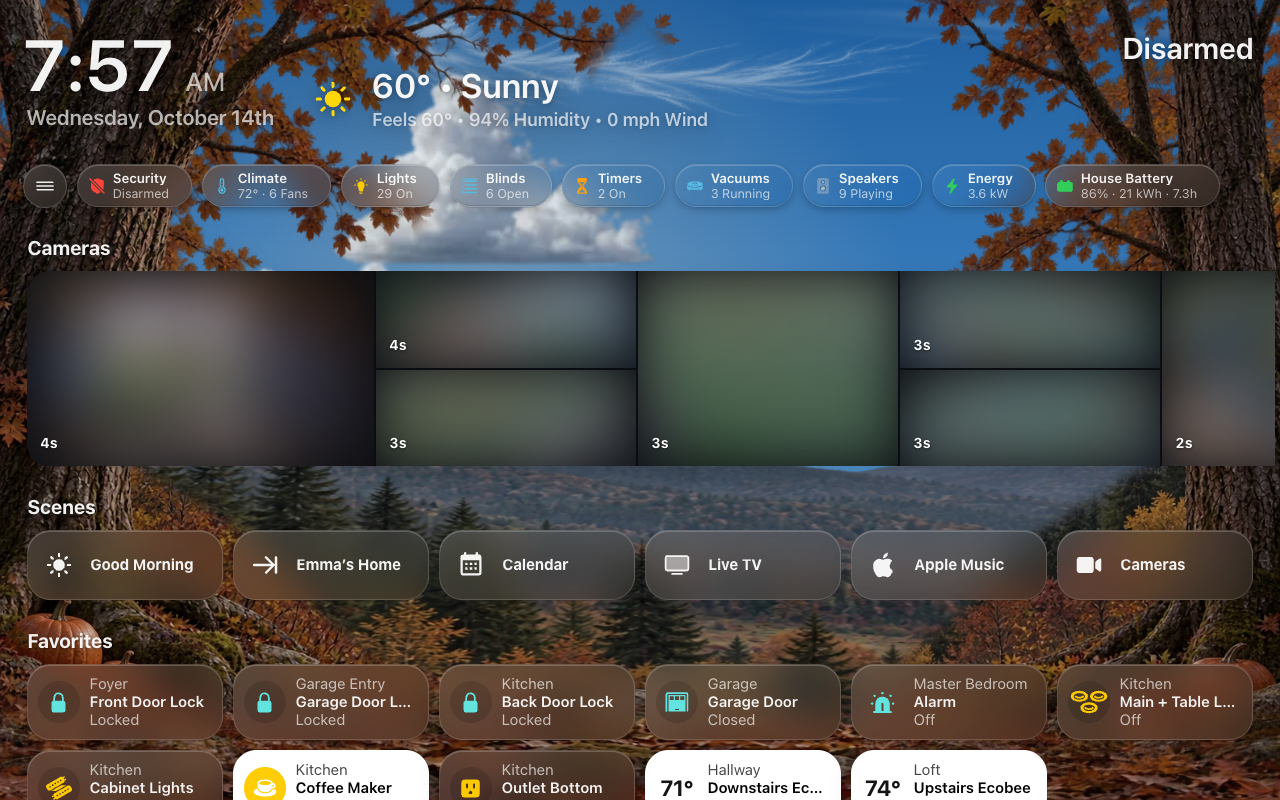
A wall tablet and a screen are two different things. A screen is a dashboard: what is drawn. A tablet is the hardware on the wall: it runs a screen. One screen can run on several tablets (a kitchen and a hallway showing the same thing), or on none (a screen for phones and computers).
So each has its own settings:
| A screen’s (Screens → the screen) | A tablet’s (All Screens → Wall Tablets → the tablet) |
|---|---|
| What it shows: the menu, Home, pages, appearance | Which screen it runs |
| Photo Screensaver and Screensaver Options: what the screensaver shows, and Starts After | Its room, its Home Assistant user and its kiosk app |
| Home Assistant Header & Sidebar | Return to Home When Idle and Idle Time |
| Car Browser | Sleep Screen: when it goes dark, and how |
Before tablets were their own items, a screen was its own tablet, with a Tablet User and a Tablet Room. Updating moves those over by itself; see Screens that were tablets.
HK Frontend works out which tablet is showing a page, in this order:
-
The tablet’s start URL. Its address ends in
?hk_tablet=<id>(each tablet’s page has it, ready to copy). The browser remembers it once it has seen it, so a reload or another page still knows.?hk_tablet=noneforgets it. - Else, the signed-in user. The tablet whose Tablet User is signed in; if two share one, the tablet on this screen first.
- Else, none. A desk, a phone or a car: no screensaver and no return to Home, whatever screen it opens.
The start URL is what tells two tablets apart when they share a user or a screen. With one user per tablet, the user alone is enough.
HK Frontend does: the screen itself, a menu that stays open beside the
page, returning an untouched page to Home, a photo screensaver, a
now-playing bar, sensor.tv_viewers for knowing when a tablet is showing
Live TV, and keeping an eye on each tablet: whether it is awake, its battery,
its kiosk app’s settings, and alerts when one goes quiet.
Going dark and waking is your choice. Let HK Frontend decide, from presence sensors, quiet hours and the doorbell, with each tablet’s Sleep Screen, or leave it to your own automations (for example with the Fully Kiosk Browser integration and a motion sensor). HK Frontend gives those automations what they need to read; see What keeps a tablet awake.
- An Android tablet. Any size works; a 10–11 inch tablet that reports about 1280 × 800 in its browser shows the full layout. Choose one with 6 GB of memory or more: memory, not the processor, is what makes the difference.
- A kiosk app on it: Kiosk Satellite, which joins Home Assistant as an ESPHome device and can also be a voice satellite and a Bluetooth proxy, or Fully Kiosk Browser (its PLUS license adds remote administration, which the Fully Kiosk Browser integration in Home Assistant uses to reload the page and see the screen). With either one HK Frontend can show the tablet’s state and battery, check its settings, and reload or restart it. Set up one of them, step 4. Anything else (an old iPad, a car) still works as Just a Browser.
- Nothing else from HACS: hiding Home Assistant’s header and sidebar, and the photo screensaver, are part of HK Frontend.
HK Settings → Setup Check → Wall Tablets checks each tablet: that its user and screen exist, that its kiosk device is chosen, and its kiosk app’s settings (below). It also says when a screen has the Photo Screensaver on but no tablet runs it.
In Home Assistant, add a person for the tablet with a login (Settings → People → Add Person, then Allow login), for example “Kitchen Tablet.” Do not make it an administrator.
A user per tablet is what lets each tablet be itself:
- HK Frontend knows which tablet a browser is by its user when the start URL doesn’t say, and nobody’s phone or computer ever counts as the tablet;
- Music knows which room the tablet hangs in (its Home Room);
-
sensor.tv_viewersandhk_frontend.show_popupcan name it.
To sign a tablet in without typing a password, add a trusted_networks auth
provider before the homeassistant one in configuration.yaml, with the
tablet’s fixed address and its user:
homeassistant:
  auth_providers:
    - type: trusted_networks
      trusted_networks:
        - <the tablet's IP address>
      trusted_users:
        <the tablet's IP address>:
          - <the tablet user's id>
      allow_bypass_login: true
    - type: homeassistant
Any other device still gets the password form. Behind a reverse proxy, also
set use_x_forwarded_for and trusted_proxies under http:, so Home
Assistant sees the tablet’s own address.
Skip this if the tablet will show a screen you already have.
- Open HK Settings in the sidebar and select Add Screen.
- Give it a Name, for example “Kitchen.”
- Set Shown On to Wall Tablet.
- Leave Only Admins Can Open It off (the tablet’s user is not an admin).
- Select Create Screen.
A screen named “Kitchen” is the dashboard /hk-kitchen. It builds itself from
your areas and devices; see Screens for everything it can show.
The Wall Tablet preset starts the screen with:
| Setting | Wall Tablet starts with |
|---|---|
| Menu | Always open beside the page |
| Time and weather | In the menu, at its top (the Home page’s header steps aside) |
| Home Assistant Header & Sidebar | Both Hidden |
A preset is only a starting point. Every value can be changed afterwards on the screen’s page in HK Settings. Returning to Home when idle is the tablet’s, and on for every tablet unless you turn it off (step 6).
An existing dashboard can be a wall tablet’s screen too: in Add Screen, pick it under Existing Dashboards and choose Wall Tablet. It gets a screen’s settings — hiding the header, the photo screensaver, notifications, the menu — and a tablet running it returns to Home and sleeps like any other. It doesn’t get what only a screen HK Frontend builds has: Favorites, its generated pages, the Now Playing and Timer bars (you can add the Now Playing bar yourself; see Your Own Dashboard, which also lists what its own YAML can add).
The Wall Tablet preset already hides them. To change it:
- In HK Settings, open the screen. Under Header, open Home Assistant Header & Sidebar and turn on Hide Header & Sidebar.
- Optional, on the same page: Hide Header, Hide Sidebar, and For Admins Too (off: an admin still sees them).
HK Frontend does this itself: nothing to install. Leaving the screen (for
Settings, say) always brings them back, and ?hk_kiosk=off on the screen’s
address shows them until the page is reloaded, while you work on the tablet.
With the header hidden, you can still reach Home Assistant from the tablet if you want to: the screen’s Menu settings can add a Home Assistant Section -- Home Assistant’s own pages in the menu, and Show Menu, which opens its sidebar over the page. A tablet’s own user sees only what it may open. Leave it off on a tablet everyone uses.
A dashboard you write in YAML gets the same from its HK settings, or from an
hk_kiosk: block in its YAML (Your Own Dashboard):
hk_kiosk: trueComing from the Kiosk Mode plugin. Screens that hid Home Assistant’s
header through the Kiosk Mode plugin (HACS) do it themselves from 1.3, with
nothing to change. A screen with Kiosk Mode Options of its own moves over
too when Home Assistant Header & Sidebar can say the same (hide the header, the sidebar,
and admins seeing both); with any other option it keeps the plugin until you
turn off Home Assistant Header & Sidebar → Use the Kiosk Mode Plugin
Instead. A
dashboard with its own kiosk_mode: block keeps it too: HK Frontend leaves
that dashboard alone. Once nothing uses the plugin, you can remove it in HACS.
HK Settings → All Screens → Wall Tablets → Add Tablet… (or, on the screen’s page, Wall Tablets → Add a Tablet to This Screen…):
| Setting | What it is |
|---|---|
| Name | The tablet’s name, for example “Kitchen.” Its entities are named after it (switch.kitchen_photo_screensaver). |
| Screen | The screen it runs. |
| Room | The Home Assistant area it hangs in. Calm When Nobody’s Around (Liveliness) looks there. |
| Kiosk App | Kiosk Satellite, Fully Kiosk, WallPanel or Just a Browser, and for the first two its Device. |
| Tablet User | The user from step 1. |
Then select Add Tablet. Its page opens, with its Start URL to put in the kiosk app (step 4).
Each tablet is also an item on HK Frontend’s integration page (Settings → Devices & services → HK Frontend), with its entities as a device under it. The page’s Add wall tablet button (and reconfiguring a tablet’s item) gives a link to the same place in HK Settings, where tablets are set up.
Just a Browser is for anything HK Frontend can’t see a kiosk app on: an old iPad, a car, a browser you say is a tablet. It gets HK Frontend’s screensaver and Return to Home, with no state, battery or remote actions.
This Looks Like a Wall Tablet. Wall Tablets suggests what may be a tablet that isn’t one yet: a Kiosk Satellite or Fully Kiosk device no tablet uses, or a Fully Kiosk browser seen showing a screen. Add Tablet… starts Add Tablet with what it knows filled in; Not a Tablet stops suggesting it.
In Fully Kiosk Browser’s settings on the tablet:
-
Start URL: the tablet’s start URL, from its page (Setup → Copy Start
URL), for example
https://homeassistant.local:8123/hk-kitchen?hk_tablet=kitchen. - Keep the screen on while the app runs, unless your own automation turns it off.
- Autoplay audio and video, so camera and Live TV sound can start without a tap.
- Microphone access, if you want to talk on the doorbell pop-up. Browsers allow the microphone only on a secure page, so the tablet must load Home Assistant over https for talking. Everything else works over http.
- Remote administration on (PLUS), then add the tablet in Home Assistant with the Fully Kiosk Browser integration, and choose it as the tablet’s Device. Its Load start URL button reloads the tablet from Home Assistant; so does Reload on the tablet’s page.
Sign in once as the tablet’s user.
In Kiosk Satellite’s setup on the tablet:
- Connect with a long-lived access token created by the tablet’s user (sign in as that user in a browser on the tablet, then Profile → Security). Kiosk Satellite signs the dashboard in with it, so HK Frontend knows the tablet by its user.
- Dashboard: the screen’s dashboard.
- Screensaver: Black, after a day. HK Frontend’s photo screensaver is the screensaver, so Kiosk Satellite’s own should never come up over it by itself. Its Black screensaver can still be put up from Home Assistant as the tablet’s “dark” (its Screensaver and Screensaver active switches); HK Frontend notices it and holds the sky still. Or let HK Frontend make the dark itself, and decide when: the tablet’s Sleep Screen (Sleep Screen). The tablet’s Setup Check says when this is set otherwise, and Fix sets it.
- Pause dashboard during screensaver: off (Home Assistant Configuration → Optimizations). On, the tablet throws the drawn page away under the black and a wake can show it half drawn; HK Frontend holds the page still under any black itself.
- Filter dashboard updates: off (Home Assistant Configuration → Optimizations). It drops updates for entities it does not see on the page, and HK Frontend’s sky, status and screensaver read beyond the page.
- Return to home dashboard view and dashboard view rotation: off — HK Frontend already returns the tablet to its dashboard.
- Add it in Home Assistant with the ESPHome integration, and choose it as the tablet’s Device.
- For Restart Tablet (on the tablet’s page, and the scheduled restart), make Kiosk Satellite the tablet’s device owner. Without it, only the app restarts.
Two things to know:
- Its Screen is a
lightin the tablet’s area, so a “turn off the room’s lights” automation or voice command turns the tablet off too. Hide the kiosk’s entities (Settings → Entities → select → Hide) and area targeting passes them by. - Its own Camera and Screenshot never join the Cameras page or a camera strip, the same as Fully Kiosk’s camera.
- Update Android System WebView from the Play Store before judging how anything looks or scrolls. A factory WebView can be far behind.
- Turn adaptive brightness off. It fights the brightness Sleep Screen sets.
- Protect Battery (or your tablet’s battery care) on: a tablet charging all day at 100% wears its battery out.
- Disable the vendor apps you do not use. Background apps cost a tablet more smoothness than anything on the page. Never disable Wi-Fi, the keyboard, Google Play services or the Play Store.
- Leave Android’s Remove animations (and power-saving modes that turn animations off) off. With it on, the browser asks pages for reduced motion and the live sky stands still.
Next: 5. Add the photo screensaver.
All Screens → Wall Tablets → (a tablet). Everything about one tablet.
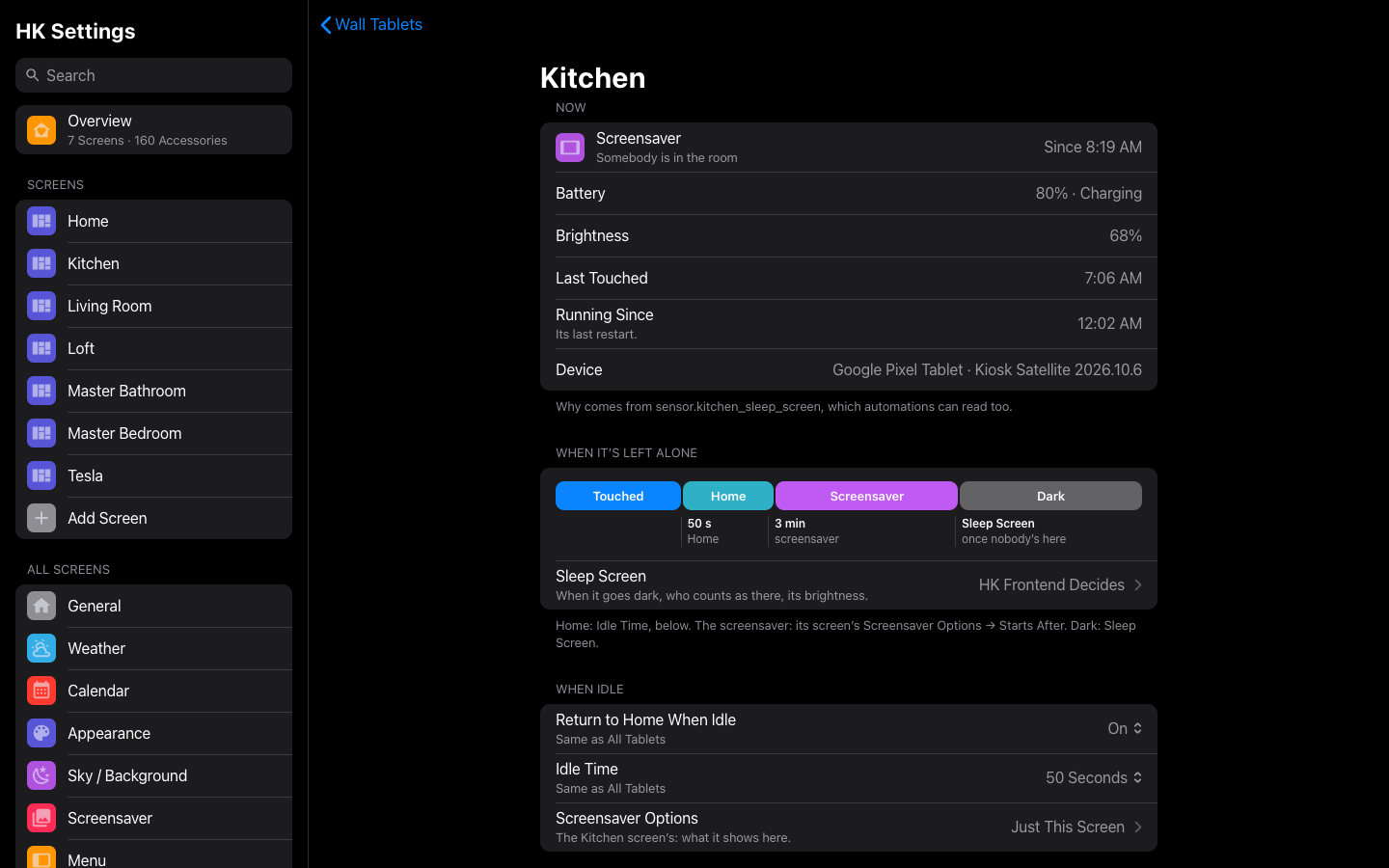
How it is doing, from its kiosk app: Dark, Screensaver, Awake or Offline, why (“nobody’s in the room,” “quiet hours”) and since when; its Battery and whether it is charging; its Brightness; when it was Last Touched; Running Since its last restart; and the Device and app version. A tablet that is Just a Browser or WallPanel has no Now.
A timeline of what happens after the last touch, in order: Touched, then Home at its Idle Time, the Screensaver at its screen’s Starts After, and Dark when Sleep Screen says. When Home would come after the screensaver has started, it says so: the screensaver then comes up over another page and the tablet goes Home behind it. An Idle Time shorter than Starts After puts Home first.
Sleep Screen opens the tablet’s Sleep Screen, and says who decides: an automation, or HK Frontend.
| Setting | Default | What it does |
|---|---|---|
| Return to Home When Idle | Same as All Tablets (On) | A page left untouched goes back to the screen’s Home. On or Off for this tablet alone. |
| Idle Time | Same as All Tablets (50 Seconds) | How long untouched first: 30 Seconds, 50 Seconds, 1 Minute, 2 Minutes, 5 Minutes or Never. |
| Screensaver Options | — | Opens its screen’s Screensaver Options: what the screensaver shows here, and Starts After. Photo Screensaver (Off) when the screen has none. |
Name, Screen, Room, Tablet User, Kiosk App and its Device, as in Add the tablet. The Room row says when the kiosk device is in another area in Home Assistant.
Copy Start URL copies the tablet’s address for its kiosk app: its screen
with ?hk_tablet=<id>. It tells the page which tablet it is, even when two
tablets share a user or a screen.
The kiosk app’s own settings, checked against what HK Frontend needs. Fix sets the ones HK Frontend can set from here.
| Check | Right when | Fix |
|---|---|---|
| Kiosk App Not Heard From | (shown only when wrong) The app answers. It may be off the Wi-Fi, or behind the lock screen after a restart. | — |
| Adaptive Brightness Off | Android isn’t changing the brightness, so Sleep Screen’s holds | Yes |
| Kiosk Screensaver: Black, after 1 day | Kiosk Satellite’s own screensaver is Black and waits a day, so it never comes up over HK Frontend’s | Yes |
| Kiosk Mode On | Nobody can leave the dashboard by accident | Yes, where the app has a switch for it |
| App Up to Date | No update waiting | — |
| Battery Care | Not over 85% while charging. Over that, Protect Battery is off on the tablet: turn it on there. | — |
What its kiosk app can do, from Home Assistant:
- Wake Now and Sleep Now, when HK Frontend decides its Sleep Screen. Sleep Screen decides again after: somebody in the room wakes it.
- Reload, and Clear Cache & Reload. After updating HK Frontend use Clear Cache & Reload: a plain reload keeps the old HK files.
- Restart App.
- Restart Tablet…, with Kiosk Satellite as the device owner. It comes back to its screen in about a minute.
Copy Sleep Screen To… (when HK Frontend decides and there is another tablet) puts this tablet’s Sleep Screen rules and brightness onto other tablets; each keeps its own kiosk.
Remove Tablet… removes the tablet, its idle, screensaver and Sleep Screen settings and its own entities. Its screen and its kiosk app stay.
All Screens → Wall Tablets.
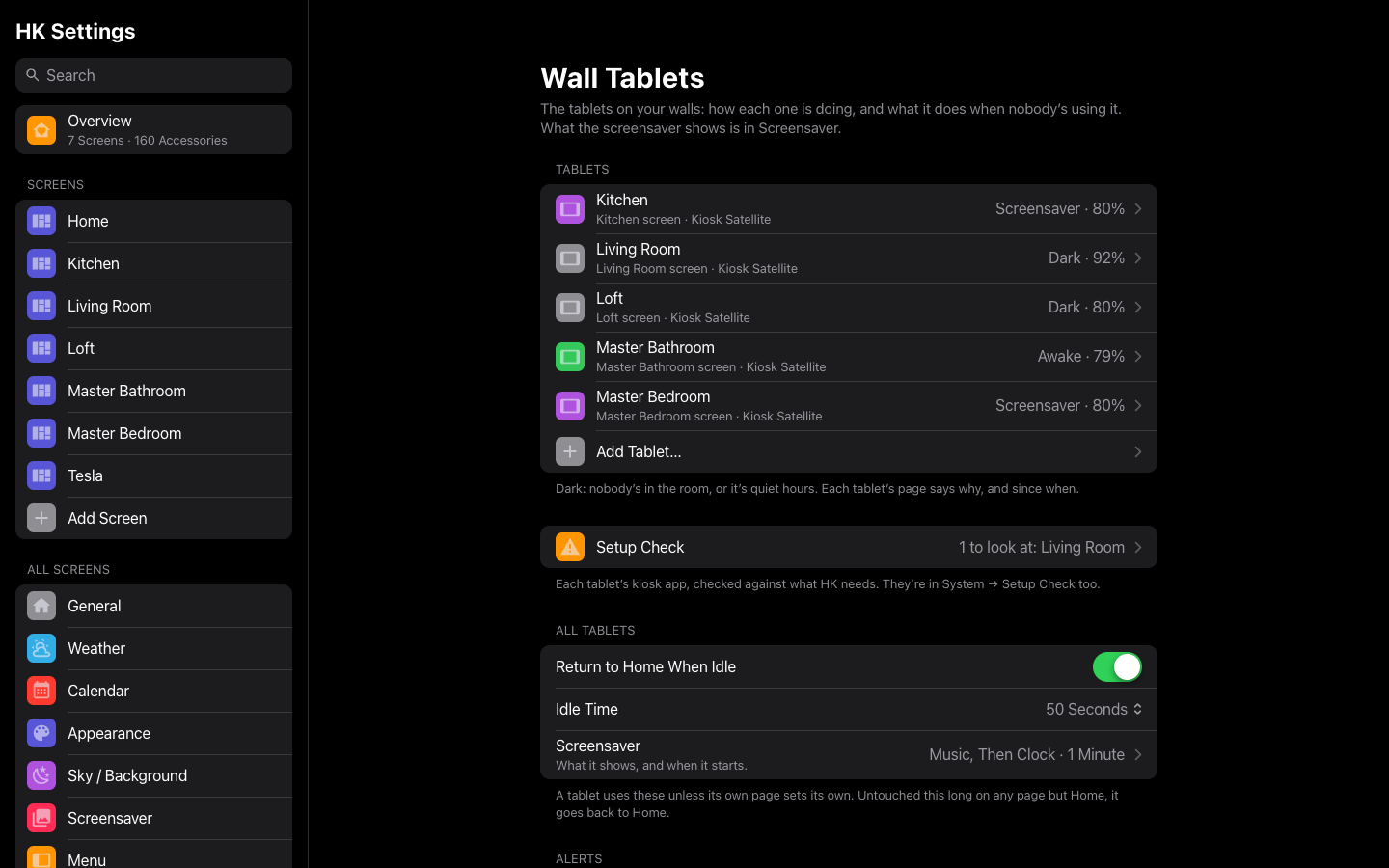
- Tablets: each tablet, with its screen, its kiosk app, and its state and battery live (Dark, Screensaver, Awake or Offline). Add Tablet… at the end.
- This Looks Like a Wall Tablet: suggestions, above.
- Setup Check: All Set Up Right, or how many things to look at and on which tablet. The same checks are in System → Setup Check.
| Setting | Default | What it does |
|---|---|---|
| All Tablets → Return to Home When Idle | On | Every tablet that doesn’t set its own. |
| All Tablets → Idle Time | 50 Seconds | How long untouched before Home: 30 seconds to 5 minutes, or Never. |
| All Tablets → Screensaver | — | A link to Screensaver: what every screen’s screensaver shows. |
| Alerts → Tablet Offline | On | Its kiosk app not heard from for 10 minutes. |
| Alerts → Didn’t Come Back After a Restart | On | Not in front 3 minutes after the scheduled restart. |
| Alerts → Not Charging | On | Unplugged for 10 minutes. |
| Upkeep → Scheduled Restart | Off | Clears the cache, then restarts each tablet, at the times in At (up to four, like 00:02, 15:00). A tablet with Kiosk Satellite as the device owner restarts; otherwise its app does. If your own automation already does this, leave it off. |
| All at Once → Reload All | — | Reloads every tablet whose kiosk app can. |
| All at Once → Clear Cache & Reload All | — | The way to get new HK Frontend files onto every tablet after an update; a plain reload keeps the old ones. |
An alert is a Home Assistant notification that stays until the tablet is put right. With the Notifications feature added, it is also an Important banner on the screens.
Updating HK Frontend to the version with wall tablets as their own items (its settings version 1.14) turns each screen that was a tablet (one with a Tablet User, or with HK Frontend’s screensaver and a Tablet Room) into a tablet of its own:
- named after the screen, running it, with its Tablet User, its room (when the Tablet Room is a Home Assistant area), its Return to Home, and its Sleep Screen and Black Screen;
- its id is the old Tablet Room, so its start URL is the screen’s address
with
?hk_tablet=<that room>; - its entities keep their ids and history:
switch.<tablet>_photo_screensaver,switch.<tablet>_black_screen,binary_sensor.<tablet>_screen_in_useandsensor.<tablet>_sleep_screen, now each tablet’s (their attributes say which:tablet, beside the screen it runs,dashboard); - All Tablets’ Idle Time is 50 seconds.
No helpers are needed any more. input_select.<room>_tablet_idle_return,
input_number.<room>_tablet_room_idle, binary_sensor.<room>_tablet_in_use
and the Default Idle Time entity are no longer read: set Idle Time on Wall
Tablets (or each tablet’s page), and delete the helpers when it suits you.
A tablet that was migrated is known by its user until its kiosk app’s start
URL has ?hk_tablet=; copy it from its page to tell tablets apart that
share a user.