Repository navigation
Notifications
A banner at the top of your screens when something happens at home, like an iPhone’s: a door opens, someone arrives, the doorbell rings, a camera sees a person. A camera’s snapshot, taken the moment it happened, can come with it.
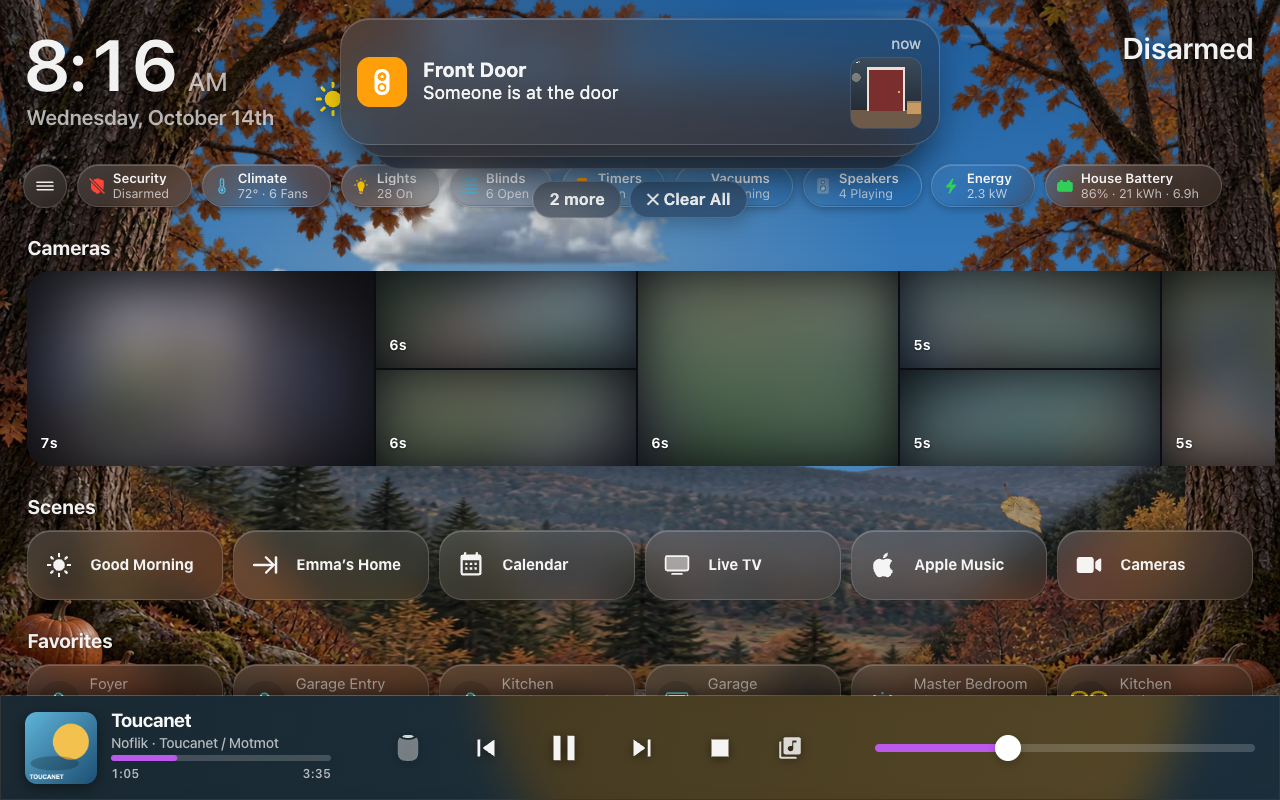 A banner on a wall tablet: the accessory, what it did, and the camera’s snapshot.
Add it with Add feature → Notifications (Features). There is nothing to answer; everything is on its HK Settings page, Features → Notifications: Categories at the top, then One Accessory (your own notifications and Add Notification), Where They Show and Banner.
Banners show on the dashboards HK Frontend knows: the screens it builds, and any dashboard of your own added under Screens → Add Screen → Existing Dashboards. A dashboard that isn't added never shows them (nor do Home Assistant's own pages, such as Settings).
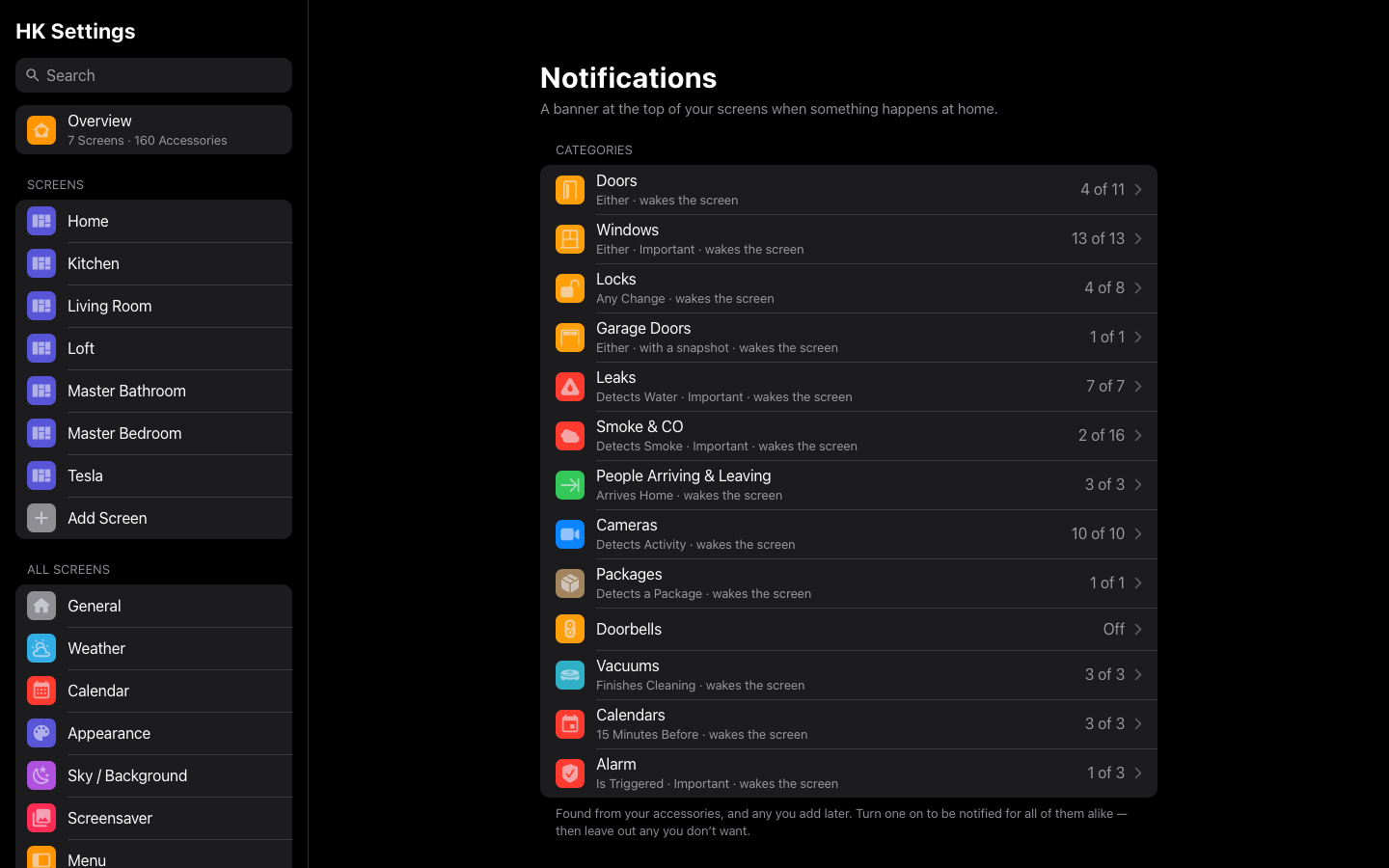 Features → Notifications in HK Settings.
At the top of the page, Categories lists the kinds of accessory your home has — Doors, Windows, Locks, Garage Doors, Leaks, Smoke & CO, People Arriving & Leaving, Cameras, Packages, Doorbells, Vacuums, Calendars, Alarm — found by themselves from Home Assistant (accessories hidden in Home Assistant, and HK Frontend’s own, are left out). A category your home has nothing for isn’t listed. Each row says Off, or how many of its accessories notify (“4 of 5”).
- Turn one on with its Notify switch, and every accessory of that kind notifies alike, with one set of settings (the same ones as a notification below); each banner names its own accessory. Turn it off and the category stops, its settings gone.
- Accessories lists them by room: untick any you don’t want (a closet door, an indoor sensor). One added to Home Assistant later is found and included unless you untick it.
- Not Again For is kept for each accessory: one door opening doesn’t silence the others.
- Camera Snapshot in a category takes each accessory’s own camera (the one on the same device) — Each One’s Own Camera — or one camera you pick for all of them.
- Send Test shows it for one of its accessories, as if it just went off.
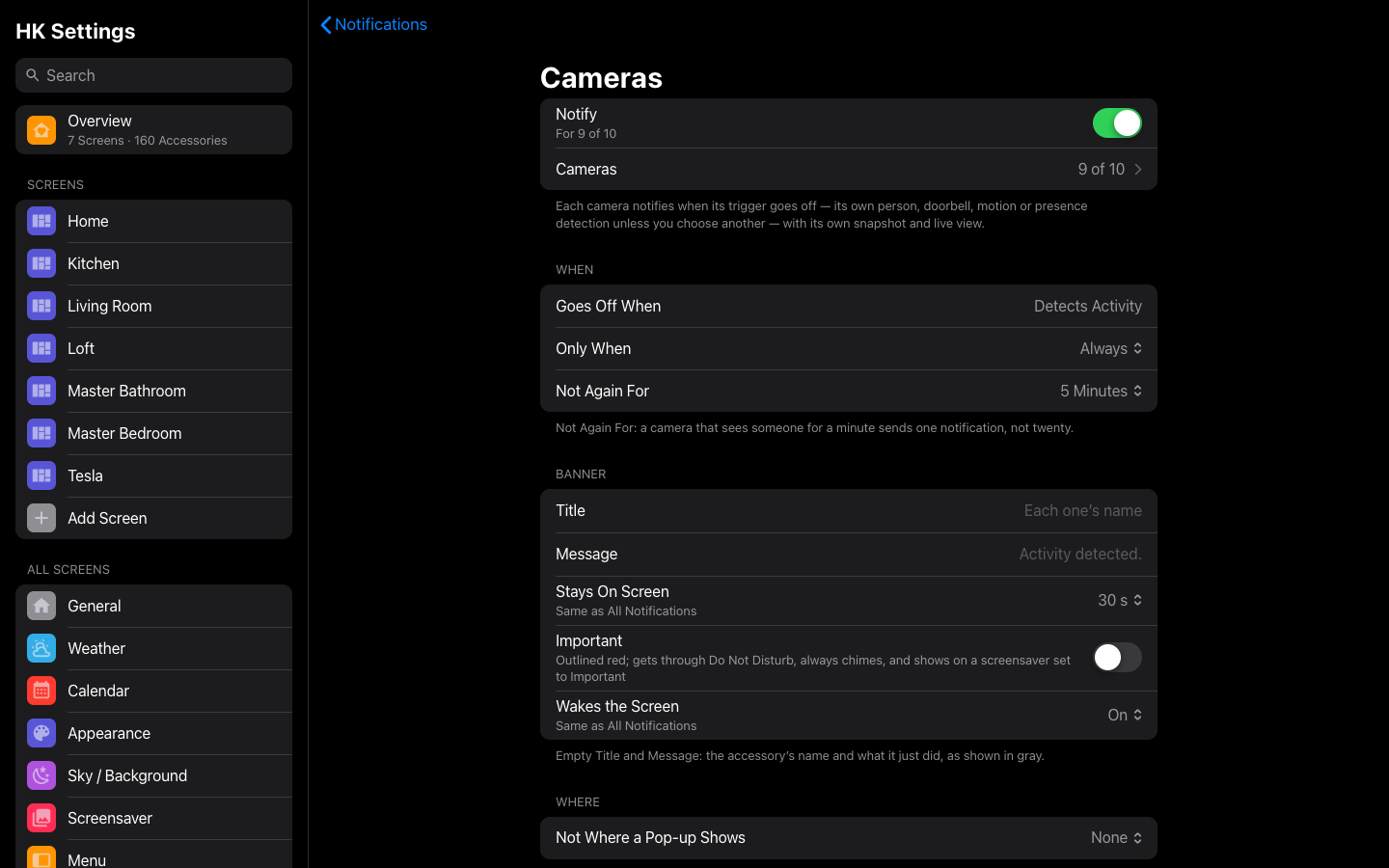 A category in HK Settings: one switch, its accessories, and one set of settings for all of them.
They start sensibly:
| Category | Goes off when | Starts with |
|---|---|---|
| Doors, Windows | Opens | |
| Locks | Unlocks | |
| Garage Doors | Opens | |
| Leaks, Smoke & CO | Detects water, smoke or CO | Important, Wakes the Screen, Until Dismissed |
| People Arriving & Leaving | Arrives Home | |
| Cameras | Its trigger goes off (below) | A snapshot, Not Again For 5 minutes, a tap opens the camera live |
| Packages | A camera detects a package | A snapshot, Not Again For 15 minutes |
| Doorbells | Rings | A snapshot; not where the #doorbell pop-up shows |
| Vacuums | Finishes Cleaning (or Needs Help, Starts Cleaning) | |
| Calendars | 15 Minutes Before (at the start, 5, 10, 30 minutes or an hour) | All-day events at 8:00 AM |
| Alarm | Is Triggered | Important, Wakes the Screen, Until Dismissed |
Change any of them on the category’s page.
Calendars lists your calendars: tick the ones that take part, and choose Goes Off When — at the start, or 5, 10, 15 or 30 minutes or an hour before. Each event’s banner is its name, then when and where it is (“In 15 minutes · 10:30 – 11:00 AM · the park”). The house looks ahead every minute with Home Assistant’s own calendar events, and sends each event once. All-Day Events: the morning one starts, at 6, 7, 8 (to start with), 9 or 10 AM — “Today · All Day” — or Off. A tap on the banner opens the event’s sheet, with Go To the Calendar at that day.
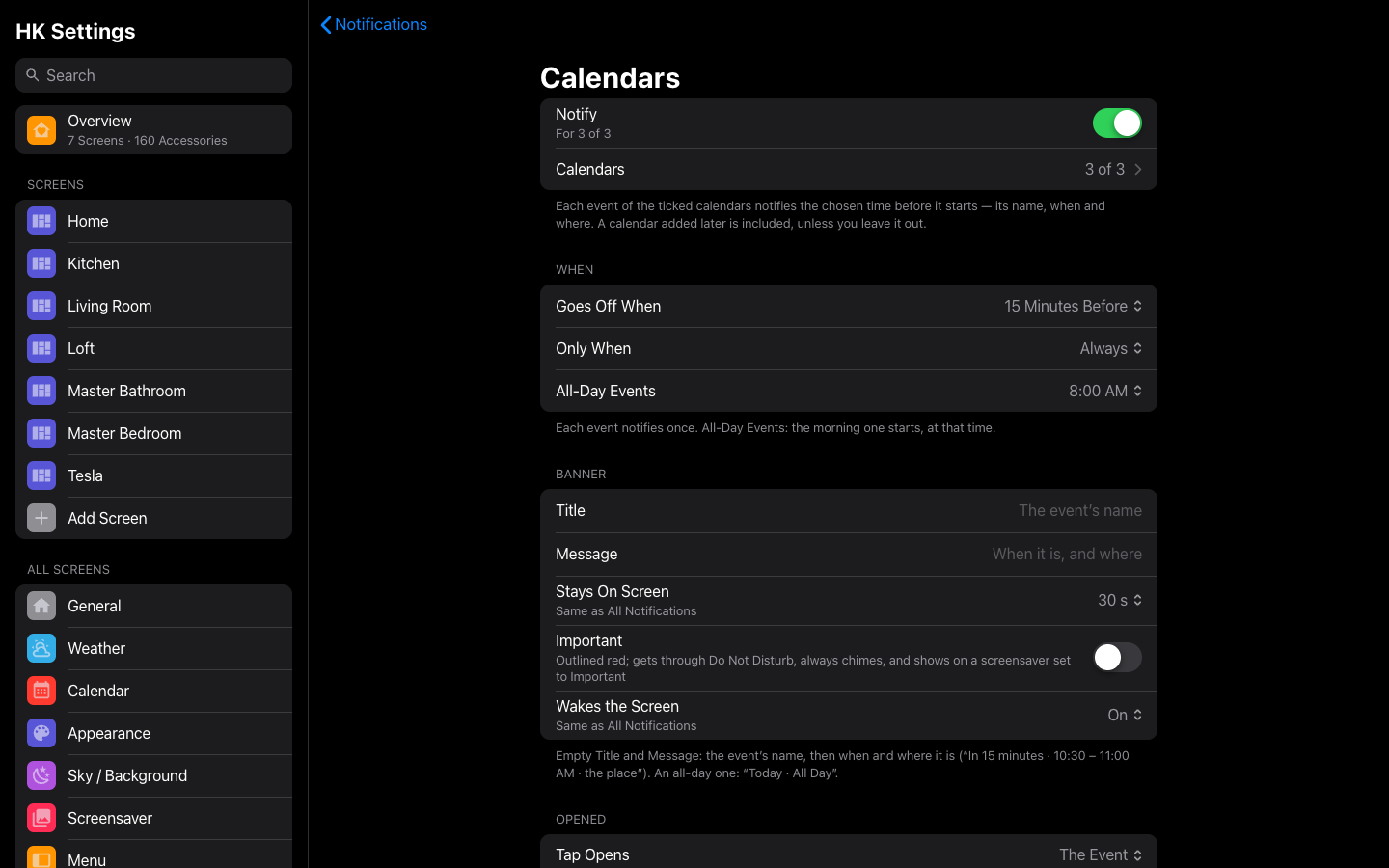 The Calendars category: tick the calendars, then choose when.
Cameras lists every camera once: a camera’s high, medium and low channels are one camera, and its best channel is the one shown live. Each camera has its own page:
| Setting | What it does |
|---|---|
| Notify | Whether this camera notifies. |
| Goes Off When | Its trigger: the sensor that sets it off. Suggested is the camera’s own device’s person detection, else its doorbell, motion or presence sensor; or choose any binary sensor or event. |
| Live View | The camera its snapshot and live view come from: This Camera, or another (a doorbell’s sensor with the driveway camera, say). |
The banner is the camera’s name and what the trigger saw (“Front Door Camera” · “Person detected.”), with the snapshot; a tap opens it live. A camera with nothing on its device to suggest says No trigger — choose one in the list and stays quiet until you do. A suggestion follows the house: a camera you haven’t changed picks up a new sensor by itself.
Alarm lists every alarm panel. An alarm with an Alarm PIN in front of it is listed beside its PIN keypad, and each says what it is: the keypad (the alarm) with a PIN · made by HK’s Alarm PIN, the alarm Opens (the keypad) to disarm. They are one alarm: with both ticked you are notified once, and a tap on the banner opens the PIN keypad, not the alarm’s own Arm / Disarm, which needs no PIN.
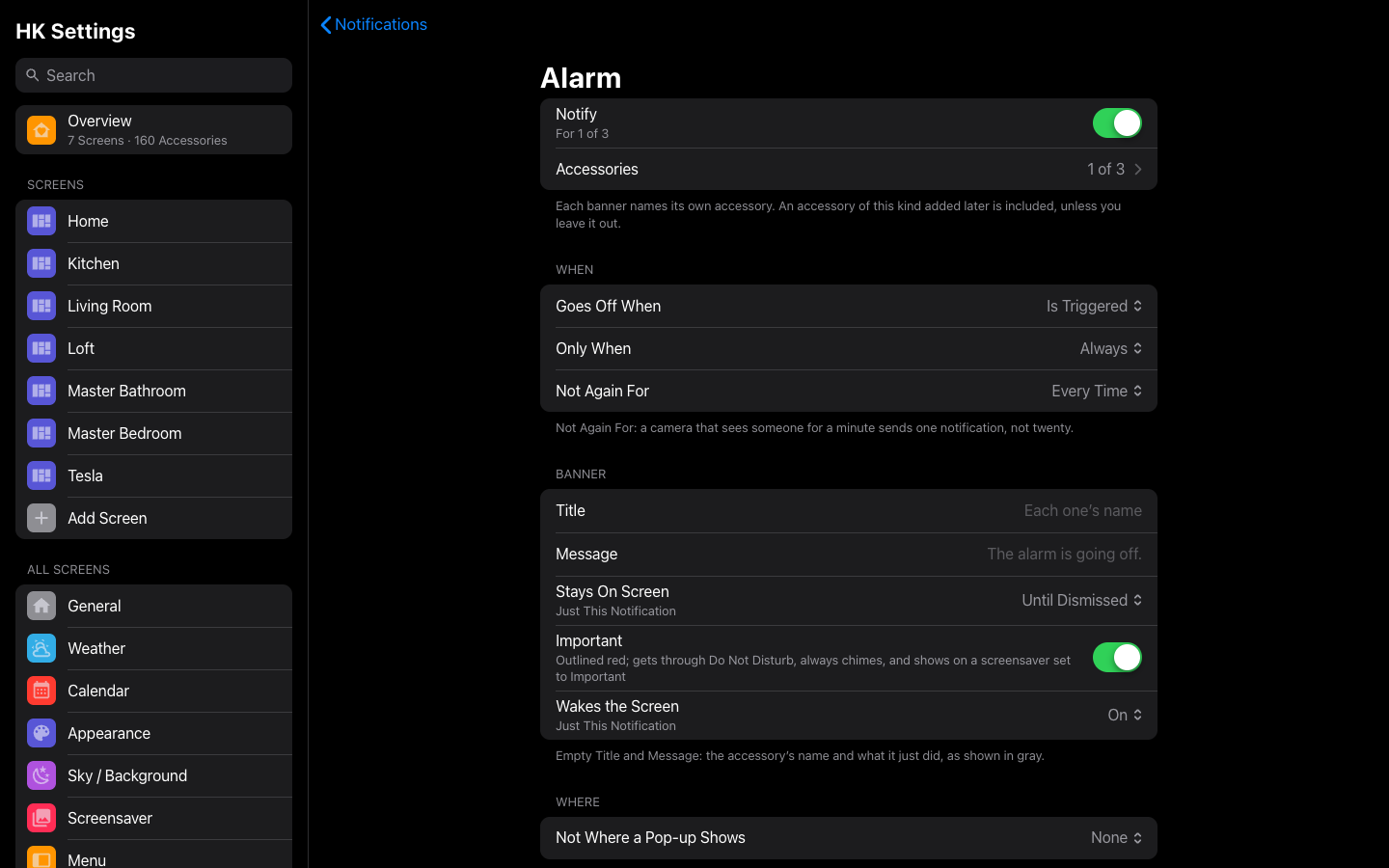 The Alarm category: the alarm and its PIN keypad, one alarm.
For one accessory of its own (One Accessory → Add Notification), or anything a category doesn’t cover — a washer finishing, the alarm being set, a timer ending.
Add Notification asks for an accessory. What it can go off for, its words and its camera are suggested from what the accessory is; change any of them.
| Setting | What it does |
|---|---|
| Accessory | What it watches: a door or window sensor, a lock, a garage door, a person, a camera’s motion or person detection, the doorbell, a leak or smoke sensor, a switch, a timer… |
| Goes Off When | What it does that sets it off; its kind decides the choices. A door or window: Opens, Closes or Either. A person: Arrives Home, Leaves Home. A lock: Unlocks, Locks, Jams. A garage door: Opens, Closes. An alarm: Is Triggered, Is Armed, Is Disarmed. A vacuum: Finishes Cleaning, Needs Help, Starts Cleaning. A timer: Ends, Starts. A leak sensor: Detects Water, Dries. A switch: Turns On, Turns Off. |
| Only When | Always, Someone Is Home, Nobody Is Home, or At Night. |
| Not Again For | Once it has gone off, not again for this long: Every Time, 1 minute, 5 minutes, 15 minutes or 1 hour. A camera that sees someone for a minute sends one notification, not twenty. |
| Title, Message | Empty: the accessory’s name and what it just did (“Garage Door” · “Opened.”, “Emma arrived” · “Emma is home.”), shown in gray. |
| Stays On Screen | How long its banner stays. Default follows Banner → Stays On Screen (30 seconds unless changed); or 10 seconds up to 5 minutes, or Until Dismissed. |
| Important | Outlined red. Gets through Do Not Disturb, and shows on a screensaver set to show only the Important ones. |
| Wakes the Screen | Default follows All Notifications (below); or On / Off for this one. Wakes every screen that allows notifications from the Sleep Screen’s dark — quiet hours too — up to its screensaver, the banner over the photos; a screen already on its screensaver stays on it and shows the banner. Do Not Disturb still wins: one that isn’t Important neither shows nor wakes a screen in Do Not Disturb. |
| Not Where a Pop-up Shows | A screen that opens this pop-up for it shows the pop-up alone. The doorbell’s is #doorbell, so the wall tablets show the doorbell pop-up and phones and computers show the banner. |
| Camera Snapshot, Camera | A picture taken the moment it goes off. A camera’s own sensor suggests the camera on the same device; any notification can have one (someone arriving can show the driveway). For an accessory with no camera of its own (a washer), turning it on asks which camera first. |
| Tap Opens | What a tap on the banner opens: Its Sheet (the accessory’s, with the notification on it — below), A Page of the screen’s own dashboard (Page: Security, Kitchen…), Live Camera (with a snapshot), or Nothing. A calendar’s: The Event. |
| Go To | The page button on its sheet. Automatic: the page the screen shows it on (a door: Doors & Windows; a lock, a garage door, the alarm: Security; a leak: Water; a vacuum: Vacuums; a camera: Cameras; a calendar’s event: the Calendar at that day), else its room’s page. Or None, or a page you pick. |
| Muted until … | Shown while it is muted from its sheet (Mute 1 Hour, below); Unmute ends it. |
Send Test shows it now on every screen that allows notifications, as if it went off, marked Test. Delete Notification… removes it.
- The banner slides down at the top, centered, and slides away by itself after Stays On Screen. A finger on it holds it. On a phone it sits just under the Dynamic Island (or the camera cutout), in the Home Assistant app too.
- It shows over the dashboard, and over the photo screensaver as On the Screensaver says (Where they show).
- Swipe it up or sideways to dismiss it.
- Tap it (or pull it down) to open its sheet — the accessory’s own, the one its tile opens, with the notification on it: what happened and when, the snapshot, its page (Doors & Windows, Security…) and Mute 1 Hour. Below that, the sheet is the accessory’s: Hold to Close the garage door, Disarm with the keypad, the door’s last 24 hours. An alarm with an Alarm PIN opens its PIN keypad. For what a camera sees (someone at the door, the doorbell, a package) it is the camera’s, live. A calendar’s event opens the event; a person’s, their sheet (where they are). Tap Opens can make it a page, the live camera, or nothing instead.
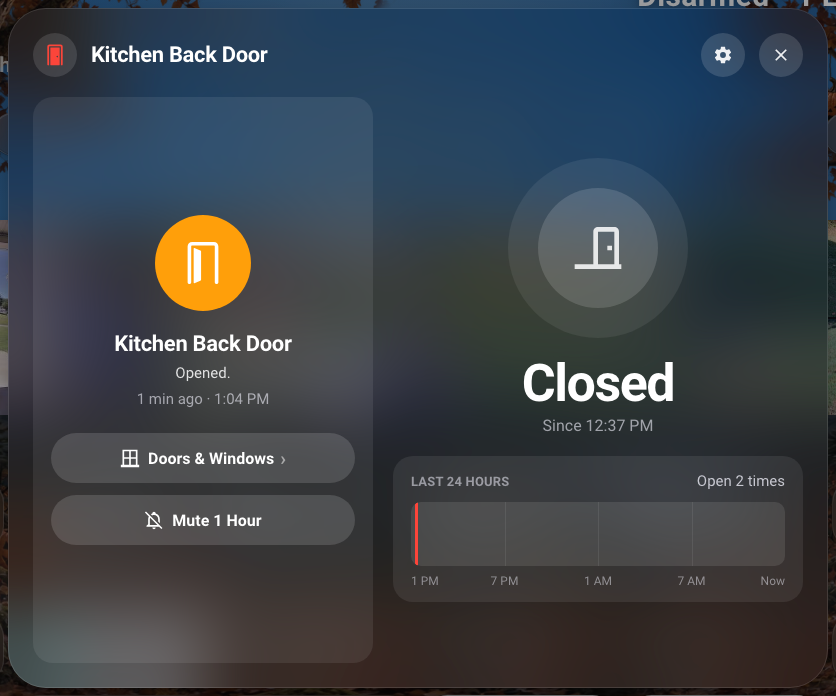 On a wall tablet the sheet opens in its two-column size: the notification on the left, the door’s sheet as its tile opens it on the right. On a phone the notification is a card at the top of the sheet. Every sheet keeps its size.
-
Mute 1 Hour quiets that notification for an hour on every screen — for a category, just that accessory (the Kitchen Back Door, not every door). Anyone can mute from a sheet, a wall tablet too; HK Settings shows Muted until 9:42 PM on the notification, with Unmute. A mute is kept until it runs out or Home Assistant restarts.
-
Several at once stack, the newest on top, with N more and Clear All under them. N more fans them out into a list; each one can be swiped away.
-
A wall tablet or a computer plays a soft chime (twice for an Important one). With Chime off, only an Important one chimes.
-
A screen that is hidden (another app in front, the page in the background) shows what came in meanwhile when it comes back, if it hasn’t timed out.
There is no history: a banner that’s gone is gone. Phones have their own notifications from the Home Assistant app; HK Frontend’s show while its dashboard is open.
On Features → Notifications → Where They Show:
| Setting | Default | What it does |
|---|---|---|
| Screens | Every screen | Each screen’s Allow Notifications, all on one page. Every notification goes to every screen that allows them. |
| On the Screensaver | Important | All, Important (only the Important ones over the photos), or Off. A notification set to Wakes the Screen shows over the photos whatever this says. |
| Do Not Disturb | Off | No banner while it is on, except an Important one. Scheduled: every day, from–to (it starts at 10 PM–7 AM, and may run past midnight). While This Is On (Add…): any entity listed being on — an input_boolean, a switch, a timer while it runs. |
And under Banner:
| Setting | Default | What it does |
|---|---|---|
| Stays On Screen | 30 Seconds | How long a banner stays: 10 seconds up to 5 minutes. Each notification can choose its own, Until Dismissed included. |
| Wakes the Screen | Off | For every notification that doesn’t set its own: a sleeping screen wakes up to its screensaver to show it (Do Not Disturb still wins, unless it is Important). |
| Chime | On | Wall tablets and computers play a soft chime; an Important one plays it twice. Off: only an Important one chimes. |
Each screen can have its own, in its Notifications group, after Behavior (Screens): Allow Notifications, On the Screensaver (Same as All Screens, All, Important Only or Off) and Do Not Disturb (Same as All Screens, Off on This Screen, or Its Own Hours with its own While list). Copy Settings From… copies them with Behavior.
A screen that is asleep (the Sleep Screen’s dark) shows nothing, except a notification that wakes it.
The action HK Frontend: Show notification (hk_frontend.notify) puts a
banner of your own on the screens, for anything the notifications above
don’t cover: the washer finishing, a reminder, a door left open too long.
| Field | What it does |
|---|---|
| Title | Required, up to 40 characters. |
| Message | Up to 120 characters. |
| Important | Gets through Do Not Disturb, and shows on a screensaver set to Important. |
| Wakes the Screen | Turns a sleeping screen on, up to its screensaver, to show it. Do Not Disturb still holds it back unless it is Important. |
| Stays On Screen | Seconds; 0 keeps it until dismissed. Empty: All Screens’ Stays On Screen. |
| Icon | Any hk: or mdi: icon. |
| Accessory | Its icon; a tap opens its sheet, with the banner on it (an alarm with an Alarm PIN: its PIN keypad). |
| Camera | A snapshot taken the moment it is sent. |
| Tap Opens | sheet (the accessory’s), camera (live), page (the Page below) or none. Empty: the page, else the camera, else the accessory, else nothing. |
| Page | A page of the screen’s own dashboard, by its address (kitchen, security, room-office): a tap opens it — “Dinner’s ready” opens the Kitchen. |
| Dashboards | Only these screens (their addresses, dashboard-kitchen). Empty: every screen. |
| Users | Only screens signed in as these users (user ids). Empty: everyone. |
Each screen then decides as it does for any notification: its Allow Notifications, Do Not Disturb and screensaver settings apply. Notifications must be added first (Add feature → Notifications).
- alias: Laundry - Basement - Washer Done Banner
  triggers:
    - trigger: state
      entity_id: sensor.washer_status
      to: complete
  actions:
    - action: hk_frontend.notify
      data:
        title: Laundry
        message: The washer is done.
        icon: mdi:washing-machine
        stay: 120
dashboards: [dashboard-kitchen]The house watches the accessories, not the browsers: a notification goes off once, however many screens are open, and Not Again For is kept by the house. The snapshot is taken by Home Assistant at that moment and kept ten minutes, so every screen shows the same picture. Each screen then decides whether to show it (its settings, Do Not Disturb, its screensaver, asleep, a pop-up).
Wakes the Screen asks the Sleep Screen of every screen it decides for — that allows notifications and, unless the notification is Important, isn’t in Do Not Disturb — to show its screensaver for a while (the banner’s time, at least a minute and at most five; five for Until Dismissed). A screen already on its dashboard stays there. A screen whose Sleep Screen is Decided By: An Automation is not woken by the house.
New screen code reaches a wall tablet when its kiosk’s cache is cleared (see Wall tablets).