Home
ZX-Next-Unite by Julien Clauzel, based on:
- HDFM-GOOEY by em00k, and
- NextSync by Jari Komppa (with the Sync5 extensions by Julien Clauzel).
A cross-platform (Windows, Linux, macOS) graphical front-end that unites two great ZX Spectrum Next tools in a single utility — Hdfm-Gooey and NextSync — and adds a built-in browser for discovering ZX Spectrum / Spectrum Next software across several online archives (GetIt, ZXDB/ZXInfo, zxArt and itch.io).
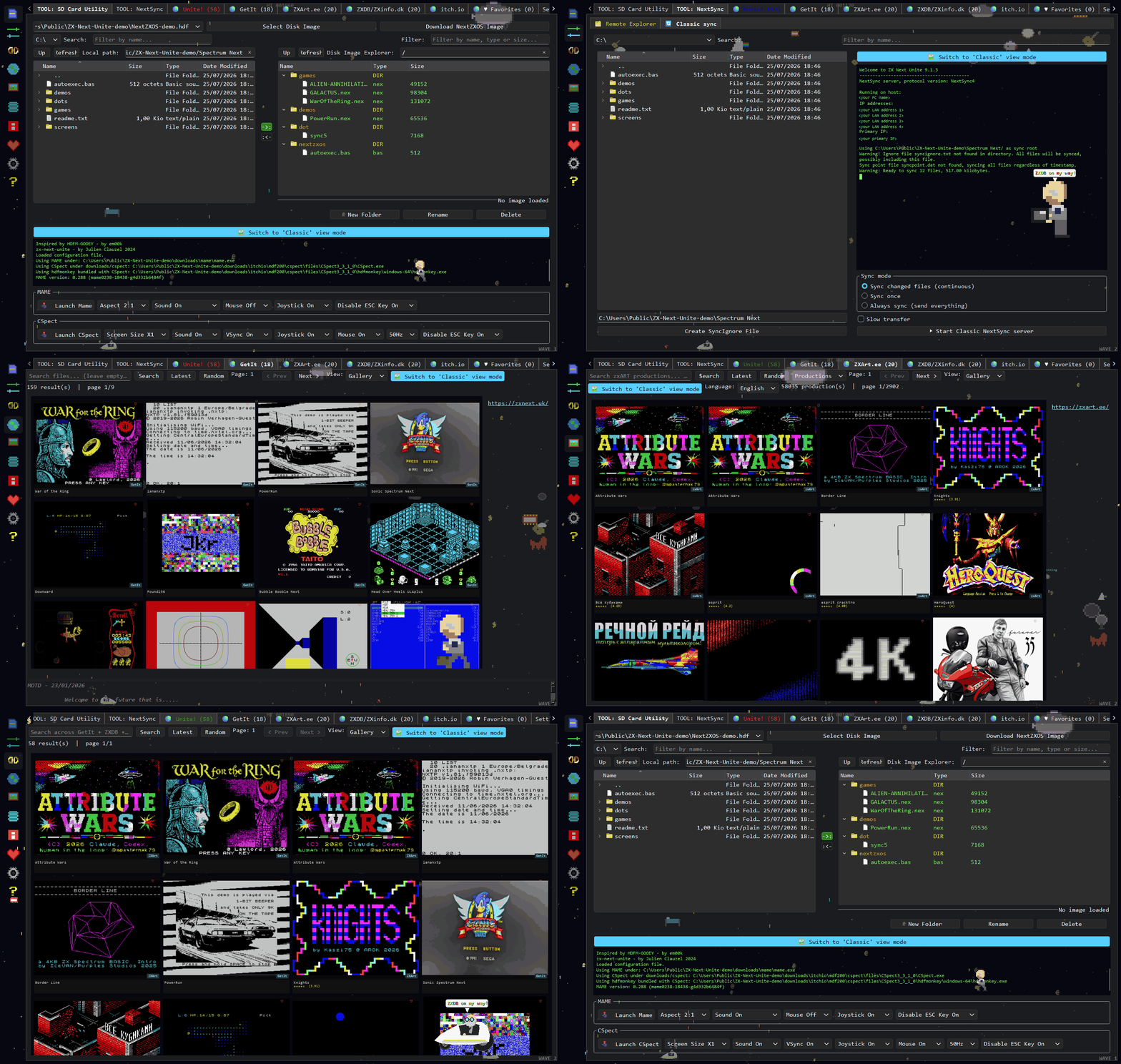
The main tabs, in Retro mode: SD Card Utility · NextSync (classic sync, then the Remote Explorer) · GetIt · ZXArt.ee · ZXDB/ZXInfo.dk · Unite! · Alien Floyd's. Each one is documented in the User Manual.
- The SD Card tab targets CSpect and MAME users: mount an HDF image, copy content in and out with a simple file explorer, then launch the emulator — no command-line options to memorise.
- The NextSync tab is for real hardware owners (KS1, KS2 or clones with an ESP Wi-Fi module): push content from your PC to the Next over the network.
Just want to install it? See the Installation page.
Just want to know what a tab does? See the User Manual — a page per tab, written for first-time users.
- Licensing
- Videos
- User manual — every tab explained
- The SD Card / emulator tab
- The NextSync tab
- Online libraries: GetIt, ZXDB, zxArt
- Keyboard shortcuts
- Installation
- Settings
- Startup parameters
- Known issues
- Source & architecture
- Legal disclaimer — third-party content
ZX-Next-Unite is licensed under the MIT license.
It is a Qt application built with PySide6 and pygame-ce on top of Qt 6,
which retains its GPLv2/LGPL licensing (see the LICENSE file). It optionally
uses itch-dl by Dragoon Aethis (MIT,
© 2022) to power the itch.io tab, Flask
by the Pallets team (BSD-3-Clause) to power the NextSync HTTP bridge — the web
server behind the Next's .http dot command — and
Send2Trash by Andrew Senetar and
contributors (originally Virgil Dupras, BSD) to send files deleted in the local
file explorers to the system Recycle Bin / Trash instead of removing them
permanently. Like PySide6 and pygame-ce, itch-dl, Flask and Send2Trash are
not bundled with a standard Python install and must be installed separately
(pip install -r REQUIREMENTS.txt); the itch.io tab only appears when itch-dl
is installed, the HTTP bridge toggle in Settings is greyed out until Flask is
installed, and the "Send deleted files to the Recycle Bin" toggle is greyed out
until Send2Trash is installed.
- Setup & How-to: https://youtu.be/-gUxV4fM1yo (the full Python install is also covered in the older Py-Hdfm-Gooey video, since ZX-Next-Unite evolved from it: https://youtu.be/FJG-Z0DCIjQ)
- NextSync v4 the new .sync4 command explained https://youtu.be/pKchUZhNHKE
- Demo / Show time!: https://youtu.be/0qsIU01zsoM
- Emulator integration: https://youtube.com/shorts/hPmV5shvBfo
Older Py-Hdfm-Gooey videos:
- NextSync — Head Over Heels: https://www.youtube.com/watch?v=D3_WqTPvjOE
- NextSync — Night Knight: https://www.youtube.com/watch?v=eN1eMIqMCm4
Each tab has its own page, aimed at someone using it for the first time: what it is for, a quick start, then a reference for every control.
| Tab | Page |
|---|---|
| TOOL: SD Card Utility | SD Card Utility tab — mount an image, move files, launch an emulator |
| TOOL: NextSync | NextSync tab — sync to real hardware, and the Remote Explorer |
| 🌍 Unite! | Unite! tab — one search across all the archives |
| 🌍 GetIt | GetIt tab — software written for the Spectrum Next |
| 🌍 ZXArt.ee | zxArt tab — demos, music and pixel art |
| 🌍 ZXDB/ZXinfo.dk | ZXDB tab — the historical ZX Spectrum archive |
| 🌍 itch.io | itch.io tab — your own itch.io library (optional) |
| 🌍 ♥ Favorites | Favorites tab — everything you hearted |
| 🌈 Alien Floyd's | Alien Floyd's tab — the easter egg (optional) |
| Settings 🔩 | Settings tab — every option, explained |
| ? | Help tab — the built-in offline manual |
Start with the User Manual overview for the tab strip, the keyboard shortcuts, and the handful of conventions (the log window, 🎮 Retro, Table vs Gallery, the ♥ button) that work the same on every tab.
The first tab is aimed at CSpect and MAME users and developers. You mount an HDF image (think of it as an ISO that contains everything the machine needs to boot) and upload/download content using a built-in file explorer. Once your content is on the image, launch CSpect or MAME directly from the app. Key settings such as screen size are adjustable in the UI, so you never need to remember emulator command-line options.
📖 Full walkthrough of every control: SD Card Utility tab.
See Installation → Optional components for how to set up CSpect, MAME, hdfmonkey and the system images.
The second tab is for real-hardware owners whose Next has an ESP (Wi-Fi) module. Jari Komppa's NextSync protocol synchronises a folder from your PC/Mac/Linux machine to the Next over the network. ZX-Next-Unite implements the server side that listens for the Next; your Next runs a dot command that connects to it (by default over TCP port 2048).
-
Current command:
.sync5— the Sync4 protocol: faster transfers and bidirectional sync (.sync5 -send <file|dir>pushes files back from the Next to the PC). Speed hints-slow,-default,-fastreplace the oldsyncfast/syncslowcommands. -
Remote file explorer:
.sync5 -listen(short alias:.sync5 -l) — turns the Next into a small remote file server so you can browse and transfer its filesystem from the app (see Remote file explorer below). Press BREAK (Caps Shift + Space) on the Next to stop it — the Next-side equivalent of Ctrl-C. -
Legacy command:
.sync— the older PC → Next-only command still works.
Typical usage: open the NextSync tab, select the folder to sync, and click
Start NextSync server. The first run, enable Sync once so the server stops
after a single sync while you verify things. Then run .sync5 on the Next. Once
the first full sync completes, a SyncPoint file records what has been sent so
subsequent runs only transfer what changed. syncignore.txt lets you exclude
file types from syncing (see Jari's documentation).
📖 Full walkthrough of both modes and every control: NextSync tab.
📖 Step-by-step setup, IP configuration and building the dot from source: Installation → NextSync.
Beyond folder syncing, the NextSync tab can turn into a two-pane file manager — just like the SD Card tab, but the right-hand pane is your Next's real filesystem (reached over Wi-Fi) instead of a disk image:
[ your PC files ] ->: :<- [ your Next's files ]
How to use it:
- Click 🗂 Remote Explorer in the NextSync tab. The log window flips into the two-pane view, and the normal sync controls are replaced by a single ▶ Start NextSync server button.
- Click Start NextSync server. A toast reminds you to run
.sync5 -listenon your Next; a pulsing green indicator shows the server is live. - On the Next, run
.sync5 -listen(or the short alias.sync5 -l). It connects and the right pane fills with the current Next directory.
Then you can:
-
Transfer — select item(s) and use
->:(upload PC → Next) or:<-(download Next → PC), or just drag & drop between the panes (and from your OS file manager onto the Next pane). - Navigate — double-click folders, or use Up / Refresh on either pane.
- Manage — New Folder and Delete (right-click menu or the buttons) create and remove folders/files on the Next.
End the session any of three ways: click ⏹ Stop NextSync server, toggle
🗂 Return to classic sync off, or press BREAK (Caps Shift + Space) on the
Next itself — the Next-side equivalent of Ctrl-C. BREAK always lets any
in-progress transfer finish first, so no file or directory is left half-written.
This uses the same .sync5 command and Wi-Fi connection as a normal sync —
nothing else to install.
Tip: launch the app with python zx-next-unite.py -start-remote-explorer-listener to skip steps 1–2 — the Remote Explorer view
opens and its listen server starts automatically at startup (using the saved
sync root), so the Next only has to run .sync5 -listen.
Three tabs let you search and download ZX Spectrum / Spectrum Next software directly from public community archives. ZX-Next-Unite is only a front-end client: it queries each service's public API and downloads from the URLs those APIs return (see the legal disclaimer).
| Tab | What it is | API base used |
|---|---|---|
| 🌍 GetIt | Browse and download software published for the Spectrum Next. | https://zxnext.uk |
| 🌍 ZXDB / ZXInfo.dk | The largest open database of ZX Spectrum software (search titles, view screenshots and inlays). Data via the ZXInfo API; project at github.com/zxdb/ZXDB. | https://api.zxinfo.dk/v3 |
| 🌍 ZXArt.ee | The zxart.ee gallery/archive of ZX Spectrum art, music and productions (demos, games, graphics). | https://zxart.ee/api |
A fourth tab, 🌍 Unite!, searches all three at once and merges the results, and 🌍 ♥ Favorites collects anything you heart from any source.
An optional itch.io tab also appears when itch-dl is
installed and you have entered your itch.io API key — it browses your
collections/owned games and installs selected items. Anything you download can
then be copied to your HDF image or synced to your Next.
The three built-in file explorers (the SD Card local explorer, the SD Card disk-image explorer and the NextSync local explorer) share the usual editing shortcuts. Copy / Cut / Paste work across all three explorers and also exchange with the operating-system clipboard (e.g. copy in Windows Explorer, then paste into the disk image, and vice-versa):
- Ctrl+C — Copy the selected file(s)/folder(s) to the shared clipboard.
- Ctrl+X — Cut the selection (moved to the destination on the next paste).
- Ctrl+V — Paste into the selected folder (or the folder currently shown).
- F2 — Rename the selected file or folder.
- Delete — Delete the selected file or folder (disk-image and NextSync explorers).
In the picture (gallery) item viewer — opened by double-clicking an item in the GetIt, ZXDB, zxArt or itch.io tabs:
- Esc — Close the viewer and return to the gallery.
- Left / Right arrows — Show the previous / next screenshot.
The easiest route is to download the package for your platform from the
Releases page — the
Windows .exe, the Linux x86_64 .tar.gz or the macOS (Apple Silicon) .zip
(plus the sync5 dot command if you want NextSync) — no Python required.
With Python 3.10+ and pipx, it is also one line on any platform — no repo checkout:
pipx install "zx-next-unite[full]"On any platform you can also run from source: install Python 3.10 or newer, clone the repo, install the dependencies, and run:
git clone https://github.com/jclauzel/ZX-Next-Unite
cd ZX-Next-Unite
python -m pip install -r REQUIREMENTS.txt
python zx-next-unite.py
(On Linux/macOS use python3. Only PySide6 is required; pygame-ce,
itch-dl and flask are optional.)
👉 Full instructions — virtual environments, CSpect/MAME/hdfmonkey/Mono setup and troubleshooting — are on the Installation page.
📖 Every option, grouped and explained: Settings tab.
The interface speaks seven languages — English, Español, Português, Polski, Русский, Čeština and Français. On first start it matches your operating system's language automatically (falling back to English) and tells you so with a short note; change it any time via Settings → Application language — the switch applies instantly, no restart. Tab titles, dropdown values and log messages intentionally stay in English. Details: Settings → Language.
All options are stored in a single hdfg.cfg file, created automatically in
the same directory as the tool. The format is compatible with em00k's original
tool but adds more options (including NextSync support). To reset everything, back
up and delete hdfg.cfg.
The Settings tab also hosts the NextSync HTTP bridge toggle (requires the
optional flask package): a small web server that republishes the Remote
Explorer's .sync5 -listen session as HTTP routes, so a browser, curl or
another Next (via the built-in .http dot command) can drive the connected
Next's SD card. Its port — 80 by default — is set in the input box next to
the toggle and persisted to hdfg.cfg, as is the maximum number of
concurrent connections (default 1, the recommended value to avoid
concurrent access — extra requests wait their turn rather than being
rejected). Full route reference and call samples:
HTTP bridge documentation.
⚠️ Security — this is a LAN-only file server. Both NextSync's-listenprotocol and the HTTP bridge on top of it are plain, unencrypted, and unauthenticated by default. The Next's.httpdot command has no TLS, so everything (paths, files, commands) crosses the network in clear text, and out of the box anyone who can reach the port can list, download, upload, rename and delete files on the connected Next. Run it only on a network you trust and never expose the port to the internet. For a basic gate against casual access on a shared LAN, tick "Require bearer token" (the row under the bridge toggle): the bridge then mints a random 64-characterZXNEXTUNITE-BRIDGE-TOKEN(editable, with a Generate button; persisted tohdfg.cfgand reloaded at startup) and answers only requests that send that value in theZXNEXTUNITE-BRIDGE-TOKENheader — everything else gets HTTP 401. The token is a shared secret, not encryption (it too travels in clear text); for real protection over an untrusted link, tunnel the bridge through a VPN or an SSH port-forward. Details: HTTP bridge → Security.
To force a specific retro animation on startup (requires pygame-ce):
python zx-next-unite.py --anim <walk|c5|ufo|aliens>aliens spawns Sir Clive's saucer plus the attacking green alien squadron.
To have the Remote file explorer's listen server
running right from startup (using the saved sync root — no clicks needed
before running .sync5 -listen on the Next):
python zx-next-unite.py -start-remote-explorer-listenerThis forces the Remote Explorer view open for this run only (the saved Settings are not modified). Pairs nicely with the NextSync HTTP bridge for a fully hands-off remote setup.
-
hdfmonkey is required. On startup the app checks your PATH for it. On Windows
it can auto-download it; on macOS/Linux you install it manually. If the Windows
auto-download fails while your internet works, it is almost always a firewall
blocking outbound calls from
python.exe(or the app exe) — see Installation → Troubleshooting. - PySide6 and a recent Python are required — install these first (see Installation).
- Non-Windows platforms require you to install/compile hdfmonkey manually and install Mono (to run CSpect, which is .NET-based).
- Special characters (e.g. single quotes) in filenames on the Next image may not download correctly.
-
ESP / Wi-Fi errors can occur on an unstable connection; reduce the rate with
the Slow transfer option (or
-slow). -
Timermessages in the console during NextSync can be safely ignored. - If NextSync misbehaves, try Jari Komppa's original command-line
nextsync.pyfirst (bundled in the nextsync v1.2 release); ZX-Next-Unite shares the same code base, so if that syncs, this should too.
ZX-Next-Unite is written in Python (PySide6/Qt 6). The entry point is
zx-next-unite.py, which holds the single MainWindow class and all tab/pane UI.
The rest is split into focused modules:
| File | Role |
|---|---|
zx-next-unite.py |
Entry point; MainWindow and all tab/pane UI logic |
zxnu_config.py |
Constants, SETTING_* keys, API base URLs, UI strings, colour defaults and pure helpers |
zxnu_workers.py |
Background threading primitives (signals, HDF task worker, progress dialog) |
zxnu_media.py |
ZX Spectrum SCREEN$ decoder, placeholder rendering, format tags, shared pixmap cache |
zxnu_gallery.py |
Reusable gallery widgets (cells, grid view, animated background) |
zxnu_itchio.py |
Optional itch.io integration (detection, API access, install via itch-dl) |
rc_backgrounds.py |
Auto-generated Qt resource module (do not edit by hand) |
The .sync5 dot-command source lives under nextsync/sync. It can be built two
ways: the classic SDCC 4.5.0 build (build.ps1, limited to the 8 KB dot
size), or the newer z88dk "dotN" build (z88dk/build_dotn.ps1) which lifts
that 8 KB limit by paging overflow into extra banks. See
Installation → building the dot from source.
The author of ZX-Next-Unite does NOT distribute any files, ROMs, games, demos, graphics, music, or any other content obtained through the GetIt, ZXDB, or zxArt integrations.
All content is served exclusively by the respective third-party services listed above. ZX-Next-Unite acts solely as a front-end client that queries their public APIs and downloads files directly from the URLs those APIs return.
It is the sole responsibility of the end user to ensure that any content they download or use through this application complies with the applicable copyright, licensing, and legal requirements in their jurisdiction.
If in doubt, consult the terms of service of the relevant platform and seek appropriate legal advice before downloading or using any content.
The first time you open the GetIt, ZXDB, or zxArt pane, the application displays
this disclaimer and asks you to acknowledge it. You can dismiss the dialog to
continue using the pane; it reappears on the next visit until you tick "I agree
and understand. Do not show this message again", at which point your
acknowledgement is saved to hdfg.cfg and the dialog is no longer shown.