zxArt tab
In one line: browse the demoscene — ZX Spectrum demos, chiptune music and pixel artwork — from zxart.ee.
zxArt is the creative side of the Spectrum: demos and intros, tracker music, and an enormous gallery of pixel art, much of it still being produced today. It is the most visual of the online tabs, so it is the one where Gallery view really earns its keep.
For games use ZXDB; for Next-native software use GetIt.
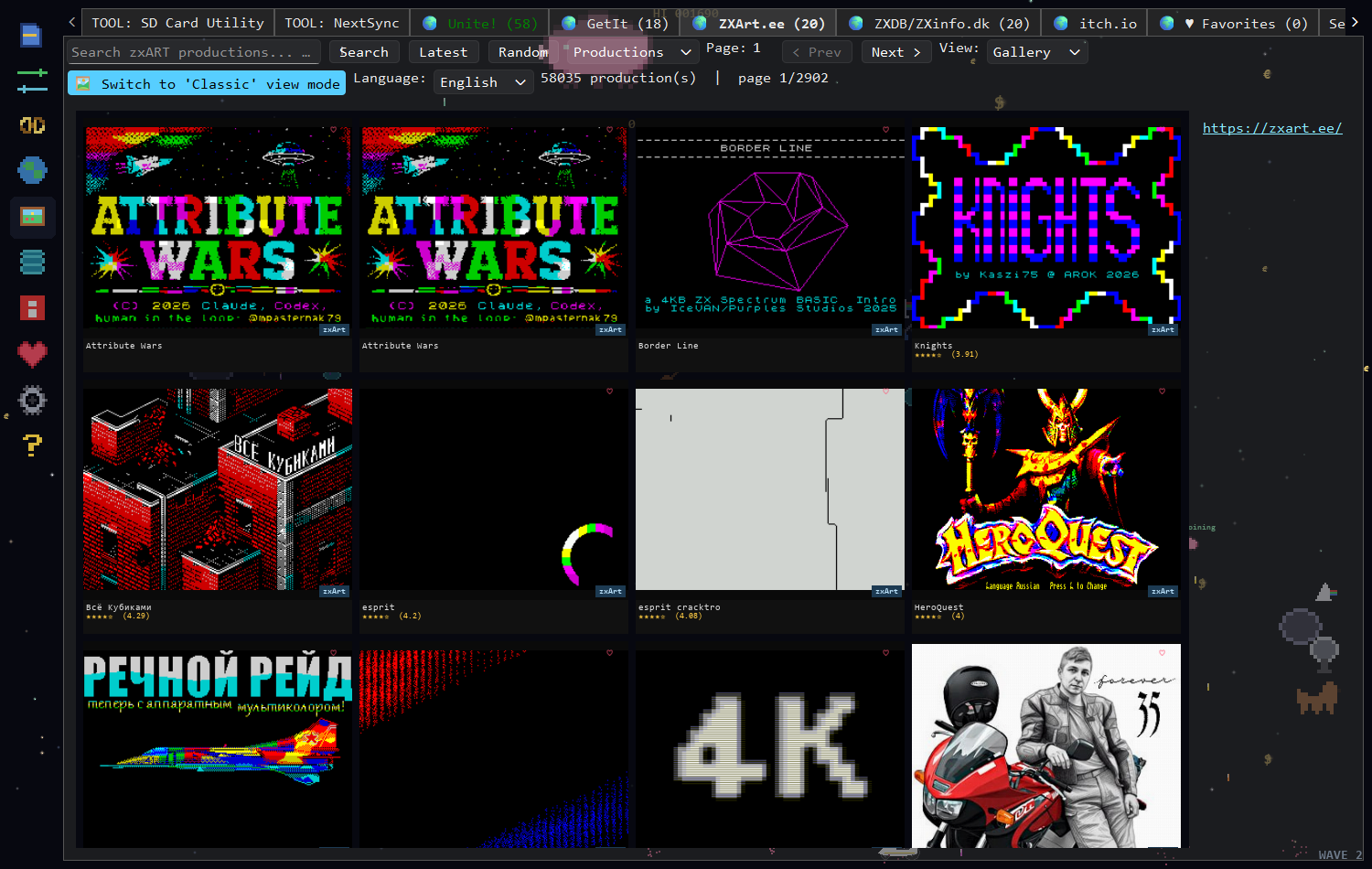
58,000 productions across 2,902 pages, in 🎮 Retro Gallery mode. Star ratings appear under each tile, and the Language: dropdown sets the catalogue language.
First visit: a legal disclaimer appears — ZX-Next-Unite hosts nothing and only queries public APIs. Tick "I agree and understand" to stop it reappearing.
- Open the tab and click Latest to see what the scene has just released.
- Switch View: to Gallery — this catalogue is mostly pictures, and the grid shows it far better than a table.
- Double-click anything that catches your eye for the full-screen viewer, then use ← / → to step through the images or let the slideshow run.
- Download, or send it to your SD card image or your Next from the same screen.
The dropdown next to the search box picks what you are looking at:
| Mode | What it shows |
|---|---|
| Productions | The default — demos, intros, music and other releases. |
| By letter | Alphabetical browsing. A second dropdown appears for # and A–Z. |
| Pictures | The pixel-art gallery on its own. |
| Control | What it does |
|---|---|
| Search box | Search productions by title. Leave it empty to browse the latest. |
| Latest | Most recent releases, newest first. |
| Random | A random page of the catalogue. |
| Page / < Prev / Next > | Step through result pages. |
| View: | Table or Gallery. Gallery is the better fit here. |
| 🎮 Retro | 8-bit pygame rendering of the results (needs pygame-ce). |
| Language: | zxArt's own catalogue language — English, Polish or Spanish. This changes the text zxArt returns, and it is remembered between sessions. |
The status label at the end becomes clickable after a download — click it to open the folder the files landed in.
Six columns: ID, Title, Year, Author / Group, Type and Genre / Compo. Group and Compo are demoscene specifics — the crew that made it, and the competition it was entered in.
Selecting a row loads its preview on the right; the < and > arrows
over the preview step through multiple images.
| Action | |
|---|---|
| Download content | Save the files to downloads/
|
| Send to SD card (image) → … | Copy into the disk image open in the SD Card Utility tab |
| Send using NextSync → … | Download, then start the NextSync server on that folder |
| Open on website (zxart.ee) | Open the entry in your browser |
Every gallery tile also carries a ♡ heart — click it to keep the item in the Favorites tab.
- Pictures in this catalogue are frequently genuine
SCREEN$files. The app decodes them natively, so what you see in the preview is what the Spectrum would show. - Some tiles animate — those are
.gifpreviews, played in the grid as well as in the viewer. - If the grid feels cramped or sparse, change Gallery items per row and Gallery image size in Settings.
Titles look wrong or untranslated. Check the Language: dropdown — the catalogue text comes from zxArt in whichever language you selected, and not every entry is translated.
A download fails. Turn on "Perform pre-availability check on Downloads (ZXDB & zxArt)" in Settings so links are tested before they are offered.
See also: ZXDB tab · GetIt tab · Unite! tab to search all three at once.