ZXDB tab
In one line: search the largest open database of ZX Spectrum software — essentially every game ever released — with screenshots, inlays and magazine scans.
ZXDB is the community's historical archive of the original ZX Spectrum. If you are hunting for a 1984 classic, its cover art, or the magazine that reviewed it, this is the tab. Data comes from the ZXInfo API; the database project lives at github.com/zxdb/ZXDB.
For software written for the Spectrum Next, use GetIt instead.
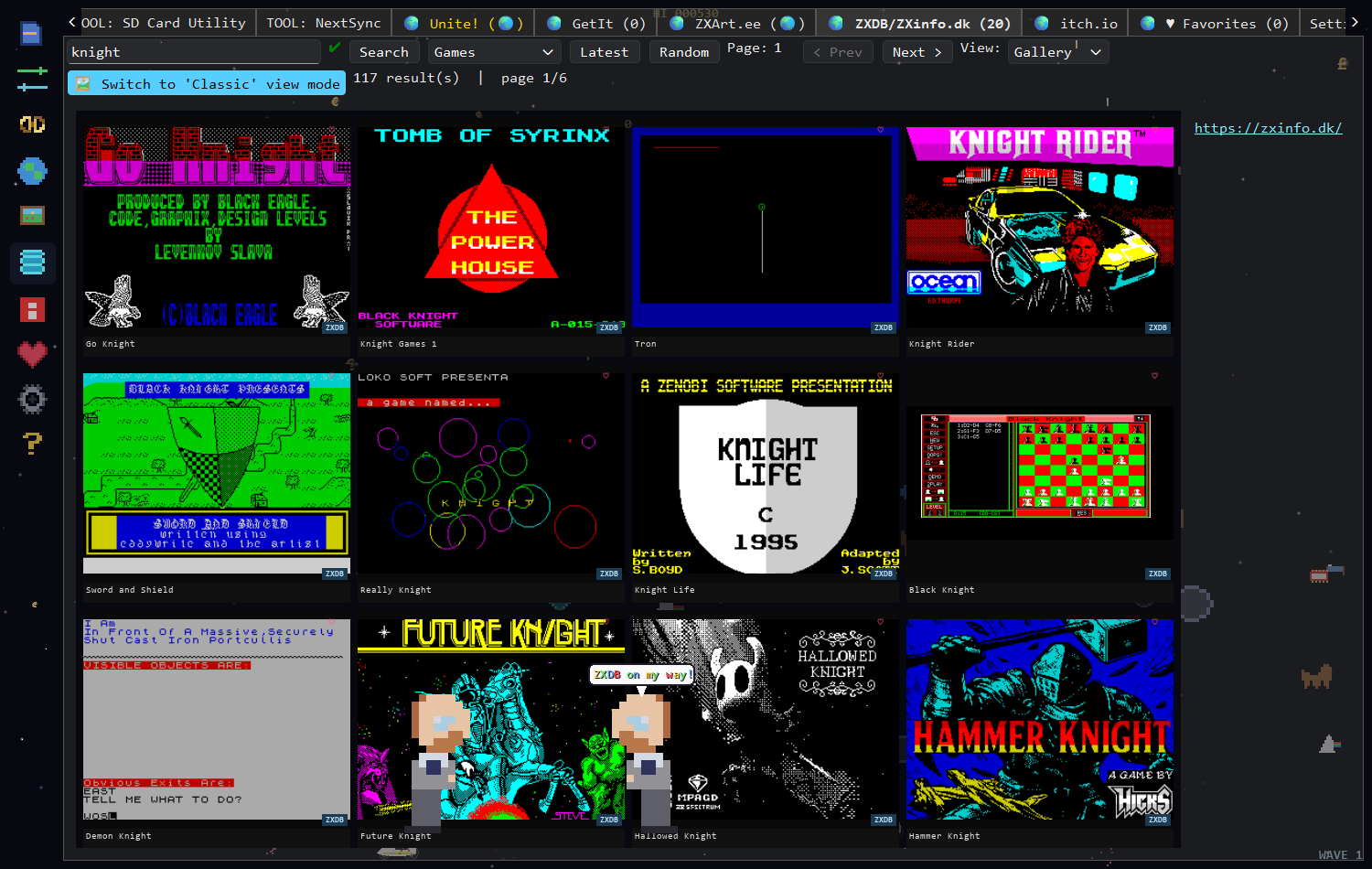
A search for "knight" — 117 results across 6 pages, shown as original loading screens in 🎮 Retro Gallery mode.
First visit: a legal disclaimer appears — ZX-Next-Unite hosts nothing and only queries public APIs. Tick "I agree and understand" to stop it reappearing.
- Type a game title and press Search.
- Click a result — screenshots and details load on the right. Use the
<and>arrows over the preview to flick through loading screens, in-game shots and inlay scans. - Click Download File, or right-click the result to send it straight to your SD card image or to your Next.
Double-click a result for the full-screen viewer: large screenshots, a slideshow, the full metadata, and buttons to download, send to SD card, send via NextSync, launch an emulator, or open the entry on zxinfo.dk.
The dropdown next to Search changes what you are searching. This is the part worth knowing about — ZXDB is much more than a title search.
| Mode | What it does |
|---|---|
| Games | The default. Free-text search across titles. Leave the box empty for a random selection. |
| By letter | Browse alphabetically. A second dropdown appears — pick # or A–Z. Good for browsing a publisher's back catalogue. |
| Magazines | Search scanned Spectrum magazines rather than software. See below. |
| By author | Find everything by a particular programmer, artist or musician. |
| Suggestions | Title suggestions from the API — useful when you only half-remember a name. |
The rest of the bar works as on every online tab: Latest, Random, Page / < Prev / Next >, the View: Table/Gallery switch, the 🎮 Retro toggle, and a status label that becomes clickable after a download to open the destination folder.
Six columns: ID, Title, Year, Author / Publisher, Machine and Genre. Machine is worth watching — it tells you whether an entry is 48K, 128K, +2/+3 or Next-enhanced.
| Action | |
|---|---|
| Download content | Opens a list of every file ZXDB holds for that title — tape images, disk images, scans — so you can pick. |
| More like this | Runs a similarity search and replaces the results with titles like this one. |
| Send to SD card (image) → … | Copy into the disk image open in the SD Card Utility tab |
| Send using NextSync → … | Download, then start the NextSync server on that folder |
| Open on website (zxinfo.dk) | Open the full entry in your browser |
Because one title can have many files, Download content opens a chooser.
Each file has its own Download, Send to SD Card and Send via
NextSync buttons, and along the bottom you get Download all, Send all to
SD Card and Send all via NextSync. Downloads land in
downloads/<title>/.
In Magazines mode the right-click menu changes to match:
| Action | |
|---|---|
| Fetch single magazine by name | Look up one magazine |
| Retrieve all issues | List every scanned issue |
| Fetch issue info for this magazine | Details for the selected issue |
| Download content | Download the scans |
Magazine scans are large files, and they come from a single host — if a scan fails to download, that host is having a bad day rather than the app being broken.
A download fails but the entry looks fine. ZXDB indexes files across several hosts and not all of them are always up. Try a different file for the same title. The "Perform pre-availability check on Downloads" option in Settings makes the app test links before offering them, at the cost of a slower search.
Search returns nothing for a title I know exists. Try Suggestions mode, or By letter — original titles are sometimes indexed under a publisher's spelling.
A preview is blank. Not every entry has screenshots; many early releases have only an inlay scan.
See also: GetIt tab for Next-native software · zxArt tab for demos and artwork · Unite! tab to search all three at once.