User Guide : Estimates
The estimate tree can be found on the estimates window.

Estimates can be grouped into trees and sub-trees.
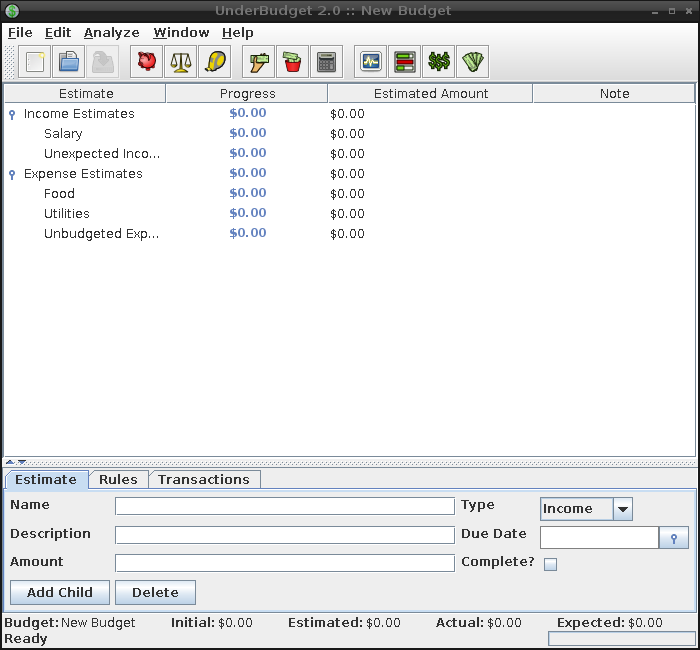
To modify an estimate, select it in the tree and the details tab will be populated with the current parameters for that estimate. New parameters can be entered into the details tab form and the changes are automatically applied.
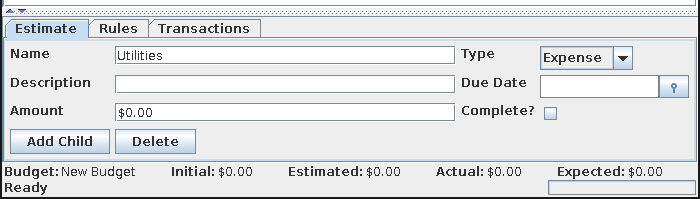
The type of an estimate is important as it affects the way the estimated and actual values impact the ending balances.
- Income - Income estimates represent an expected increase to net worth, such as a paycheck.
- Expense - Expense estimates represent an expected decrease to net worth, such as a utility bill.
- Transfer - Transfer estimates represent an expected transfer of funds from one account to another, such as a credit card payment. Transfer estimates have no impact to ending balances (see transfer estimate best practices)
- Category - Category estimates group child estimates together. Category estimates have no estimated amount, and therefore no impact to ending balances.
If an estimate represents an expense with a particular due date (such as a utility bill), the due date can be specified. Until a transaction is assigned to an estimate with a due date, the due date is shown in the estimate progress window.

If all activity against an estimate has occurred and the actual is less than the estimated (i.e., under-budget), the unspent funds can be reclaimed by marking the estimate as complete. When calculating the expected ending balance, the actual value is used for complete estimates rather than the estimated value.
To create a new top-level estimate, right-click anywhere in the estimate tree window
and select Create top-level estimate.
To create a new estimate as a child of an existing estimate, select the parent estimate
and click the Add Child button in the details tab.
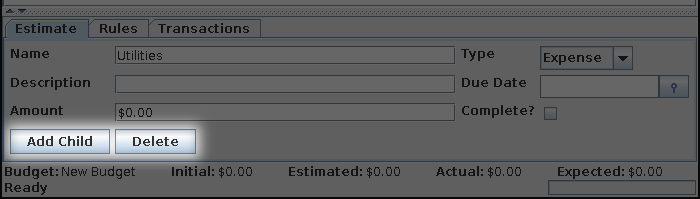
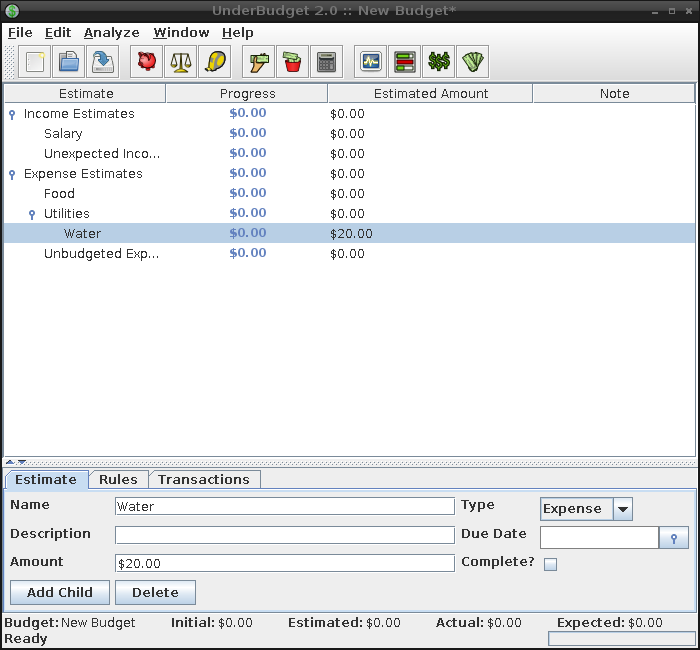
To delete an estimate, select the desired estimate and click the Delete button in the details tab.
At this time, deletion of category estimates with children is not allowed. All child estimates must be deleted first.