User Guide : Assignment Rules
Since every assignment rule must be associated with an estimate, rules are created from the rules tab in the estimates window.
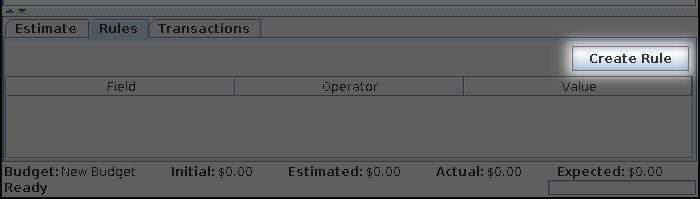
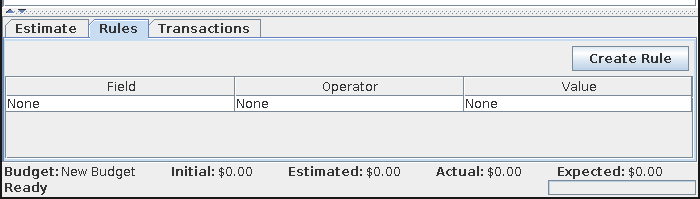
Once a rule has been created, it contains no conditions and must be modified.
Over in the rules window, the new rule can be found at the end of the rules list.

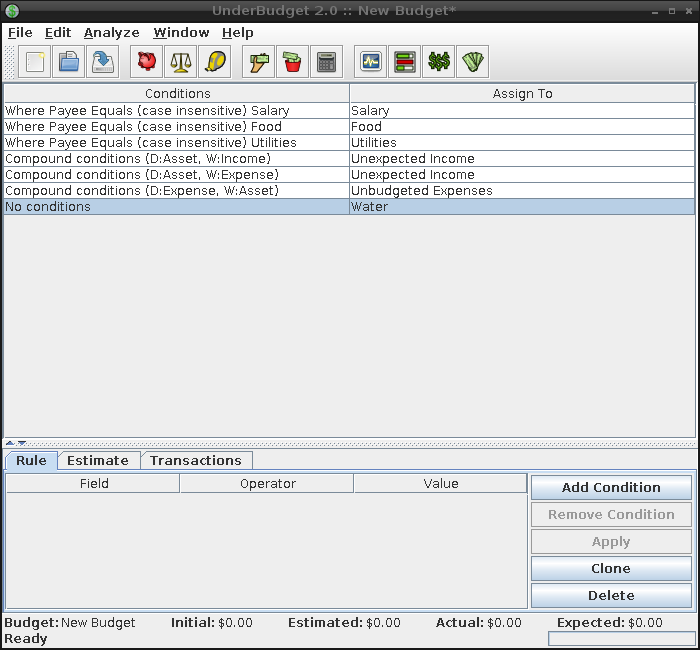
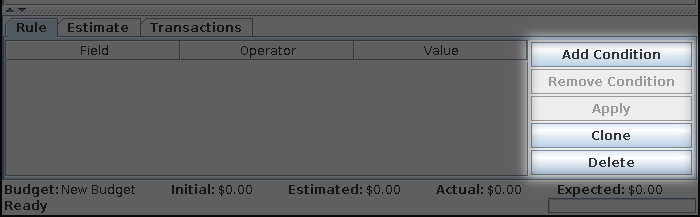
To define conditions for the assignment rule, select the rule
in the list. In the details tab, add conditions by clicking the
Add Condition button. A new condition will be created in the
conditions list and the transaction field, comparison type,
and comparison value can be entered.
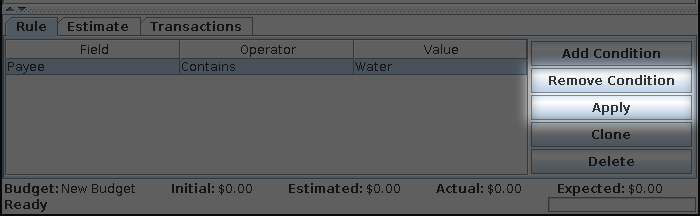
Once all conditions have been created the changes must be applied.
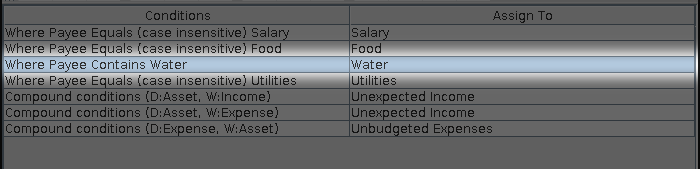
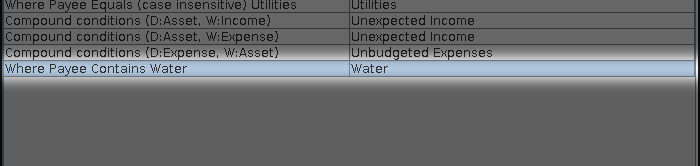
Once applied, the changes to the rule will be seen in the rules list.
To modify an existing assignment rule, select the rule in the rules list and the details tab will be populated with the current set of conditions for the rule. Existing conditions can be modified, new conditions added, and existing conditions deleted. After all changes have been made they must be applied.
Existing rules can also be deleted by selecting the rule and clicking
the Delete button in the details form.
Existing rules can be cloned by selecting the rule and clicking the
Clone button in the details form. This is useful for creating
multiple rules for the same estimate. The cloned rule will be placed
just below the original rule in the list.
Since rules are evaluated in a top-down manner, it is useful to re-order the rules, placing specific rules towards the top and generic rules towards the bottom. To move a rule to a new position in the list, select the rule, then click and drag the rule to it's new position.