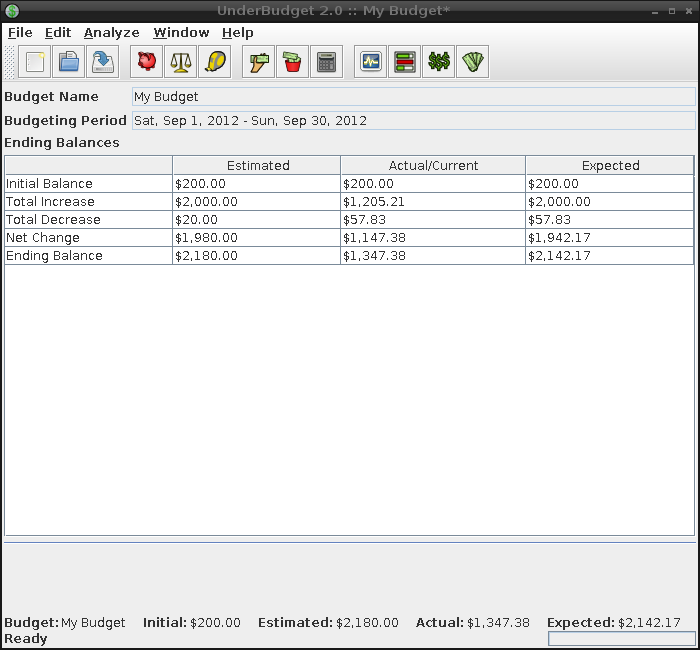
User Guide : Quick Start
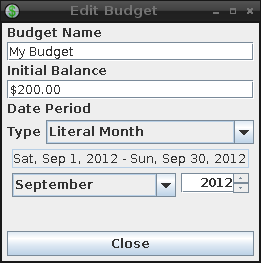
Begin by creating a new budget (File->New or the new toolbar button) or opening
an existing budget (File->Open or the open toolbar button).
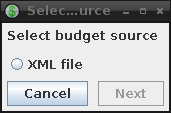
Once opened, the budget can be modified by bringing up the budget parameters dialog
(Edit->Budget or the edit-budget toolbar button).
Individual estimates can be modified by selecting the estimate and changing the estimate parameters in the detail tab.
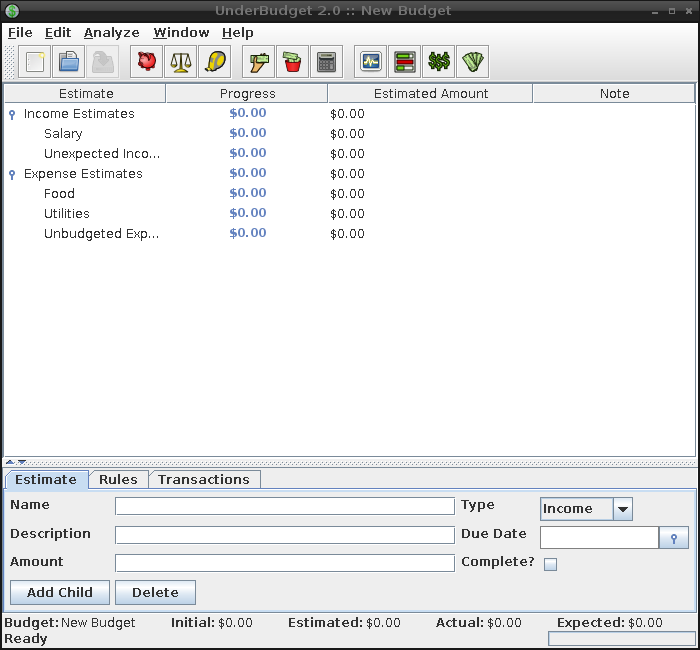
The estimate tree can be modified by adding and deleting estimates.
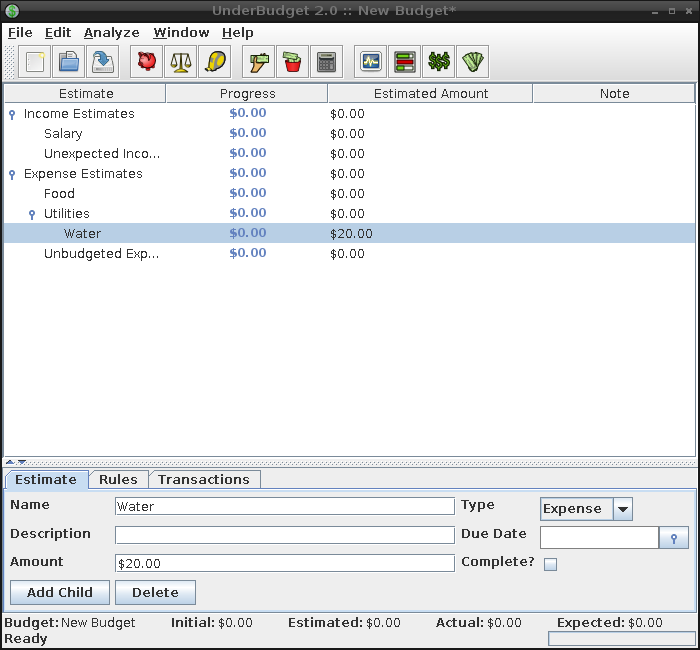
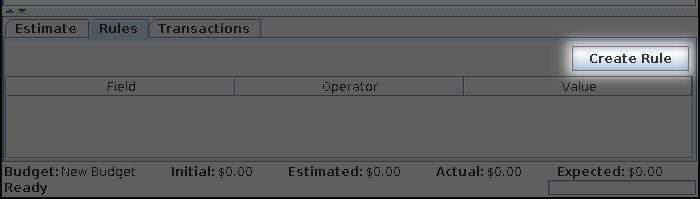
New assignment rules can be created by selecting an estimate and clicking
the Create Rule button in the rules tab.
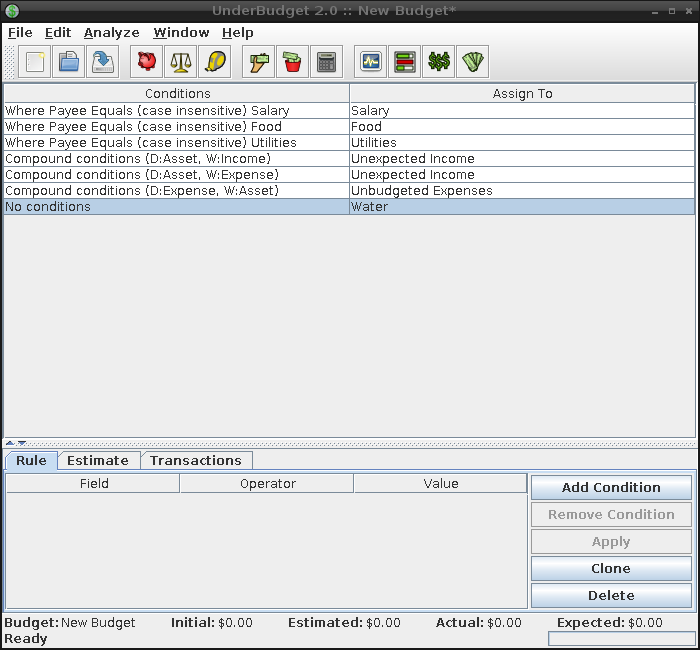
Over in the rules window (Edit->Assignment Rules or the edit-rules toolbar button),
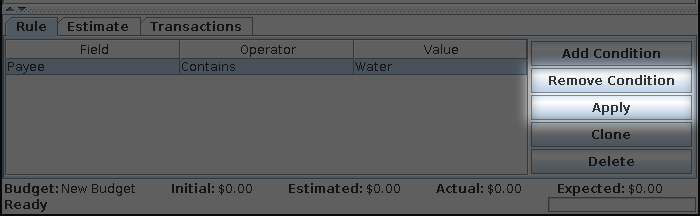
assignment rules can be edited, creating conditions for matching transactions
to the rules.
Once all estimates and rules have been defined, import transactions
from an external source (Analyze->Import transactions... or the import toolbar button).
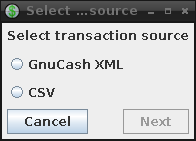
All imported transactions can be seen in the transactions window
(Analyze->Imported Transactions or the transactions toolbar button).

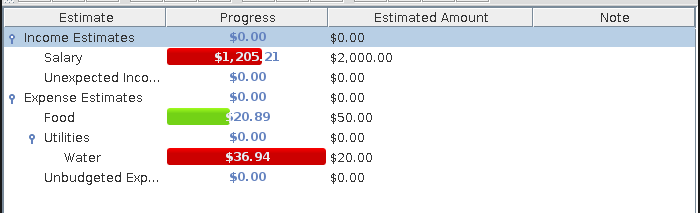
After transactions have been imported, they are assigned to estimates
via the assignment rules. Progress for each estimate is found on
the progress window (Analyze->Estimate Progress or the progress toolbar button).
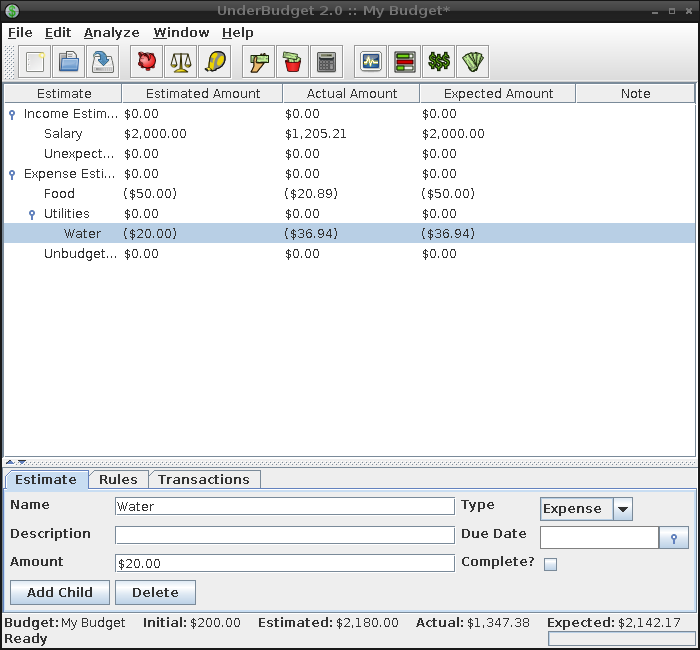
After transactions have been assigned, the ending balances are calculated.
The impact of each estimate on the estimated, actual, and expected
ending balances is found on the impact window (Analyze->Balance Impact
or the impact toolbar button).
A summary of all analysis is found on the summary window (Analyze->Analysis Summary
or the summary toolbar button).