User Guide : Importing Data
Once the estimates and assignment rules have been defined, it's
time to import transactions so analysis can occur. Upon clicking
the import button in the toolbar, a dialog will prompt for the
type of transaction import.

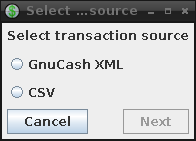
At this time, UnderBudget supports the following import types:
-
GnuCash XML files - Uncompressed GnuCash XML file. By default,
GnuCash uses compressed files. This can be changed by opening up
the preferences and unchecking the
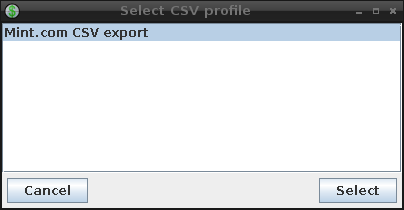
Compress filesoption under theGeneralsection. - mint.com CSV exports - Comma-separated-value export from mint.com.
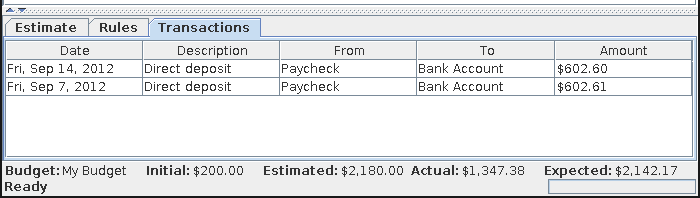
Once transactions have been imported, they can be seen in the transactions window.


In the estimates and rules windows, the transactions assigned to the selected estimate or rule can be seen in the rules tab.