Repository navigation
Installation
Desktop Scriptures is published on the Snap Store, for Linux:
sudo snap install desktop-scriptures
That's it - no separate database download or setup step. The full text of every supported volume ships inside the Snap itself, so the app works completely offline from the very first launch.
Download Windows 11 (64-bit) and macOS on Apple Silicon (M1 or newer) builds from the latest release. A new release comes out each time the Linux snap reaches stable. Like the snap, each includes everything and works offline.
On a Mac with Homebrew, you can install it with brew install --cask kz6fittycent/tap/desktop-scriptures and update it with brew upgrade --cask desktop-scriptures; macOS still asks once (step 3 below) after each install or upgrade.
They don't update themselves, but they tell you: about once a day the app checks for a newer release, and an Update Available button appears on the menu bar when there is one. Click it for the download link, then install the new version over the old one - your notes, highlights, Journal, and study index stay. (Switch the check off under Menu → View → Check for App Updates.)
The builds aren't code-signed yet, so each system asks once before opening them:
Windows
- Download
Desktop-Scriptures-<version>-windows-x64-setup.exeand open it. - Windows shows "Windows protected your PC". Click More info, then Run anyway.
- Click through the installer. No administrator password is needed. Desktop Scriptures then appears in the Start menu.
macOS
- Download
Desktop-Scriptures-<version>-macos-arm64.dmg, open it, and drag Desktop Scriptures into Applications. - Open the app. The first time, macOS refuses.
- Go to System Settings → Privacy & Security, scroll down, and click Open Anyway next to Desktop Scriptures. After that it opens normally.
Your notes, highlights, and study index are kept in %APPDATA%\Desktop Scriptures on Windows, and in ~/Library/Application Support/Desktop Scriptures on macOS. Uninstalling or updating the app leaves them in place.
On macOS, the app's menus are in the menu bar at the top of the screen, as usual for Mac apps, rather than in the window.
The first time you open the app, a short Welcome window walks through the optional extras:
- switching on Listen and downloading a voice;
- showing the additional books - the Apocrypha, and Other Ancient Texts (1 Enoch and the Book of Jasher). They aren't considered part of the Standard Works, so they're hidden until you switch them on, here or any time under Menu → Additional Books. Once on, they appear in the library, search, AI search, and cross-references like any other volume; switching one off hides it again. The text is already in the app, so nothing is downloaded. If you've built a study index, the app offers to add the newly shown volume to it (only that volume's text is sent);
- setting up AI-assisted search.
Skip any step, or close it. Switch on Don't show this at startup again to stop it appearing; it's always under Menu → Welcome....
Behind it is the landing page - a grid of volumes (Holy Bible, The Book of Mormon, Doctrine and Covenants, Pearl of Great Price, Journal of Discourses, Lectures on Faith, Joseph Smith Translation, and the Apocrypha and Other Ancient Texts if you've switched them on) plus the Topical Guide. Scripture of the Day is on by default; everything else on the landing page (Church News, Come Follow Me, Inspirational Message) is opt-in and starts off, each showing a "click to enable" prompt until you turn it on. The Journal, on the menu bar next to Menu, is available right away - no opt-in needed, since it never talks to the network at all.
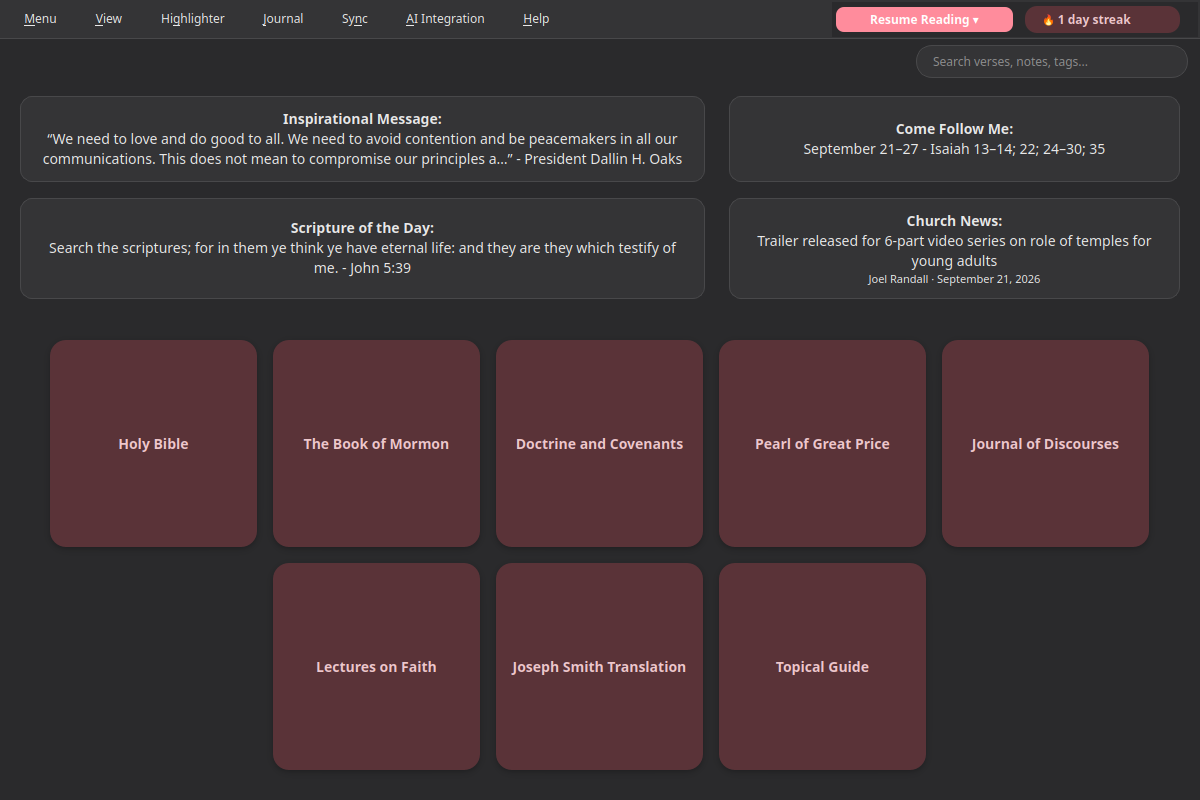
Click into a volume to browse down to a chapter, or use the search bar in the top-right corner at any time (also reachable with Ctrl+F) to search verses, notes, and tags by keyword.
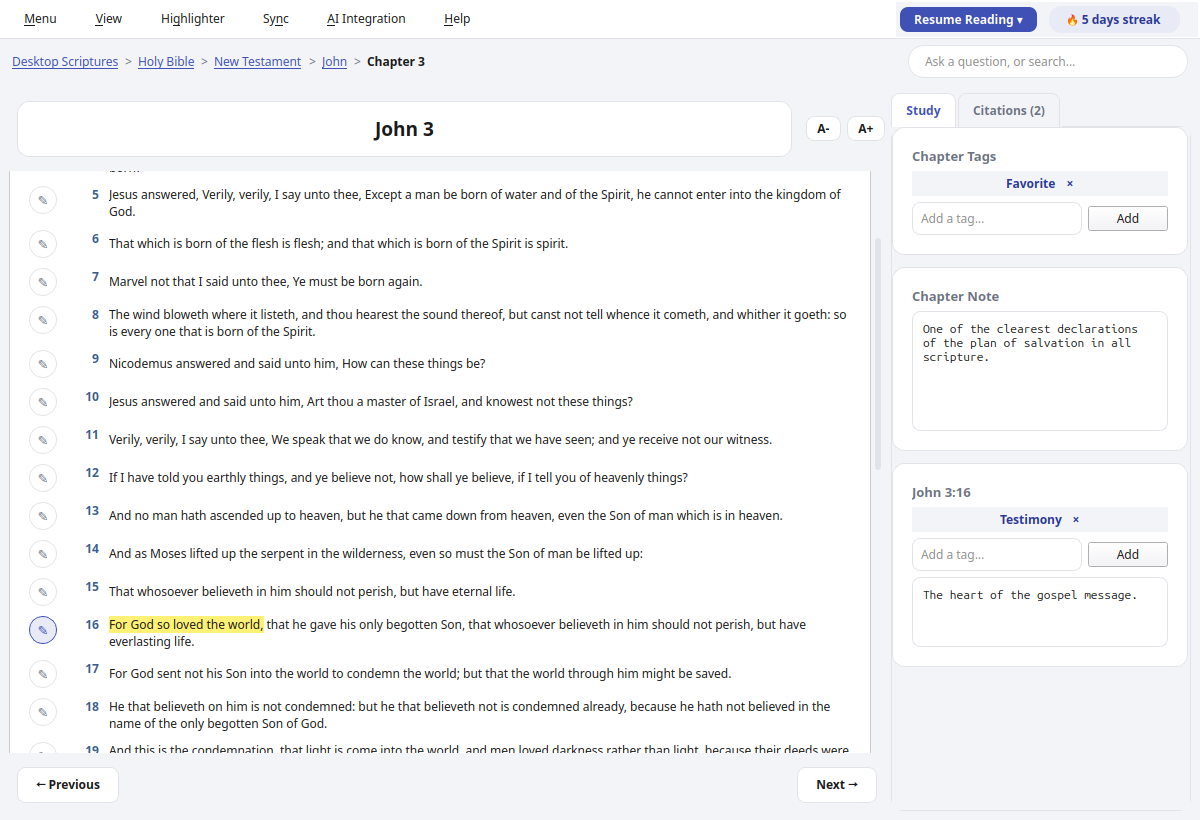
- Installation - installing the Snap, first launch
- AI Integration - connecting your own AI endpoint for AI-assisted search
- Choosing an AI Setup - which AI service and models to use, with step-by-step setups
- Talk Prep - finding scriptures, talks, and articles for a talk or lesson
- Sync - keeping your notes, tags, and highlights in sync across devices
- Landing Page Extras - Church News, Come Follow Me, and Inspirational Message
- Journal - one searchable entry per day, optionally linked to a passage
- Listen - have any chapter read aloud, verse by verse, in a choice of 4 voices (each downloaded once)
- General Conference Reminder - an opt-in heads-up before Conference starts
- Temple Recommend Reminder - an opt-in, offline heads-up before your recommend expires
- Family History Reminder - an opt-in nudge at random, spaced-out intervals