Repository navigation
Listen
Have any chapter read aloud, verse by verse, with the current verse highlighted as it's spoken. Speech is made on your own computer with Piper, a small neural text-to-speech engine, so the text you listen to is never sent anywhere.
Listen is off until you switch it on, so the reading view stays uncluttered. Switch it on in either of these places:
- Menu → Voice → Show Listen Controls
- the Listen step of the Welcome window. It appears the first time you open the app, and any time from Menu → Welcome....
Once it's on, every chapter has a ▶ Listen button next to its title. Switching it off hides the button again.
Voices aren't included with the app, so Listen needs a one-time download of a voice, about 63 MB. Afterwards it works offline. Download only the voice you want; you don't need all four.
- The first time you click ▶ Listen, the app offers to download the selected voice. Say yes, wait a few seconds, and it starts reading.
- Or choose ahead of time: open Menu → Voice → Download or Remove Voices.... It lists all four voices, American or British English, each male or female, with Download and Remove buttons and a progress bar. Each voice also shows the recordings it was trained on.
Voices come straight from Piper's voice collection on Hugging Face, and each download is checked against its known checksum before it's used. They're stored for your user only:
| System | Folder |
|---|---|
| Linux (snap) | ~/snap/desktop-scriptures/common/voices |
| Windows | %LOCALAPPDATA%\Desktop Scriptures\voices |
| macOS | ~/Library/Application Support/Desktop Scriptures/voices |
Updating or reinstalling the app keeps them.
Pick a voice under Menu → Voice. Voices you haven't downloaded yet say (not downloaded).

Open any chapter and click ▶ Listen, next to the chapter title. It reads straight through the chapter, verse by verse, highlighting each verse with a colored border as it's spoken and auto-scrolling to keep it in view:
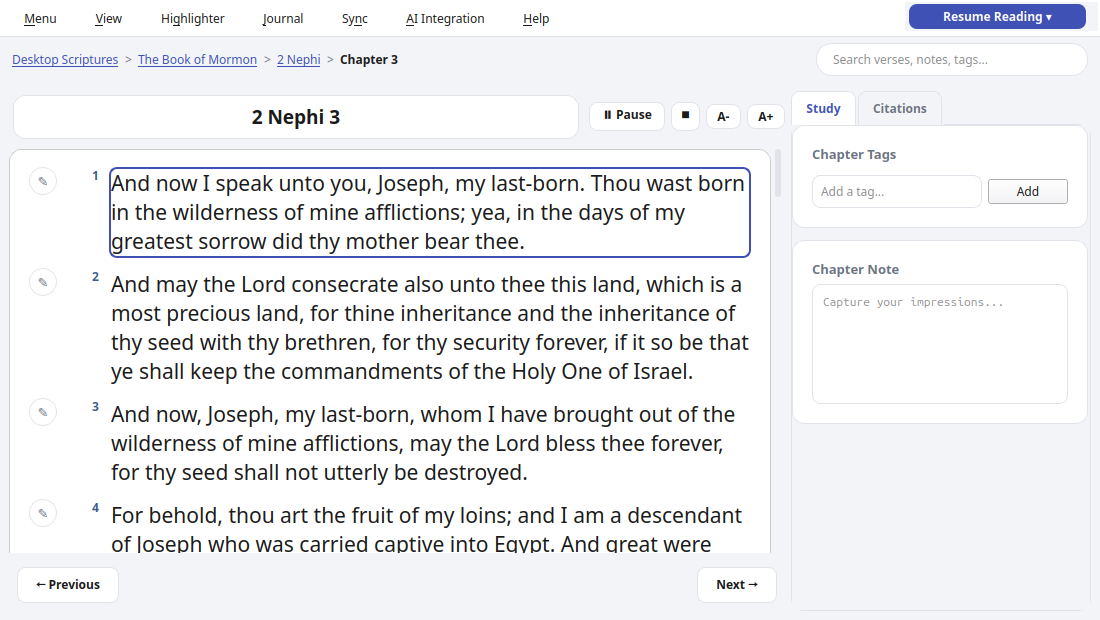
- ⏸ Pause / ▶ Resume - the same button toggles between the two once playback has started.
- ⏹ Stop - stops entirely; clicking Listen again afterward starts over from the beginning of the chapter.
Playback stops automatically if you navigate to a different chapter, and picks up in whichever voice is currently selected under Menu → Voice.
- Installation - installing the Snap, first launch
- AI Integration - connecting your own AI endpoint for AI-assisted search
- Choosing an AI Setup - which AI service and models to use, with step-by-step setups
- Talk Prep - finding scriptures, talks, and articles for a talk or lesson
- Sync - keeping your notes, tags, and highlights in sync across devices
- Landing Page Extras - Church News, Come Follow Me, and Inspirational Message
- Journal - one searchable entry per day, optionally linked to a passage
- Listen - have any chapter read aloud, verse by verse, in a choice of 4 voices (each downloaded once)
- General Conference Reminder - an opt-in heads-up before Conference starts
- Temple Recommend Reminder - an opt-in, offline heads-up before your recommend expires
- Family History Reminder - an opt-in nudge at random, spaced-out intervals