Repository navigation
Sync
Desktop Scriptures can keep your notes, tags, highlights, Journal entries, and your own cross-references in sync across your own devices - without talking to any cloud service itself. Instead, it points at a folder that some other program (Nextcloud, Dropbox, OneDrive, Google Drive, or similar) already keeps synced on your machine, and reads/writes a few small files there. The app never uploads or downloads anything directly; that's entirely the cloud client's job.
Open Menu → Sync → Sync Options....
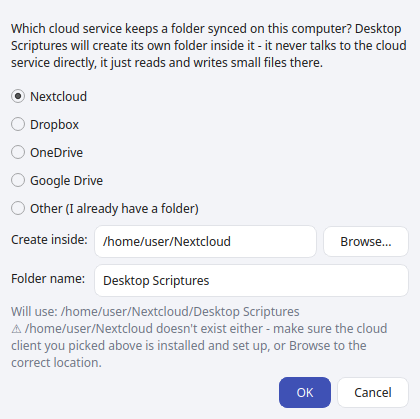
- Pick whichever cloud client you already have installed and syncing on this machine (Nextcloud, Dropbox, OneDrive, Google Drive), or Other if you already have a synced folder from something else.
- Confirm or change Create inside - this should point at the root of that service's synced folder.
- Leave Folder name as-is (
Desktop Scriptures) unless you have a reason to change it - it needs to match on every device you sync. - Click OK. The app creates its own folder there if it doesn't already exist, and never touches anything else already in that folder.
Repeat this on each device, pointing at the same cloud service, and they'll all sync through it.
Once a folder is set, use Menu → Sync → Sync Now any time to sync immediately. Saved Talk Prep preparations sync too if you turn on Menu → Sync → Sync Talk Prep Sessions - on each device that should share them. Notes, tags, highlights, Journal entries, and your own cross-references merge across devices - nothing is silently overwritten, and a deletion on one device propagates to the others the same way an edit does.
- Sync is entirely opt-in - until you set a folder, nothing here does anything.
- This only syncs your personal data (notes, tags, highlights, Journal entries, your own cross-references) - not the scripture text itself, which already ships fully offline with the app.
- If two devices edit the same thing while offline from each other, the sync merges by taking the most recent edit per item, not a full three-way merge - for anything you edit heavily on multiple devices, sync often to keep drift low.
- Installation - installing the Snap, first launch
- AI Integration - connecting your own AI endpoint for AI-assisted search
- Choosing an AI Setup - which AI service and models to use, with step-by-step setups
- Talk Prep - finding scriptures, talks, and articles for a talk or lesson
- Sync - keeping your notes, tags, and highlights in sync across devices
- Landing Page Extras - Church News, Come Follow Me, and Inspirational Message
- Journal - one searchable entry per day, optionally linked to a passage
- Listen - have any chapter read aloud, verse by verse, in a choice of 4 voices (each downloaded once)
- General Conference Reminder - an opt-in heads-up before Conference starts
- Temple Recommend Reminder - an opt-in, offline heads-up before your recommend expires
- Family History Reminder - an opt-in nudge at random, spaced-out intervals