Repository navigation
AI Integration
AI-assisted search lets you ask a question in your own words - e.g. "how did Christ organize the Nephite church" - and get pointed at real, matching scripture, with the option to refine the results conversationally ("no, just the ones about baptism").
It's entirely opt-in and bring-your-own-endpoint: nothing is sent anywhere until you enable it and provide your own AI endpoint below. The app never trusts AI-generated text as content - every result is a real verse from Desktop Scriptures' own database, resolved and validated before it's shown. The model is never given room to explain or discuss doctrine; it only ever proposes references, and only real ones ever reach the screen.
Easiest: Menu → AI Integration → AI Setup Wizard... finds AI servers already running on your computer (Ollama, an Ubuntu inference snap, LM Studio, and others), also offers hosted services - OpenAI, Anthropic (Claude), Google Gemini, OpenRouter, Groq, and Mistral - lets you pick a model from each one's own list, tests the connection, and turns everything on. Not sure which AI service or model to use? See Choosing an AI Setup, also linked from Menu → AI Integration → AI Setup Guide....
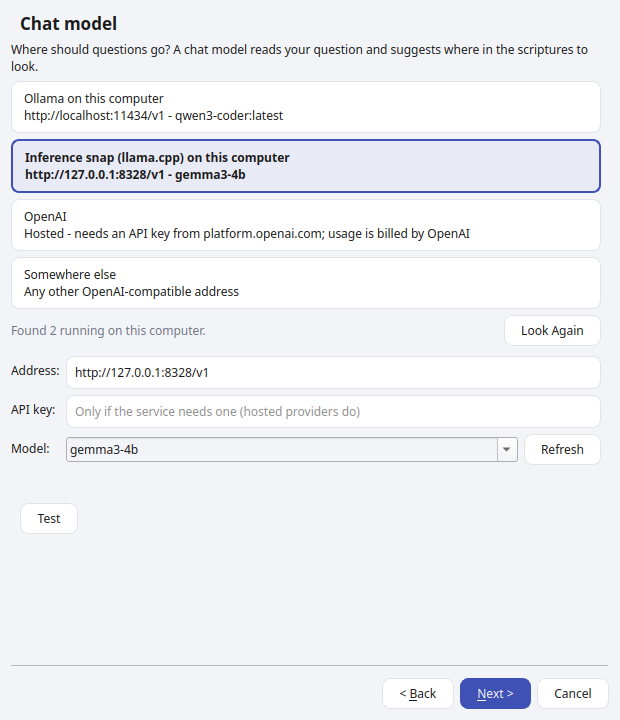
To set things up by hand instead, open Menu → AI Integration → AI Settings....
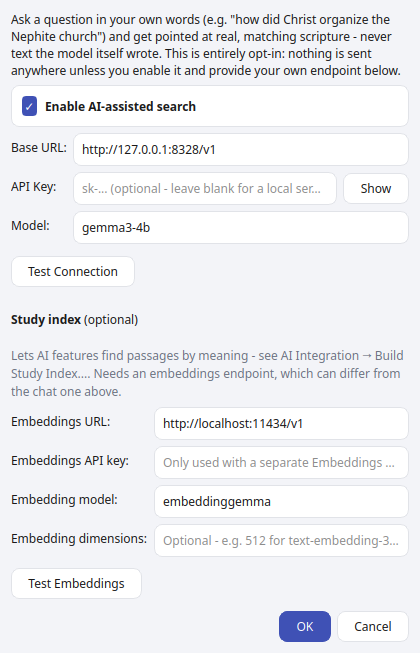
Fill in:
- Enable AI-assisted search - the master opt-in switch. Leave this unchecked and nothing here ever does anything.
-
Base URL - your AI provider's API endpoint. Defaults to OpenAI's (
https://api.openai.com/v1), but any OpenAI-compatible endpoint works - a locally-run server (e.g. LM Studio, Ollama with its OpenAI-compatible endpoint, llama.cpp server) or another hosted provider (Google Gemini, OpenRouter, Groq, Mistral, ...). For Anthropic's Claude, usehttps://api.anthropic.com. - API Key - your key for that endpoint. Optional - leave it blank if you're pointing at a local server that doesn't require one.
-
Model - the model name your endpoint expects (e.g.
gpt-4o-mini).
Click Test Connection to confirm the app can actually reach your endpoint before saving. Click OK to save.
Once enabled, just type a full question into the search bar (in your own words, not keywords) and press Enter. Matching scripture appears under "Suggested by AI," and any General Conference talks or Liahona articles already known to cite a suggested verse are shown right below it, each labeled by source. A local keyword search still runs alongside it, so you get both.
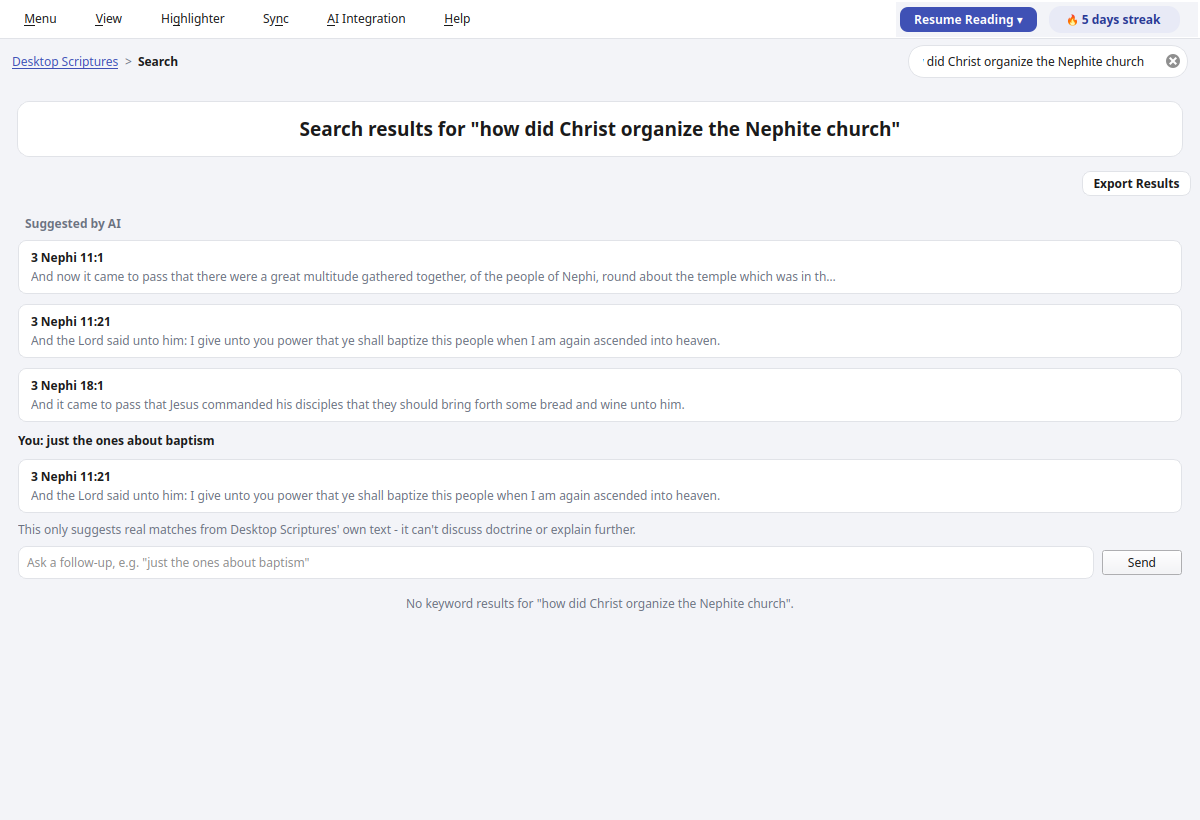
Use the follow-up box at the bottom to refine the results without starting a new search - "just the ones about baptism," "only from the Book of Mormon," and so on. Each follow-up appends to the same conversation thread.
Whichever service you use, the app asks it for an answer in a fixed format - only numbers from the list it was shown - where the service supports that (most do), so even a small model can't reply in prose or invent a choice.
Once you've built a study index, AI-assisted search uses it automatically - and gets much better, especially with a small local model:
- The index finds the sources; the AI only chooses among them. Without an index, the AI has to remember where things are, and smaller models often remember wrong (asked about the Land of Bountiful, one suggested a vision of the spirit world). With one, passages are found by meaning from Desktop Scriptures' own library, and the AI can only pick from that list - it can't introduce anything that isn't there. If the AI doesn't answer usefully, you still get the index's own best matches, with a note saying so.
- More than scripture: results can include Journal of Discourses passages, General Conference talks and Ensign/Liahona articles (by title - including searching for a talk by its name), Topical Guide topics, cross-references, and your own notes. Talks that cite a scripture result appear indented under it, labeled "Cited in."
- Topics help too: the AI first picks which Topical Guide topics your question is about, and those topics' hand-picked key scriptures are offered alongside everything else - so "how can I know the Book of Mormon is true" can find Moroni 10:4-5 even though that verse never says "Book of Mormon."
- Results are ordered by source: the Standard Works first, then General Conference talks, then Ensign/Liahona articles, then everything else (Journal of Discourses, Lectures on Faith, Topical Guide, cross-references, your notes). When relevant talks and articles exist, at least a couple of talks and one article are always included.
- Follow-ups that name a volume or kind of source filter the results directly: "just the Book of Mormon," "only the D&C," "any conference talks?", "Ensign articles." ("Old Testament" and "New Testament" currently mean the whole Bible.)

The Journal of Discourses is 19th-century preaching; its use of some terms differs from today's (for example, "celestial marriage" there often refers to plural marriage) - which is one reason it's listed after the Standard Works and modern Church sources.
The study index lets AI features find passages by meaning, not just matching words - AI-assisted search uses it, and Talk Prep needs it. It covers every volume, the Journal of Discourses, Lectures on Faith, the Topical Guide, cross-references (including your own), General Conference talks and Ensign/Liahona articles (their titles and the verses they cite - never their text), and your notes. Your Journal is never included.
Nothing is downloaded and nothing ships with the app - it's built on your own computer, through your own endpoint, only if you choose to.
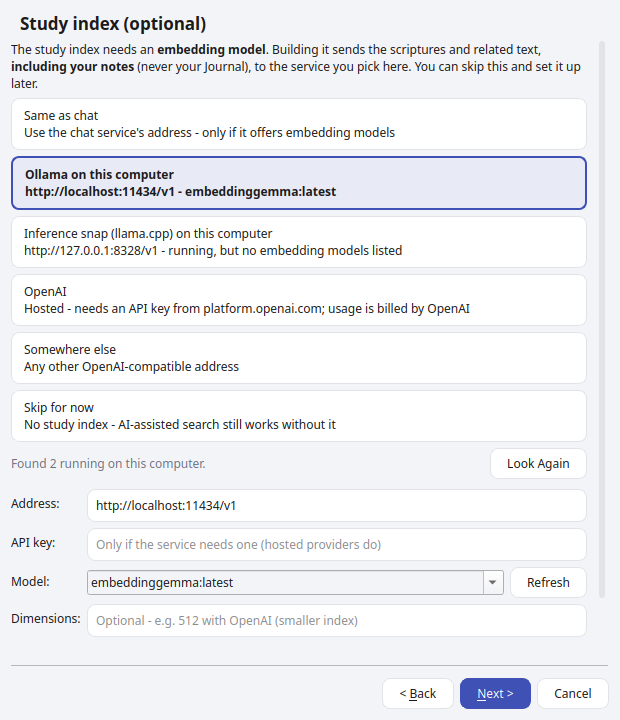
The AI Setup Wizard covers this too - its second step picks an embedding model, and shows the exact ollama pull command if Ollama doesn't have one yet:
Or by hand:
- In Menu → AI Integration → AI Settings..., under Study index, fill in Embedding model - e.g.
text-embedding-3-smallon OpenAI, orembeddinggemma/nomic-embed-texton Ollama (runollama pull embeddinggemmafirst). Chat models and embedding models are separate. - If your chat endpoint doesn't offer embeddings - a local inference snap such as
gemma3, or Anthropic, for example - set Embeddings URL to one that does (e.g. Ollama'shttp://localhost:11434/v1). Leave it blank to use the same endpoint as chat. A separate Embeddings URL only ever uses its own Embeddings API key, never your chat key. - Optionally set Embedding dimensions (e.g.
512) if your provider supports it - OpenAI'stext-embedding-3models do. It makes the index much smaller. - Click Test Embeddings to confirm it works, then OK.
- Open Menu → AI Integration → Build Study Index.... It shows how much text will be sent (about 11 million tokens for everything) and how much disk space it'll use (about 250 MB with a local model like
embeddinggemma, or about 210 MB with OpenAI at 512 dimensions), then click Build.
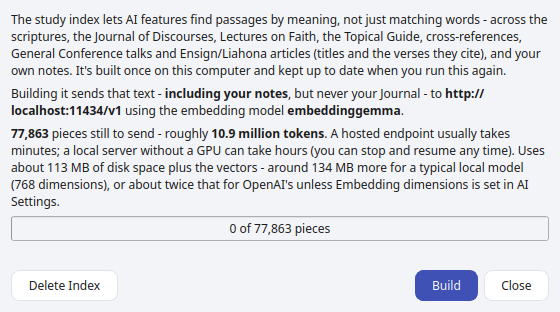
A hosted endpoint usually finishes in minutes; a local server without a GPU can take hours. You can Stop (or just close the dialog) at any time - everything so far is kept, and Resume picks up where it left off. Running it again later only sends what's new or changed, like new notes. Changing the embedding model means rebuilding from scratch, since different models' results aren't comparable. Delete Index removes it from your computer.
- "AI search failed" - usually a network or endpoint problem. Check the Base URL and that your local server (if you're using one) is actually running.
- An authentication warning - your endpoint rejected the request, most likely over the API key. Add one (or double check it), or leave it blank if your server doesn't need one.
-
Study index: "may not offer embeddings" - the endpoint said it doesn't do embeddings, or doesn't know that model. Check the Embedding model name (on Ollama,
ollama pullit first), or point Embeddings URL at an endpoint that offers embeddings. - No matches found - the model didn't recognize a real, resolvable reference in its answer. The raw response is shown for diagnostic purposes so you can see what it actually said.
- Installation - installing the Snap, first launch
- AI Integration - connecting your own AI endpoint for AI-assisted search
- Choosing an AI Setup - which AI service and models to use, with step-by-step setups
- Talk Prep - finding scriptures, talks, and articles for a talk or lesson
- Sync - keeping your notes, tags, and highlights in sync across devices
- Landing Page Extras - Church News, Come Follow Me, and Inspirational Message
- Journal - one searchable entry per day, optionally linked to a passage
- Listen - have any chapter read aloud, verse by verse, in a choice of 4 voices (each downloaded once)
- General Conference Reminder - an opt-in heads-up before Conference starts
- Temple Recommend Reminder - an opt-in, offline heads-up before your recommend expires
- Family History Reminder - an opt-in nudge at random, spaced-out intervals