en deploy langbot one click 1panel
Deploy LangBot with one click using 1Panel.
Recommended server systems (from 1Panel): Debian 12, Ubuntu 22, etc.
This article assumes that the server has a public IPv4 address by default. If you are using a home machine without a public IP, you can access the relevant pages through the internal network described below.
Visit 1Panel and use the Linux panel installation script provided officially by 1Panel. Select the corresponding script according to your operating system.
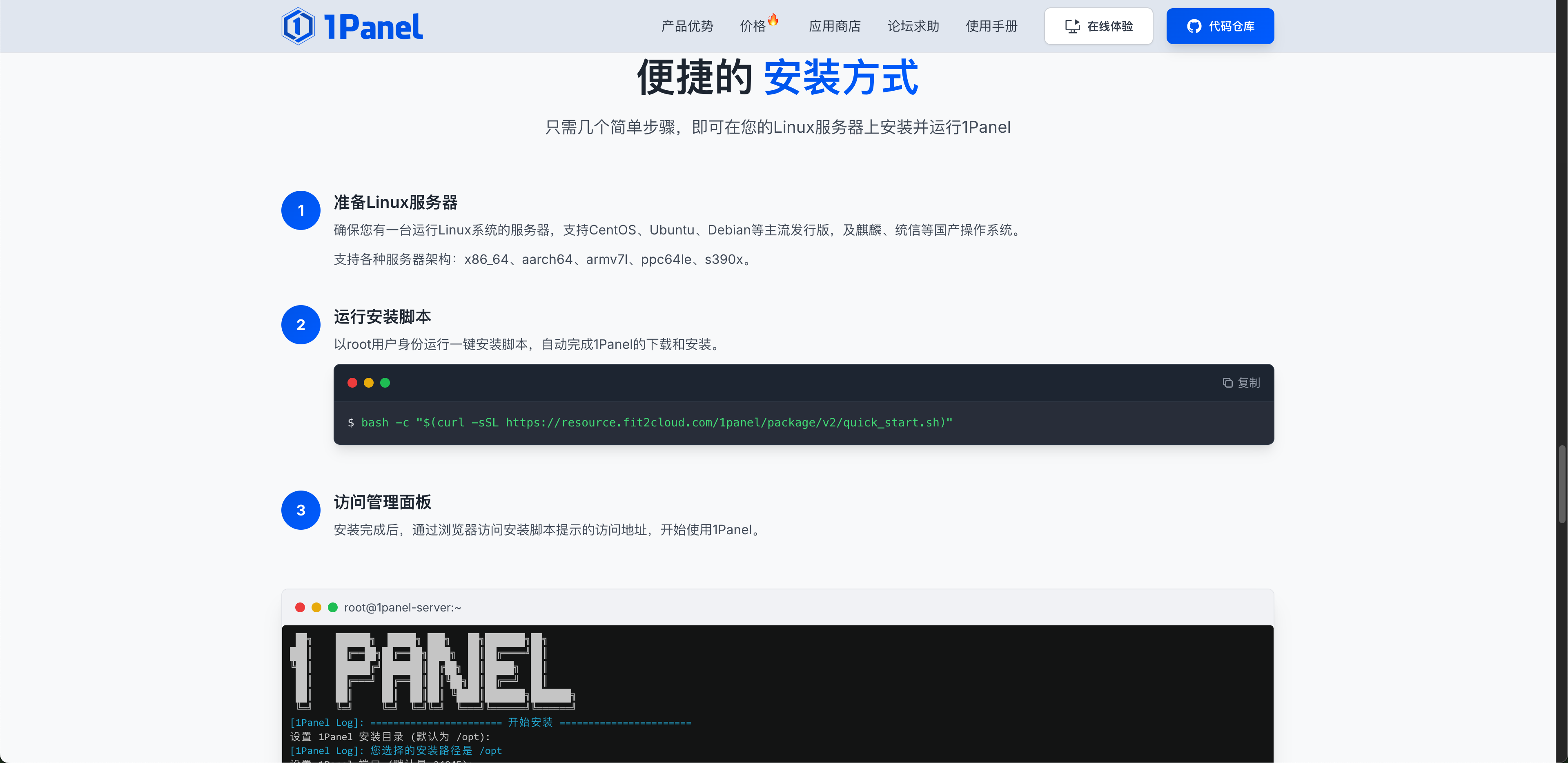
Copy the corresponding script, paste it into the server, and execute it.
After waiting for a period of time, the installation of 1Panel will be completed.
Then copy the External Address and open it in a browser.
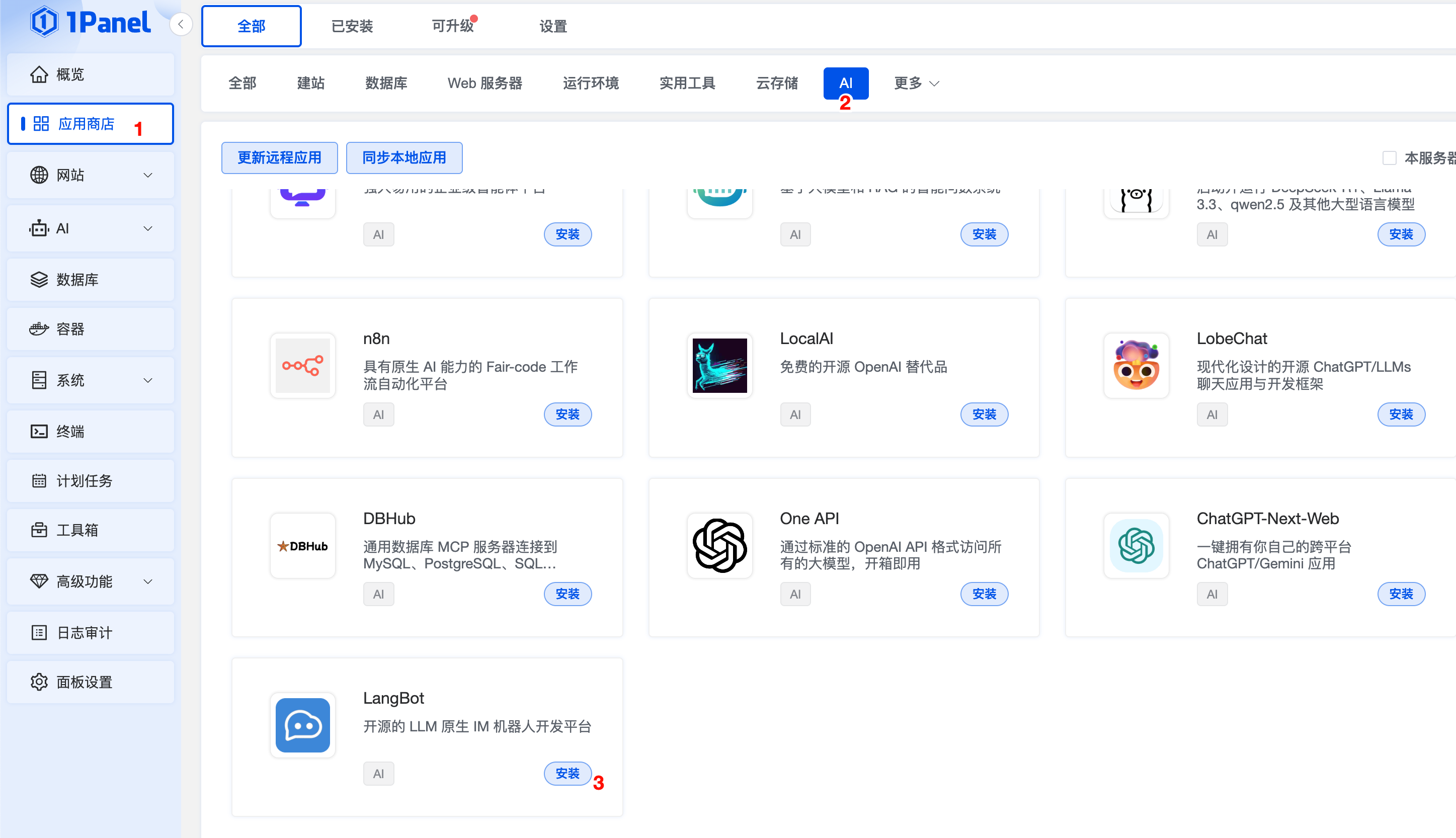
Open the App Store, select the AI category, and click to install LangBot.
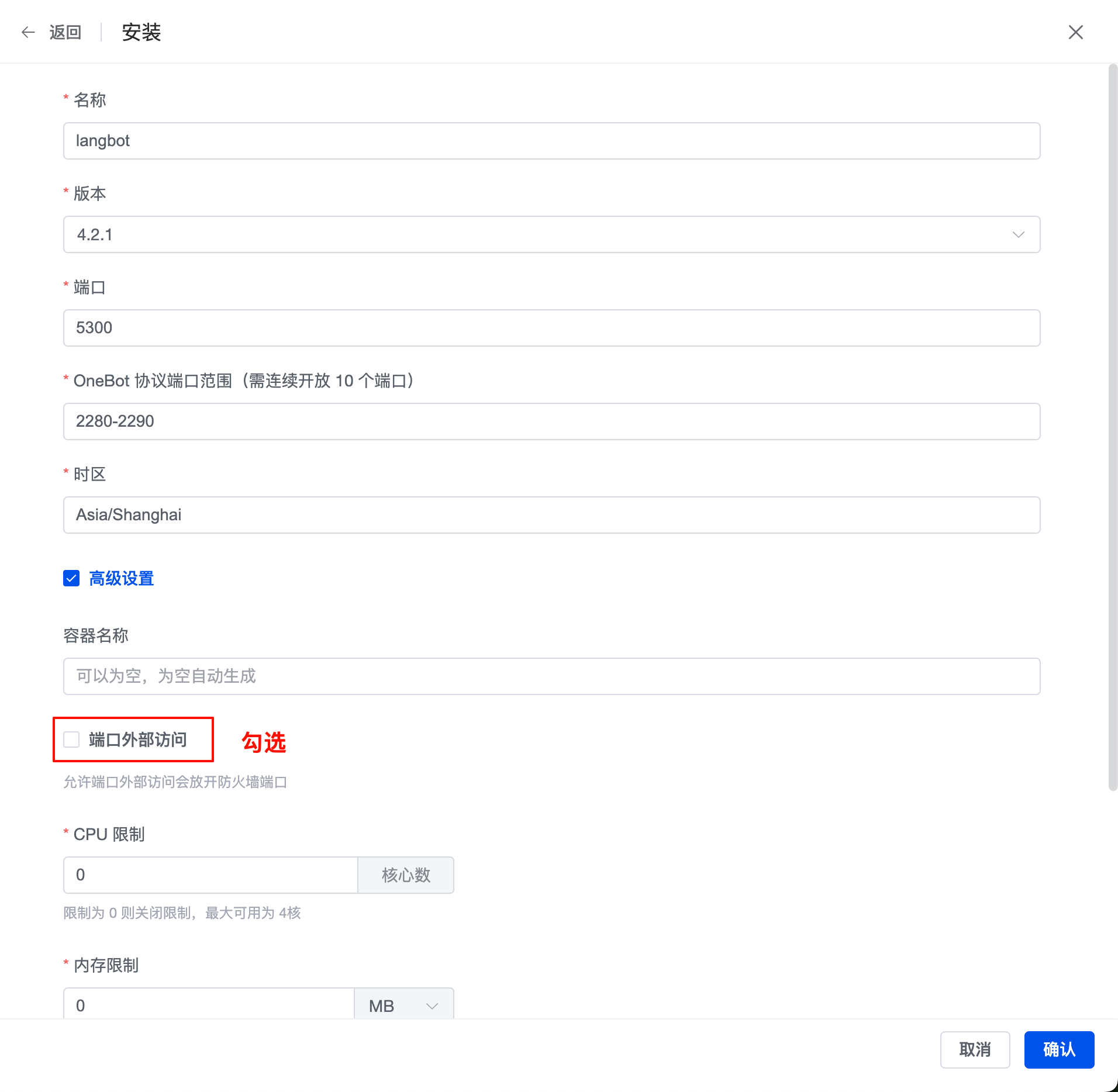
Check the box for External Port Access and click Confirm.
Wait for a moment, and the installation will be completed.
Click Containers on the left side, then select the Containers category, and you will see the LangBot container bar.
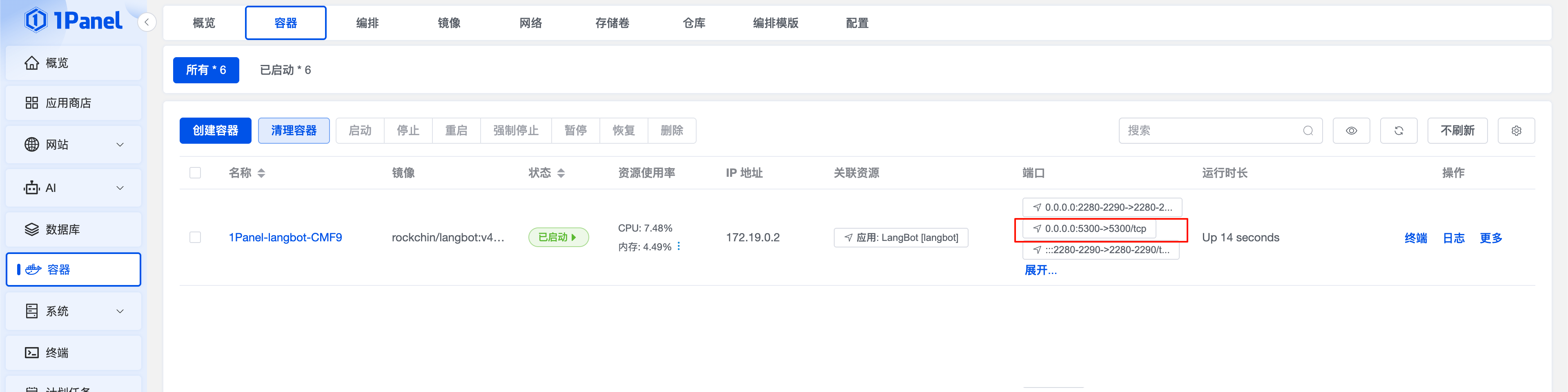
Copy the public IP address of the server, for example, http://xxx.xxx.xxx.xxx:5300 (where xxx.xxx.xxx.xxx is the IP address of the server where 1Panel is located, and 5300 is the port number).
Open the address, enter the administrator email and password, then click Initialize.
After that, you can configure LangBot in the visual interface.
Next, please continue to read the Configure Messaging Platforms page.