en usage platforms lark
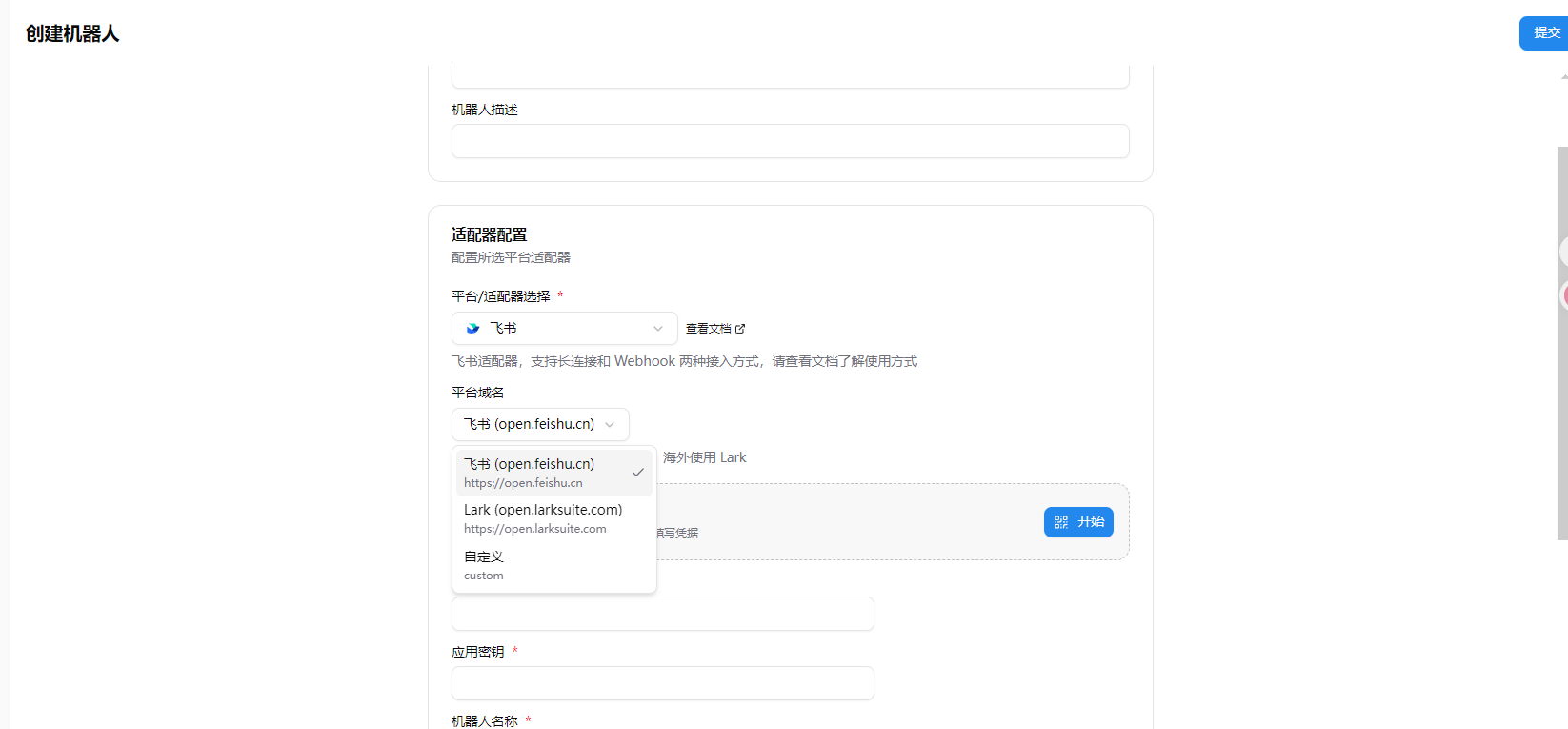
When creating a bot, you need to select the Platform Domain in the Adapter Configuration section:
- Feishu (open.feishu.cn): For mainland China Feishu users (default)
- Lark (open.larksuite.com): For overseas Lark users
- Custom: For private deployment users
Warning
If you select overseas Lark, make sure to use the open.larksuite.com domain, otherwise the connection may fail. For private deployment users, please select custom and fill in the corresponding domain based on your actual deployment address.
LangBot supports one-click Feishu app creation with automatic credential filling — no manual copy-paste needed.
- Open LangBot WebUI, go to Bots > Create Bot
- Enter a bot name, select
Feishuas the platform/adapter - In the One-Click Create App section that appears, click the Start button
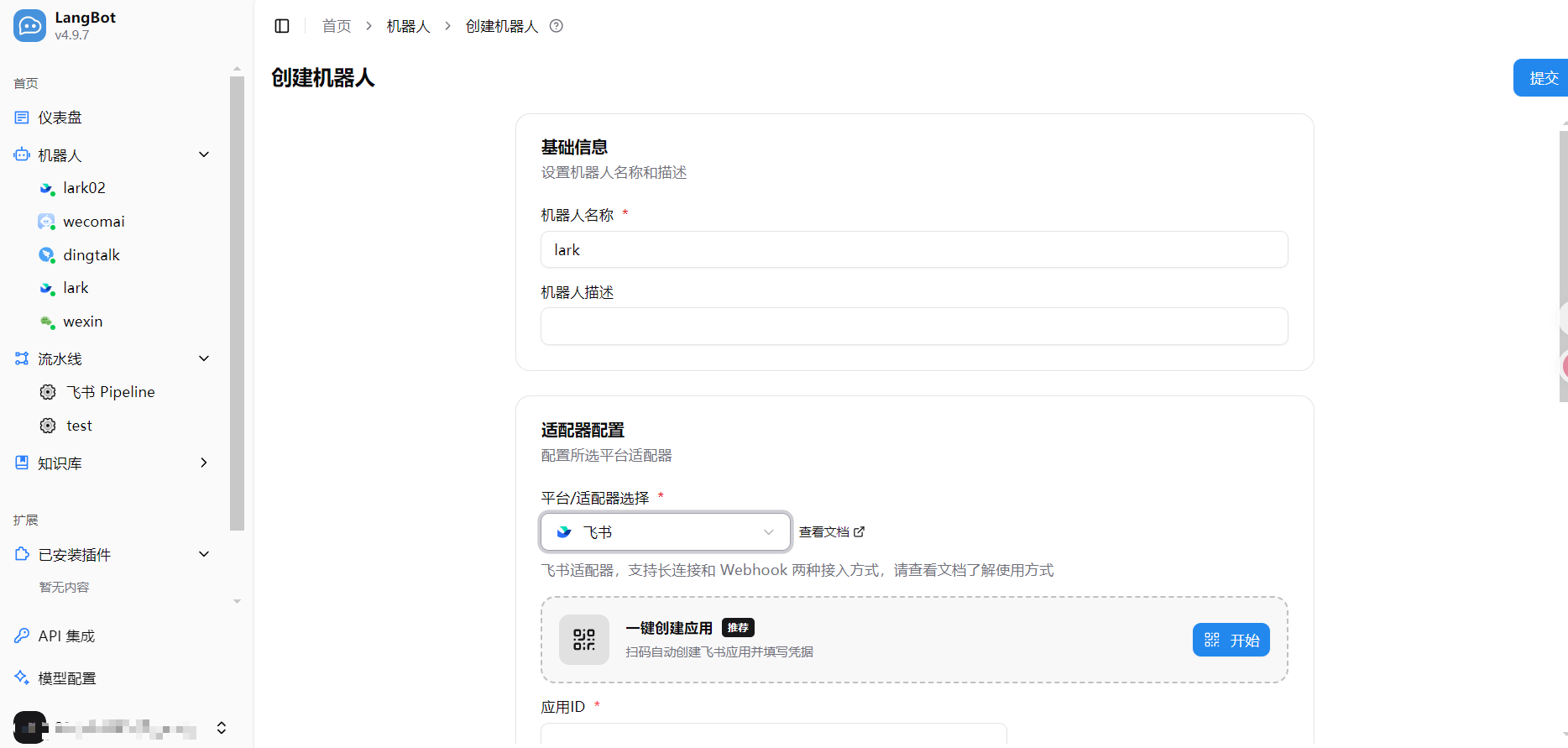
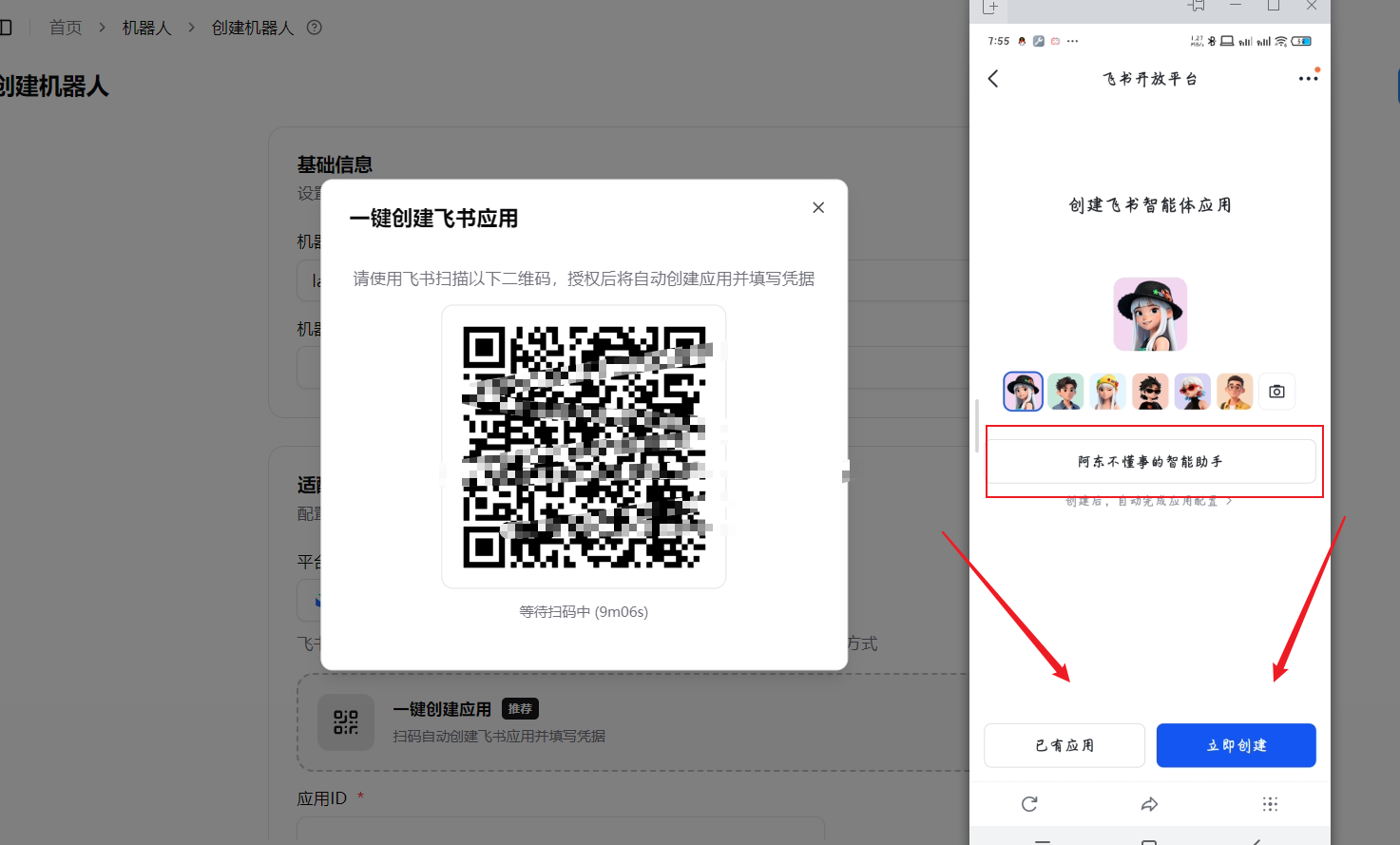
- Scan the QR code with Feishu. On your phone, you'll see the Feishu Open Platform's bot creation page
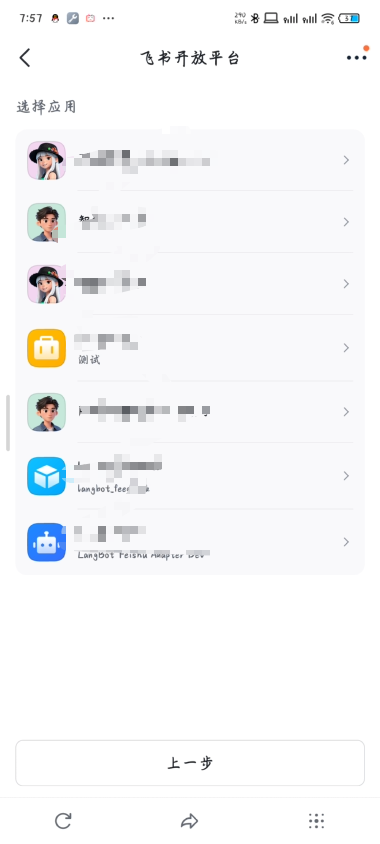
- Choose to use an existing app or create a new one:
If you choose an existing app, a list of your apps will be shown:
- After authorization, the phone will show "Configuration Successful", and app_id / app_secret will be auto-filled in the LangBot WebUI
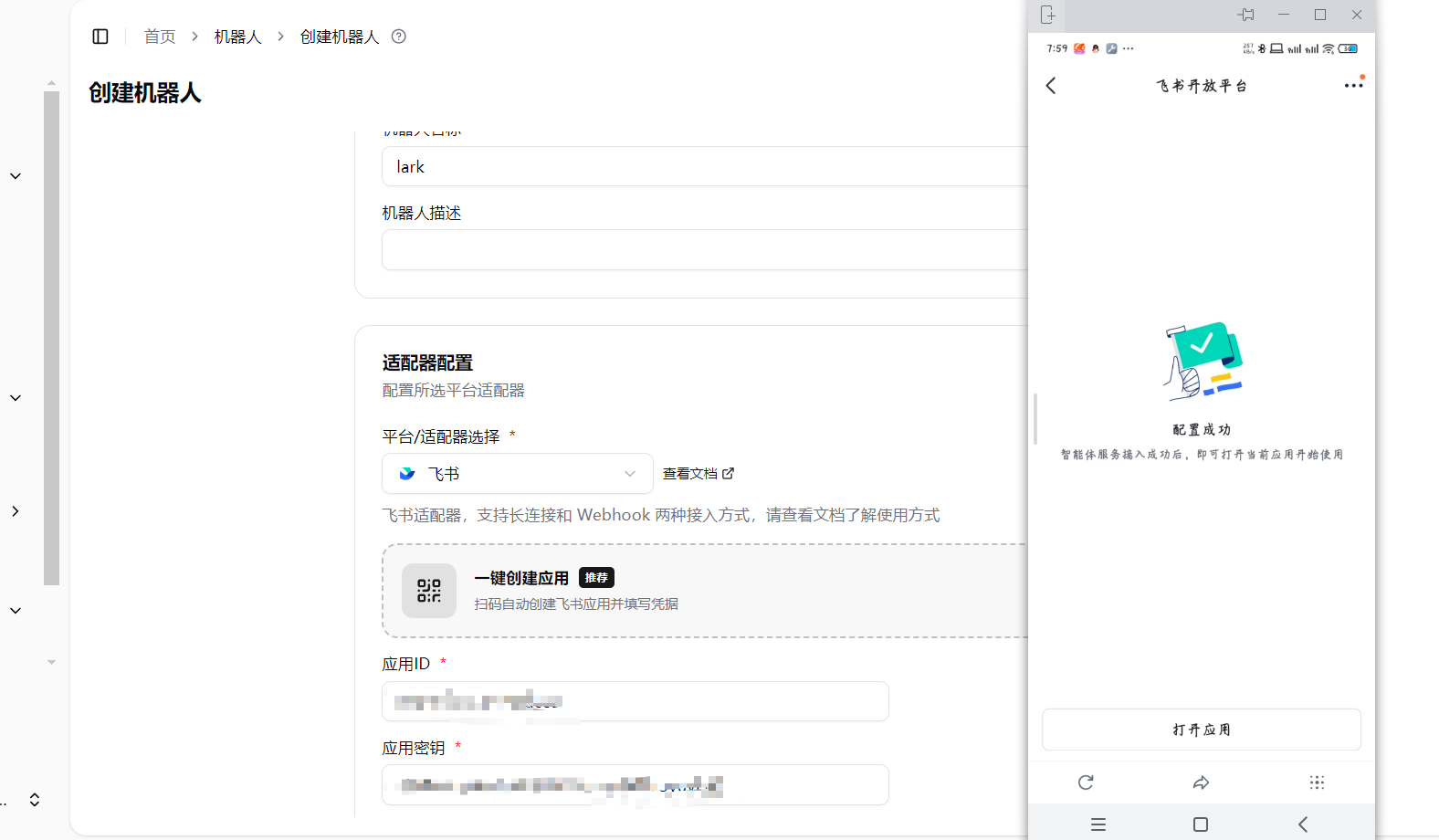
- Manually fill in the bot name — it must match the Feishu bot name, otherwise the bot won't receive messages in groups
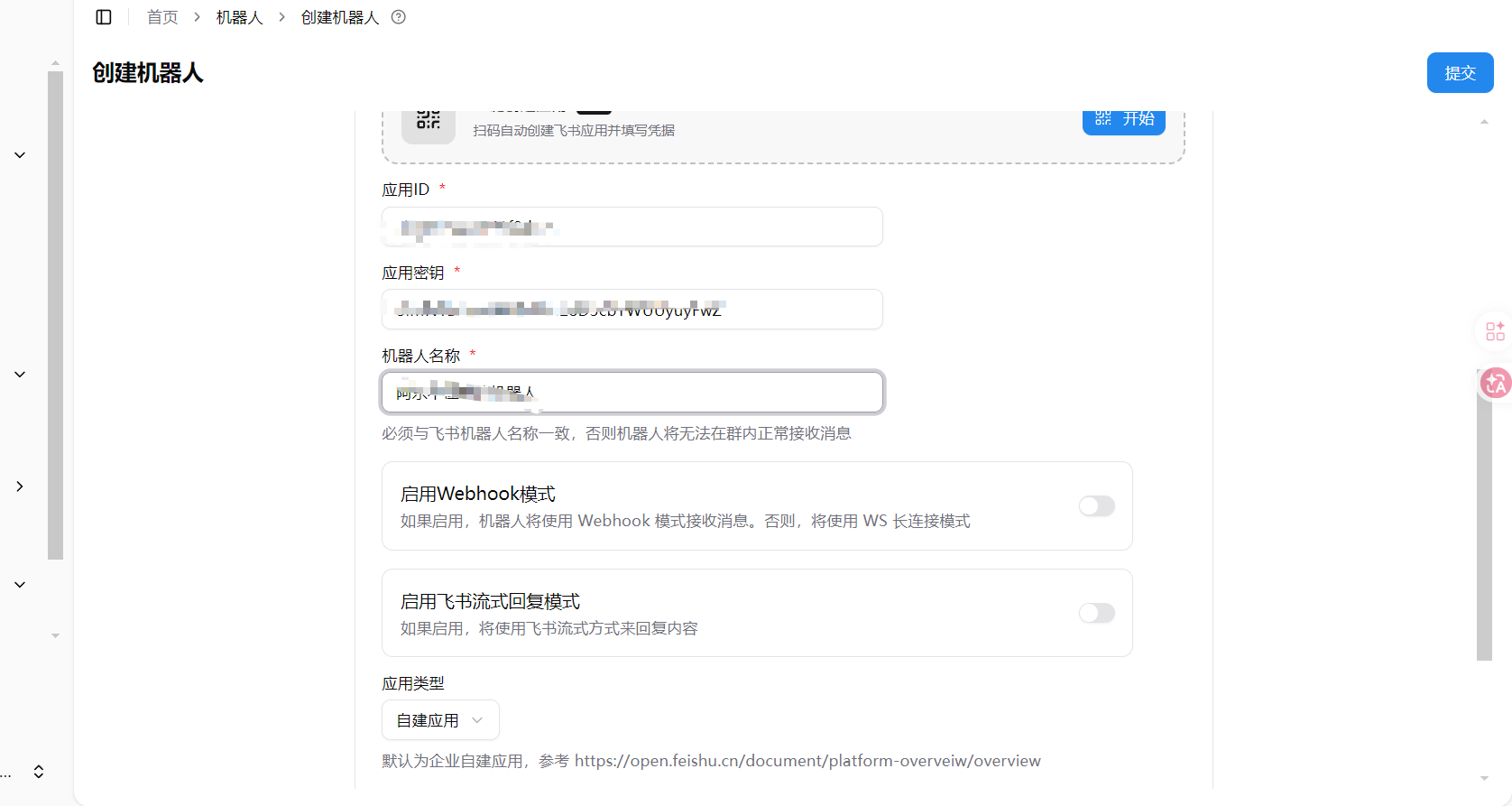
- Click Submit to complete
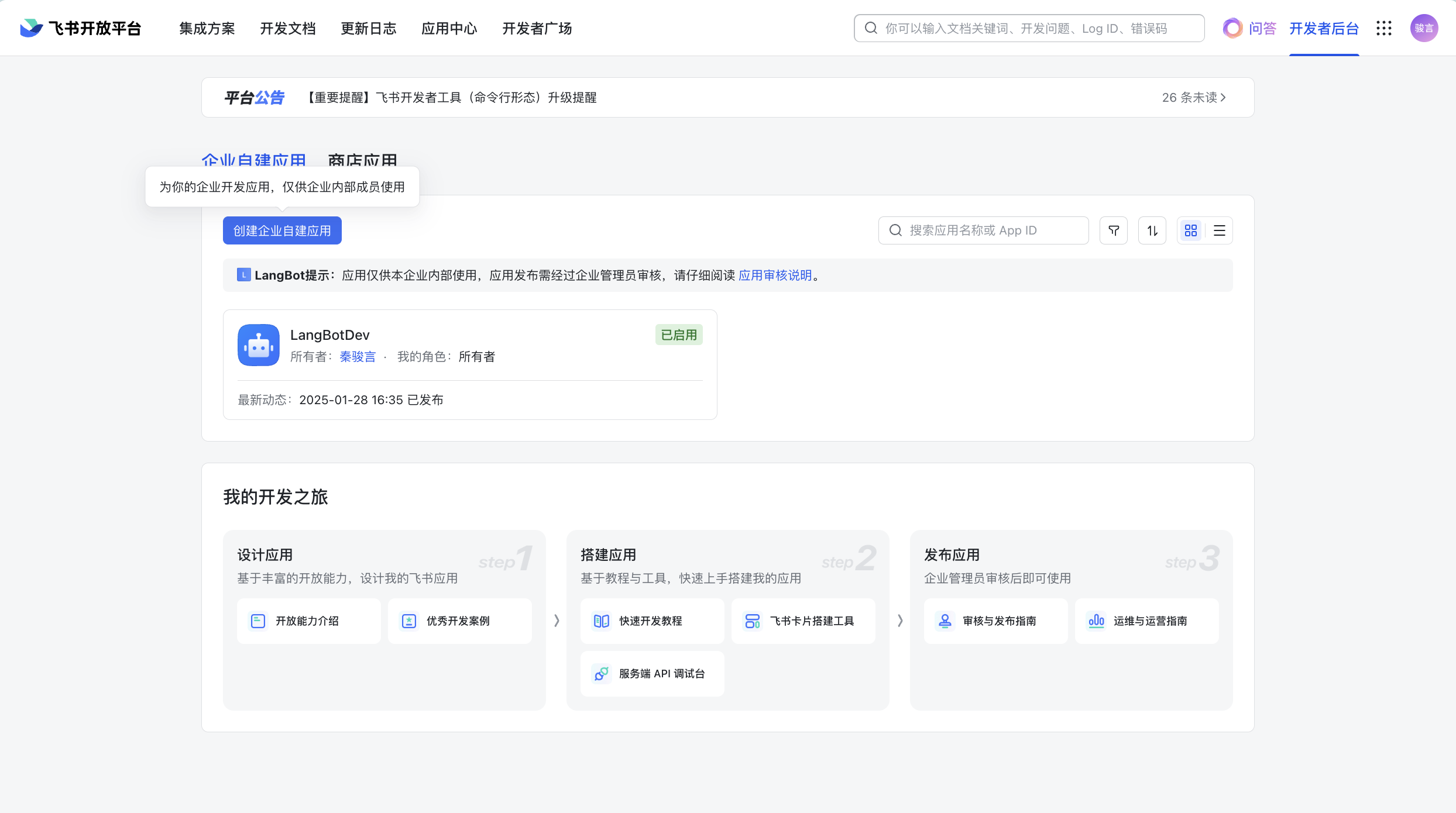
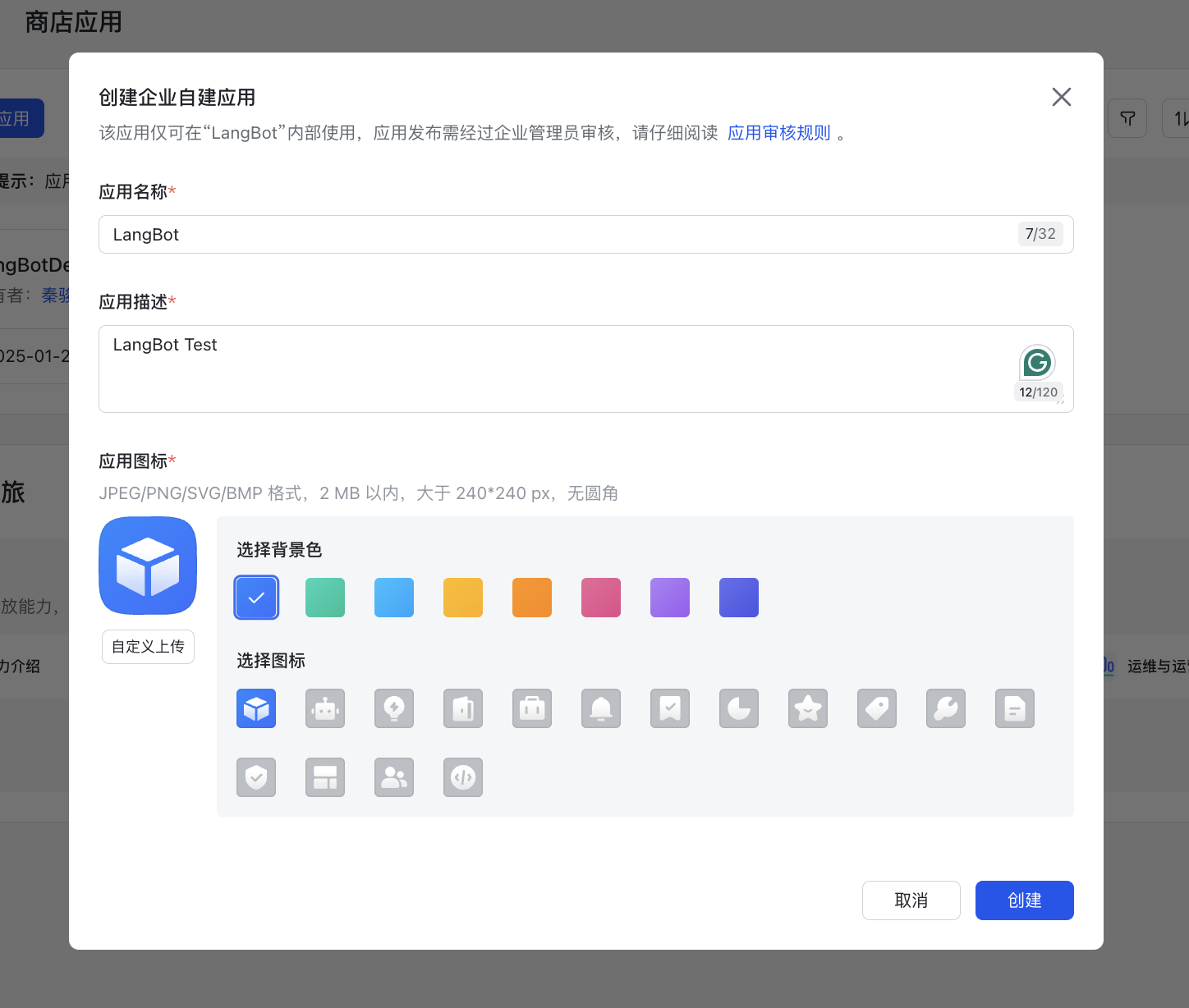
Go to the Feishu Open Platform, log in, and create an enterprise self-built application or store application. (difference introduction)
Add bot capability to the application:
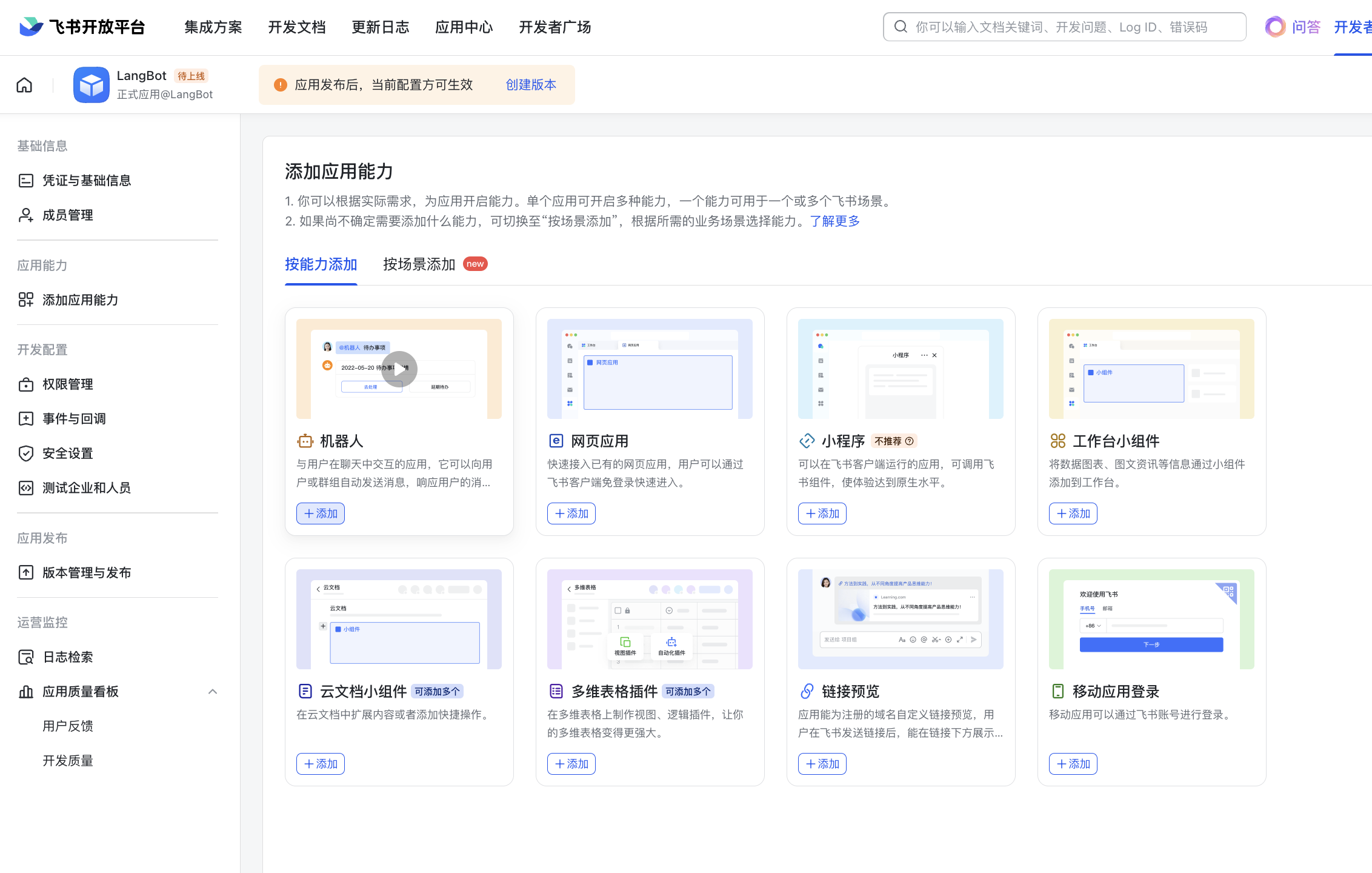
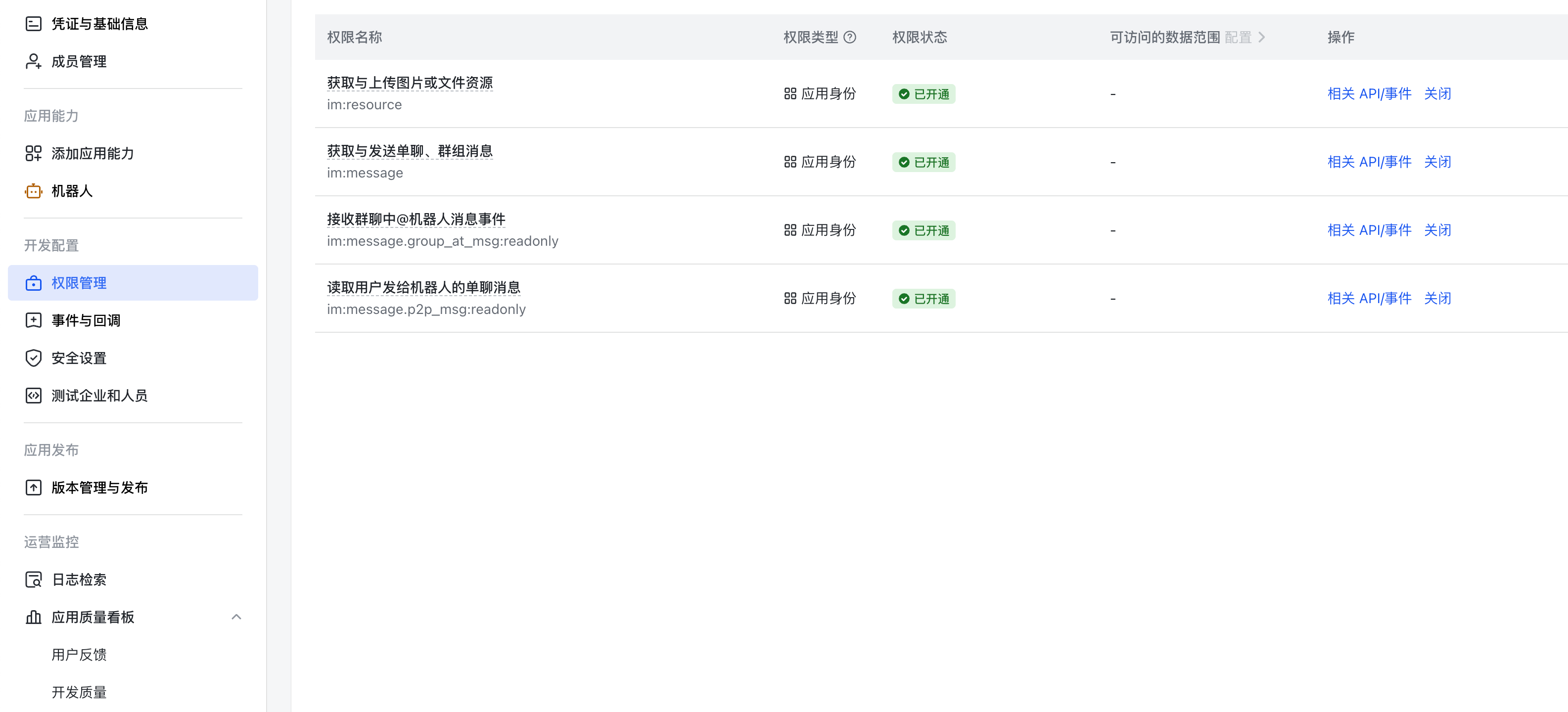
Add the permissions shown in the image in the permission management:
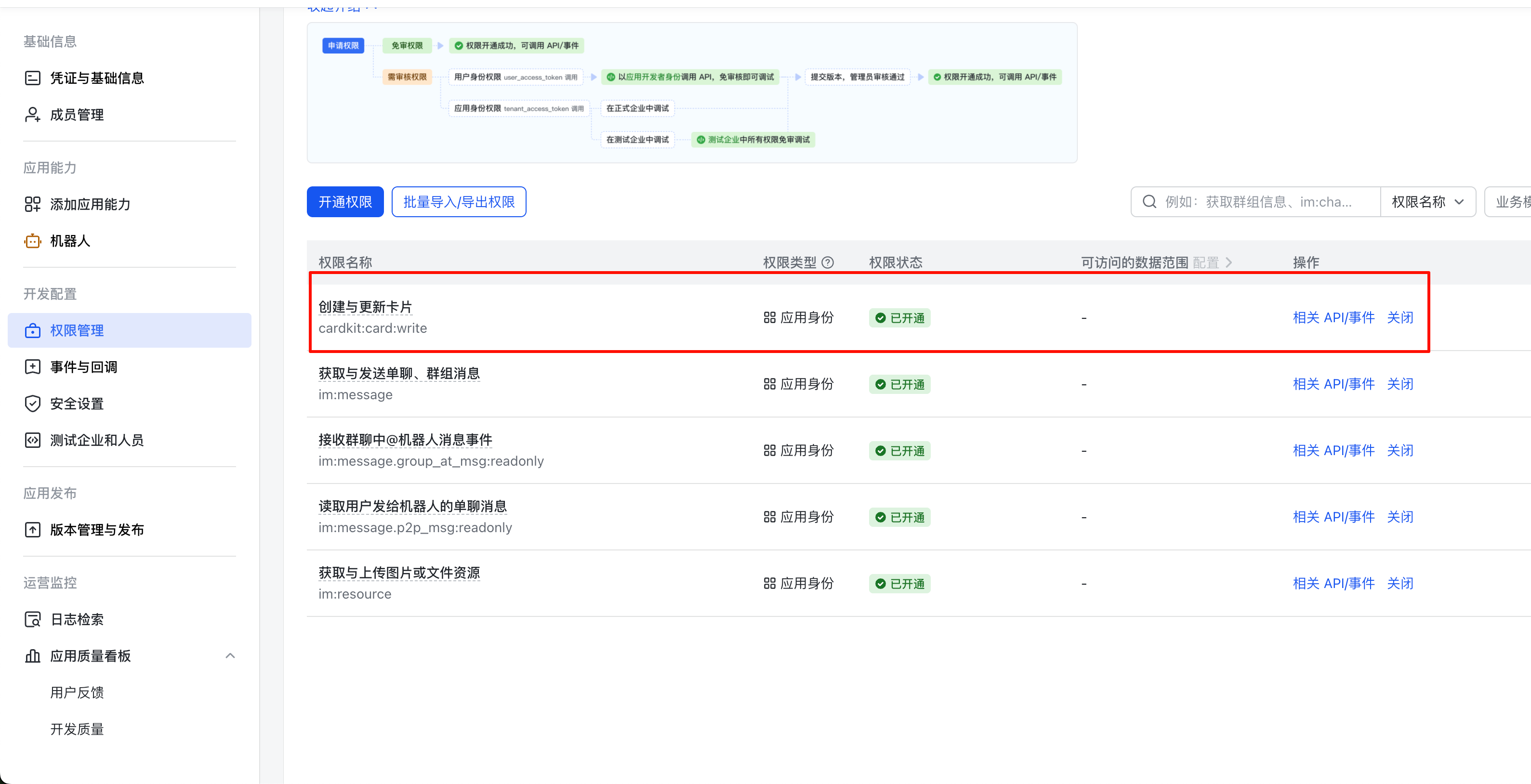
If card streaming permissions are required, additionally add the following card creation and update permissions as shown in the image:
Warning
If you need to change the default card template, you need to modify the card template in the platform adapter's code yourself.
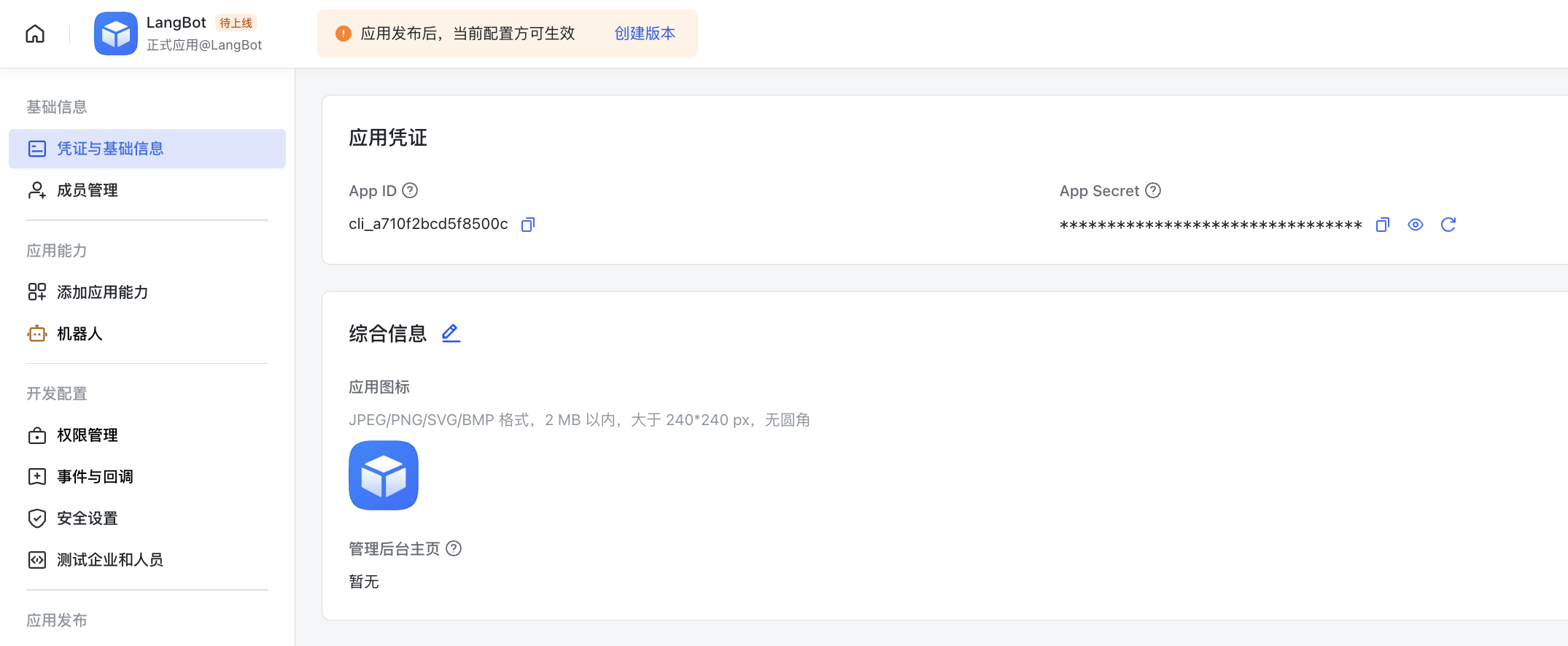
Find app_id and app_secret on the Credentials and Basic Information page.
Open LangBot's Webui configuration page, create a new bot
Fill in the relevant information in the form
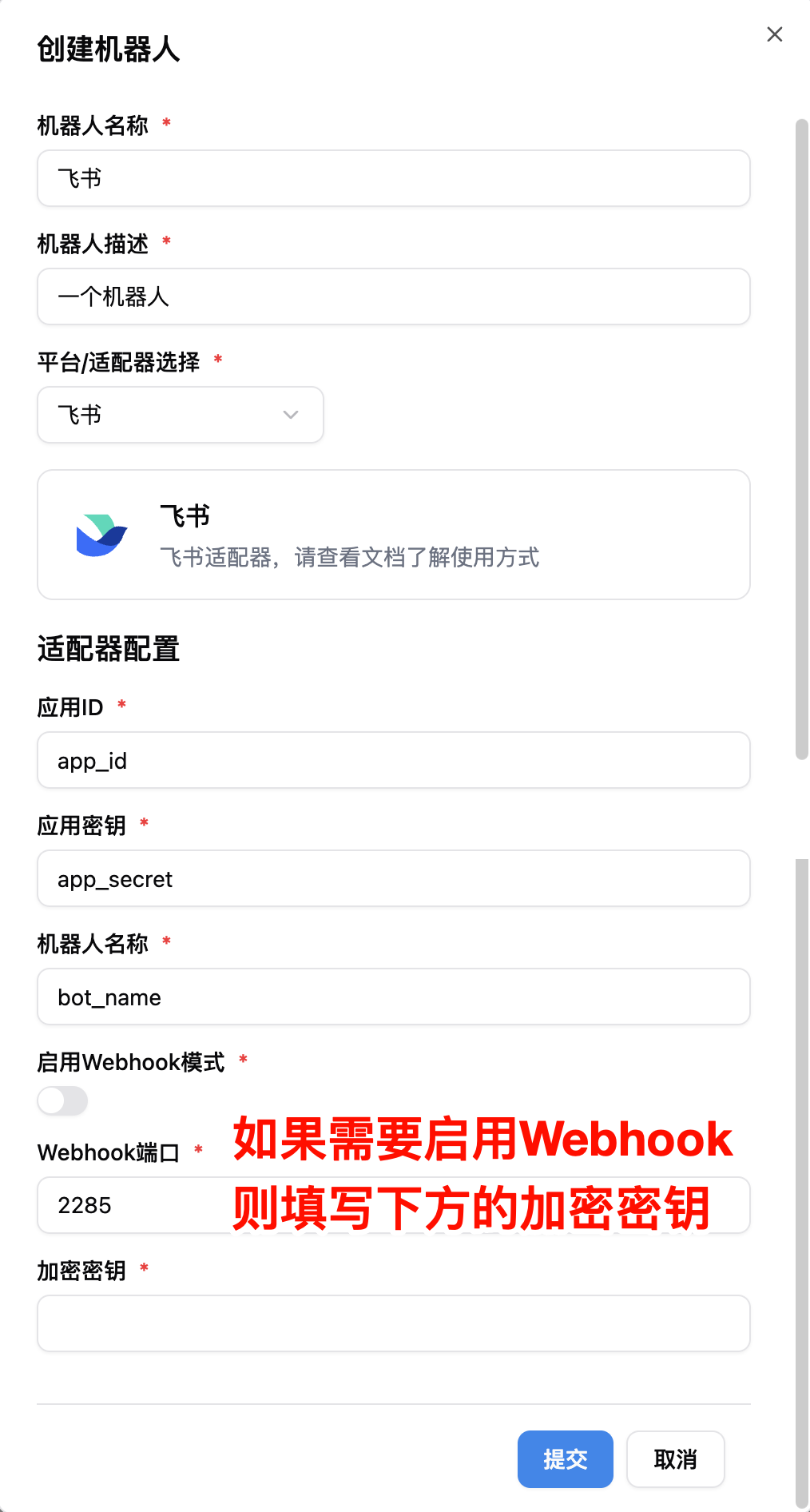
Streaming related:
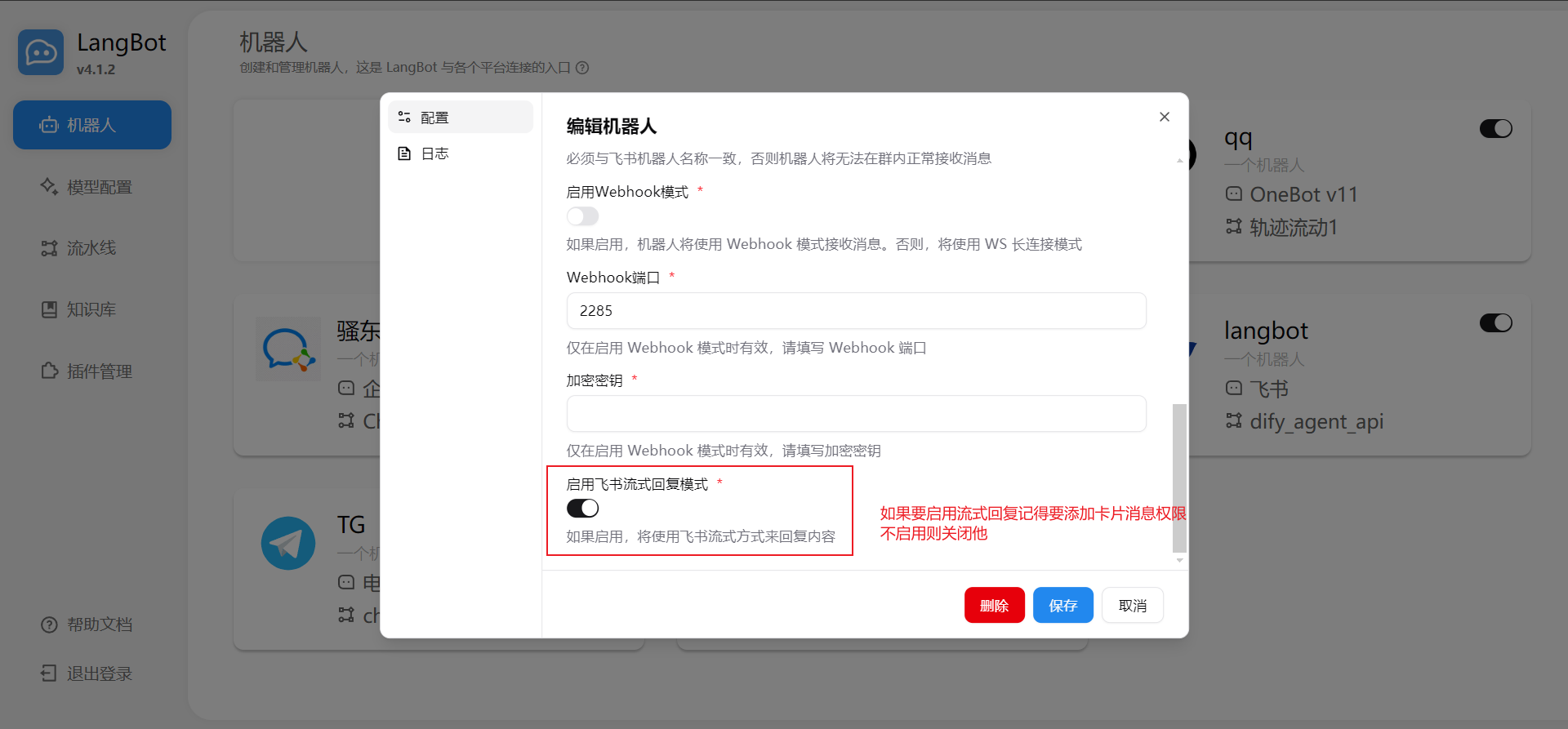
After filling in, start LangBot. If configured successfully, the log will show [01-29 23:42:56.796] manager.py (68) - [INFO] : Initializing platform adapter 1: lark, keep LangBot running.
Warning
By default, WebSocket long connection mode is used, corresponding to the long connection subscription below. But in some cases (such as international version of Feishu), long connection mode is not available, in which case you need to use Webhook mode, corresponding to the Send events to developer server mode, please refer to the following configuration:
-
enable-webhook: Set totrue -
encrypt-key: Set toEncrypt Keyin theEncryption Strategyof theEvents and Callbackspage
Note that in Webhook mode, LangBot needs to be deployed on a server with a public IP, and ensure that the firewall has opened the port configured above. [!TIP] No public server? LangBot Cloud includes built-in domain and HTTPS — get Lark bots working out of the box.
Go to the Events and Callbacks page, configure the subscription method as Long Connection:
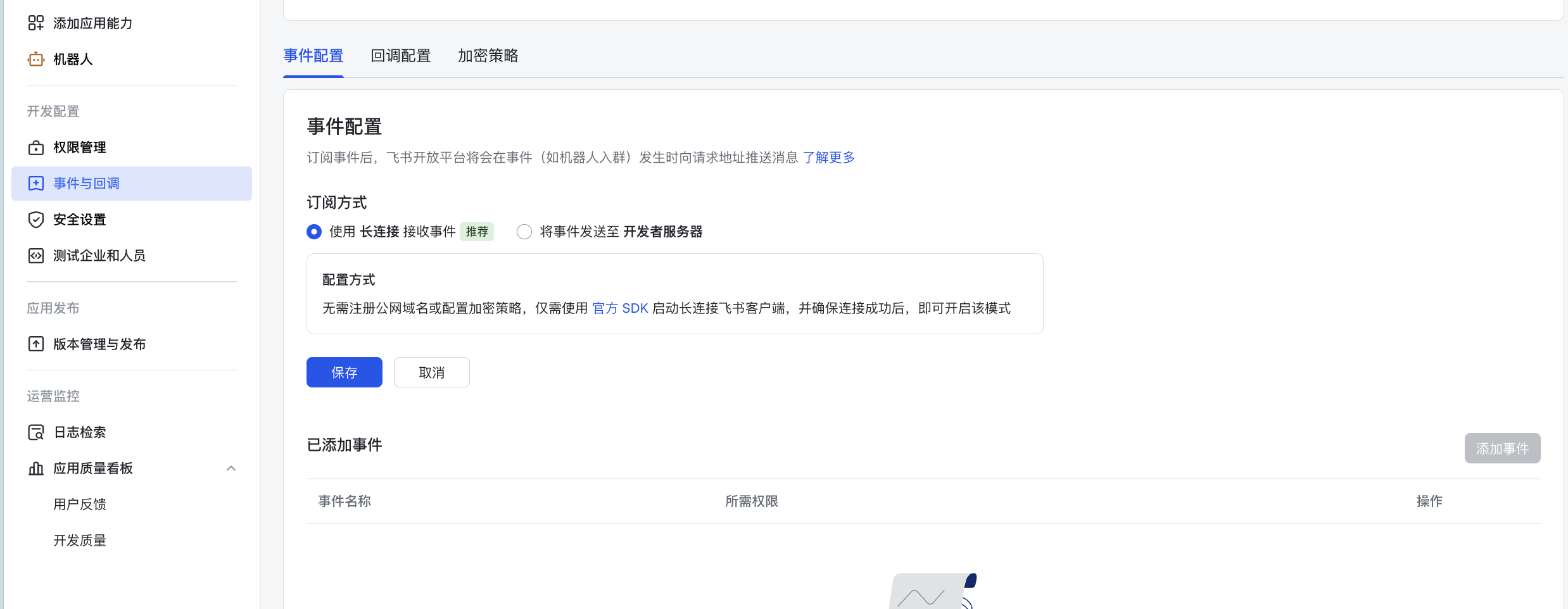
And add the event: Receive Messages
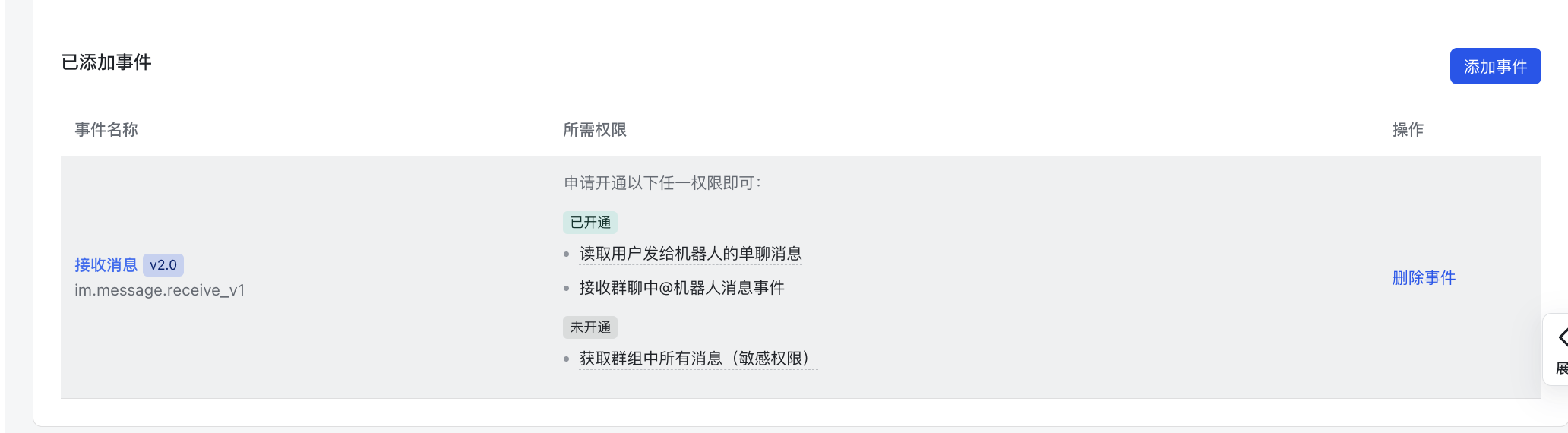
Set up Callback Configuration, select the long connection callback (use webhook if using webhook mode)
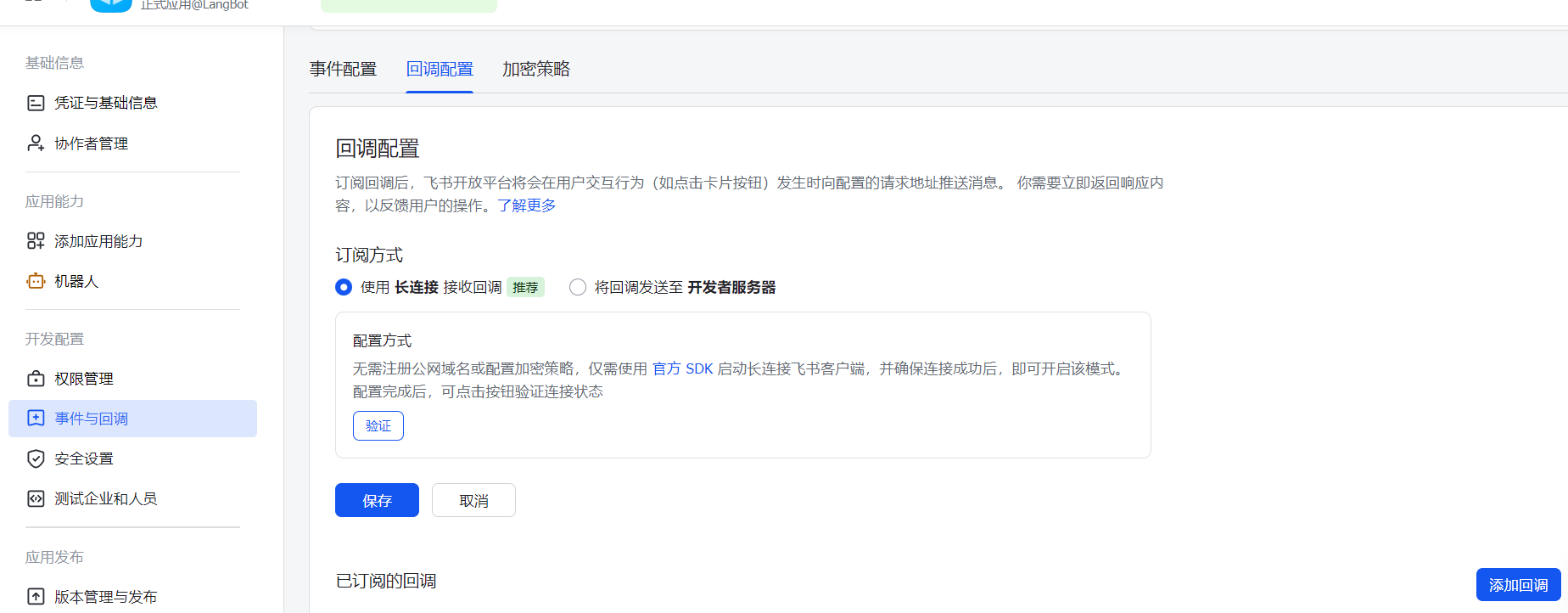
Add the callback Card Callback Interaction
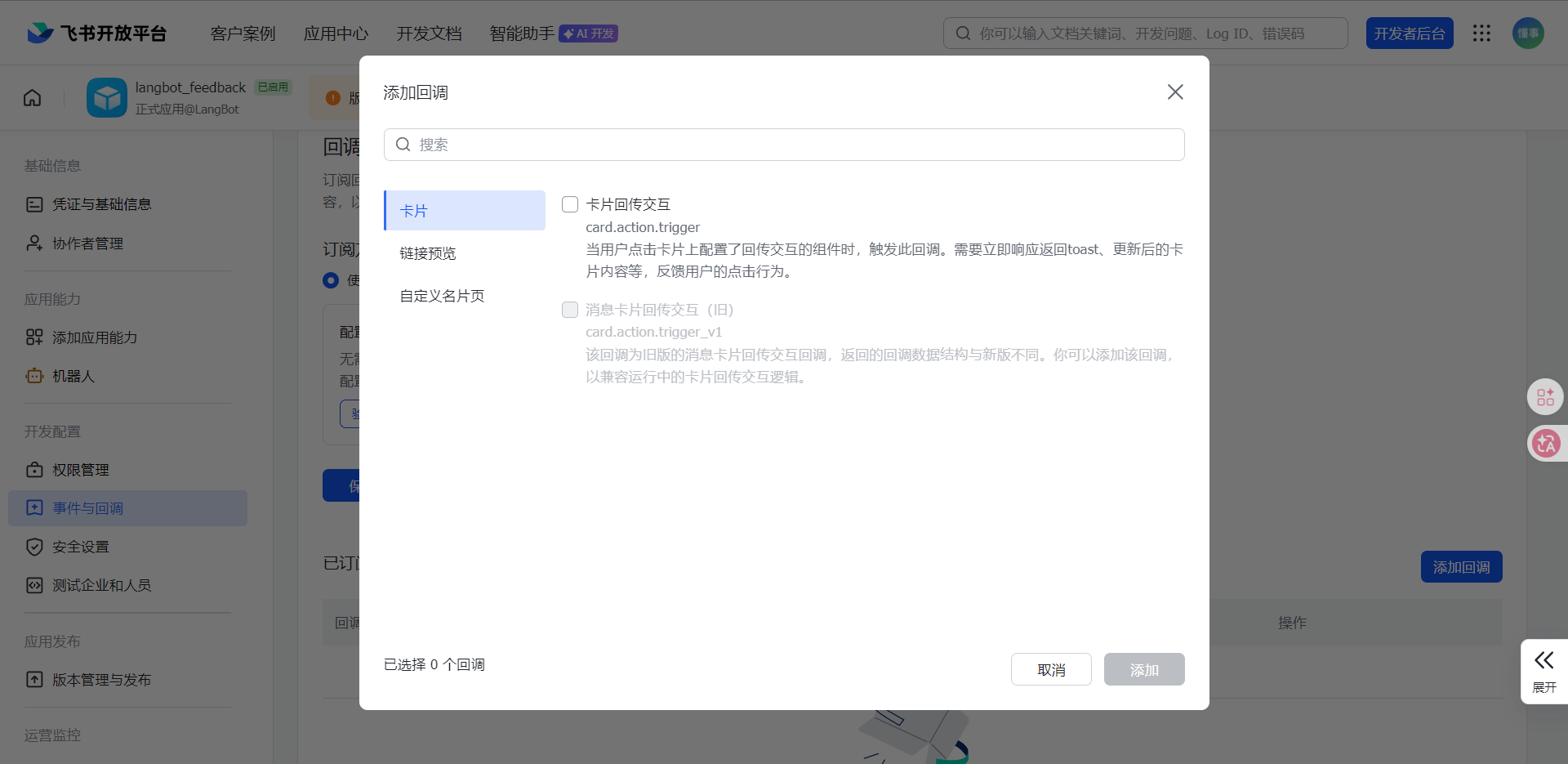
Warning
Webhook mode configuration method:
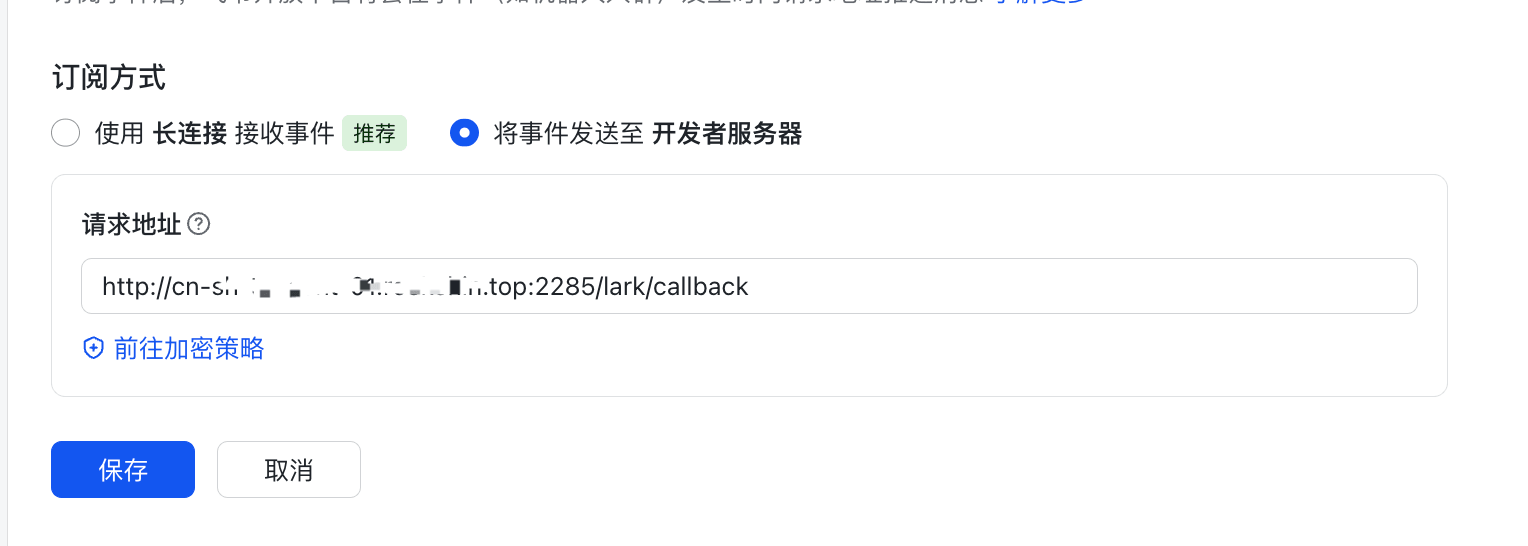
Please start LangBot first, fill in the Webhook address obtained from LangBot here.
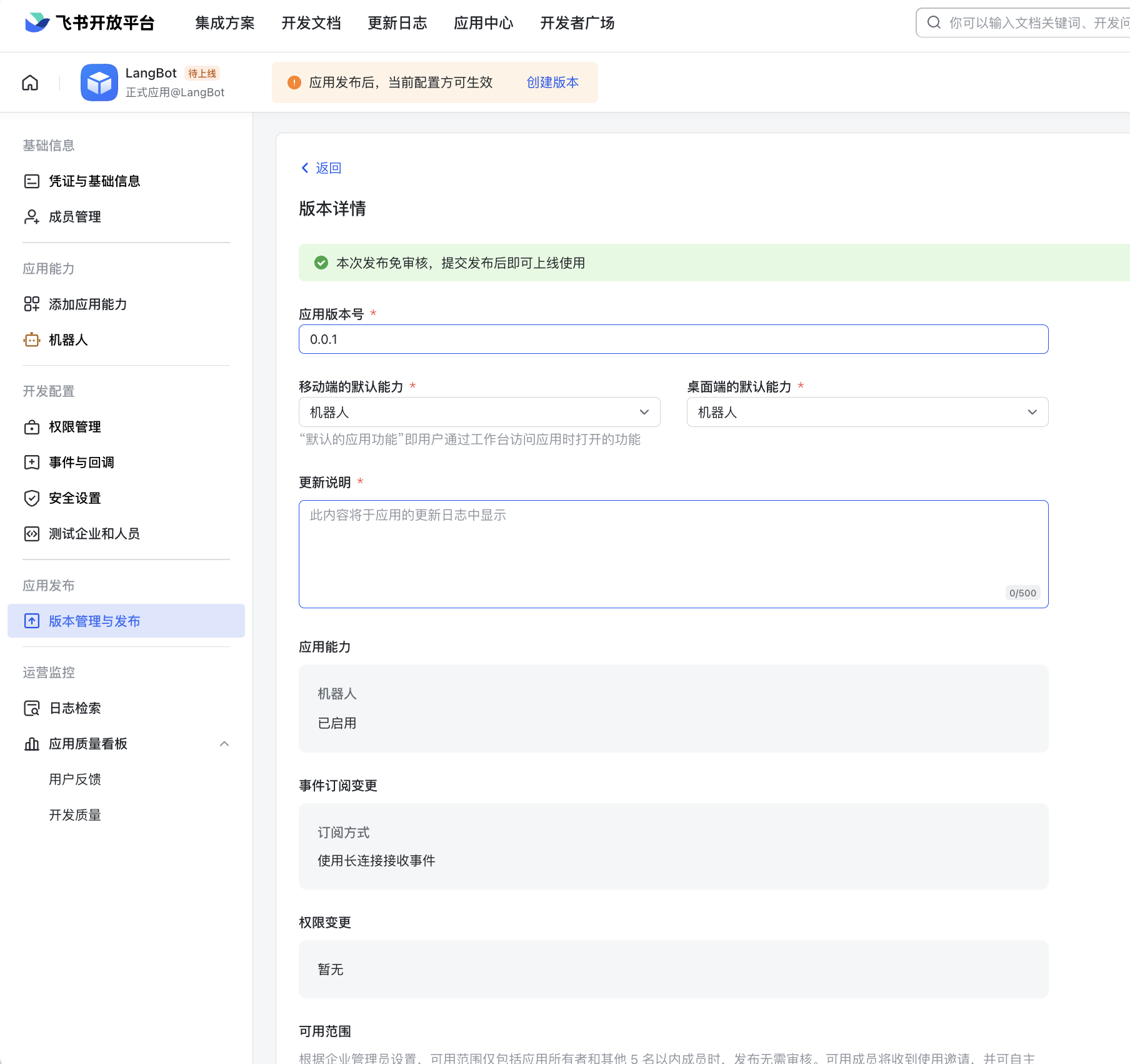
Click Create Version at the top, fill in the version number and other information, click Save below.
Add the bot to a Feishu group to use it:
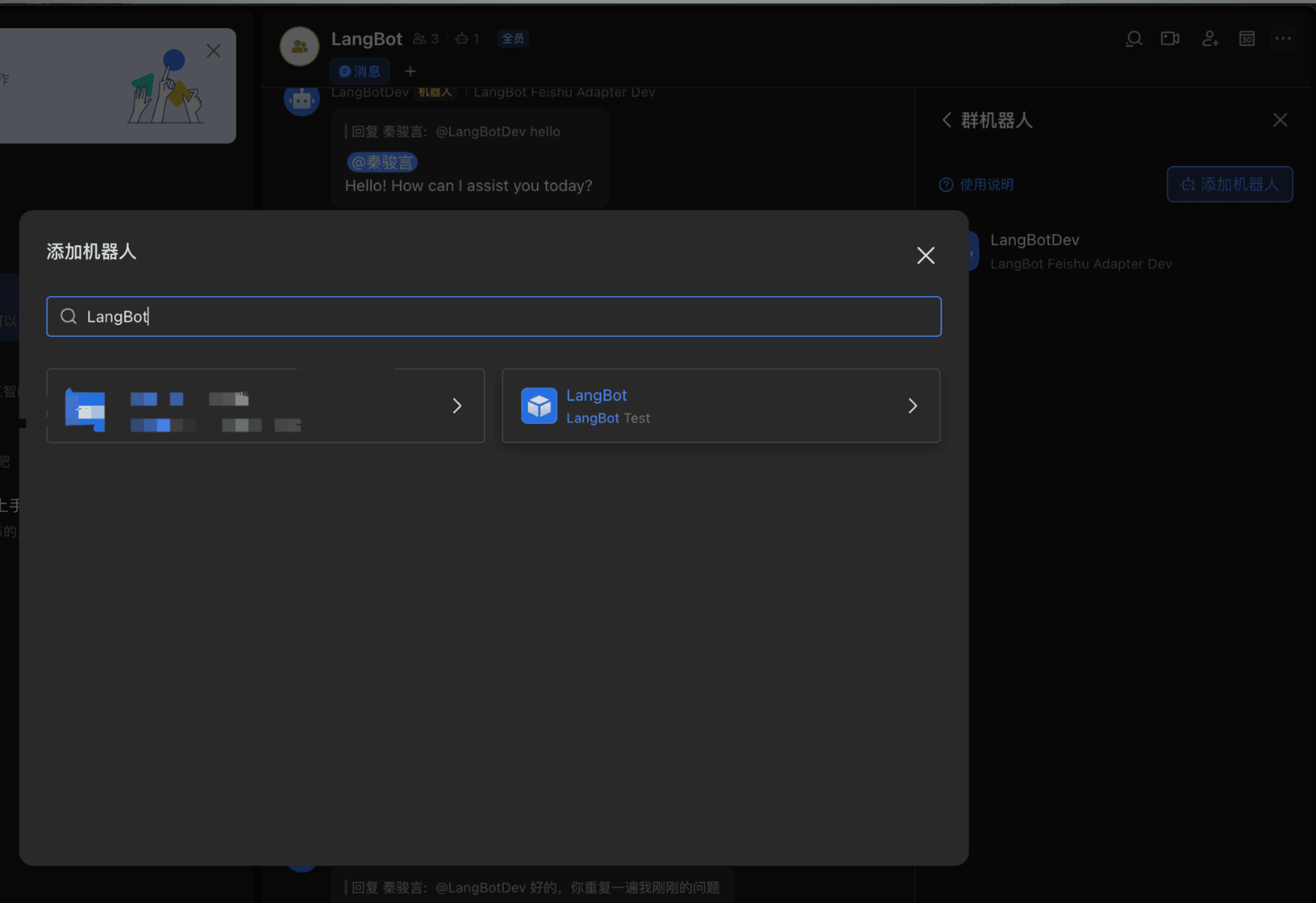
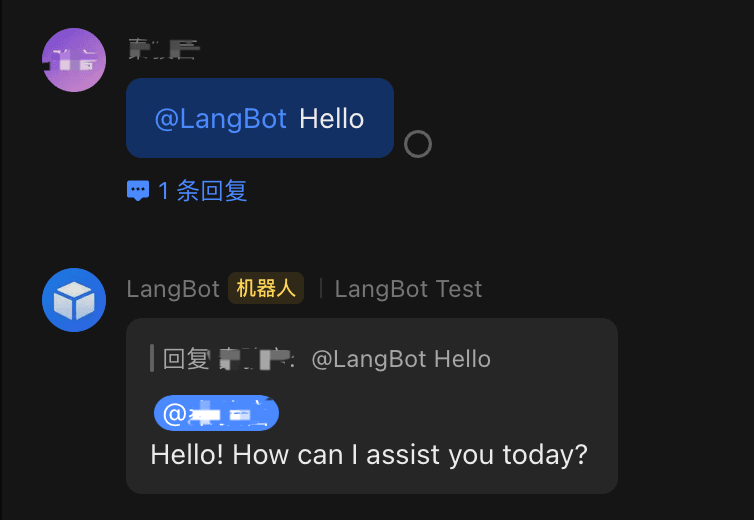
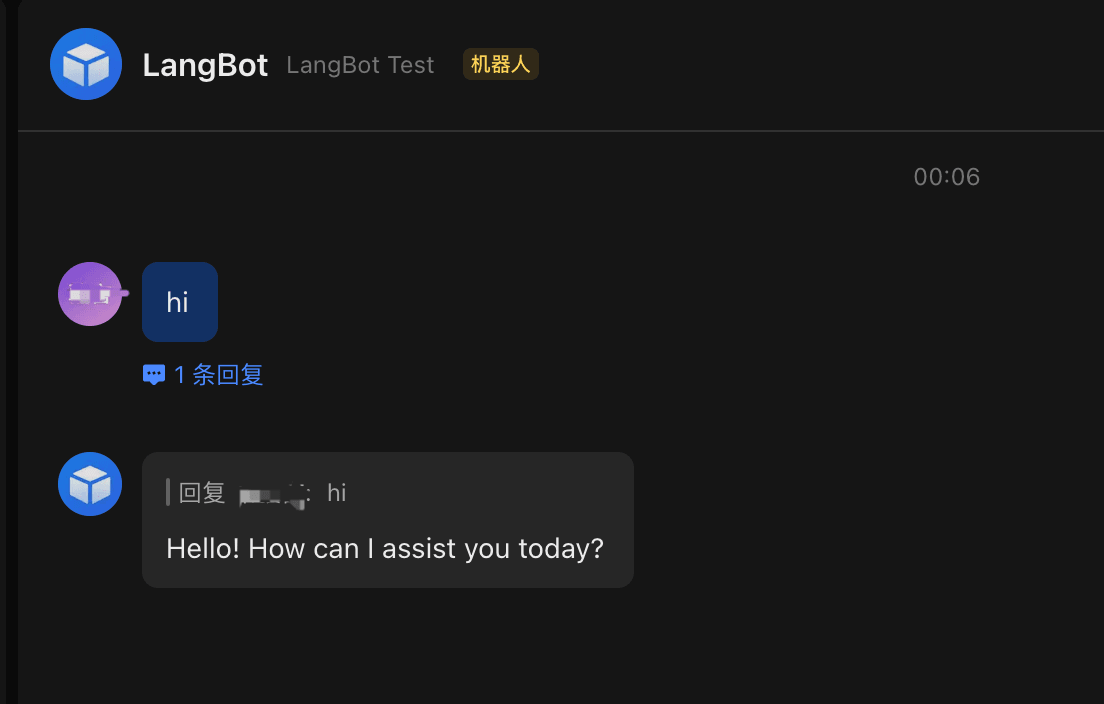
Private chat can also be used directly
- Store app bots cannot respond to chat messages immediately after creation/saving. Due to the app_ticket event delay mechanism, you need to wait about 2 minutes before it can work normally.