Card Edition Mark II. Quick start
- Try to enter DFU mode manually: press and hold the device button, then quickly connect the charging cable twice, the white LED will be solid, and a virtual disk with X1 volume name should appear in your "File manager" afterwards ;

-
Download a release of Meshtastic firmware for nRF52840 ( file name firmware-nrf52840-X.X.X.XXXXXXX.zip ) from this location then extract Meshtastic_nRF52_factory_erase_v3_S140_7.3.0.uf2 from the ZIP ;
-
Drag the Meshtastic_nRF52_factory_erase_v3_S140_7.3.0.uf2 file by your pointing device (mouse, trackball,...) , then drop it into X1 disk. Wait until the file transfer is complete ;

Tip
If the X1 disk does not come up after the Meshtastic nRF52 factory erase - reconnect the USB cable twice while holding the button pressed, as explained at the Step 1
Important
This step is required to remove some data left from Meshtastic in the MeshTracker X1 device flash memory . SoftRF Bluetooth LE feature may fail to operate properly if this step is not done
- Download mesh_tracker_x1_bootloader-0.11.0_s140_6.1.1.zip file from this location ;

-
Download adafruit-nrfutil file from this location and extract the ZIP ;
-
Update the bootloader.
- Users of Microsoft Windows can take this picture as a reference:

- Users of Apple macOS may consider to watch this video from Seeed Studio.
Use it together with the bootloader binary file been downloaded at Step 4.
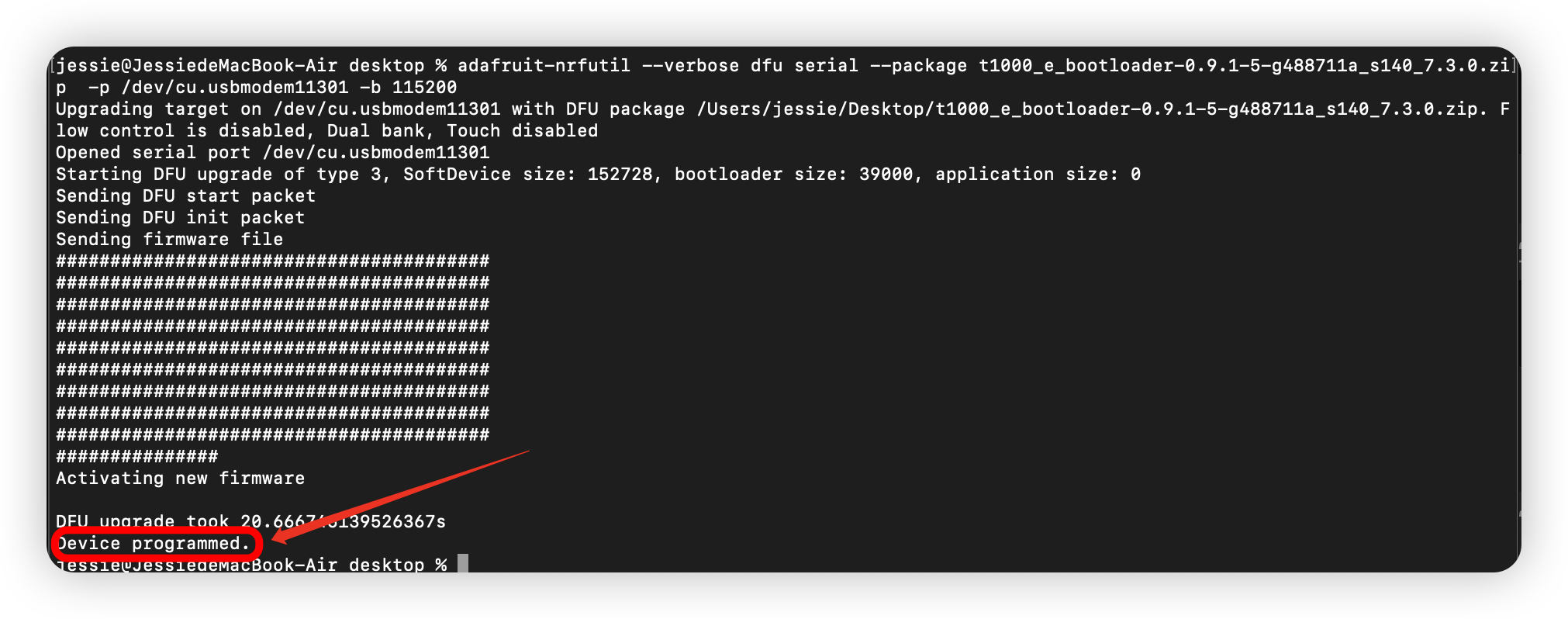
Important
This step is required because Meshtastic for MeshTracker X1 uses SoftDevice 7.3.0 while SoftRF uses SoftDevice 6.1.1 across all the nRF52 devices being supported
- Inspect that the update gives positive effect necessary:

- Follow regular instructions to install SoftRF firmware binary into your Card Edition MK.II ;

- Turn on power of your SoftRF unit by the button press and release. Wait until 4 tones beep ;
- Move your Card Mk.II into an area of good GPS/GLONASS reception and wait few minutes until it will pick satellites up. The device will start to transmit as soon as it gets a GNSS fix. A pick of very first GNSS fix is accompanied by playing a short melody ;
- Use SoftRF Tool
 to connect with the Card Mk.II:

-
Install XCSoar app from Google Play.
-
Open the XCSoar app in Fly mode. Double tap the screen then select Config:
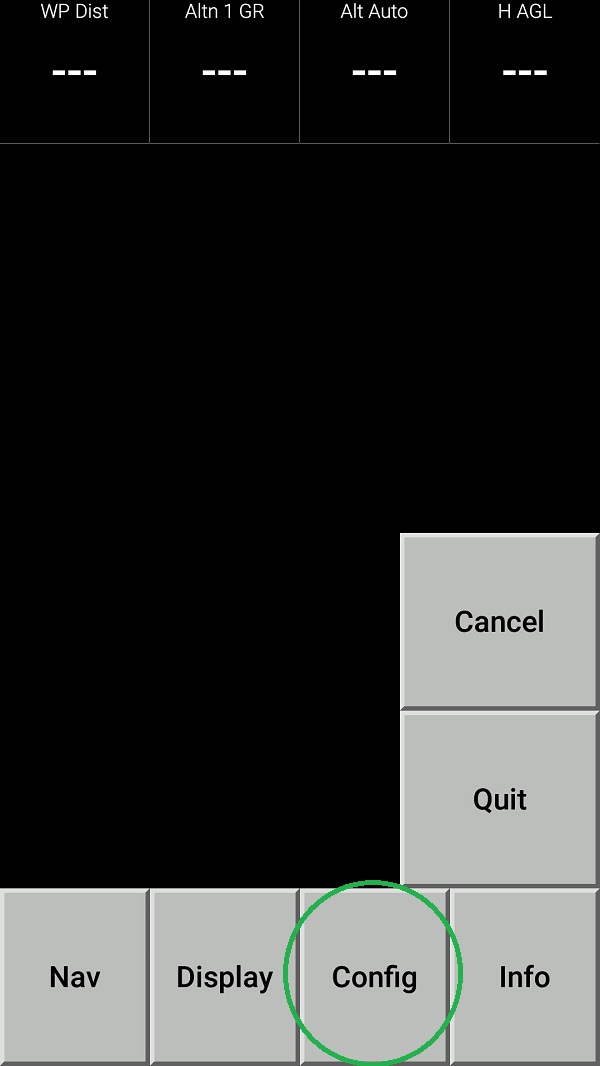
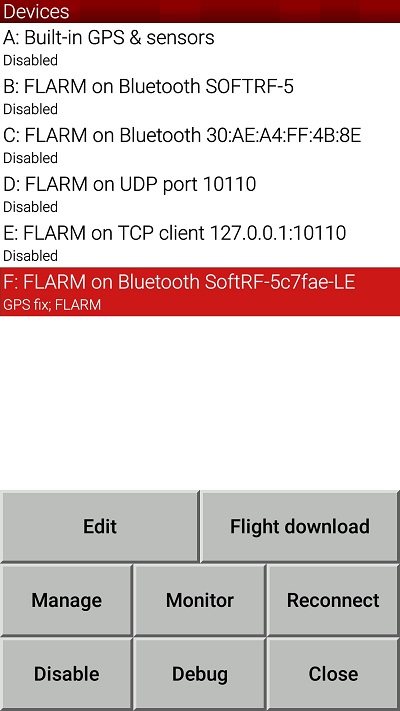
3 Select Devices:
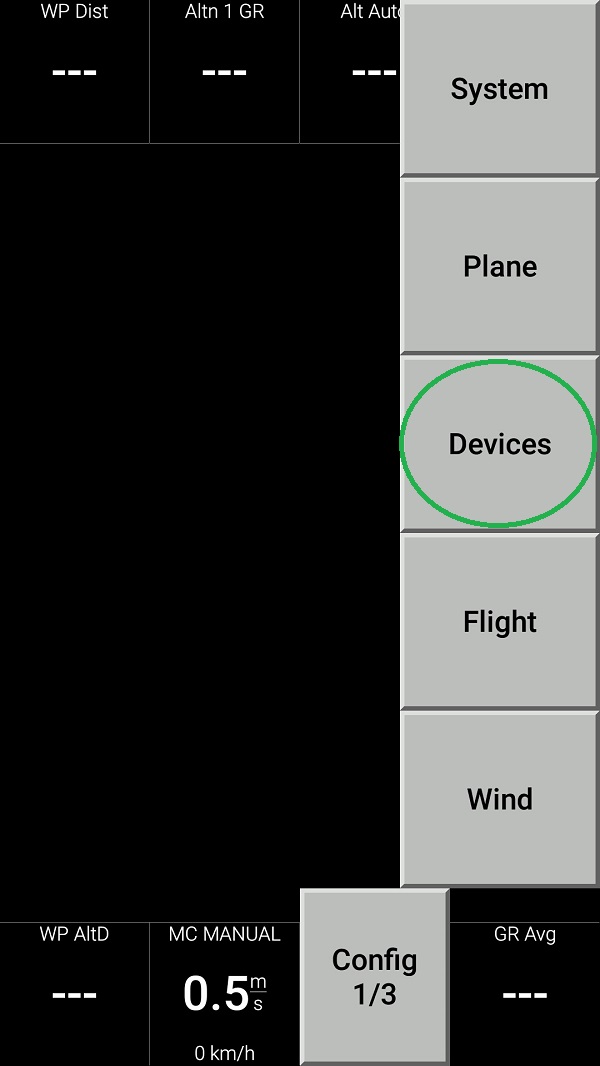
- Push Edit button then configure the device as follows:
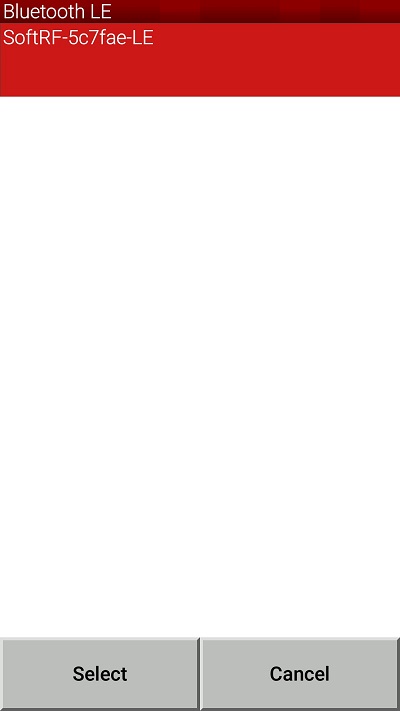 |
 |
|---|
- Use Monitor button to inspect appropriate NMEA data flow
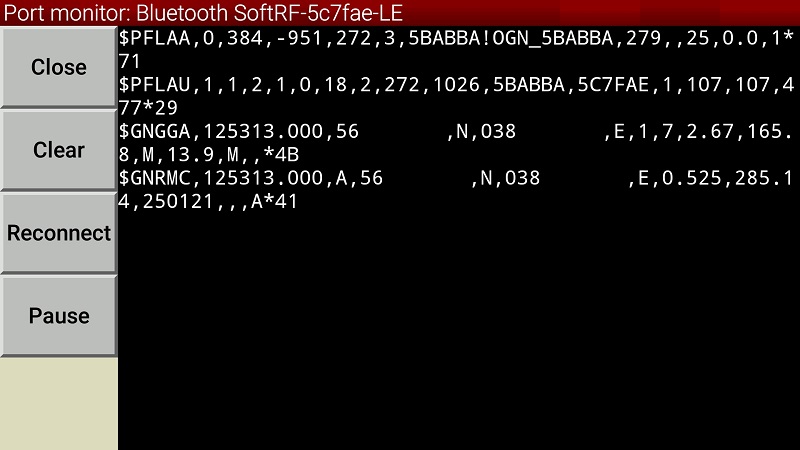
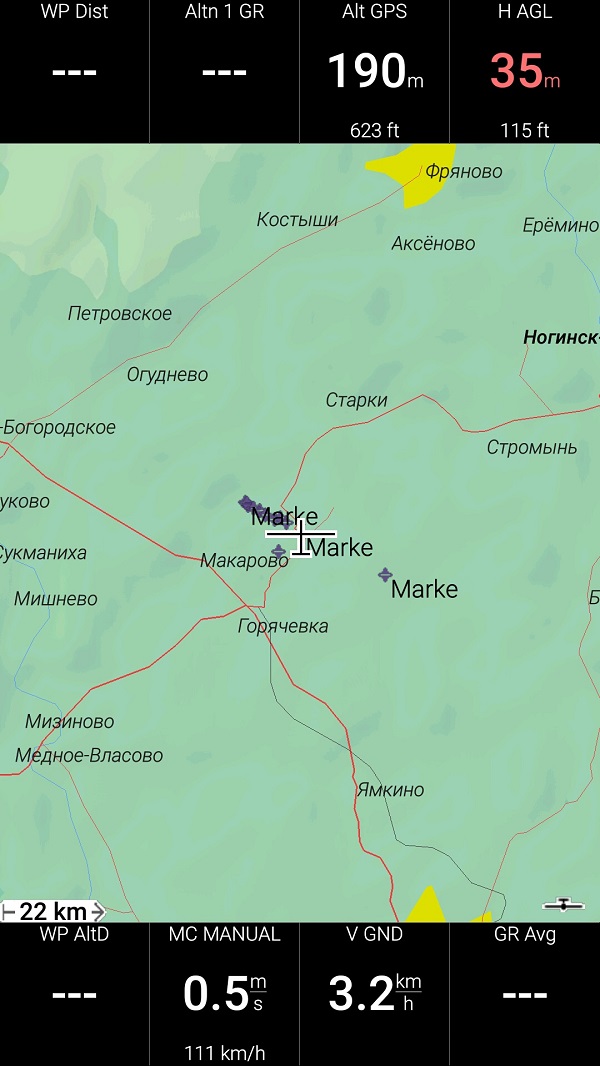
- Return all the way back to XCSoar main screen:
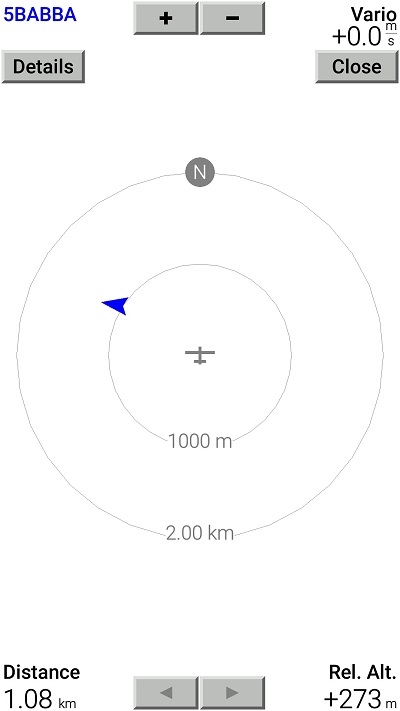
- Swipe three times to the left to reach Radar View. When any other traffic (another SoftRF unit or Skytraxx) is around - you should see it on this screen:
Important
Default radio protocol setting for the Card Edition Mark II is FANET.
However, most of other SoftRF devices use OGNTP protocol as the default one.
Devices can "see" each other when they operate on the same radio protocol only !
Follow these instructions on the Seeed Studio wiki to bring Meshtastic firmware back.
Install the bootloader first, then install the Meshtastic.
SoftRF
-
Standalone

- UAV
-
LoRa module
-
Concorde

-
Retro MkII
-
Prime MkIV
-
Prime MkIII
-
Badge
-
Card MkII
-
Card
-
Airventure
-
Pocket
-
Nano
- Prime MkII
-
Dongle
- Ham
- Handheld
-
Solaris
-
Lyra
-
Labubu
- Eco
- Gizmo
- ES
- Octave
- Duo
- Uni
- Cozy
- Midi
- Mini
- Lego
- Balkan
-
Academy
- Raspberry
- Bracelet
- Retro
SkyView
Flight Recorder
Adapters
Firmware
Tools
Protocols