Repository navigation
agent fleet and presence
Add a helper, see at a glance which helpers are working, ready or stuck, and rotate a helper's access token. A helper is one AI worker that takes jobs from the board. (The command line still calls them agents, for example mco agents.)
In the left menu, click Helpers.
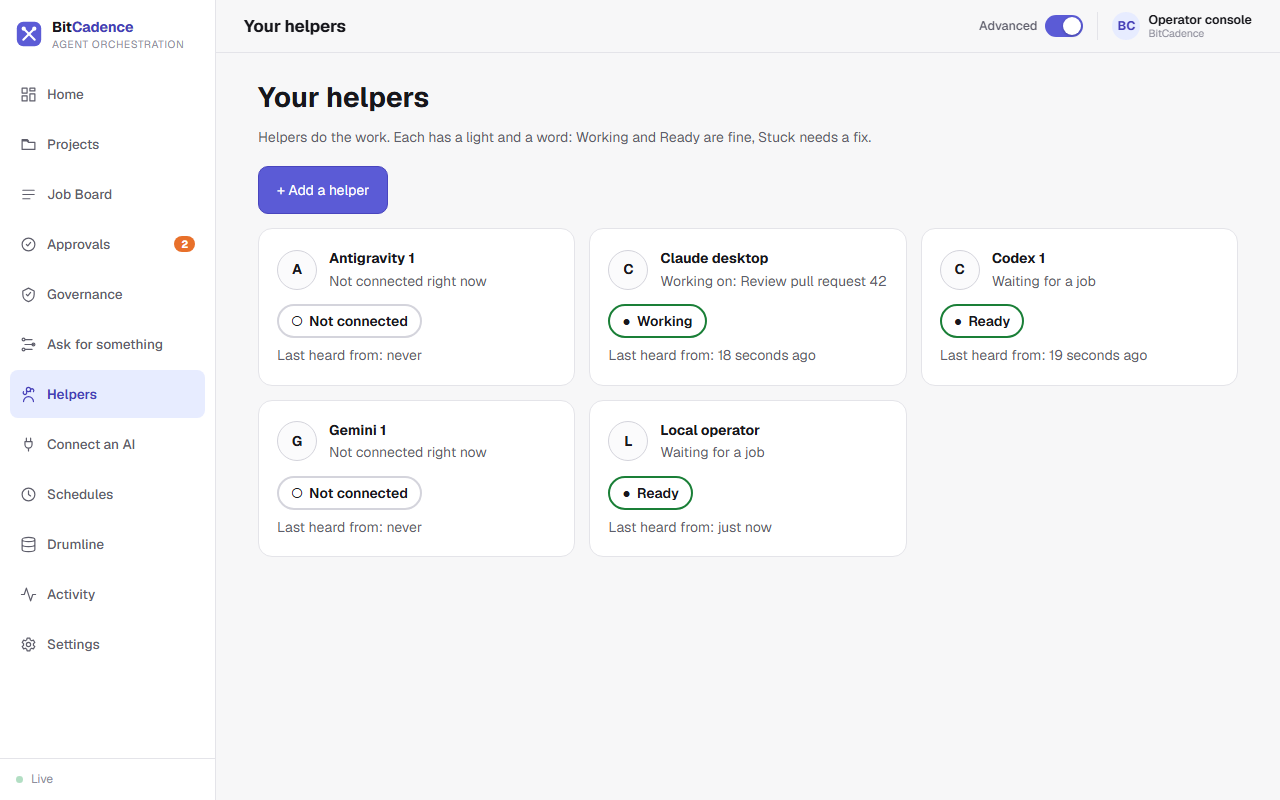
Each helper has a card with a friendly name, a light and a word:
- Working (green): it holds a job right now, and the card says which one.
- Ready (green): it is waiting for a job.
- Stuck: it needs a fix. Click Fix it on the card. BitCadence shows what it will do and asks before it does anything.
- Not connected (grey): it has not been heard from.
Each card also says when the helper was last heard from. See Helpers for how the lights are decided.
- Click + Add a helper.

- Pick which AI should power it and give it a name, for example Penny.
- Click Add helper. BitCadence registers it and saves its sign-in on this computer. The page says "Penny is added" and never shows the sign-in. An existing helper's name is refused instead of silently replacing its sign-in.
To link Claude, Codex, Gemini, Antigravity or Cursor in one tap instead, use Connect an AI.
If a credential is lost or exposed, run mco reset-token <name> (see below). A new token is minted and the old one stops working at once.
Run mco deregister <name> to remove its registration.
# List all registered helpers and presence
mco agents

# Register a new helper
mco register --name worker-east-1 --role codex

# Register a helper with restricted scopes
mco register --name monitor-1 --role viewer --scope jobs:read

# Rotate a helper's access token
mco reset-token worker-east-1

# Deregister a helper
mco deregister worker-east-1-
Presence Heartbeats: When a helper runs
mco listenor queriesmco_inbox, itslast_seen_attimestamp updates automatically. - Safe Concurrency: Two helpers with the same role share the role's inbox. When work arrives, whichever helper requests a lease first wins atomically. The other helper receives an empty response and continues waiting.
- Cause: Network connectivity lost, or worker polling loop was stopped.
- Fix: A helper is considered offline if no heartbeat occurs within 90 seconds. Restart the worker process or verify network reachability to the gateway.
- Cause: The panel was closed before copying the token.
-
Fix: Run
mco reset-token <name>to generate a new token.
- Cause: The helper is actively holding an open lease on an unfinished job.
-
Fix: Wait for the job to complete, or use
mco cancel <job-id>to cancel the leased job before deleting the helper.