Repository navigation
connecting console
Connect the BitCadence console to your local gateway using an access token, or use the simulated Demo mode to look around safely before running live tasks.
Open your web browser and navigate to:
http://127.0.0.1:18789/console
When first opened, the console loads in Demo mode — simulated data. The bottom of the left menu says Demo · simulated data: every job, helper and event shown is a simulation, so you can explore without running real work.
Click Settings in the left menu, then open Show advanced at the bottom of the page. The connection form is inside it.
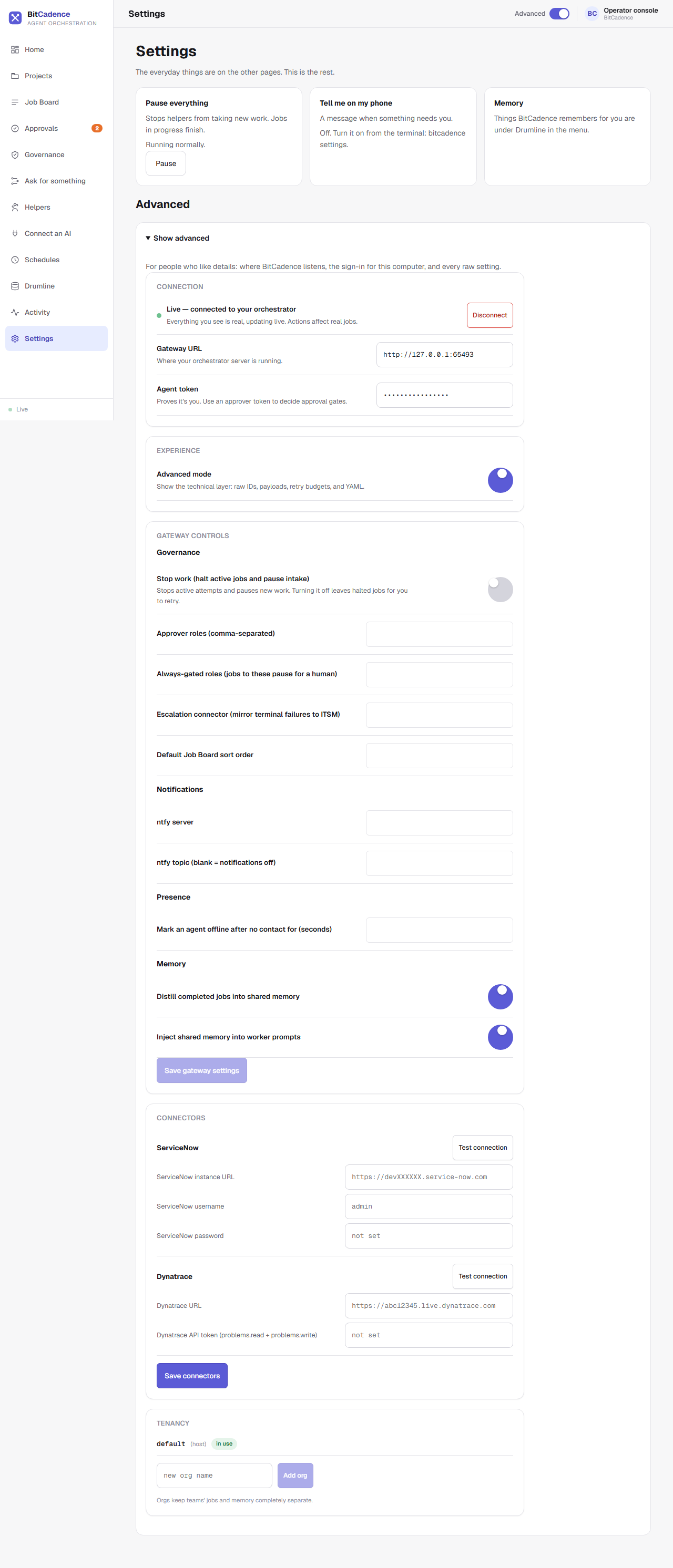
In the Connection section:
-
Gateway URL: Ensure it is set to
http://127.0.0.1:18789(already populated by default). -
Agent token: Paste the operator access token generated during installation (
Ctrl+V). The token begins withmco_tok_.-
Where to find your token: Look at the server terminal window, or open
~/.mco/.envin Notepad and copy the value ofMCO_LOCAL_TOKEN.
-
Where to find your token: Look at the server terminal window, or open
Click the Connect button.
- The bottom of the left menu changes from Demo · simulated data to Live, and a toast says your helpers are ready.
- The connection parameters are stored safely in your browser's
localStorage(bitcadence_conn), meaning you will not have to re-enter them on subsequent visits.
If you ever want to return to sandbox exploration with mock data:
- In Settings → Show advanced → Connection, click Disconnect.
- The UI instantly reverts to simulated state, allowing you to click all controls safely.
To verify connectivity and token authorization directly from your shell:
# Set token in environment
$env:MCO_AGENT_TOKEN = (Get-Content "$HOME\.mco\.env" | Select-String "MCO_LOCAL_TOKEN").Line.Split("=")[1]
$env:MCO_GATEWAY_URL = "http://127.0.0.1:18789"

# Test health check and auth
mco status

# List online helpers
mco agents-
Header Status: The top right shows a glowing green indicator stating:
Live • 127.0.0.1:18789 • local-operator (admin) -
Real Data Sync: The Job Board, Projects and Helpers pages now display the actual rows from your local SQLite database (
~/.mco/local.db). -
Live WebSocket: A real-time WebSocket connection is established to
/ws/broadcast. Any job created by CLI or another helper immediately animates onto your screen without refreshing.
- Cause: Incomplete token pasted or mismatched local token.
-
Fix: Copy the exact token from
~/.mco/.env. Verify that there are no leading or trailing whitespace characters. Tokens always start withmco_tok_.
- Cause: The BitCadence gateway server is stopped or running on a different port.
-
Fix: Start the server using
Start BitCadence.batormco serve. Confirm thathttp://127.0.0.1:18789/healthzreturns{"status":"ok"}.
-
Cause: Browser privacy settings or an incognito window blocked
localStorage. -
Fix: Ensure cookies and local site storage are allowed for
127.0.0.1. If using Private Browsing, re-enter the token.