Repository navigation
Install the userscript
Install a userscript manager in your browser, then add Caelestis from GitHub. The example below uses Violentmonkey.
Choose Violentmonkey or Tampermonkey and follow its link for your browser.
Use the extension store's install button and approve the browser's confirmation.
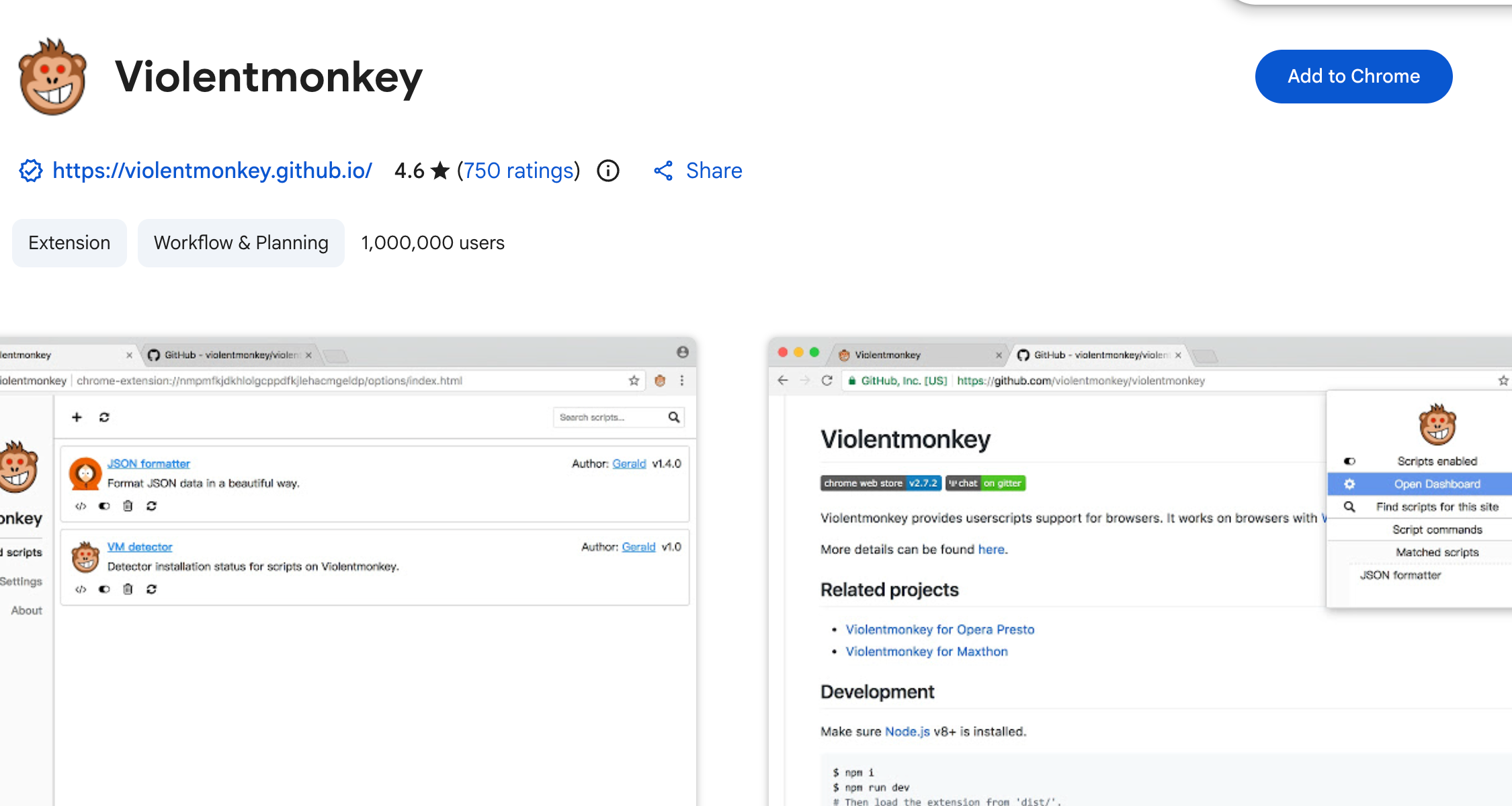
On Chromium browsers, open the manager's details in the browser's Extensions page and enable Allow user scripts if present. Older versions may require extension developer mode instead. Tampermonkey documents the Chromium setting here.

Greasy Fork is a script directory, not a userscript manager. Caelestis releases are on GitHub.
Open the latest Caelestis release. Look for the userscript release marked Latest.
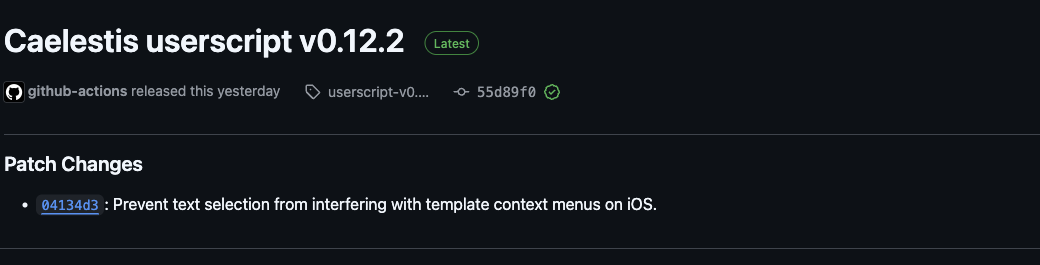
Under Assets, click caelestis.user.js. Choose the script file, not Source code.

Your userscript manager opens an installation page. Check that the script is Caelestis and its matching site is https://wplace.live/*. Click Install.

Open Wplace, or reload it if it was already open. Click the Caelestis button among the map controls to open the panel.

Follow Getting started to import and place your first template.
Local templates work without a server. For a group's shared artwork, ask its owner for the server address and a token.
Open Settings in the panel header.

Enter the owner's server address and click Add.

Expand the server if needed. Paste the token and click Connect. A connected server shows Update when changing its token.

Connect to a server has the full connection instructions.