Repository navigation
Progress and collaboration
Caelestis compares template colours with the canvas to show what is complete and what still needs work. A connected server shares those observations with other painters.
In the template panel, expand a row's progress. Open Show colour progress for the per-colour breakdown.
The counts separate correct, mismatched, and unpainted pixels. You can inspect a template, folder, or server.
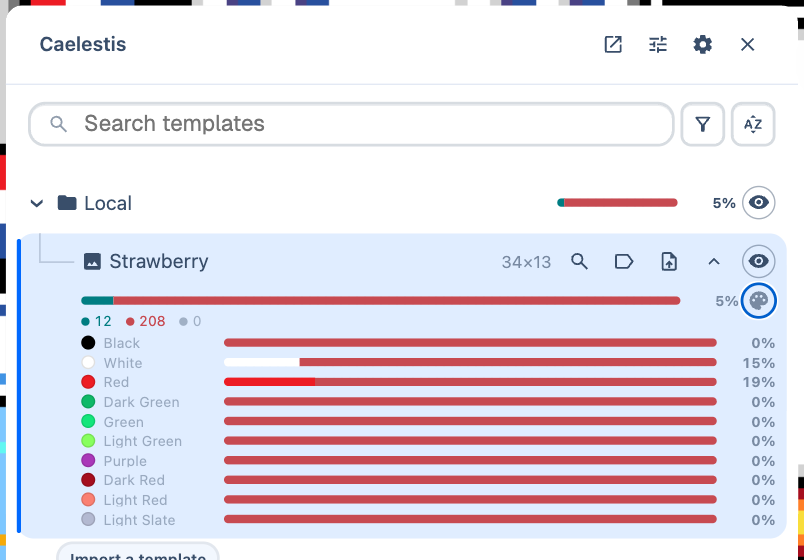
Server progress depends on received tile observations and reports. A coverage gap means some of the canvas has not been observed yet.
The dashboard shows shared progress and history outside Wplace.
Server administrators can open a template's actions menu and choose Mark as….
| State | Meaning |
|---|---|
| Finished | Marks the template as finished and stops ordinary work reporting for it. |
| Frozen | Keeps its timelapse at the chosen endpoint instead of continuing the recording. |
| Regression or grief warning | Reports a loss of correct pixels; sustained-grief alerts track continuing damage. |

Marking a template Finished also freezes its timelapse. To resume recording, clear Finished, then clear Frozen. Reopening alone does not thaw it.
An administrator can use Dismiss grief alert when an alert has been dealt with.
Use Favourite in a template's actions menu to save it in your work list. Use Unfavourite to remove it.
A favourite does not reserve any map space. Use a region claim to show where you intend to work.
Enable Share where I am in Settings to share your viewport and draft pixels while the tab is open. Enable Show other painters to see other people's shared activity.
The Painters drawer lists people near your viewport. Its online total can include people elsewhere on the server. Fly to moves the map to a painter's shared viewport.
Sharing settings let you control viewports and claims separately.
Sign in to Wplace and connect with a report or administrator token. The server must support painter presence. Open claim mode from the map rail, or press its assigned shortcut, M by default.
Choose a drawing tool, then draw the area you intend to paint. The editor has shape, pen, pencil, brush, selection, lasso, eraser, and hand tools. Hold or right-click a grouped tool to open its alternatives.

Click Save claims to save the current regions. Cancel discards the edits.
Claims are map regions, not template assignments. They can cross template boundaries. They expire after 30 days without renewal from an authenticated owner connection.