Repository navigation
Explore GODSEYE
Choose the workspace that matches the question you need to answer. Screenshots use representative sample data and may include interface illustrations; your counts come from your own connected systems.
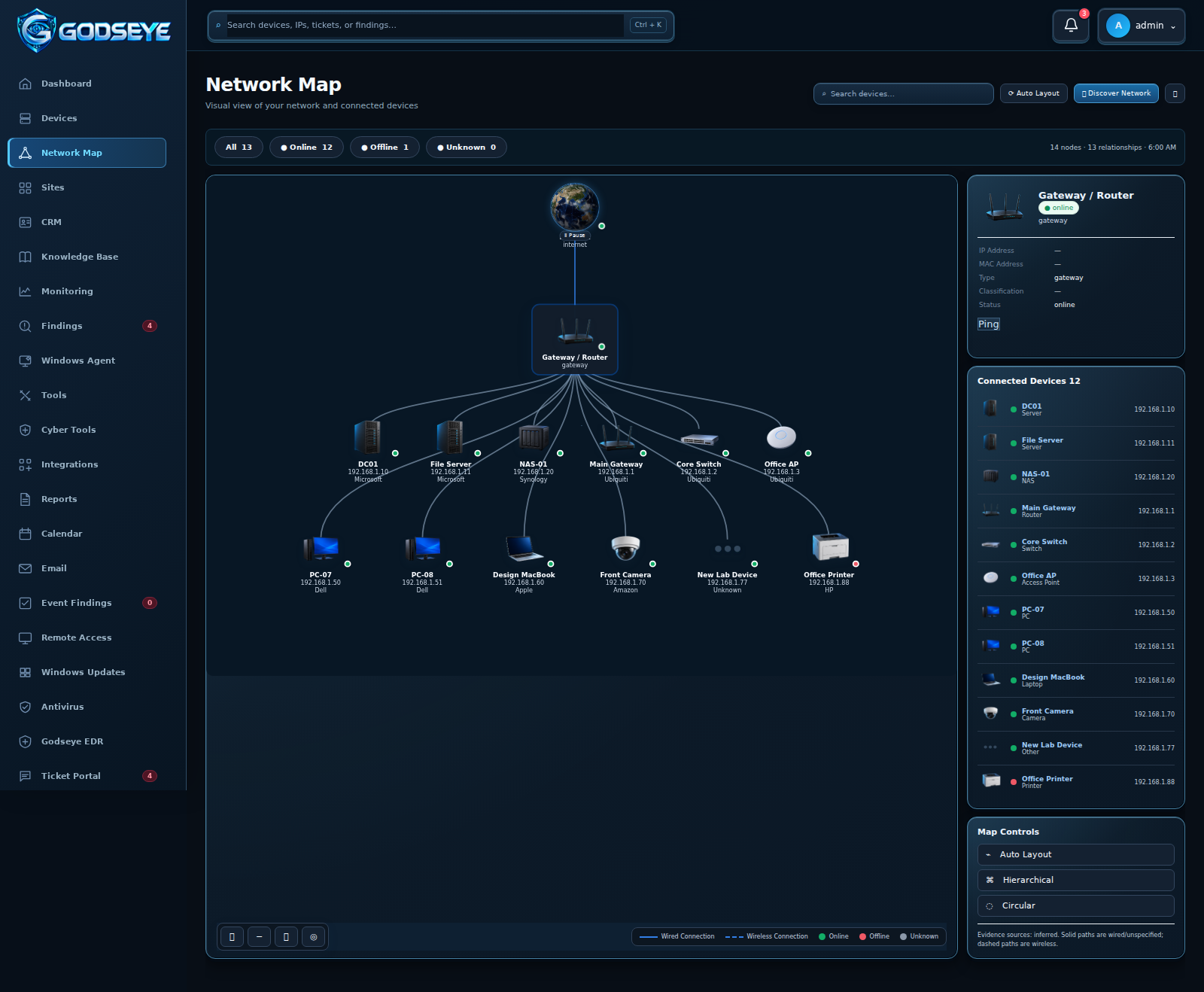
Dashboard gives a first look at device totals, findings, tickets, monitored services, and appliance health. Devices holds searchable inventory and device history. Network Map visualizes observed relationships; select a node to investigate its device record.
Findings groups repeated operational and security conditions. Review the evidence, recheck the condition, resolve it, or create a ticket. Cyber Tools offers bounded diagnostics for systems you own or are authorized to administer: network exposure, web and TLS, DNS and email security, endpoint posture, and more. Reports turns results into shareable operational summaries.
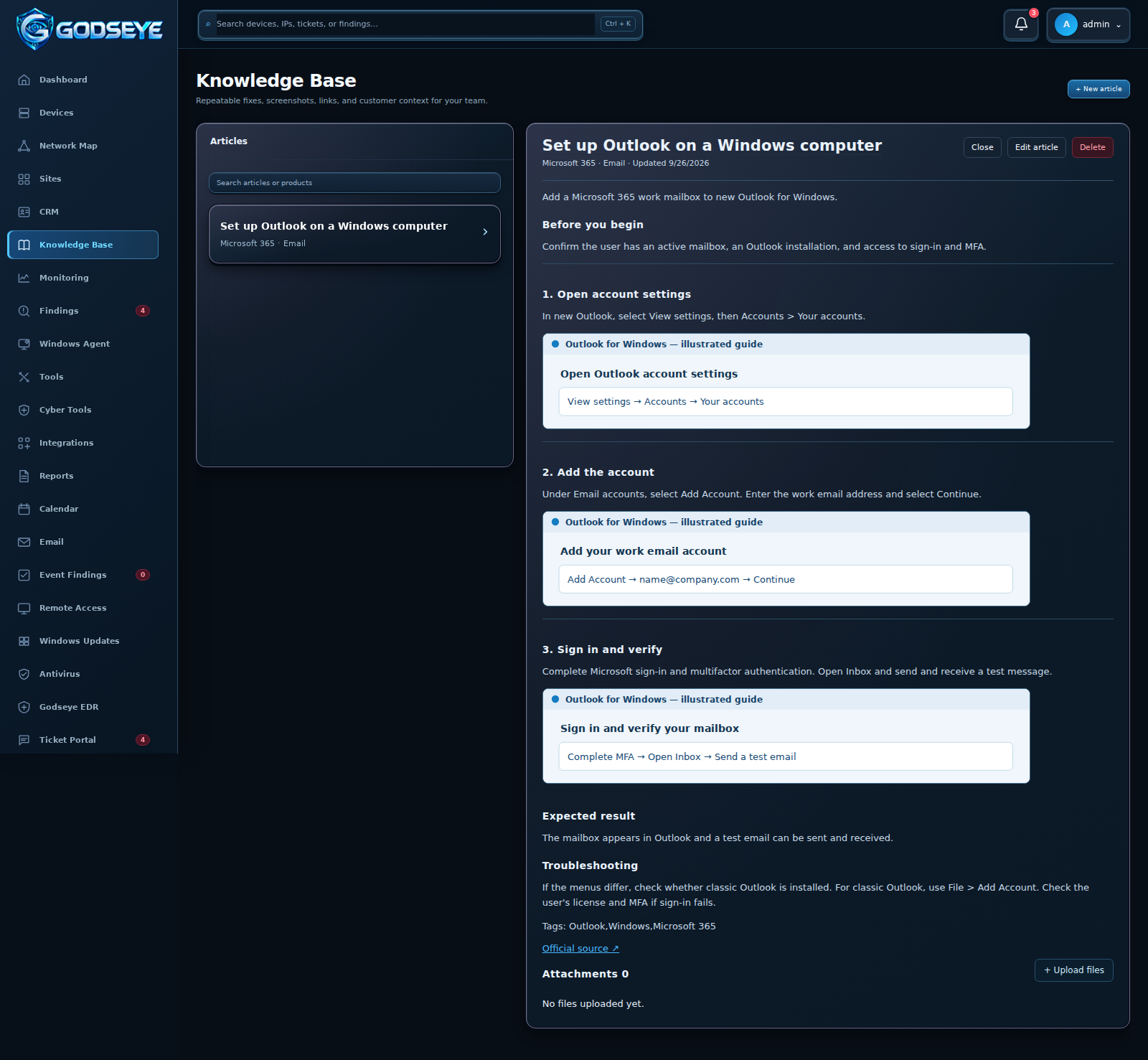
CRM stores customer details, contacts, notes, linked sites, and attachments. Save a new customer, then reopen its card to add files. Knowledge Base keeps repeatable fixes with numbered steps, pictures, documents, and links. Search titles, products, tags, and step text to find a fix. The included Outlook for Windows article is a starting example.
Tickets track follow-up from findings. Calendar plans maintenance, reviews, and ticket work. Email connects a supported mailbox for operational messages and reports. Remote Access lets an enrolled Windows user approve screen sharing, with separate approval for keyboard and pointer control.
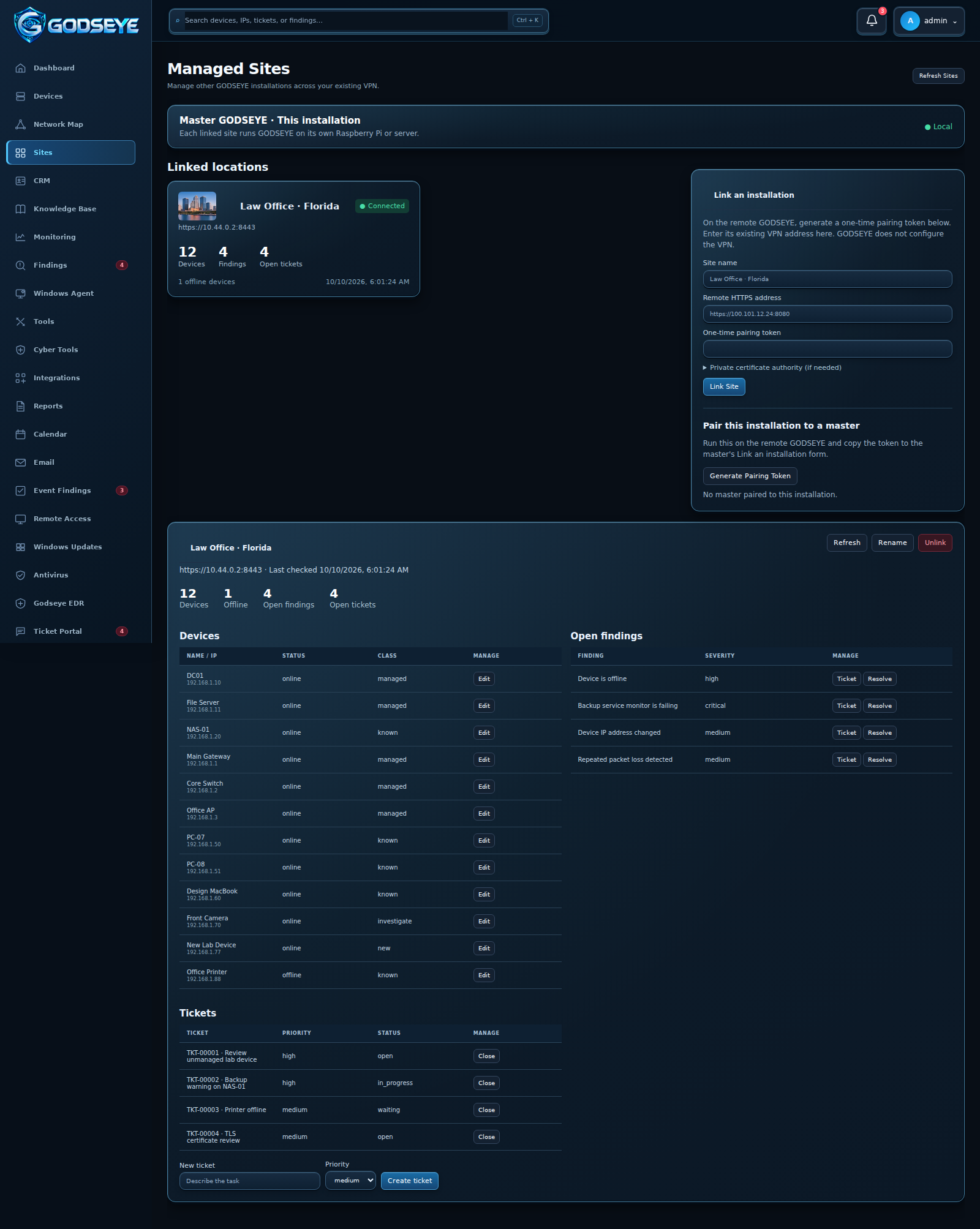
Sites connects separate GODSEYE installations over an existing VPN. Each linked location appears as a card with device, offline, finding, and ticket counts. Open a card to inspect and manage the remote site's supported records. Pairing and revocation stay under administrator control.
For step-by-step instructions and more screenshots, use the README feature guide.
Next: Manage Your Workspace · Getting Started · Home